Loading...
Loading...
Loading...
Loading...
Loading...
Loading...
Loading...
Loading...
Loading...
Loading...
Loading...
Loading...
Loading...
Loading...
Loading...
Loading...
Loading...
Loading...
Loading...
Loading...
Loading...
Loading...
Loading...
Loading...
Loading...
Loading...
Loading...
Loading...
Loading...
Loading...
Loading...
Loading...
Loading...
Loading...
Loading...
Loading...
Loading...
Loading...
Loading...
Loading...
Loading...
Loading...
Loading...
Loading...
Loading...
Loading...
Loading...
Loading...
Loading...
Loading...
Loading...
Loading...
Loading...
Loading...
Loading...
Loading...
Loading...
Loading...
Loading...
Loading...
Loading...
Loading...
Loading...
Loading...
Loading...
Loading...
Loading...
Loading...
Loading...
Loading...
Loading...
Loading...
Loading...
Loading...
Loading...
Loading...
Loading...
Loading...
Loading...
Loading...
Loading...
Loading...
Loading...
These documents provide instructions for using the browser-based MagTek Demo Applications to configure and test MagTek devices
Reference Section
Information Available
This document provides instructions for using the browser-based MagTek Demo Applications to configure and test MagTek devices, including MMS devices, specifically the DynaFlex family.
iDynamo 6, eDynamo, mDynamo and tDynamo
These demos provide an interactive web-based demonstration for MagneSafe V5 Secure Card Reader Authenticators (SCRA), showing how to integrate JavaScript with EMV and NFC-capable devices in Chromium-based desktop browsers.
Web Demos
Description
This web-based demo shows how to communicate with Secure Card Reader Authenticator (SCRA) devices which implement MagTek's MagneSafe V5 system architecture using WebHID.
This web-based demo provides a V5 Device Client application that enables MQTT-based communication with MagTek's MagneSafe V5 devices. This application acts as a bridge between USB HID devices and an MQTT Broker.
This web-based demo shows how to communicate with Secure Card Reader Authenticator (SCRA) devices which implement MagTek's MagneSafe V5 system architecture using MQTT via the V5 Device Client (MQTT).
This document provides instructions for using the browser-based MagTek Demo Applications to configure and test MagTek devices, including MMS devices, specifically the DynaFlex family (including DynaFlex, DynaFlex Pro, DynaFlex II, DynaFlex II PED, DynaFlex II Go and DynaProx, models).
The Demo Applications enable comprehensive testing of a wide array of capabilities, including core payment functions like EMV chip and NFC transactions, MSR reading, barcode scanning, and PIN entry. Note that feature support is dependent on your specific device model. For instance, the DynaFlex II PED model supports PIN entry, manual card entry, and signature capture functionalities.
CRITICAL REQUIREMENT: For USB connected devices, these demos require a Desktop, Chromium Browser Only!
The MagTek Demo Applications rely on Web HID functionality for USB connected devices, which is not supported by mobile browsers (iOS/Android). You must use a desktop-based Chromium browser (like Google Chrome, Microsoft Edge, or Opera) for the demos to function correctly when using a USB connected device.
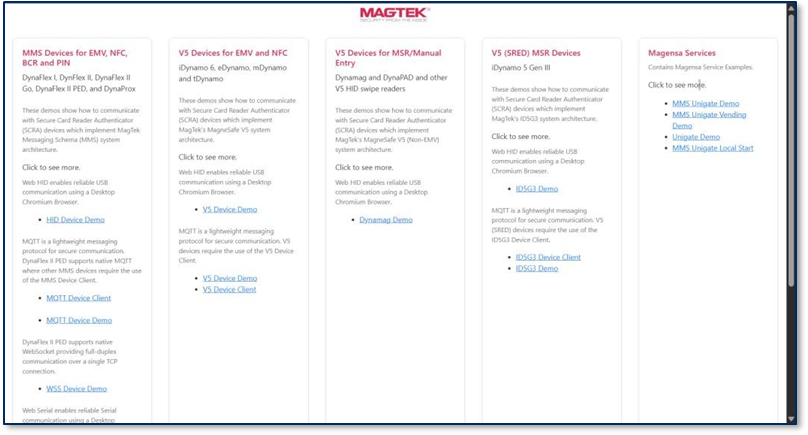
Upon opening the Web HID Demo home page, the Main Page is displayed. This page serves as the central menu and is organized into the following categories:
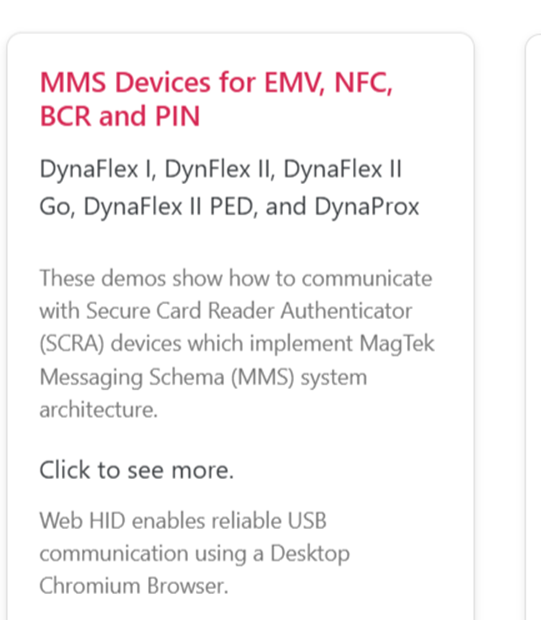
MMS Devices – DynaFlex I/II device types and DynaProx (EMV, NFC, Barcode, PIN and MSR)
V5 Devices – iDynamo, eDynamo, mDynamo, tDynamo (EMV, NFC and MSR)
V5 MSR/Manual Entry – MSR swipe devices such as Dynamag and DynaPAD
V5 (SRED) Devices – iDynamo 5 Gen III (MSR)
Each section provides a corresponding demo page with user interface elements for connecting a device, issuing commands, and reviewing results see Figure 1.
Figure 1 - Demo Application Home Page
The MMS product family includes the following devices:
DynaFlex/DynaFlex Pro
DynaFlex II/DynaFlex II PED
DynaFlex II GO
DynaProx
Devices in this family generally support EMV, NFC, barcode, MSR, and PIN functionality, though specific features vary by model. The Demo Application connects through methods including USB HID, WebSocket (WSS), MQTT, or Bluetooth Low Energy (BLE), depending on the connection method enabled on your device.
This checklist provides a summary of the steps required for configuring and running a demo with your device.
Prepare Device: Power on the device (if there is a power button) and connect it via USB, Wi-Fi, MQTT, or BLE.
Open Demo Application: Launch the Web HID Demo in a desktop Chromium browser.
Configure Host App: Be sure to enter RMS, WebSocket, MQTT, and Contactless parameters prior to using the various demos.
Device Provisioning: If using WSS or MQTT, provision the device's network and security settings (as outlined in Section 3)
Open Session: Select Open and confirm a successful connection.
To test your setup and connection, choose a command (e.g., Start EMV ALL), paste command data if necessary, and select Send Command.
View Results: Swipe, insert, or tap a card, and observe the transaction log for the response and confirmation.
This page provides an interactive web-based demonstration for MagTek MMS Dyna devices, showing how to communicate with Secure Card Reader Authenticators (SCRA) using multiple interfaces—including WebHID, MQTT, WebSocket (WSS), WebSerial, and WebBLE—for flexible, real-time device integration and testing.
Web Demo
Description
This page provides an interactive WebHID demonstration for MMS Dyna devices, enabling direct USB communication using Chromium-based browsers to send commands and receive real-time device responses.
This page provides centralized access to configuration guides, security certificate setup instructions, source code resources, and supporting documentation required to successfully deploy, secure, and integrate MagTek readers, using JavaScript and a wide array of web-based demos and related communication workflows.
Web Demos
Description
This page provides setup instructions and reference materials for configuring MagTek web-based demo environments, including device connectivity, communication parameters, and required prerequisites for running web-based demos and Chromium Desktop browsers.
This page acts as a central navigation hub, consolidating all interactive browser-based demonstrations for MagTek devices. It provides essential links to demos for devices such as MMS Dyna products and V5 card readers, all within a structured documentation environment. The hub is designed to help developers quickly access the specific demo suite they need, facilitating efficient testing and integration of MagTek devices in Chromium-based desktop browsers.
See MagTek readers in action and start from working code. This section collects runnable demos and sample code — including a browser-based demo you can try without installing anything — to validate your setup and give you a starting point for your own integration.
This page provides access to interactive browser-based demonstrations for the iDynamo 5 Gen III, a secure card reader authenticator (SCRA) that uses MagTek's MagneSafe V5 (SRED) architecture. The demos show how to communicate with the device using WebHID for direct USB connections in Chromium-based desktop browsers, as well as MQTT for network communication via a local client application. These tools are designed to help developers quickly test device functionality and understand the integration process.
This page provides a local client application that enables MQTT-based communication with MMS devices, acting as a bridge for secure publish/subscribe messaging between browser demos and connected hardware.
This page provides an interactive demonstration of MQTT messaging with MMS Dyna devices, allowing developers to send and receive device data using a lightweight publish/subscribe communication model.
This page provides a browser-based demonstration of secure WebSocket (WSS) communication with supported MMS devices, enabling persistent, full-duplex, real-time data exchange over a single TCP connection.
This page provides an interactive WebSerial demonstration for MMS devices, allowing direct serial communication from a browser to test command transmission and device response handling.
This page provides a browser-based demonstration of Bluetooth Low Energy (BLE) communication with MMS devices, enabling wireless connectivity and data exchange using Web Bluetooth APIs.
This page provides guidance on configuring certificates and trust chains required for secure MQTT communication between MagTek devices, local clients, and backend services.
This page provides instructions for setting up TLS certificates and trust relationships needed to establish secure WebSocket (WSS) connections with supported MagTek devices.
This page provides access to the source code repositories for MagTek web-based demo applications, enabling developers to review implementation details, customize integrations, and build upon existing JavaScript examples.
This page provides interactive examples demonstrating an assortment of various use cases for MagTek reader, the Qwantum Platform, etc.
This page provides legal and usage disclaimers outlining the terms, limitations, and responsibilities associated with using MagTek demo applications and supporting materials.
Magensa Services – secure services for transaction testing
Miscellaneous – configuration and GitHub source access
Bbrowser-based demonstrations for MagneSafe V5 Secure Card Reader Authenticators (SCRA), showing how to communicate with devices like iDynamo and eDynamo using Chromium-based desktop browsers.
Web-based demonstrations for V5 magnetic stripe reader devices such as Dynamag and DynaPAD, enabling developers to test card swipe data capture and command communication in non-EMV (manual entry/MSR) environments.
Browser-based demonstrations for MagTek MMS Dyna devices such as DynaFlex and DynaProx, showing how to communicate with Secure Card Reader Authenticators (SCRA) using Chromium-based desktop browsers for real-time command and response testing.
Interactive browser-based demonstrations for the iDynamo 5 Gen III, a secure card reader authenticator (SCRA) that uses MagTek's MagneSafe V5 (SRED) architecture.
Reference Section
Information Available
Supporting configuration guides, certificates, and technical documentation required to set up secure communication, device trust, and development environments for MagTek web-based demos and related services.
Try a reader in your browser with no install.
Reference Section
Information Available
A browser demo that runs the command set over WebHID.
Directs you to the companion client application required for MQTT-based communication. This local software acts as a bridge, enabling the iDynamo 5 Gen III to connect to the cloud-based demos and services that use the MQTT messaging protocol.
Web Demo
Description
Launches an interactive web-based demo that enables direct communication with an iDynamo 5 Gen III device from a Chromium browser. This tool allows you to test card reading, validate device connectivity, and experiment with MagneSafe V5 commands without writing any code.
March 2026
Document Number: D998200713-100
REGISTERED TO ISO 9001:2015
Copyright © 2006 - 2025 MagTek, Inc. Printed in the United States of America
INFORMATION IN THIS PUBLICATION IS SUBJECT TO CHANGE WITHOUT NOTICE. MAGTEK CANNOT BE HELD LIABLE FOR ANY USE OF THE CONTENTS OF THIS DOCUMENT. ANY CHANGES OR IMPROVEMENTS MADE TO THIS PRODUCT WILL BE INCLUDED IN THE NEXT PUBLICATION RELEASE. IF YOU HAVE QUESTIONS ABOUT SPECIFIC FEATURES AND FUNCTIONS OR WHEN THEY WILL BECOME AVAILABLE, PLEASE CONTACT YOUR MAGTEK REPRESENTATIVE.
MagTek®, MagnePrint®, and MagneSafe® are registered trademarks of MagTek, Inc. Magensa™ is a trademark of MagTek, Inc.
AAMVA™ is a trademark of AAMVA.
American Express® and EXPRESSPAY FROM AMERICAN EXPRESS® are registered trademarks of American Express Marketing & Development Corp.
D-PAYMENT APPLICATION SPECIFICATION® is a registered trademark of Discover Financial Services CORPORATION
MasterCard® is a registered trademark and PayPass™ and Tap & Go™ are trademarks of MasterCard International Incorporated.
Visa® and Visa payWave® are registered trademarks of Visa International Service Association.
ANSI®, the ANSI logo, and numerous other identifiers containing "ANSI" are registered trademarks, service marks, and accreditation marks of the American National Standards Institute (ANSI).
ISO® is a registered trademark of the International Organization for Standardization. UL™ and the UL logo are trademarks of UL LLC.
PCI Security Standards Council® is a registered trademark of the PCI Security Standards Council, LLC. EMV® is a registered trademark in the U.S. and other countries and an unregistered trademark elsewhere. The EMV trademark is owned by EMVCo, LLC. The Contactless Indicator mark, consisting of four graduating arcs, is a trademark owned by and used with permission of EMVCo, LLC.
The Bluetooth® word mark and logos are registered trademarks owned by Bluetooth SIG, Inc. and any use of such marks by MagTek is under license.
Google Play™ store, Google Wallet™ payment service, and Android™ platform are trademarks of Google LLC.
Apple Pay®, iPhone®, iPod®, Mac®, and OS X® are registered trademarks of Apple Inc., registered in the U.S. and other countries. iPad™ is a trademark of Apple. Inc. App StoreSM is a service mark of Apple Inc., registered in the U.S. and other countries. IOS is a trademark or registered trademark of Cisco in the U.S. and other countries and is used by Apple Inc. under license.
Microsoft®, Windows®, and .NET® are registered trademarks of Microsoft Corporation. All other system names and product names are the property of their respective owners.
🕐 Hours: Monday-Friday, 5:30 AM - 5:00 PM PST
Online Resources:
🌐 Support Portal: developer.magtek.com
Documentation Feedback:
Help us improve this documentation! feedback@magtek.com
🕐 Hours: Monday-Friday, 5:30 AM - 5:00 PM PST
Online Resources:
🌐 Support Portal: developer.magtek.com
Documentation Feedback:
Help us improve this documentation! feedback@magtek.com
Rev Number
Date
Notes
100
09/03/2025
Initial Release
101
3/16/2025
Added WebSocket information
These instructions detail the operational steps once all necessary configurations (Section 2) are complete. If connecting via USB HID, the steps listed in section 2 can be skipped.
The Human Interface Device (HID) protocol enables driverless plug-and-play connectivity for your device via USB.
Ensure the device is powered on and connected via USB.
If this is the first time, you may have to pair the device in the Chromium browser, which involves granting the website permission via a pop-up prompt.
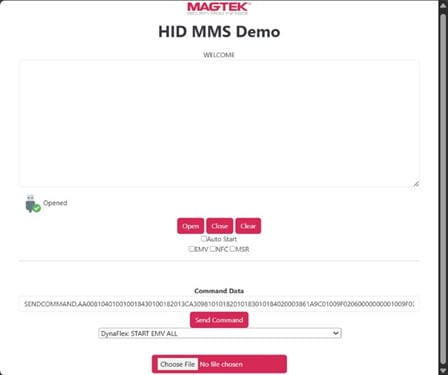
From the Demo Application, select Open, and choose the appropriate device. A green check mark confirms the device is successfully opened.
From the command dropdown menu, select a command such as DynaFlex: START EMV ALL.
Select Send Command to execute the action.
Insert or tap a test card and monitor the transaction log for the response.
Figure 3 - HID MMS Demo
Message Queuing Telemetry Transport (MQTT) is a lightweight messaging protocol commonly used for Internet of Things (IoT) applications. It provides efficient, reliable communication between devices and applications, even in environments with limited connectivity. IMPORTANT: DynaFlex II PED is the only device that supports native MQTT. All other Dyna Devices must use the HID MQTT Device Client.
Key characteristics include:
Publish/Subscribe model – Devices publish data to a central broker; applications subscribe to receive data.
Low overhead – Messages are compact and efficient, suitable for embedded systems.
Real-time updates – Events such as card insertions are transmitted immediately to the Demo Application.
Cross operating system and cross browser connectivity: MQTT ensures seamless interaction because it is platform-agnostic, meaning devices running Windows, Linux, macOS, or embedded OS, and applications running in different browsers, can all connect and exchange messages reliably.
Within the HID MQTT Device Client and MQTT MMS Demo, this protocol enables MagTek MMS devices (e.g., Dyna Family Devices) to securely communicate via MQTT across operating systems.
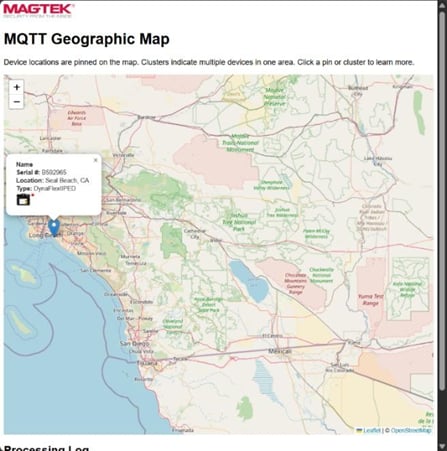
Figure 4 - MQTT Geographic Map
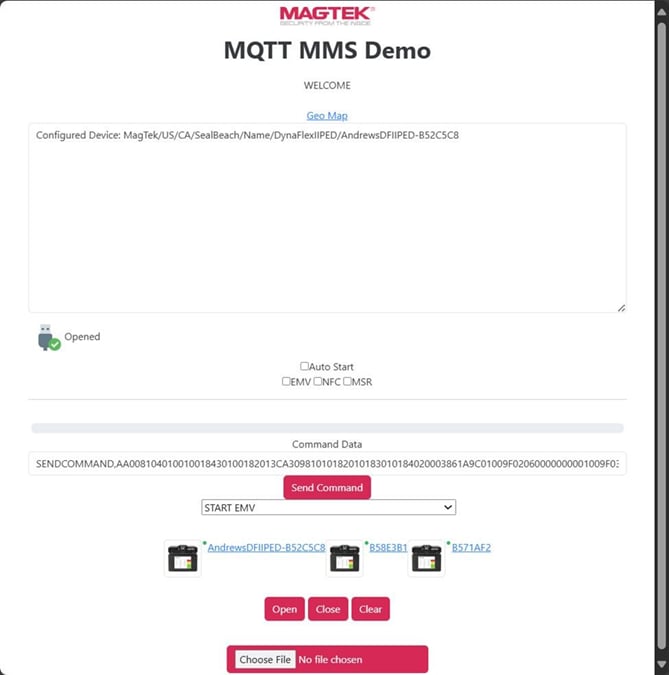
Figure 5 - MQTT MMS Demo
Configured Device – Identifies the active device.
Status Indicator – A green check mark indicates a successful connection.
Options – Auto Start, EMV, NFC, and MSR session checkboxes.
Command Data – Field for entering or pasting hexadecimal command data.
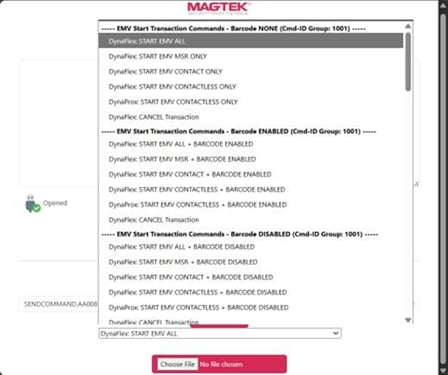
The command above, and others can be selected from the pulldown menu. The Choose File button allows the user to upload custom commands from a file. This screen also confirms device recognition, command formatting, and connectivity prior to further testing.
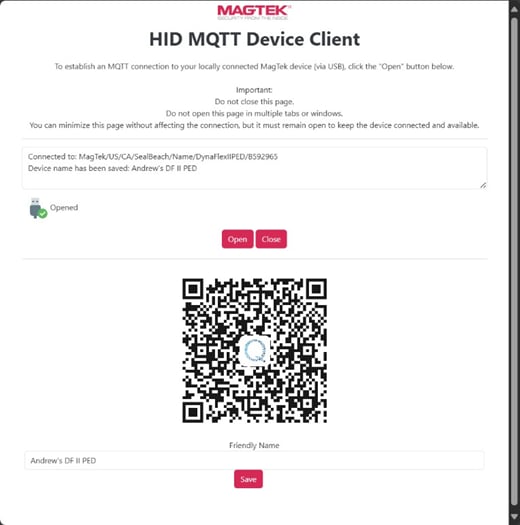
The HID MQTT Device Client acts as a communication gateway that transforms your locally connected MagTek device (via USB HID) into a remote asset. This allows other applications to access the device securely via the MQTT protocol. IMPORTANT: DynaFlex II PED is the only device that supports native MQTT which means it does NOT need to use the HID MQTT Device Client.
Power on and connect the device via USB.
Open the HID MQTT Device Client page.
Select Open within the client.
Scan the QR code or select the provided link to open the separate MQTT Device Demo Application.
Figure 6 - HID MQTT Device Client
The MQTT Geographic Map displays device location and status for connected units, see Figure .
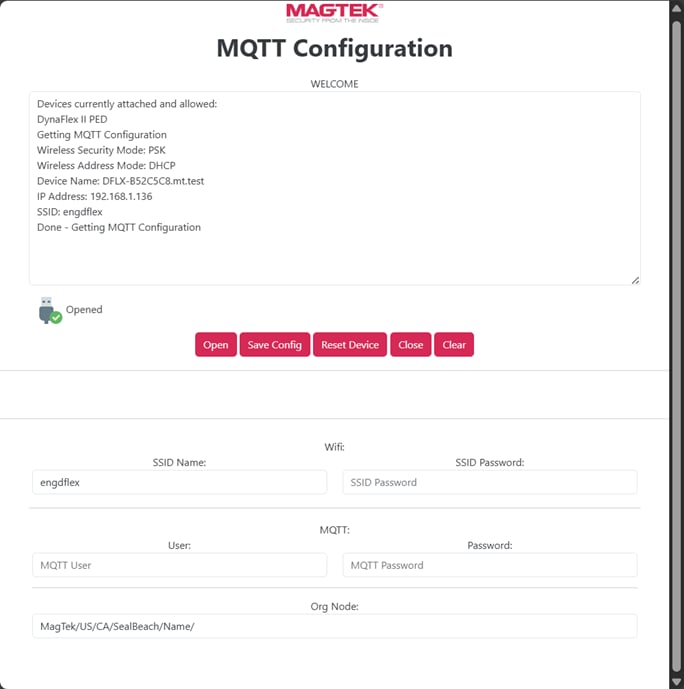
The MQTT Configuration page provides controls and parameters necessary for device operation over MQTT.
Device Status Panel – Displays device information (model, name, IP address, SSID) and records configuration progress.
Controls – Includes Open, Save Config, Reset Device, Close, and Clear.
Wi-Fi Settings – SSID and password configuration.
MQTT Credentials – Org Node, username, and password for broker authentication.
Figure 7 - MQTT Configuration
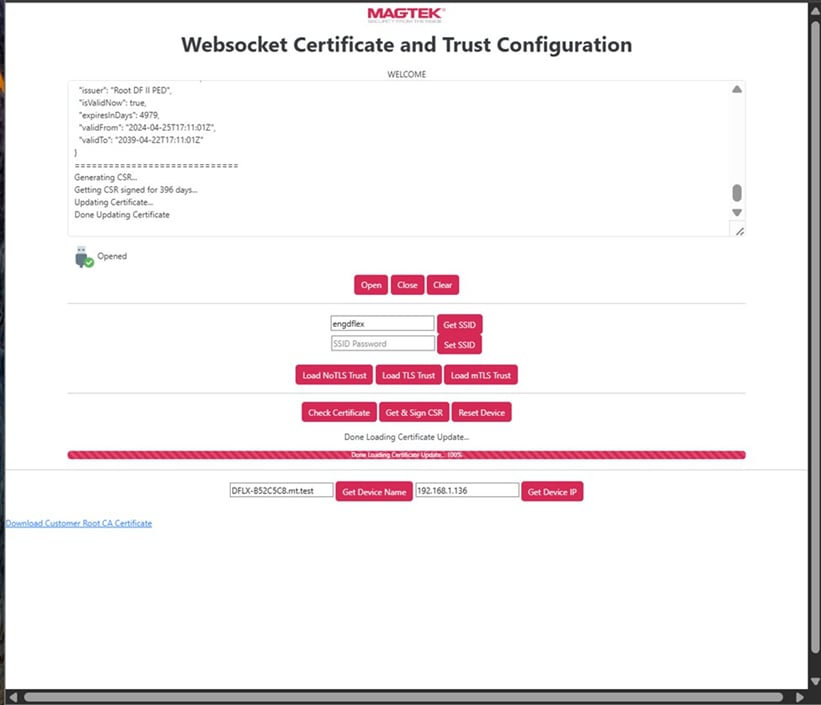
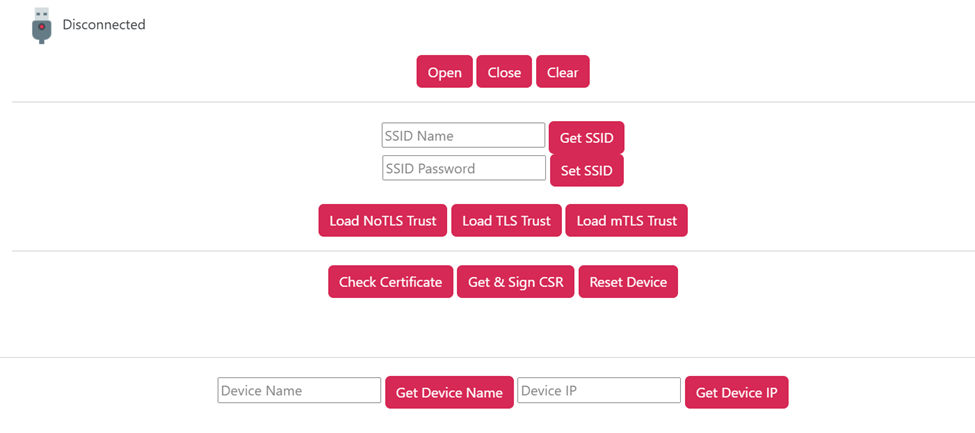
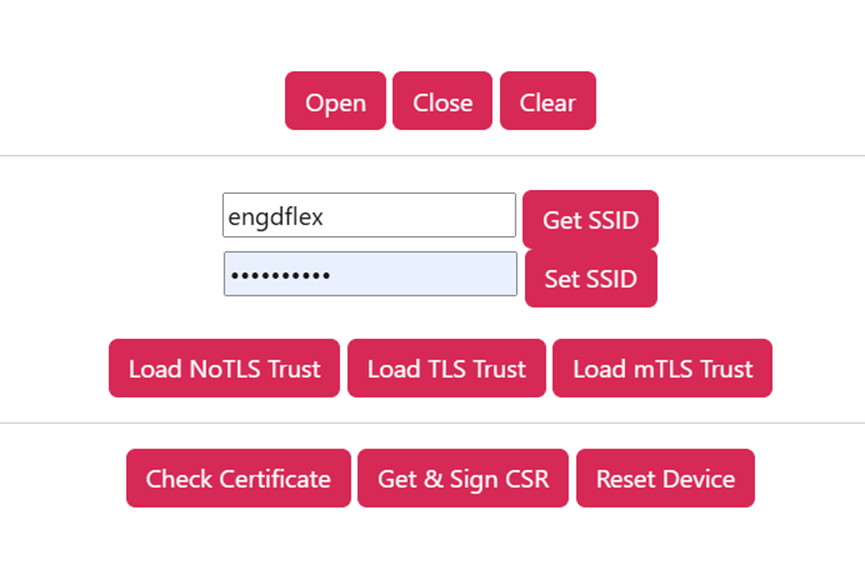
This interface is used to configure secure communication with WebSocket transport using TLS or mTLS. Functions include:
Network Settings – Get DHCP and Set SSID.
Wi-Fi Setup – Retrieve or assign SSID and password credentials.
Certificate and Trust Management – Load TLS/mTLS certificates, verify certificates, and generate or sign Certificate Signing Requests (CSR).
For NonTLS connection,
Figure 8 - WebSocket Certificate and Trust Configuration
When using WSS (WebSockets over SSL/TLS) with DynaFlex devices, the following technical considerations are critical for IT teams to ensure reliable and secure communication.
The default SSL certificate pre-installed on DynaFlex devices is uniquely generated for each device and tied to a hostname in the format df-[SerialNumber] (e.g., df-1234567). This certificate is used to establish the WSS connection.
SSL/TLS certificates are literal. The browser (or any WebSocket client) validates that the hostname used in the connection URL exactly matches the certificate's Subject Name or Subject Alternative Name (SAN). If the URL uses wss://df-1234567/ but the network appends a domain suffix (e.g., df-1234567.office.lan), the browser will reject the connection as insecure because the names do not match.
IP addresses cannot be used. Connecting via wss://192.168.1.50/ will trigger a SAN missing error because the certificate is issued to a name, not an IP address.
Therefore, the network must be configured to resolve the short hostname (e.g., df-1234567) to the device's IP address. The following options are available:
Option A: Global Search Suffix (Recommended) Configure the DHCP server to add a Connection-Specific DNS Suffix (via DHCP Option 15/119). This allows client computers to automatically map the short name to the device without manual DNS entries. Action: Add your local domain to the DHCP option list so that df-[SerialNumber] resolves correctly.
Option B: The "Trailing Dot" Override If DNS search suffixes are misconfigured or polluted, you can force the browser to look for the bare hostname by appending a trailing dot to the URL. Standard URL: wss://df-12345678/ (the OS may append the domain) Forced URL: wss://df-12345678./ (the trailing dot forces an exact hostname lookup)
Option C: CNAME or A-Record in Local DNS For networks with a central DNS server, create a static entry. Action: Create a forward lookup zone with an A record (or CNAME) for df-[SerialNumber] pointing to the device's static IP address.
The WSS connection relies on a server certificate installed on the device. As of this writing, the demo application signs certificates with a validity period of 13 months. After expiration, any WSS communication will fail silently due to browser security policies—no manual override is possible for WebSocket connections.
Best Practice: Certificates must be replaced before they expire. A certificate update strategy must be employed when deploying devices in production using WSS.
Renewal Process: Use the WSS Certificate and Trust page to generate a new Certificate Signing Request (CSR) and load a renewed certificate. Refer to the steps for loading TLS trust and resetting the device.
Monitoring: Implement monitoring to alert administrators when certificate expiration is approaching (e.g., 30 days prior).
By adhering to these hostname resolution and certificate lifecycle guidelines, you ensure uninterrupted and secure WSS communication with your DynaFlex devices.
This page provides access to browser-based Web HID demonstrations for MagneSafe V5 magnetic stripe (MSR) devices, showing how to communicate with Secure Card Reader Authenticators (SCRA) like Dynamag using Chromium-based desktop browsers for non-EMV transaction testing.
Web Demo
Description
This page provides an interactive web-based demonstration for Dynamag and similar V5 HID swipe readers, enabling developers to connect via USB, send commands, and capture magnetic stripe card data within a browser-based testing environment.
Controls – Dropdown for pre-defined commands (e.g., START EMV) and Send Command button.
Device Instances – Displays connected devices with selectable IDs.
File Upload – Allows uploading of command scripts or batch test files.
From the MQTT Device Demo Application’s dropdown, select the required command, or use Choose File to upload a custom command script.
Select Send Command to execute the command remotely.
Once configuration is complete and saved, the user may proceed to execute commands such as Start EMV. See Figure 7 - MQTT Configuration.
Click Load NoTLS Trust
Next, reset the device.
For TLS/mTLS connections,
Click Load TLS Trust or Load mTLS Trust
Next, click Get & Sign CSR
Next, reset the device.
Controls – Open, Close, Clear, and Reset Device.
Device Identity – Display or update the registered device name and IP address.
Root CA Download – Provides access to the root certificate authority file for verification.
AA008104010010018430100182013CA30981010182010183010184020003861A9C0100
9F02060000000001009F03060000000000005F2A020840This page provides an alternate web-based demonstration for Dynamag devices, offering a simplified interface for testing USB communication, command execution, and basic card swipe data capture workflows in a controlled browser environment.
For devices using MQTT or WebSocket (WSS), configuring your host application and provisioning the device itself is mandatory to establish a successful secure connection. If connecting via USB HID, all steps listed in section 2 can be skipped.
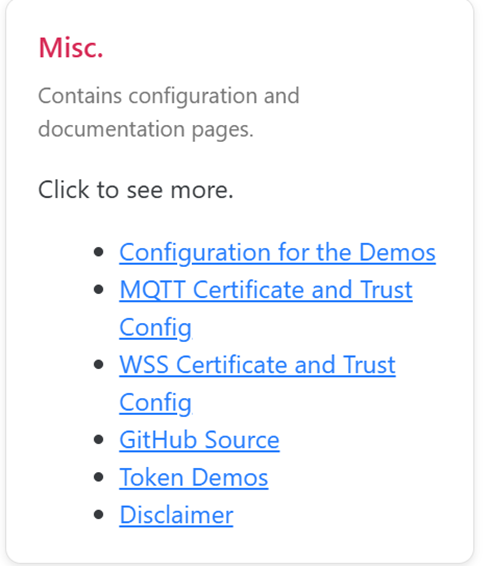
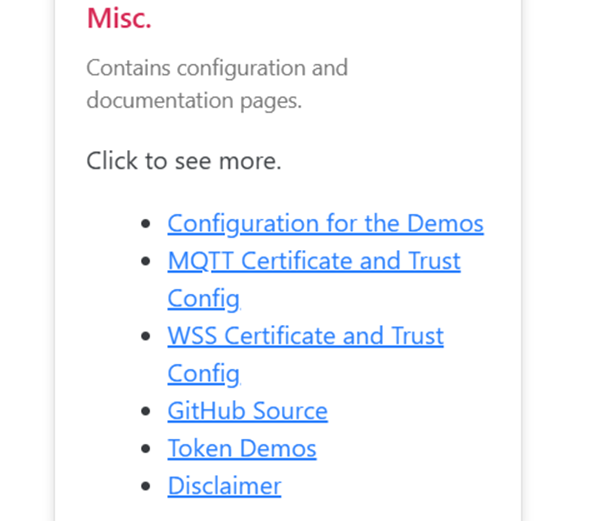
Before using MQTT or WebSocket (WSS), configuration is required. From the Demo Application Home Page, select Misc. → Configuration for the Demos.
Figure 2 - Miscellaneous Configuration and Documentation Pages
Configure the Demo Application by supplying the necessary API keys and server addresses.
From the Home Page, select Misc. → Configuration for the Demos.
Enter and save the required settings.
RMS Options: Enter the Magensa API key and service URL
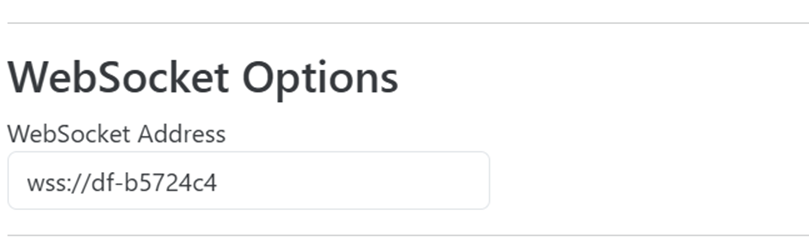
WebSocket Options: Provide the WebSocket server address.
MQTT Options: Specify the Org Node, broker address, client ID, and user credentials.
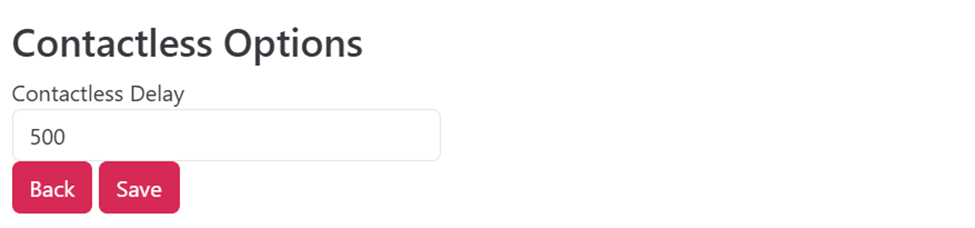
Contactless Options: Adjust timing parameters for NFC operations.
The separate MQTT Configuration page is used to provision your physical device with its Wi-Fi credentials and MQTT broker details.
Connect your device via USB HID.
Open the MQTT Configuration demo page.
Select Open to connect to your device.
Use the Wi-Fi Settings section to enter the device's SSID Name and SSID Password.
Connect the host PC to the same wireless network that your DynaFlex II PED device will be connected to.
Open this page using a Chromium Browser
Plug in the device via USB cable
Click Misc and click WSS Certificate and Trust Config
Click Open button
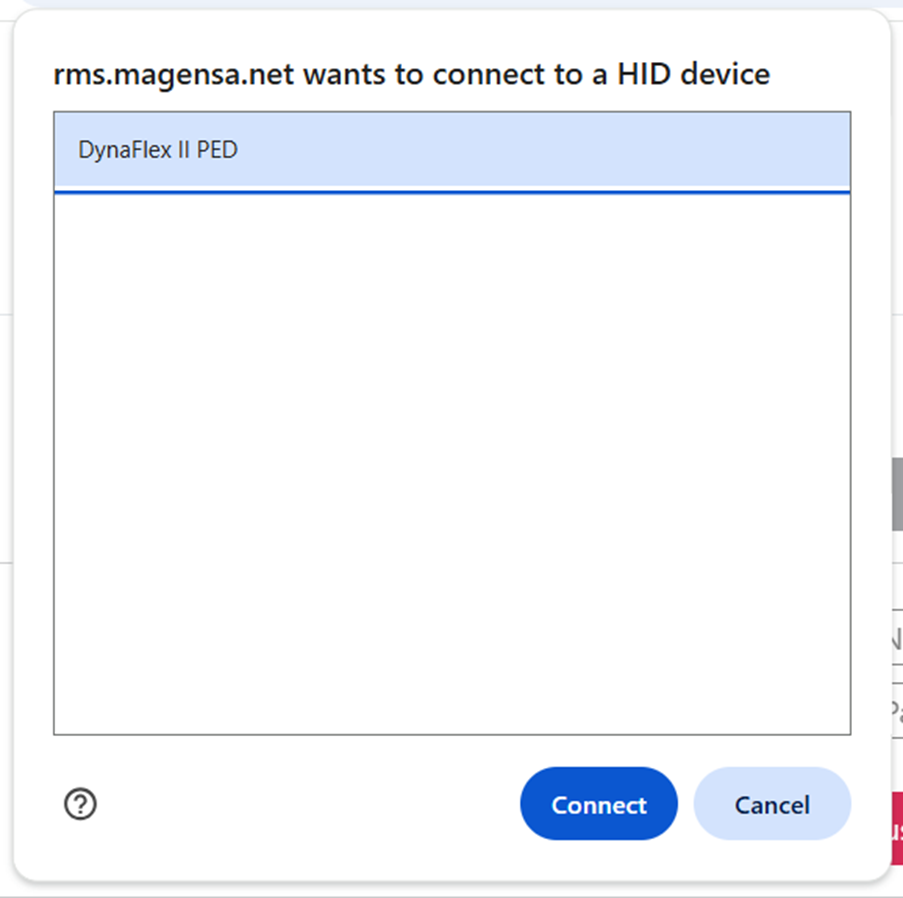
Select DynaFlex II PED and Click Connect.
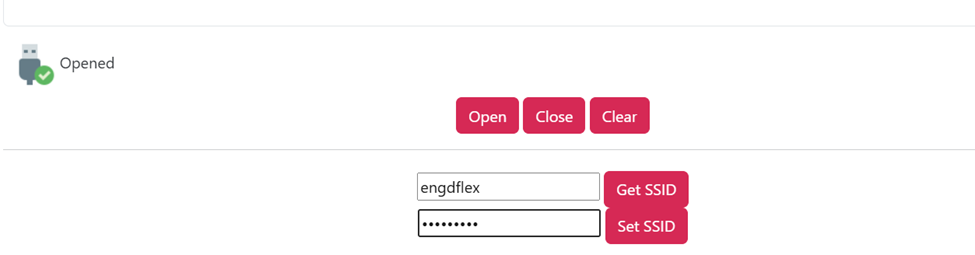
Enter Wireless Network SSID and password, then click Set SSID
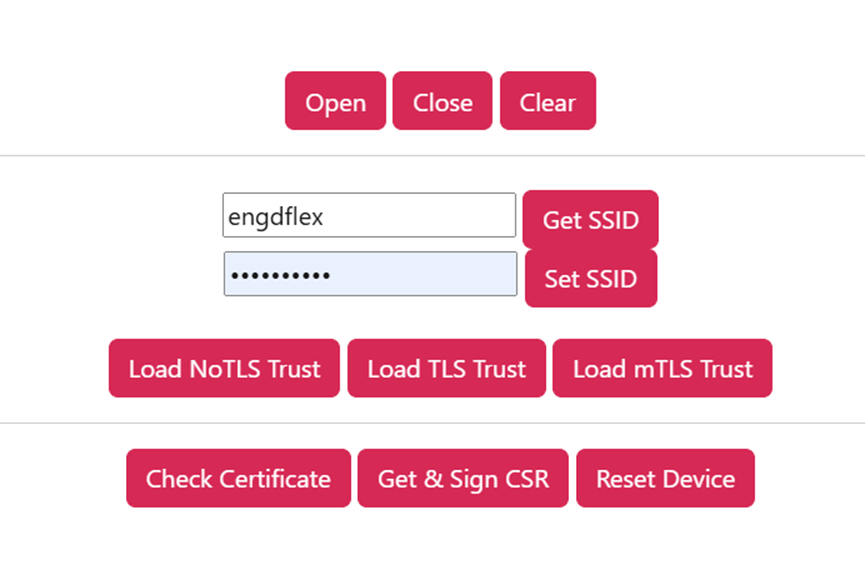
If you want to connect via non-secure TLS connection, press Load NoTLS Trust, and press Reset Device
If you want to configure via secure TLS, press Load TLS Trust, then press Get & Sign CSR, then Press Reset Device
By clicking on the MAGTEK Logo on the top of the page, go back to the Miscm Menu and press Configuration for the Demos option
Enter device host name under WebSocket Options, for Non-secure TLS, just put ws://device-hostname, for TLS secure connections, enter wss://device-hostname (example wss://df-1234567)
Click Save
Go back to home page and press MMS Devices for EMV, NFC, BCR and PIN, then press WSS Device Demo
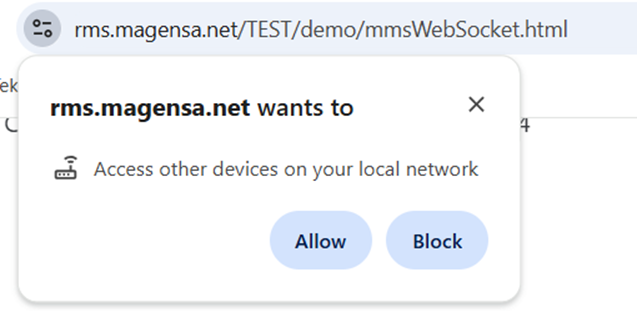
Allow other devices on your local network
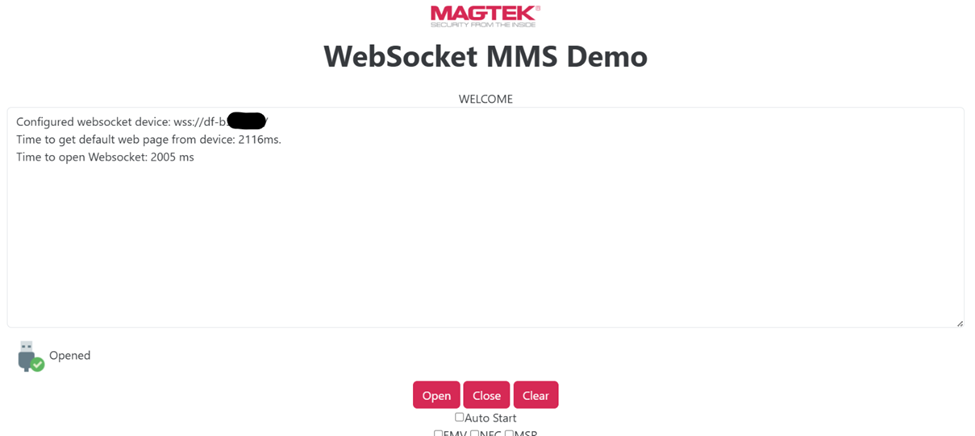
Click on Open which will all open the connection to the device:
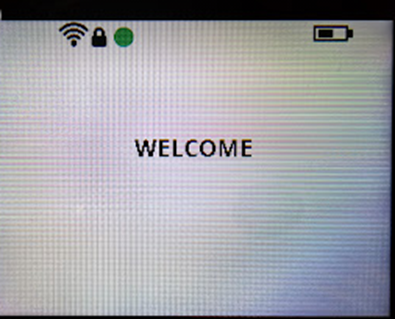
The terminal should display a green dot indicating successful connection:
Use the MQTT Credentials section to enter the MQTT User, Password, and Org Node.
Select Save Config.
The device will record these settings, allowing it to connect to your broker over the network.
This interface invokes callback functions to receive data and/or a detailed response. To register for the event(s), call the setSystemStatusCallback() function with the name of a class that implements the ISystemStatusCallback interface.
This event is called when an error occurs with the connection with the MQTT broker.
Prototype
void OnError(
ErrorType error,
String details);Parameters
Return Value: None
Create an instance of the IDeviceConfiguration using IDevice.getDeviceConfiguration. Then use the function calls described in this chapter.
This property is for the configuration type.
Byte configType;Return Value:
0x01 = Device Settings
0x02 = Device Information
This property is for the Object ID and value.
NSData* OidAndValue;Return Value:
The OID and value.
This function is for reading and setting the device OID properties.
Return Value:
OID property value.
error
Type of error enumeration.
details
Details of the error.
Parameter
Description
oidPath
Object ID path.
value
Hexadecimal string containing the value.
data
Data array containing the value.
(nullable instancetype) initWithASN1Oid: (NSString*) oidPath;
(nullable instancetype) initWithASN1Oid: (NSString*) oidPath
hexValue: (NSString*) value;
(nullable instancetype) initWithASN1Oid: (NSString*) oidPath
value: (nullable NSData*) data;The following instructions are for using the MTUSDK Test console on a Linux operating system. In these examples, lines are removed and replaced with “. . .” for brevity.
To send an individual BIN configuration file to the device follow these steps.
After the name of the console, enter:
[cfg.bin] Name of the .bin file
-t File type (excel or bin)
-i File Id number. 8 digit file id.
00000000 TERMINAL
00000100 PROCESSING
00000200 ENTRYPOINT
00000300 CA KEYS
00000500 AMEXDRL
-d Device path. Optional if using USB. Example: Terminal configuration bin file
$ sudo ./emvconfiguration cfg00000000.bin –t bin –i 0000000000
Then press Enter key. The result is shown similar as below.
Connect to usb progress (33)
progress (66)
progress (100)
result (0)
send file – 00000000 successfullyThe console exits afterwards.
To send an Excel configuration file to the device follow these steps. Excel may contain one or multiple configurations.
After the name of the console, enter:
Example: Excel configuration file
Then press Enter key. The EMVConfiguration console will connect to Magensa Remote Services, send the excel content for conversion into .bin format, and then send each .bin file to the device.
The result is shown similar as below.
The console exits afterwards.
Create an instance of the DeviceInformation from Idevice.getDeviceInfo. Then use the function calls described in this chapter.
This property returns the model name of the device.
NSString* deviceModel;Return Value:
Returns the model name of the device.
This property returns the name of the device.
NSString* deviceName;Return Value:
Returns the name of the device.
This property returns the serial number of the device.
NSString* deviceSerial;Return Value:
Returns the serial number of the device.
This function initializes an instance of DeviceInfo.
The .NET edition of the MagTek Universal SDK (MTUSDK), giving developers a single managed interface for connecting to and controlling MagTek card readers and PIN pad devices — including the DynaFlex family — from Windows .NET applications. The complete API reference is available as a PDF download below.
Reference Section
Information Available
MagTek Universal SDK for Windows .NET applications — downloadable PDF reference.
SDKs & Tools is where you find the libraries and utilities for building against MagTek readers — the client-side code that talks to a device, plus the tools that help you develop, test, and manage one. Where the API & Command Reference defines the command set itself, the SDKs wrap it for your platform so you aren't composing raw messages by hand. Start here to pick the right SDK for your platform and integration model.
Reference Section
Information Available
An article to help you choose the proper SDK.
This interface invokes a callback function to receive data and/or a detailed response. To use, a class must implements the IConfigurationCallback Delegates interface.
This event is called when certain asynchronous IDeviceConfiguration operations need to have a MAC included with the request.
Manual Part Number: DD998200579-100
REGISTERED TO ISO 9001:2015
Copyright © 2006 – 2024 MagTek, Inc.
Information in this publication is subject to change without notice and may contain technical inaccuracies or graphical discrepancies. Changes or improvements made to this product will be updated in the next publication release. No part of this document may be reproduced or transmitted in any form or by any means, electronic or mechanical, for any purpose, without the express written permission of MagTek, Inc.
MagTek® is a registered trademark of MagTek, Inc. MagneSafe® is a registered trademark of MagTek, Inc. iDynamo™, and uDynamo are trademarks of MagTek, Inc.
eDynamo™, Dynamag, and DynaMAX are trademarks of MagTek, Inc.
DynaProx™, DynaFlex Pro™, and DynaFlex II PED™ are trademarks of MagTek, Inc.
The Bluetooth® word mark and logos are registered trademarks owned by Bluetooth SIG, Inc. and any use of such marks by MagTek is under license.
Linux® is the registered trademark of Linus Torvalds in the U.S. and other countries. Ubuntu® is a registered trademark of Canonical Ltd.
These instructions are for preparing Google Wallet Smart Tap VAS (value-added service) transactions.
Configure the mobile device for Google Wallet Smart Tap Pass.
Load the LTPK protection key (Long Term Private Key) into the MagTek device.
Upload a Public Key to the Google Pay & Wallet Console for the issuer account associate with the Google Wallet Pass.
MTUSDKNET API will invoke the callback function in this chapter to provide the requested data and/or a detailed response. To delegate the event, call the subscribeAll function with the name of a class that implements the IEventSubscriber Delegates interface.
OnEvent handles all event types. The eventType parameter defines which event is triggered.
This document provides instructions to use the MTUSDK EMVConfiguration Console. The console sends either a .BIN file or contents of an Excel file to the device. BIN files are directly send to the device. Excel files are processed by Magensa Remote Services web service. The resulting BIN data is sent to the device.
This document is part of a larger library of documents designed to assist Secure Card Readers implementers, which includes the following documents available from MagTek:
D998200570 MAGTEK UNIVERSAL SDK PROGRAMMER'S MANUAL ( LINUX )
D998200489 DYNAPROX PROGRAMMER'S MANUAL ( COMMANDS )
This document is intended to describe onboarding for Selectable Card Data Encryption (SCDE) available on DynaFlex II GO devices. This feature is intended to allow the user to view card data outside of a transaction scenario. It is accessible using the MagTek Reader Management System (RMS) Application available in the Apple App Store.
The feature will work only with the RMS iOS app compatible with iPhone, iPad, and iPod touch, iPad OS.
iOS Application (PN 1000009755)
Compatible with Bluetooth Low Energy (BLE) connected readers, as well as WLAN enabled readers.
This interface invokes callback functions to receive data and/or a detailed response. To register for the event(s), call the setMQTTDeviceStatusMonitoring() function with the name of a class that implements the IMQTTDeviceStatusCallback interface.
This event is called when a device is connected to the MQTT broker.
MTUniversal API will invoke the callback function in this chapter to provide the requested data and/or a detailed response. To delegate the event, call the subscribeAll() function with the name of a class that implements the IEventSubscriber interface.
OnEvent() handles nearly all event types. The eventType parameter defines which event is triggered.
To view or download any of the documents mentioned in this manual, visit
D998200595 - DYNAFLEX II GO SECURE CARD READER AUTHENTICATOR INSTALLATION AND OPERATION MANUAL
D998200681 - MAGTEK READER MANAGEMENT SYSTEM (RMS), IOS APPLICATION, INSTALLATION AND OPERATION MANUAL
D998200383-DYNAFLEX PRODUCTS THREE-WAY SECURE CARD READER AUTHENTICATORS PROGRAMMER'S MANUAL (COMMANDS)
Not sure where to start? MagTek offers different SDKs and interfaces depending on which reader you're building for and how you want to connect. This page points you to the right one; each links to its own documentation for the details.
Match your reader to its SDK:
Create an instance of the DeviceCapability, then use the properties described in this chapter.
This property returns true if the device is capable of automatically capturing a signature during a transaction.
Return Value:
Returns true if device is capable of automatically capturing a signature. Otherwise, returns false.
This property returns true if the device is equipped with a battery that preserves the internal clock when not powered by a host system or charging.
Return Value:
Returns true if device is equipped with a battery backed clock. Otherwise, returns false.
This property returns true if the device is equipped with display.
Return Value:
Returns true if device is equipped with a display. Otherwise, returns false.
To set up the MagTek Universal SDK library, download and install the MTUSDK available from MagTek.com.
To build out demo code, follow these steps:
Locate and copy the framework files to your project folder. iOS files is under folder ios-arm64 of the SDK package.
Click your project and select “General”. In the section “Frameworks, Libraries, and Embedded Content”, click “+”.
The Universal SDK is MagTek's cross-platform SDK for building against MMS (DynaFamily) readers. It wraps the MMS command set in native calls for each platform — handling connection, sending commands, and receiving responses and notifications — so you work in your language instead of composing raw messages. Choose your platform below; the command each call maps to is documented in the API & Command Reference.
🕐 Hours: Monday-Friday, 5:30 AM - 5:00 PM PST
Online Resources:
🌐 Support Portal: developer.magtek.com
Documentation Feedback:
Help us improve this documentation! feedback@magtek.com
Microsoft®, Windows® and .NET® are registered trademarks of Microsoft Corporation.
EMV® is a registered trademark in the U.S. and other countries and an unregistered trademark elsewhere. The EMV trademark is owned by EMVCo, LLC. The Contactless Indicator mark, consisting of four graduating arcs, is a trademark owned by and used with permission of EMVCo, LLC.
All other system names and product names are the property of their respective owners.
Rev Number
Date
Notes
100
February 1, 2024
Initial release
IMPORTANT: YOU SHOULD CAREFULLY READ ALL THE TERMS, CONDITIONS AND RESTRICTIONS OF THIS LICENSE AGREEMENT BEFORE INSTALLING THE SOFTWARE PACKAGE. YOUR INSTALLATION OF THE SOFTWARE PACKAGE PRESUMES YOUR ACCEPTANCE OF THE TERMS, CONDITIONS, AND RESTRICTIONS CONTAINED IN THIS AGREEMENT. IF YOU DO NOT AGREE WITH THESE TERMS, CONDITIONS, AND RESTRICTIONS, PROMPTLY RETURN THE SOFTWARE PACKAGE AND ASSOCIATED DOCUMENTATION TO THE ADDRESS ON THE FRONT PAGE OF THIS DOCUMENT, ATTENTION: CUSTOMER SUPPORT.
TERMS, CONDITIONS, AND RESTRICTIONS
MagTek, Incorporated (the "Licensor") owns and has the right to distribute the described software and documentation, collectively referred to as the "Software."
LICENSE: Licensor grants you (the "Licensee") the right to use the Software in conjunction with MagTek products. LICENSEE MAY NOT COPY, MODIFY, OR TRANSFER THE SOFTWARE IN WHOLE OR IN PART EXCEPT AS EXPRESSLY PROVIDED IN THIS AGREEMENT. Licensee
may not decompile, disassemble, or in any other manner attempt to reverse engineer the Software. Licensee shall not tamper with, bypass, or alter any security features of the software or attempt to do so.
TRANSFER: Licensee may not transfer the Software or license to the Software to another party without the prior written authorization of the Licensor. If Licensee transfers the Software without authorization, all rights granted under this Agreement are automatically terminated.
COPYRIGHT: The Software is copyrighted. Licensee may not copy the Software except for archival purposes or to load for execution purposes. All other copies of the Software are in violation of this Agreement.
TERM: This Agreement is in effect as long as Licensee continues the use of the Software. The Licensor also reserves the right to terminate this Agreement if Licensee fails to comply with any of the terms, conditions, or restrictions contained herein. Should Licensor terminate this Agreement due to Licensee's failure to comply, Licensee agrees to return the Software to Licensor. Receipt of returned Software by the Licensor shall mark the termination.
LIMITED WARRANTY: Licensor warrants to the Licensee that the disk(s) or other media on which the Software is recorded are free from defects in material or workmanship under normal use.
THE SOFTWARE IS PROVIDED AS IS. LICENSOR MAKES NO OTHER WARRANTY OF ANY KIND, EITHER EXPRESS OR IMPLIED, INCLUDING, BUT NOT LIMITED TO, THE IMPLIED WARRANTIES OF MERCHANTABILITY AND FITNESS FOR A PARTICULAR PURPOSE.
Because of the diversity of conditions and PC hardware under which the Software may be used, Licensor does not warrant that the Software will meet Licensee specifications or that the operation of the Software will be uninterrupted or free of errors.
IN NO EVENT WILL LICENSOR BE LIABLE FOR ANY DAMAGES, INCLUDING ANY LOST PROFITS, LOST SAVINGS, OR OTHER INCIDENTAL OR CONSEQUENTIAL DAMAGES ARISING OUT OF THE USE, OR INABILITY TO USE, THE SOFTWARE. Licensee's sole remedy in
the event of a defect in material or workmanship is expressly limited to replacement of the Software disk(s) if applicable.
GOVERNING LAW: If any provision of this Agreement is found to be unlawful, void, or unenforceable, that provision shall be removed from consideration under this Agreement and will not affect the enforceability of any of the remaining provisions. This Agreement shall be governed by the laws of the State of California and shall inure to the benefit of MagTek, Incorporated, its successors or assigns.
ACKNOWLEDGMENT: LICENSEE ACKNOWLEDGES THAT HE HAS READ THIS AGREEMENT, UNDERSTANDS ALL OF ITS TERMS, CONDITIONS, AND RESTRICTIONS, AND AGREES TO BE BOUND BY THEM. LICENSEE ALSO AGREES THAT THIS AGREEMENT SUPERSEDES ANY AND ALL VERBAL AND WRITTEN COMMUNICATIONS BETWEEN LICENSOR AND LICENSEE OR THEIR ASSIGNS RELATING TO THE SUBJECT MATTER OF THIS AGREEMENT.
QUESTIONS REGARDING THIS AGREEMENT SHOULD BE ADDRESSED IN WRITING TO MAGTEK, INCORPORATED, ATTENTION: CUSTOMER SUPPORT, AT THE ADDRESS LISTED IN THIS DOCUMENT, OR E-MAILED TO SUPPORT@MAGTEK.COM.
DEMO SOFTWARE / SAMPLE CODE: Unless otherwise stated, all demo software and sample code are to be used by Licensee for demonstration purposes only and MAY NOT BE incorporated into any production or live environment. The PIN Pad sample implementation is for software PIN Pad test purposes only and is not PCI compliant. To meet PCI compliance in production or live environments, a third-party PCI compliant component (hardware or software-based) must be used.
Refer to D998200681 MagTek Reader Management System (RMS) iOS Application Installation and Operation Manual for detailed instructions on how to install the RMS app and how to use it.
Parameter
Description
name
Name
model
Model
sn
Serial number
Error attempting the operation.
UNAVAILABLE
Status currently unavailable.
public enum StatusCode
{
SUCCESS = 0,
TIMEOUT = 1,
ERROR = 2,
UNAVAILABLE = 3
}SUCCESS
The operation completed successfully.
TIMEOUT
The operation timed out.
ERROR
data
Contains the data for the event.
Return Value: None Example:
(void) OnEvent: (MTU_EventType) eventType
Data: (IData*) data;Parameter
Description
eventType
An enumeration indicating the event triggered by the device.
data
Contains the data for the event. The payload is dependent on the event type.
Return Value: None
Example
In this example, the main window implements IEventSubscriber. The keyword this is used to pass in the name of the current class MainWindow.
Classes can be initialized by passing in the data byte array.
Example
eventType
An enumeration indicating the event triggered by the device.
D998200383 DYNAFLEX PRODUCTS PROGRAMMER'S MANUAL ( COMMANDS )
Connect the device to the USB port of the Linux computer.
The first time, allow a moment for the host to recognize the device.
The console automatically connects to the first USB DynaProx it finds. If specified used as below.
Connect the device to the Serial port of the Linux computer.
The EMVConfiguration console accepts a device path of either usb or serial. Serial may be in one of the following formats pending on the system hardware.
Set the appropriate device path when specifying –d in the command line.
Device address.
Return Value: None
This event is called when a device is disconnected from the MQTT broker.
deviceAddress
Device address.
Return Value: None
deviceAddress
Return Value:
Returns true if device supports MSR power saver. Otherwise, returns false.
This property returns a bit masked option of payment methods supported by the device.
Return Value:
Returns a bit masked option of MTU_PaymentMethod.
This property returns true if the device is equipped with a PIN Pad.
Return Value:
Returns true if device is equipped with a PIN Pad. Otherwise, returns false.
This property returns true if the device is equipped signature capture.
Return Value:
Returns true if device is equipped with signature capture. Otherwise, returns false.
This property returns true if the device supports Secure Reading and Exchange of Data.
Return Value:
Returns true if device supports SRED. Otherwise, returns false.
[cfg.xlsx] Name of the .excel file
-t File type (excel or bin)
-d Device path. Optional if using USB. $ sudo ./emvconfiguration cfg.xlsx –t excelConnect to usb
progress (33)
progress (66)
progress (100)
result (0)
update config – 00000000 successfully
progress (4)
progress (9)
progress (14)
. . .
result (0)
update config – 00000100 successfully
progress (4)
progress (9)
progress (14)
. . .
result (0)
update config – 00000200 successfully
progress (4)
progress (9)
progress (14)
. . .
result (0)
update config – 00000300 successfully progress (4)
progress (9)
progress (14)
. . .
result (0)
update config – 00000500 successfully(instancetype) initWithName: (NSString*) name
model: (NSString*) model
serialNumber: (NSString*) sn;public void OnEvent(
EventType eventType,
IData data);public class OnEventClass implements IEventSubscriber
{
public void OnEvent(EventType eventType, IData data)
{
// Event handler
}
}
OnEventClass eventCallBack = new OnEventClass();
device.subscribeAll(evenCallBack);public partial class MainWindow implements IEventSubscriber
{
public void OnEvent(EventType eventType, IData data)
{
// Event handler
}
public void connectDevice()
{
device.subscribeAll(this);
}
}public void OnEvent(EventType eventType, IData data)
{
// Barcode data BarCodeData barcodeData =
BarCodeDataBuilder.GetBarCodeData(DeviceType.MMS, data.ByteArray());
// Input request
InputRequest ir = new InputRequest(data.ByteArray());
// NFC data
NFCData nfcData = NFCDataBuilder.GetNFCData(DeviceType.MMS, data.ByteArray());
// Enhanced input request
EnhancedInputRequest eir = new
EnhancedInputRequest(data.ByteArray());
List<DirectoryEntry> deList = eir.EnhancedSelectionList;
}-d serial://port=/dev/ttyS1
-d serial://port=/dev/serial0
-d serial://port=/dev/ttyUSB0void OnConnected(String deviceAddress);void OnDisconnected(String deviceAddress);BOOL AutoSignatureCapture;BOOL Display;BOOL MSRPowerSaver;MTU_PaymentMethod PaymentMethods;BOOL PINPad;BOOL Signature; BOOL SRED;data
Contains the data of the payload to MAC.
Return Value:
Returns an IResult* that contains the calculated MAC.
This event is called to update the host on the progress of an asynchronous IDeviceConfiguration operation.
Parameter
Description
progress
The progress of the configuration operation. Range:
0 - 100
Return Value: None
This event is called to update the host when an asynchronous IDeviceConfiguration operation is completed.
Parameter
Description
status
An enumerated MTU_StatusCode.
data
Contains the data for the event.
Return Value: None
Example:
(IResult*) OnCalculateMAC: (unsigned char) macType
data: (NSData*) data;Parameter
Description
macType
Type of Mac algorithm. For DynaFlex, use 0.
(void) OnProgress: (int) Progress;(void) OnResult: (MTU_StatusCode) status
data: (NSData*) data;interface MTUSDK_DynaFlex : <IConfigurationCallback>
func OnCalculateMAC(_ macType: UInt8, data: Data) -> IResult
{
// Event handler
}
func onProgress(_ progressValue: Int32)
{
// Event handler
}
func onResult(_ status: MTU_StatusCode, data: Data)
{
// Event handler
}Set the Google Smart Tap Collector ID property for each slot 1 to 6 using IDeviceControl à setConfigInfo().
Set the POS capabilities property using IDeviceControl à setConfigInfo().
Set the PaymentMethods to include PaymentMethod.GoogleVAS.
Set AppleVASMode to: VASMode.Single, VASMode.Dual, or VASMode.VASOnly.
Data from a Google Wallet Smart Tap (DF7B) is returned in separate Collector ID slot containers associated with the Google Wallet Pass.
FF41
var
Google Smart Tap Container
//FF01
MTSCRA SDK
Any supported reader, from a web browser
Native app (.NET, Java, iOS, Linux) → the Universal SDK wraps the MMS command set in native calls for your platform. (Confirm whether Android is also supported.)
In the browser (JavaScript, no install) → the MagneFlex Browser Web API connects to a reader over WebHID.
Just exploring → try a reader with no code in Demos & sample code before you pick an SDK.
The SDKs are the client-side layer — they handle connecting to a device and exchanging commands, responses, and notifications, so you work in your language instead of composing raw messages. The commands themselves — every parameter, object, and status code — are defined once in the API & Command Reference; the SDK pages link into it rather than repeating it.
Two things that are not SDKs, but live in this section because you'll reach for them while building:
Tools & Utilities — standalone tools for EMV configuration, OID conversion, and firmware updates.
Reader Management System (RMS) — the cloud service for managing deployed readers remotely (its full documentation is under Services).
Building for a DynaFamily reader? Go straight to the Universal SDK and pick your platform.
Not sure which reader is right first? See Pick Your Device.
Need runnable examples? Start with Demos & Sample Code.
DynaFamily MMS readers
DynaFlex II PED
DynaFlex II Go
DynaFlex II SCR
DynaProx
MagneSafe V5 SCRAs and magnetic-stripe readers
Pick the framework files - “MTUSDK.xcframework” and “MTSCRA.xcframework” (MTSCRA is referenced in MTUSDK).
Validate that the framework is embedded in your project.
Add code and build.


Build against MMS readers from Java — libraries for connecting to a device and exchanging the MMS command set on any host with a Java Virtual Machine.
Build against MMS readers from iOS — libraries for connecting over USB or Bluetooth LE and exchanging the MMS command set in your iOS app.
Build against MMS readers from Linux — libraries for connecting to a device and exchanging the MMS command set on Linux hosts.
Instructions for software developers who want to create Android software solutions that include MagTek devices connected to an Android based host.
Reference Section
Information Available
Download Software Developer Kits including libraries and APIs for connecting to a device, sending commands, and handling responses and notifications.
Reference Section
Information Available
Build against MMS readers from .NET — libraries and APIs for connecting to a device, sending commands, and handling responses and notifications on Windows and other .NET hosts.
The cross-platform SDK for .NET, Java, iOS, and Linux.
Remotely manage, monitor, and update fleets of devices.
Runnable examples and the web/HID demos.
SDK packages and components to download.
Standalone configuration, conversion, and firmware tools.
To set up the MagTek Universal SDK library for Android, download the 1000007352 MagTek Universal SDK for MMS Devices (Android) available from MagTek.com.
To add the MT Universal libraries to a custom software project in Android Studio, follow these steps:
Launch Android Studio.
Copy the following AAR file to the libs subfolder of your software project: MTUSDK.aar
Ensure your project settings are set up correctly.
Clean, build, and run your custom software project to make sure the library imported correctly.
In your custom software, create an instance of MTUSDK. For examples, see the source code included with the MagTek Universal Demo project and/or the Code Examples section in this document.
Depending on the connection types supported, the project should include the uses-features and uses-permissions as specified in the table below in its AndroidManifest.xml file. For examples, see the AndroidManifest.xml included with the MagTek Universal Demo project.
To Run/Debug the sample code, follow these steps:
In Android Studio, select File -> Open ...
Select MTUSDKDemo project, click OK.
Select Run -> Run app to run the sample code or select Run -> Debug app
These instructions are for preparing Apple VAS (value-added service) transactions.
Set the Apple VAS Merchant ID and URL property for each slot 1 to 6 using IDeviceControl --> setConfigInfo().
Set the POS capabilities property using IDeviceControl à setConfigInfo().
Set the PaymentMethods to include PaymentMethod.AppleVAS.
Set AppleVASMode to: VASMode.Single, VASMode.Dual, or VASMode.VASOnly.
Set AppleVASProtocol to: VASProtocol.Full or VASProtocol.URL.
Data from an Apple VAS (9F27 and 9F2A) is returned in separate Apple VAS slot containers.
FE — var — VAS Data Container
FF01
User manuals for the browser tools you use to set up and manage QwantiFi readers. The QwantiFi Cloud Device Management tool configures a single reader over USB — its Wi-Fi, location, and QwantiFi connection — and the QwantiFi Cloud Dashboard is the fleet console for monitoring, inspecting, and managing every deployed reader across your merchant network. Use the device tool to bring a reader online, then the dashboard to operate the fleet.
Reference Section
Information Available
Walks through using the browser tool to configure a single reader over USB — its Wi-Fi and location — and bring it online in QwantiFi.
The Linux edition of the MagTek Universal SDK (MTUSDK), giving developers a single interface for connecting to and controlling MagTek card readers and PIN pad devices — including the DynaFlex family — from Linux host applications. The complete API reference is available as a PDF download below.
Reference Section
Information Available
MagTek Universal SDK for Linux applications — downloadable PDF reference.
Create an instance of the DeviceInfo from IDevice.getDeviceInfo(). Then use the function calls described in this chapter.
This function returns the model name of the device.
String DeviceInfo.getModel();Return Value:
Returns the model name of the device.
This function returns the name of the device.
String DeviceInfo.getName();Return Value:
Returns the name of the device.
For the complete documentation index, see llms.txt. This page is also available as .
Reference for the individual classes in the MagTek Universal SDK — the data objects used to configure commands and read structured results back from the device. Entries are listed alphabetically across two pages, Classes A–I and Classes N–Z.
Reference Section
Information Available
Alphabetical reference for the SDK's data and result classes (Classes A–I).
The MagTek Universal SDK for iOS gives iPhone and iPad apps one Objective-C/Swift interface to MagTek card readers and PIN pads, across SCRA, PIN pad (PPSCRA), and MMS-class devices such as the DynaFlex family. You find or create a device through CoreAPI, drive transactions and PIN, PAN, and signature requests through IDevice, control the display, barcode reader, and NFC through IDeviceControl, and receive card data, transaction status, and ARQC authorization requests through delegate callbacks. Supported transports include External Accessory (iAP2) for DynaFlex II Go, and WebSocket, secure WebSocket, and MQTT for DynaFlex II PED. This section is the API reference for those classes, delegates, data types, and enumerations, with appendices that walk through API usage and the EMV transaction flow.
Reference Section
Information Available
This document provides the instructions to update firmware into a MagTek DynaFlex or DynaProx device on a Windows PC via USB connection.
A Windows 10 host with available USB port
Microsoft .NET 4.6.1 and above.
DynaFlex, DynaProx, or DynaFlex Pro
MTUSDKNET API will invoke the callback function in this chapter to provide the requested data and/or a detailed response. These events will be called in a class that implements the IConfigurationCallback Delegates interface.
This event is called when certain asynchronous IDeviceConfiguration operations need to be have a MAC included with the request.
Copy
MTUniversal API will invoke the callback function in this chapter to provide the requested data and/or a detailed response. To delegate the event, implements the MTUSDKDelegate interface.
Handles BLE Service and EA Service events. Use this to find a BLE device or EA accessory.
Supplementary reference material for the MagTek Universal SDK, including the full status-code list, a step-by-step API walk-through, the EMV transaction flow, and integration guidance for mobile-wallet value-added services (Apple VAS and Google Wallet Smart Tap).
The Reader Management System (RMS) lets you remotely manage, monitor, configure, and update deployed MagTek readers — keeping a fleet current from one place. RMS is a MagTek cloud service; its full documentation lives under Services.
Create an instance of the ConnectionInfo, then use the function calls described in this chapter.
This function returns the address of the device.
Return Value:
Returns the address of the device.
This function returns the type of connection Interface for the device.
Return Value:
Returns the MTU_ConnectionType
This function returns the type for the device.
Return Value:
Returns the MTU_DeviceType.
This function returns the type for the device.
The user must load the most current DynaFlex II GO firmware before beginning. Follow these steps to update your DynaFlex II GO Firmware:
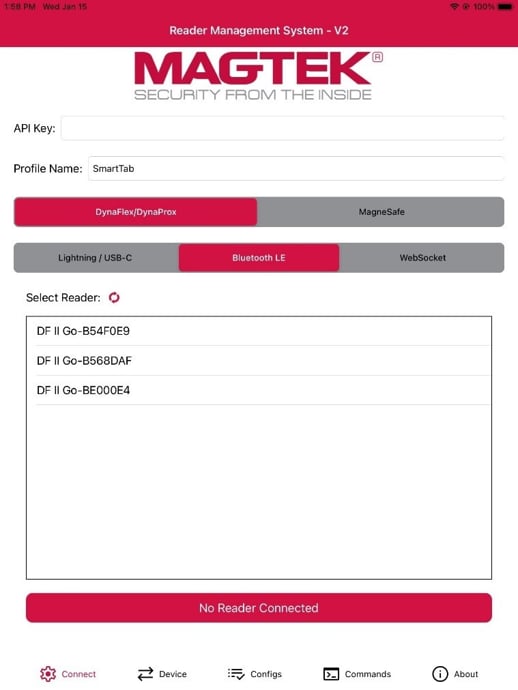
From the Connect tab, ensure the Profile Name is set to SmartTab and Tap on the Device you want to connect to.
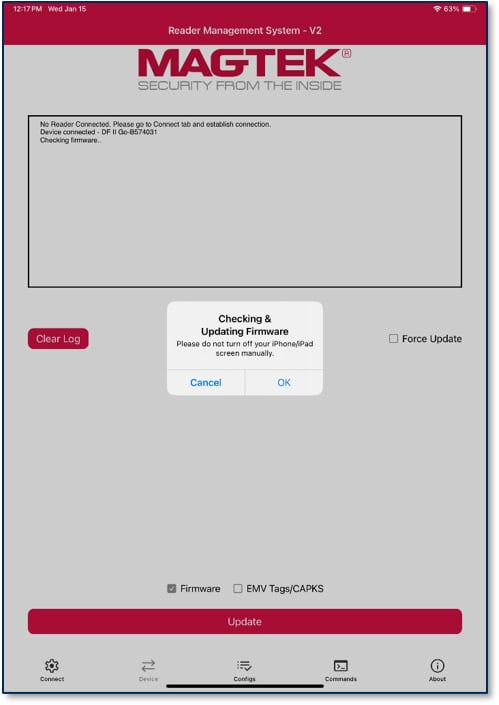
After Connecting a DynaFlex II GO to RMS, press the Device tab. To update device firmware, check the Firmware option only, and press the Update button. Only the updates that are checked will be loaded to the device. A prompt will appear asking the user not to manually turn off the screen, press OK .
The log will indicate:
If current configurations are up to date,
Document Number: D998200695-100
REGISTERED TO ISO 9001:2015
Copyright © 2006 - 2025 MagTek, Inc.
INFORMATION IN THIS PUBLICATION IS SUBJECT TO CHANGE WITHOUT NOTICE. MAGTEK CANNOT BE HELD LIABLE FOR ANY USE OF THE CONTENTS OF THIS DOCUMENT. ANY CHANGES OR IMPROVEMENTS MADE TO THIS PRODUCT WILL BE INCLUDED IN THE NEXT PUBLICATION RELEASE. IF YOU HAVE QUESTIONS ABOUT SPECIFIC FEATURES AND FUNCTIONS OR WHEN THEY WILL BECOME AVAILABLE, PLEASE CONTACT YOUR MAGTEK REPRESENTATIVE.
MagTek®, MagnePrint®, and MagneSafe® are registered trademarks of MagTek, Inc. Magensa™ is a trademark of MagTek, Inc.
DynaPro™ and DynaPro Mini™, are trademarks of MagTek, Inc.
AAMVA™ is a trademark of AAMVA.
American Express® and EXPRESSPAY FROM AMERICAN EXPRESS® are registered trademarks of American Express Marketing & Development Corp.
This is an example of how to manually convert a property OID in decimal format into a constructed TLV command data.
ConfigType is the first number (node 6) to the left of the OID.
To construct the remaining nodes, logical OR as follows.
Result:
Add Lengths to each node to include all lower nodes and data.
var
Collector ID Slot 1 Container
///DF7B
var
Service Response NDEF Record
//FF02
var
Collector ID Slot 2 Container
///DF7B
var
Service Response NDEF Record
//FF03
var
Collector ID Slot 3 Container
///DF7B
var
Service Response NDEF Record
//FF04
var
Collector ID Slot 4 Container
///DF7B
var
Service Response NDEF Record
//FF05
var
Collector ID Slot 5 Container
///DF7B
var
Service Response NDEF Record
//FF06
var
Collector ID Slot 6 Container
///DF7B
var
Service Response NDEF Record
var9F27 — var — VAS Data. Up to 128 bytes.
9F2A — var — Mobile Token. Up to 36 bytes.
FF02 — var — Apple VAS Container Slot 2 Container
9F27 — var — VAS Data. Up to 128 bytes.
9F2A — var — Mobile Token. Up to 36 bytes.
FF03 — var — Apple VAS Container Slot 3 Container
9F27 — var — VAS Data. Up to 128 bytes.
9F2A — var — Mobile Token. Up to 36 bytes.
FF04 — var — Apple VAS Container Slot 4 Container
9F27 — var — VAS Data. Up to 128 bytes.
9F2A — var — Mobile Token. Up to 36 bytes.
FF05 — var — Apple VAS Container Slot 5 Container
9F27 — var — VAS Data. Up to 128 bytes.
9F2A — var — Mobile Token. Up to 36 bytes.
FF06 — var — Apple VAS Container Slot 6 Container
9F27 — var — VAS Data. Up to 128 bytes.
9F2A — var — Mobile Token. Up to 36 bytes.
🕐 Hours: Monday-Friday, 5:30 AM - 5:00 PM PST
Online Resources:
🌐 Support Portal: developer.magtek.com
Documentation Feedback:
Help us improve this documentation! feedback@magtek.com
🕐 Hours: Monday-Friday, 5:30 AM - 5:00 PM PST
Online Resources:
🌐 Support Portal: developer.magtek.com
Documentation Feedback:
Help us improve this documentation! feedback@magtek.com


USB
<uses-feature android:name="android.hardware.usb.host" />
Serial
WebSocket
<uses-permission android:name="android.permission.INTERNET" />
Audio
<uses-permission android:name="android.permission.RECORD_AUDIO" />
<uses-permission android:name="android.permission.MODIFY_AUDIO_SETTINGS" />
BLE BLEEMV BLEEMVT
<uses-feature android:name="android.hardware.bluetooth_le" />
<uses-permission android:name="android.permission.BLUETOOTH" />
<uses-permission android:name="android.permission.BLUETOOTH_ADMIN" />
<uses-permission android:name="android.permission.ACCESS_COARSE_LOCATION" />
<uses-permission android:name="android.permission.ACCESS_FINE_LOCATION" />
Bluetooth
<uses-permission android:name="android.permission.BLUETOOTH" />
<uses-permission android:name="android.permission.BLUETOOTH_ADMIN" />
ANSI®, the ANSI logo, and numerous other identifiers containing "ANSI" are registered trademarks, service marks, and accreditation marks of the American National Standards Institute (ANSI).
ISO® is a registered trademark of the International Organization for Standardization. UL™ and the UL logo are trademarks of UL LLC.
PCI Security Standards Council® is a registered trademark of the PCI Security Standards Council, LLC.
EMV® is a registered trademark in the U.S. and other countries and an unregistered trademark elsewhere. The EMV trademark is owned by EMVCo, LLC. The Contactless Indicator mark, consisting of four graduating arcs, is a trademark owned by and used with permission of EMVCo, LLC.
The Bluetooth® word mark and logos are registered trademarks owned by Bluetooth SIG, Inc. and any use of such marks by MagTek is under license.
Google Play™ store, Google Wallet™ payment service, and Android™ platform are trademarks of Google Inc.
Apple Pay®, iPhone®, iPod®, Mac®, and OS X® are registered trademarks of Apple Inc., registered in the U.S. and other countries. iPad™ is a trademark of Apple. Inc. App StoreSM is a service mark of Apple Inc., registered in the U.S. and other countries. IOS is a trademark or registered trademark of Cisco in the U.S. and other countries and is used by Apple Inc. under license.
Microsoft®, Windows®, and .NET® are registered trademarks of Microsoft Corporation. All other system names and product names are the property of their respective owners.
Rev Number
Date
Notes
100
January 2025
Initial Release


withConnectionType
Enumerated connection type.
deviceList
Array of devices.
Return Value: None
Handles update of host system state.
Parameter
Description
state
Enumerated system state.
Return Value: None
Parameter
Description
instance
Instance identifier.
(void) onDeviceList: (id) instance
withConnectionType: (MTU_ConnectionType) connectionType
deviceList: (NSArray<IDevice *> *) deviceList;(void) onDeviceList: (SystemState) state;🕐 Hours: Monday-Friday, 6:00 AM - 5:00 PM PST
Online Resources:
🌐 Support Portal: https://www.magtek.com/support
📚 Knowledge Base: https://support.magtek.com
💬 Developer Forum: https://forum.magtek.com
Documentation Feedback:
Help us improve this documentation!
USB-C cable with USB Type-A or USB-C for host connection
Software 1000007405 DynaFlex, DynaProx Firmware Update Utility
Firmware files provided by MagTek
To connect to the device follow these steps.
Connect a DynaFlex or DynaProx to the USB port of the Windows PC.
Launch the DynaFlex, DynaProx Firmware Update Utility.
Press the Scan button to update the list of devices.
Select a device from the list, then press the Connect button to connect to the device.
The status will display Connected .
Press the Browse button, select the firmware file, and then press the Open button.
The software will automatically detect the firmware type.
Press the Start Firmwre Upload button to begin the upload.
Wait until the Firmware Upload is complete. The progress of the upload will change to prepare, downloading, and updating.
After uploading, the DynaFlex, DynaProx Firmware Update Utility will display Firmware Successfully Updated . Press the OK button. The device will automatically reboot after a completed firmware update.
If you want to get current information about the device such as firmware version, firmware hash, select the desired information under the Info drop down and press the Get Info button.
data
Contains the data of the payload to MAC.
Return Value:
Returns an IResult that contains the calculated MAC.
This event is called to update the host on the progress of an asynchronous IDeviceConfiguration operation.
public void OnProgres(int progress);
progress
The progress of the configuration operation. Range: 0 - 100
Return Value: None
This event is called to update the host when an asynchronous IDeviceConfiguration operation is completed.
Copy
status
An enumerated Library Status Codes.
data
Contains the data for the event.
Return Value: None
Example:
Copy
For the complete documentation index, see llms.txt. This page is also available as .
IResult OnCalculateMAC(
byte macType,
byte[] data);macType
Type of Mac algorithm. For DynaFlex, use 0.
public void OnResult(
StatusCode status,
byte[] data);class OnConfigCallbackClass implements IConfigurationCallBack
{
public IResult OnCalculateMAC(byte macType, byte[] data)
{
// Event handler
}
public void OnProgress(int progress)
{
// Event handler
}
public void OnResult(StatusCode status, byte[] data)
{
// Event handler
}
}
OnConfigCallbackClass configCallBack = new OnConfigCallbackClass();A step-by-step walk-through of a typical integration, showing the API calls in sequence from connection through a completed transaction.
The end-to-end EMV transaction sequence — the stages and SDK interactions involved in processing a chip-card payment.
Guidance for using Apple Value Added Services to read Apple Wallet passes over contactless.
Guidance for using Google Wallet Smart Tap to read passes and value-added service data over contactless.
Reference Section
Information Available
The complete list of status and result codes returned by the SDK, with their meanings for handling success and error conditions.
Returns the CertificateInfo*. CertificateInfo:
This function initializes an instance of ConnectionInfo.
Parameter
Description
deviceType
Enumerated device type.
connectionType
Enumerated connection type.
address
Return Value:
Returns an IDevice*.
(NSString*) getAddress;(MTU_ConnectionType) getConnectionType;(MTU_DeviceType) getDeviceType;(CertificateInfo*) getCertificateInfo;(ConnectionInfo*) initWithDeviceType:( MTU_DeviceType) deviceType
connectionType: (MTU_ConnectionType) connectionType
address: (NSString*) address;
(ConnectionInfo*) initWithDeviceType: (MTU_DeviceType) deviceType
connectionType: (MTU_ConnectionType) connectionType
address: (NSString*) address certificate: (
CertificateInfo*) certInfo;If updates have succeeded,
If updates have failed
To update or change your device’s configurations to include SCDE, begin by loading the SCDE Key:
Tap on LoadSelectableCardDataEncryptionKey first.
Press the Refresh button to refresh the list of available configurations if LoadSelectableCardDataEncryptionKey does not appear.
Press the Update button to load the key.
The log will indicate if the configuration update is successful or if it has failed.
To load SCDE Enable Name Expiration Date Service Code:
Tap on LoadSelectableCardDataEncryptionKey first.
Press the Refresh button to refresh the list of available device updates if LoadSelectableCardDataEncryptionKey does not appear.·
Press the Update button to load the key.
The log will indicate if the configuration update is successful or if it has failed
After completing the steps, the device will support Selectable Card Data Encryption, allowing the user to view card data outside of a transaction scenario.
The fully Constructed TLV command data:
Use the configType and command data for the SDK APIs.
Example Get: Device Model Name
Notation
Description
CT
Configuration type
En
Converted tag for a node
LL
[2] . 1 . 2 . 2 . 2 . 1
node(6) node(1)OR node 1 with C0
OR nodes 2 - 5 with E0 1 . 2 . 2 . 2 . 1
OR E0 E0 E0 E0 C0
= E1 E2 E2 E2 C1->08 ->06 ->04 ->02 ->00E108 E206 E204 E202 C100 (E108E206E204E202C100)byte configType = 02;
byte[] data = {0xE1,0x08,0xE2,0x06,0xE2,0x04,0xE2,0x02,0xC1,0x00};
byte[] response = devConfig.getConfigInfo(configType, data);[1] . 2 . 3 . 1 . 1 . 1 = 03000000
CT En En En En Cn = 03000000 CT EnLL->EnLL->EnLL->EnLL->CnLLValue
01 E20C->E30A->E108->E106->C10403000000
ConfigType = 01
Command data = E20CE30AE108E106C10403000000Covers the fleet console for monitoring, searching, and inspecting readers, sending commands, running bulk actions, and registering new devices.
Alphabetical reference for the SDK's data and result classes (Classes N–Z).
SDK scope and supported device classes, package contents, nomenclature (device, host, user), and host requirements, including the certificates needed for TLS and secure WebSocket connections.
Steps to download the SDK package, add the library to your project, and build and run the MTUSDKDemo sample app.
Static entry points for finding and creating devices (getDeviceList, createDevice, and device-specific factory functions), API version lookup, and MQTT broker, topic, QoS, client ID, and certificate settings for network-connected devices.
The primary device object. Start and cancel transactions; request PIN, PAN, signature, and user selections; send the processor’s ARPC with sendAuthorization; send Mifare Classic, DESFire, and Plus NFC tag commands; get the device’s capability, control, configuration, and connection objects; and subscribe to device events.
Read-only properties for checking hardware support before you call a feature: display, PIN pad, signature capture, battery-backed clock, MSR power saver, SRED, and the bitmask of supported payment methods.
Direct device control: open and close the connection, reset the device, send raw, extended, and synchronous commands, show messages, images, and QR codes, run the barcode reader, NFC pass-through, and NFC card emulation, set the card latch and LEDs, capture personal info entry, and manage External Accessory discovery and notifications.
.Connection parameters for a device: device type, connection type, the address format for each transport (IP, TLS, Bluetooth LE, WebSocket, serial), and certificate information for TLS and secure WebSocket connections.
Device identity properties (model, name, and serial number) and the initializer for a DeviceInfo object.
Configuration and maintenance: read and write device settings by OID, retrieve device info, key info, and challenge tokens, send and retrieve files and images, set the idle-screen image, update keys, and update main, wireless, and Bluetooth LE firmware. Asynchronous operations report through IConfigurationCallback.
The object for building OID-based configuration requests: configuration type (device settings or device information), the OID-and-value payload, and initializers that build it from an ASN.1 OID path.
Objects passed to and returned from the API: IData (string or byte payload), IResult, ITransaction (amount, currency, payment methods, QuickChip, tip, and Apple VAS settings), CertificateInfo, and parsers for barcode, NFC, R-APDU, and personal info entry data.
The OnEvent callback, which delivers nearly all device output (card data, transaction status, ARQC requests, PIN blocks, NFC and barcode data) after you register with subscribeAll.
Callbacks for asynchronous configuration operations: OnProgress for percent complete, OnResult for completion status and data, and OnCalculateMAC for requests that must carry a MAC.
iOS host-level callbacks: onDeviceList returns devices found through Bluetooth LE and External Accessory discovery, and didSystemUpdateState reports changes in Bluetooth, network, and server connectivity.
Enumerated values used across the SDK: device and connection types, connection and transaction states, event types, payment methods, status codes, NFC events and modes, info types, system states, and Apple VAS modes.
Worked examples: an API walkthrough with sample code for the main interfaces, and a step-by-step EMV transaction flow.
Reference Section
Information Available
RMS support page under Services.
MagTek warrants that the products sold pursuant to this Agreement will perform in accordance with
MagTek’s published specifications. This warranty shall be provided only for a period of one year from the date of the shipment of the product from MagTek (the “Warranty Period”). This warranty shall apply only to the “Buyer” (the original purchaser, unless that entity resells the product as authorized by MagTek, in which event this warranty shall apply only to the first repurchaser).
During the Warranty Period, should this product fail to conform to MagTek’s specifications, MagTek will, at its option, repair or replace this product at no additional charge except as set forth below. Repair parts and replacement products will be furnished on an exchange basis and will be either reconditioned or new. All replaced parts and products become the property of MagTek. This limited warranty does not include service to repair damage to the product resulting from accident, disaster, unreasonable use, misuse, abuse, negligence, or modification of the product not authorized by MagTek. MagTek reserves the right to examine the alleged defective goods to determine whether the warranty is applicable.
Without limiting the generality of the foregoing, MagTek specifically disclaims any liability or warranty for goods resold in other than MagTek’s original packages, and for goods modified, altered, or treated without authorization by MagTek.
Service may be obtained by delivering the product during the warranty period to MagTek (1710 Apollo Court, Seal Beach, CA 90740). If this product is delivered by mail or by an equivalent shipping carrier, the customer agrees to insure the product or assume the risk of loss or damage in transit, to prepay shipping charges to the warranty service location, and to use the original shipping container or equivalent. MagTek will return the product, prepaid, via a three (3) day shipping service. A Return Material
Authorization (“RMA”) number must accompany all returns. Buyers may obtain an RMA number by contacting MagTek Support Services at
EACH BUYER UNDERSTANDS THAT THIS MAGTEK PRODUCT IS OFFERED AS-IS. MAGTEK MAKES NO OTHER WARRANTY, EXPRESS OR IMPLIED, AND MAGTEK DISCLAIMS ANY WARRANTY OF ANY OTHER KIND, INCLUDING ANY WARRANTY OF MERCHANTABILITY OR FITNESS FOR A PARTICULAR PURPOSE.
IF THIS PRODUCT DOES NOT CONFORM TO MAGTEK’S SPECIFICATIONS, THE SOLE REMEDY SHALL BE REPAIR OR REPLACEMENT AS PROVIDED ABOVE. MAGTEK’S LIABILITY, IF ANY, SHALL IN NO EVENT EXCEED THE TOTAL AMOUNT PAID TO MAGTEK UNDER THIS AGREEMENT. IN NO EVENT WILL MAGTEK BE LIABLE TO THE BUYER FOR ANY DAMAGES, INCLUDING ANY LOST PROFITS, LOST SAVINGS, OR OTHER INCIDENTAL OR CONSEQUENTIAL DAMAGES ARISING OUT OF THE USE OF, OR INABILITY TO USE, SUCH PRODUCT, EVEN IF MAGTEK HAS BEEN ADVISED OF THE POSSIBILITY OF SUCH DAMAGES, OR FOR ANY CLAIM BY ANY OTHER PARTY.
EXCEPT AS PROVIDED IN THE SECTIONS RELATING TO MAGTEK’S LIMITED WARRANTY, MAGTEK’S LIABILITY UNDER THIS AGREEMENT IS LIMITED TO THE CONTRACT PRICE OF THIS PRODUCT.
MAGTEK MAKES NO OTHER WARRANTIES WITH RESPECT TO THE PRODUCT, EXPRESSED OR IMPLIED, EXCEPT AS MAY BE STATED IN THIS AGREEMENT, AND MAGTEK DISCLAIMS ANY IMPLIED WARRANTY, INCLUDING WITHOUT LIMITATION ANY IMPLIED WARRANTY OF MERCHANTABILITY OR FITNESS FOR A PARTICULAR PURPOSE.
MAGTEK SHALL NOT BE LIABLE FOR CONTINGENT, INCIDENTAL, OR CONSEQUENTIAL DAMAGES TO PERSONS OR PROPERTY. MAGTEK FURTHER LIMITS ITS LIABILITY OF ANY KIND WITH RESPECT TO THE PRODUCT, INCLUDING NEGLIGENCE ON ITS PART, TO THE CONTRACT PRICE FOR THE GOODS.
MAGTEK’S SOLE LIABILITY AND BUYER’S EXCLUSIVE REMEDIES ARE STATED IN THIS SECTION AND IN THE SECTION RELATING TO MAGTEK’S LIMITED WARRANTY.
IMPORTANT: YOU SHOULD CAREFULLY READ ALL THE TERMS, CONDITIONS AND RESTRICTIONS OF THIS LICENSE AGREEMENT BEFORE INSTALLING THE SOFTWARE PACKAGE. YOUR INSTALLATION OF THE SOFTWARE PACKAGE PRESUMES YOUR ACCEPTANCE OF THE TERMS, CONDITIONS, AND RESTRICTIONS CONTAINED IN THIS AGREEMENT. IF YOU DO NOT AGREE WITH THESE TERMS, CONDITIONS, AND RESTRICTIONS, PROMPTLY RETURN THE SOFTWARE PACKAGE AND ASSOCIATED DOCUMENTATION TO THE ADDRESS IN THIS DOCUMENT, ATTENTION: CUSTOMER SUPPORT.
MagTek, Incorporated (the "Licensor") owns and has the right to distribute the described software and documentation, collectively referred to as the "Software."
LICENSE: Licensor grants you (the "Licensee") the right to use the Software in conjunction with MagTek products. LICENSEE MAY NOT COPY, MODIFY, OR TRANSFER THE SOFTWARE IN WHOLE OR IN PART EXCEPT AS EXPRESSLY PROVIDED IN THIS AGREEMENT. Licensee
may not decompile, disassemble, or in any other manner attempt to reverse engineer the Software. Licensee shall not tamper with, bypass, or alter any security features of the software or attempt to do so.
TRANSFER: Licensee may not transfer the Software or license to the Software to another party without the prior written authorization of the Licensor. If Licensee transfers the Software without authorization, all rights granted under this Agreement are automatically terminated.
COPYRIGHT: The Software is copyrighted. Licensee may not copy the Software except for archival purposes or to load for execution purposes. All other copies of the Software are in violation of this Agreement.
TERM: This Agreement is in effect as long as Licensee continues the use of the Software. The Licensor also reserves the right to terminate this Agreement if Licensee fails to comply with any of the terms, conditions, or restrictions contained herein. Should Licensor terminate this Agreement due to Licensee's failure to comply, Licensee agrees to return the Software to Licensor. Receipt of returned Software by the Licensor shall mark the termination.
LIMITED WARRANTY: Licensor warrants to the Licensee that the disk(s) or other media on which the Software is recorded are free from defects in material or workmanship under normal use.
THE SOFTWARE IS PROVIDED AS IS. LICENSOR MAKES NO OTHER WARRANTY OF ANY KIND, EITHER EXPRESS OR IMPLIED, INCLUDING, BUT NOT LIMITED TO, THE IMPLIED WARRANTIES OF MERCHANTABILITY AND FITNESS FOR A PARTICULAR PURPOSE.
Because of the diversity of conditions and hardware under which the Software may be used, Licensor does not warrant that the Software will meet Licensee specifications or that the operation of the Software will be uninterrupted or free of errors.
IN NO EVENT WILL LICENSOR BE LIABLE FOR ANY DAMAGES, INCLUDING ANY LOST PROFITS, LOST SAVINGS, OR OTHER INCIDENTAL OR CONSEQUENTIAL DAMAGES ARISING OUT OF THE USE, OR INABILITY TO USE THE SOFTWARE. Licensee's sole remedy in
the event of a defect in material or workmanship is expressly limited to replacement of the Software disk(s) if applicable.
GOVERNING LAW: If any provision of this Agreement is found to be unlawful, void, or unenforceable, that provision shall be removed from consideration under this Agreement and will not affect the enforceability of any of the remaining provisions. This Agreement shall be governed by the laws of the State of California and shall inure to the benefit of MagTek, Incorporated, its successors or assigns.
ACKNOWLEDGMENT: LICENSEE ACKNOWLEDGES THAT LICENSEE HAS READ THIS AGREEMENT, UNDERSTANDS ALL OF ITS TERMS, CONDITIONS, AND RESTRICTIONS, AND AGREES TO BE BOUND BY THEM. LICENSEE ALSO AGREES THAT THIS AGREEMENT SUPERSEDES ANY AND ALL VERBAL AND WRITTEN COMMUNICATIONS BETWEEN LICENSOR AND LICENSEE OR THEIR ASSIGNS RELATING TO THE SUBJECT MATTER OF THIS AGREEMENT.
QUESTIONS REGARDING THIS AGREEMENT SHOULD BE ADDRESSED IN WRITING TO MAGTEK, INCORPORATED, ATTENTION: CUSTOMER SUPPORT, AT THE ADDRESS LISTED IN THIS DOCUMENT, OR E-MAILED TO .
DEMO SOFTWARE / SAMPLE CODE: Unless otherwise stated, all demo software and sample code are to be used by Licensee for demonstration purposes only and MAY NOT BE incorporated into any production or live environment. The PIN Pad sample implementation is for software PIN Pad test purposes only and is not PCI compliant. To meet PCI compliance in production or live environments, a third-party PCI compliant component (hardware or software-based) must be used.
This document provides instructions for software developers who want to create iOS software solutions that include MagTek devices connected to an iOS host. MagTek Universal SDK
(MTUSDK) incorporates MagTek SCRA and MagTek PIN Pad SCRA devices into one SDK. This document is part of a larger library of documents designed to assist MagTek device implementers.
The following are absolute prerequisites:
· DynaFlex Family Programmer’s Manual
The sample code provides Swift demonstration source code and a reusable MTUSDK library that provides developers of custom software solutions with an easy-to-use interface for MagTek devices. Developers can distribute the MTUSDK library to customers or distribute internally as part of an enterprise solution.
Device refers to the MagTek devices that receives and responds to command set.
Host refers to the piece of general-purpose electronic equipment the device is connected or paired to, which sends data to and receives data from the device. Host types include but not limited to PC and Mac computers, tablets, and smartphones. When “host” must be used differently, it is qualified as something specific, such as “USB host.”
User in this document generally refers to the cardholder.
Tested operating systems:
iOS 13 and above.
Xcode 14 and above.
When connecting to the DynaFlex II PED device by WebSocket, a client certificate and its certificate chain must be installed on the iOS device.
The Root Certificate, Sub CA Certificate, and Client private key Certificate as referenced in document DynaFlex TLS Certificate Installation Manual. The client private key certificate (e.g. filename client.p12) must be accessible to the custom software that makes a secure WebSocket connection to the DynaFlex II PED.
After creating the certificates and transferring them in the iOS device, load the certificate chain into the iOS device by follow these steps. The certificate names shown here are for reference only.
Delete the previously installed certificates prior to beginning this procedure. If the certificate chain is current, skip this installation section. View the certificates by going to Settings à General à VPN & Device Management.
Copy the certificate chain to the iOS device. Touch the Root certificate DF-2-1_RootCA.pem to download to iOS device.
Go to Settings > General >VPN & Device Management > Select Root DF2-1
Select Install.
Enter Passcode.
Press Install twice.
Repeat the same steps above for the SubCA certificate Amce_SubCA.pem and for the Client certificate Client.p12. For Client, iOS will ask for an additional certificate password, enter the password used during the creation of the Client certificate when prompted, and then press Next.
Enable Certificates by going to Settings à About à Certificate Trust Settings
When building the custom app, the Client certificate must be loaded into the data member of CertificateInfo during the call to createDevice(). See below as an example to access the client certificate.
The following instructions are for Bluetooth pairing the DynaFlex II Go.
Place the device into Pairing Mode by pressing and holding the power button on device until 4 beeps and release the button. The 4th LED will blink green.
When in pairing mode and the first time connecting to device, the host will prompt for a pairing request. Enter the pairing code. The default code is "000000".
Create an instance of the ConnectionInfo using IDevice.getConnectionInfo(). Then use the function calls described in this chapter.
This function returns address of the device.
String ConnectionInfo.getAddress();Return Value:
Returns the address of the device.
This function returns the type of connection Interface for the device.
ConnectionType ConnectionInfo.getConnectionType();Return Value:
Returns the ConnectionType.
This function returns the type for the device.
DeviceType ConnectionInfo.getDeviceType();Return Value:
Returns the DeviceFeature.
This enum refers to a featured supported by the device.
This document provides instructions for software developers who want to create Android software solutions that include MagTek devices connected to an Android based host. MagTek Universal SDK (MTUSDK) incorporates MagTek SCRA and MagTek PIN Pad SCRA devices into one SDK. This document is part of a larger library of documents designed to assist MagTek device implementers, which includes the following:
The sample code provides Android demonstration source code and a reusable MTUSDK API library that provides developers of custom software solutions with an easy-to-use interface for MagTek devices.
Developers can distribute the MTUSDK API Library to customers or distribute internally as part of an enterprise solution.
Device refers to the MagTek devices that receives and responds to command set.
This document provides instructions to use the OID Converter Console. It is part of a larger library of documents designed to assist Secure Card Readers implementers, which includes the following documents available from MagTek:
D998200380 MAGTEK UNIVERSAL SDK PROGRAMMER'S MANUAL (MICROSOFT.NET)
D998200383 DynaFlex Family Programmer’s Manual (COMMANDS)
The following instructions are for using the DynaFlex, DynaProx OID Converter Console on a Windows operating system.
The console app accepts 2 input parameters: OID & Command Data. The result is the data to pass to MTUSDK commands getConfigInfo() and setConfigInfo().
Blurb goes here.
Address for the device.
For Ethernet devices, address should be in the form:
IP://IP-Address:PORT
for example, IP://10.57.10.180:26
For Wireless devices, address should be in the form: TLS12://TLSDEVICESERIALNUMBER TLS12TRUST://TLSDEVICESERIALNUMBER
for example, TLS12://TLS99261829170E0810 TLS12TRUST://TLS99261829170E0810
For Bluetooth LE devices, address should be in the form:
BLEEMV://DEVICENAME
for example, BLEEMV://DynaPro Go-EB66
For WebSocket or Secure WebSocket devices, address should be in the form:
ws://IP-Address or Hostname wss://IP-Address or Hostname for example, ws://192.168.1.150 wss://b512345.magtek.com
The client private key certificate (e.g. filename client.p12) must be accessible to the custom software that makes a secure WebSocket (wss://) connection to the DynaFlex II PED.
For Serial devices, address should be in the form:
PORT=[PORT],
BAUDRATE=[BAUDRATE],
DATABITS=[DATABITS],
PARITY=[PARITY],
STOPBITS=[STOPBITS],
HANDSHAKE=[HANDSHAKE],
STARTINGBYTE=[STARTINGBYTE],
ENDINGBYTE=[ENDINGBYTE],
CRCMODE=[CRCMODE]
certInfo
Certificate information for TLS Trust and WebSocket WSS connection. Optional. See the following for details on installing a certificate chain: DYNAFLEX TLS CERTIFICATE INSTALLATION MANUAL
The client private key certificate (e.g. filename client.p12) must be accessible to the custom software that makes a secure WebSocket (wss://) connection to the DynaFlex II PED.
The client.p12 certificate is not needed if the connection type is not secure WebSocket (ws://)
TLV Length for that node
->
All TLVs to the right
Cn
Converted tag for the first node
🕐 Hours: Monday-Friday, 5:30 AM - 5:00 PM PST
Online Resources:
🌐 Support Portal: developer.magtek.com
Documentation Feedback:
Help us improve this documentation! feedback@magtek.com


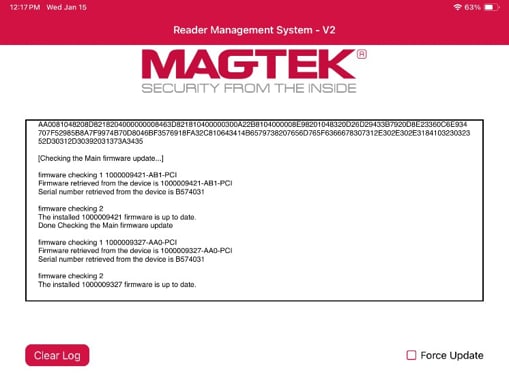
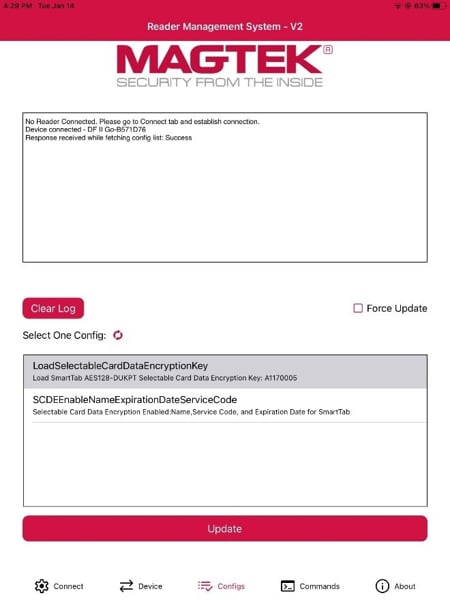
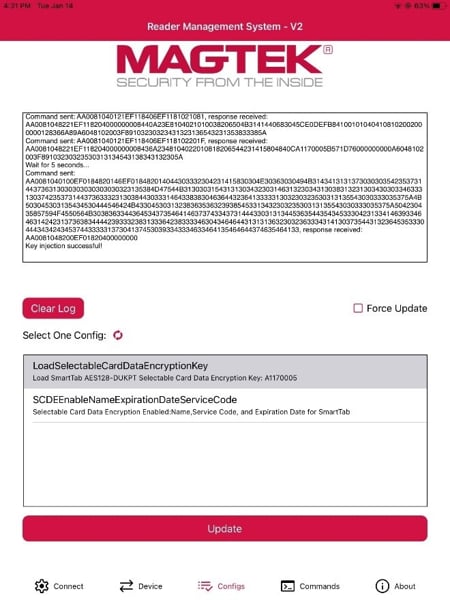
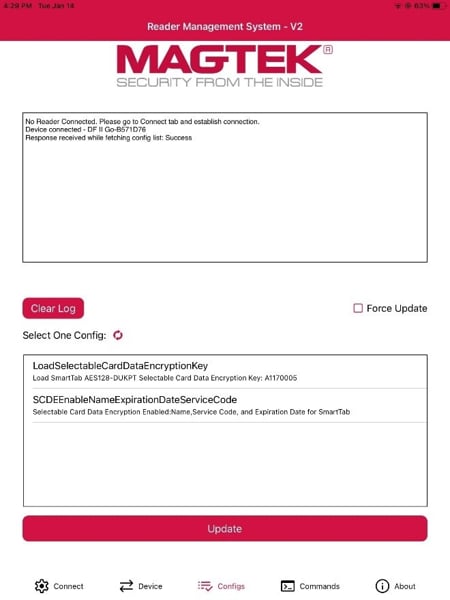
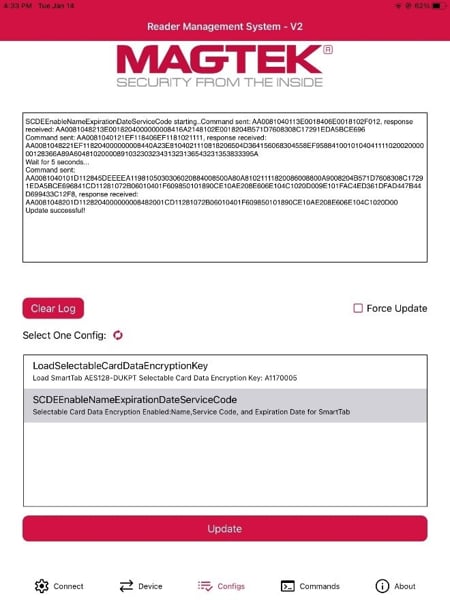
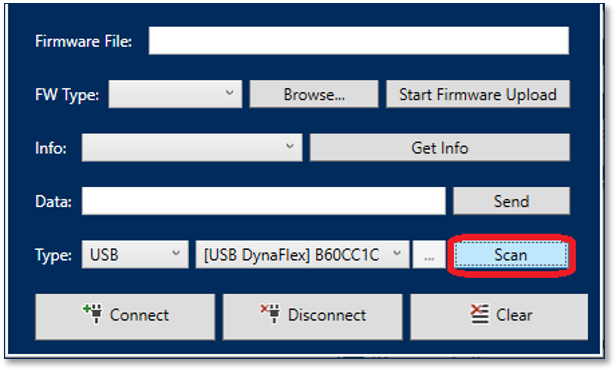
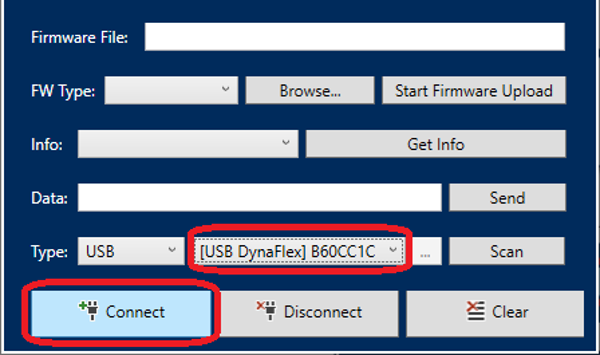
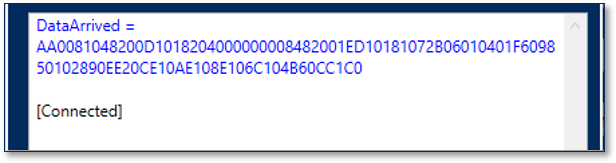

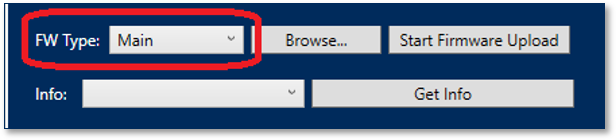
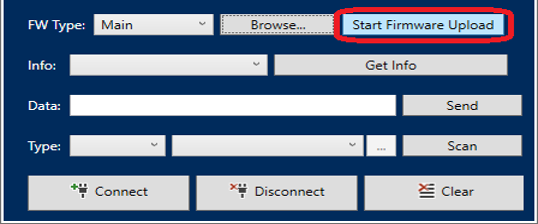
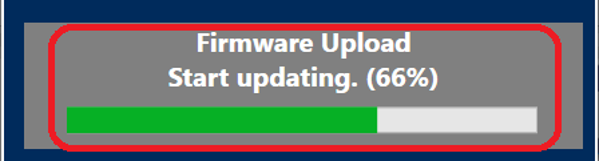
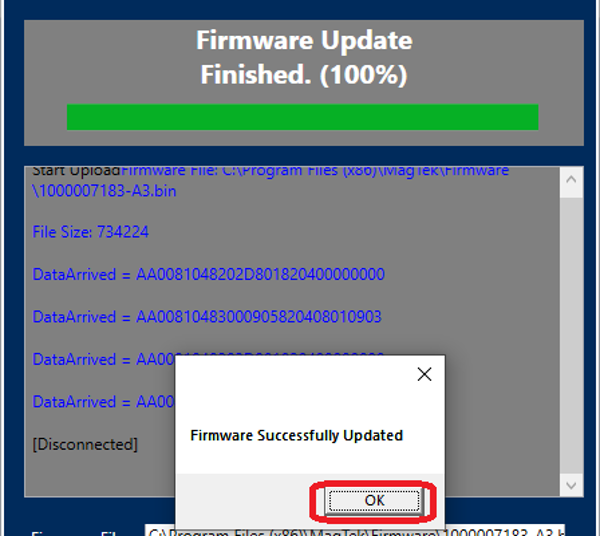
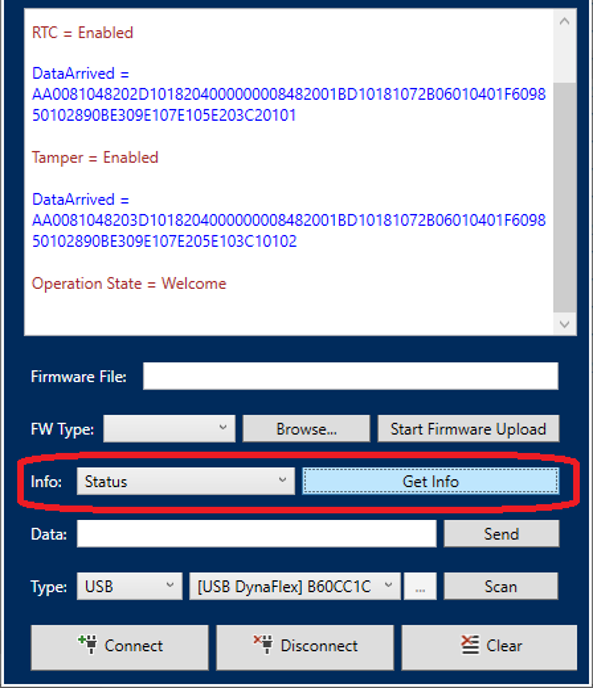
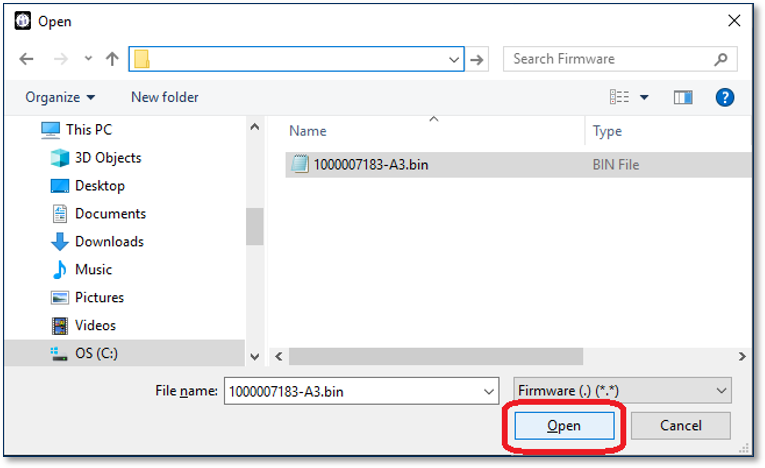
PANEntry
Supports PAN entry
ShowBarCode
Supports display of a barcode
ScanBarCode
Supports scanning a barcode
DisplayMessage
Supports display of messages
Buzzer
Has a buzzer
CardEmulation
Supports NFC card emulation
PersonalInfoEntry
Supports personal info entry
None
No feature.
SignatureCapture
Supports signature capture
PINEntry
Supports PIN entry
Launch a command terminal where the oidconverter.exe is located.
Type oidconverter and an OID in decimal format as shown below, then ENTER. The OID may also be typed in hexadecimal as commented out below.
The console app displays the Input OID and Converted OID as shown below.
Use the Converted OID when getting a property value with the MTUSDK API getConfigInfo().
When calling the function getConfigInfo, parameter configType is the first number of the OID. 2.1.2.2.2.1
When setting a configuration, input the OID and the Command Data.
Launch a command terminal where the oidconverter.exe is located.
Type oidconverter, an OID, in decimal format, and a Value in hexadecimal as shown below, then ENTER.
The OID may also be typed in hexadecimal as commented out below.
The console app displays the Input OID and Converted OID as shown below.
Use the Converted OID when setting a property value with the MTUSDK API setConfigInfo().
When calling the function getConfigInfo, parameter configType is the first number of the OID. 1.2.3.1.1.1
c:\temp\oidconverter 2.1.2.2.2.1
//When using hexadecimal OID
//c:\temp\oidconverter 020102020201C:\temp>oidconverter 2.1.2.2.2.1
Input OID: 2.1.2.2.2.1
Converted OID string: E108E206E204E202C100Input OID: 2.1.2.2.2.1
Converted OID string: E108E206E204E202C100byte[] getConfigInfo(
byte configType,
byte[] data);
byte configType = 0x02;
byte[] data = {0xE1,0x08,0xE2,0x06,0xE2,0x04,0xE2,0x02,0xC1,0x00};
byte[] response = devConfig.getConfigInfo(configType, data);C:\temp>oidconverter 1.2.3.1.1.1 03000000
//When typed in hexadecimal.
//C:\temp>oidconverter 010203010101 03000000C:\temp>oidconverter 1.2.3.1.1.1 03000000
Input OID: 1.2.3.1.1.1
Input Command Data: 03000000
Converted OID string: E20CE30AE108E106C10403000000Input OID: 1.2.3.1.1.1
Input Command Data: 03000000
Converted OID string: E20CE30AE108E106C10403000000
byte[] setConfigInfo(
byte configType,
byte[] data,
IConfigurationCallback callback);byte configType = 0x01;
byte[] data = {0xE2,0x0C,0xE3,0x0A,0Xe1,0x08,0xE1,
0x06,0xC1,0x04,0x03,0x00,0x00,0x00};
int response = devConfig.setConfigInfo(configType, data, this);Host refers to the piece of general-purpose electronic equipment the device is connected or paired to, which sends data to and receives data from the device. Host types include but not limited to PC and Mac computers, tablets, and smartphones. When “host” must be used differently, it is qualified as something specific, such as “USB host.”
User in this document generally refers to the cardholder.
MTUSDKDemo.apk
Sample code APK file.
MTUSDK.aar
Universal SDK Android AAR Library file.
Tested operating systems:
Android 4.4.2 and above
Android Studio 3.5.3 and above
When connecting to the DynaFlex II PED device by WLAN, a client certificate and its certificate chain must be installed on the Android device. Root Certificate, Sub CA Certificate, and Client private key Certificate as referenced in document D998200550 DynaFlex II PED Using Wireless LAN Guide.
Custom software will need the client private key certificate (client.p12) when creating a connection to DynaFlex II PED WLAN. Place the client.p12 into a folder accessible by the custom software.
Reference Section
Information Available
Sample code showing the call sequence for each major interface: device discovery and creation through CoreAPI, transactions through IDevice, commands through IDeviceControl, and configuration reads and writes through IDeviceConfiguration.
The sequence of calls and events in an EMV chip transaction, from startTransaction through the ARQC authorization request, sendAuthorization with the processor’s ARPC, and the transaction result.
Manual Part Number: D998200557-10
REGISTERED TO ISO 9001:2015
Copyright © 2006 – 2023 MagTek, Inc.
Information in this publication is subject to change without notice and may contain technical inaccuracies or graphical discrepancies. Changes or improvements made to this product will be updated in the next publication release. No part of this document may be reproduced or transmitted in any form or by any means, electronic or mechanical, for any purpose, without the express written permission of MagTek, Inc.
MagTek® is a registered trademark of MagTek, Inc. MagneSafe® is a registered trademark of MagTek, Inc. iDynamo™, and uDynamo are trademarks of MagTek, Inc.
eDynamo™, Dynamag, and DynaMAX are trademarks of MagTek, Inc. DynaFlex™, DynaFlex Pro™, and DynaProx™ are trademarks of MagTek, Inc.
Microsoft®, Windows® and .NET® are registered trademarks of Microsoft Corporation.
EMV® is a registered trademark in the U.S. and other countries and an unregistered trademark elsewhere. The EMV trademark is owned by EMVCo, LLC. The Contactless Indicator mark, consisting of four graduating arcs, is a trademark owned by and used with permission of EMVCo, LLC.
All other system names and product names are the property of their respective owners.
Table 0.1 – Revisions
SOFTWARE LICENSE AGREEMENT
IMPORTANT: YOU SHOULD CAREFULLY READ ALL THE TERMS, CONDITIONS AND RESTRICTIONS OF THIS LICENSE AGREEMENT BEFORE INSTALLING THE SOFTWARE PACKAGE. YOUR INSTALLATION OF THE SOFTWARE PACKAGE PRESUMES YOUR ACCEPTANCE OF THE TERMS, CONDITIONS, AND RESTRICTIONS CONTAINED IN THIS AGREEMENT. IF YOU DO NOT AGREE WITH THESE TERMS, CONDITIONS, AND RESTRICTIONS, PROMPTLY RETURN THE SOFTWARE PACKAGE AND ASSOCIATED DOCUMENTATION TO THE ADDRESS ON THE FRONT PAGE OF THIS DOCUMENT, ATTENTION: CUSTOMER SUPPORT.
MagTek, Incorporated (the "Licensor") owns and has the right to distribute the described software and documentation, collectively referred to as the "Software."
LICENSE: Licensor grants you (the "Licensee") the right to use the Software in conjunction with MagTek products. LICENSEE MAY NOT COPY, MODIFY, OR TRANSFER THE SOFTWARE IN WHOLE OR IN PART EXCEPT AS EXPRESSLY PROVIDED IN THIS AGREEMENT. Licensee
may not decompile, disassemble, or in any other manner attempt to reverse engineer the Software. Licensee shall not tamper with, bypass, or alter any security features of the software or attempt to do so.
TRANSFER: Licensee may not transfer the Software or license to the Software to another party without the prior written authorization of the Licensor. If Licensee transfers the Software without authorization, all rights granted under this Agreement are automatically terminated.
COPYRIGHT: The Software is copyrighted. Licensee may not copy the Software except for archival purposes or to load for execution purposes. All other copies of the Software are in violation of this Agreement.
TERM: This Agreement is in effect as long as Licensee continues the use of the Software. The Licensor also reserves the right to terminate this Agreement if Licensee fails to comply with any of the terms, conditions, or restrictions contained herein. Should Licensor terminate this Agreement due to Licensee's failure to comply, Licensee agrees to return the Software to Licensor. Receipt of returned Software by the Licensor shall mark the termination.
LIMITED WARRANTY: Licensor warrants to the Licensee that the disk(s) or other media on which the Software is recorded are free from defects in material or workmanship under normal use.
THE SOFTWARE IS PROVIDED AS IS. LICENSOR MAKES NO OTHER WARRANTY OF ANY KIND, EITHER EXPRESS OR IMPLIED, INCLUDING, BUT NOT LIMITED TO, THE IMPLIED WARRANTIES OF MERCHANTABILITY AND FITNESS FOR A PARTICULAR PURPOSE.
Because of the diversity of conditions and PC hardware under which the Software may be used, Licensor does not warrant that the Software will meet Licensee specifications or that the operation of the Software will be uninterrupted or free of errors.
IN NO EVENT WILL LICENSOR BE LIABLE FOR ANY DAMAGES, INCLUDING ANY LOST PROFITS, LOST SAVINGS, OR OTHER INCIDENTAL OR CONSEQUENTIAL DAMAGES ARISING OUT OF THE USE, OR INABILITY TO USE, THE SOFTWARE. Licensee's sole remedy in
the event of a defect in material or workmanship is expressly limited to replacement of the Software disk(s) if applicable.
GOVERNING LAW: If any provision of this Agreement is found to be unlawful, void, or unenforceable, that provision shall be removed from consideration under this Agreement and will not affect the enforceability of any of the remaining provisions. This Agreement shall be governed by the laws of the State of California and shall inure to the benefit of MagTek, Incorporated, its successors or assigns.
ACKNOWLEDGMENT: LICENSEE ACKNOWLEDGES THAT HE HAS READ THIS AGREEMENT, UNDERSTANDS ALL OF ITS TERMS, CONDITIONS, AND RESTRICTIONS, AND AGREES TO BE BOUND BY THEM. LICENSEE ALSO AGREES THAT THIS AGREEMENT SUPERSEDES ANY AND ALL VERBAL AND WRITTEN COMMUNICATIONS BETWEEN LICENSOR AND LICENSEE OR THEIR ASSIGNS RELATING TO THE SUBJECT MATTER OF THIS AGREEMENT.
QUESTIONS REGARDING THIS AGREEMENT SHOULD BE ADDRESSED IN WRITING TO MAGTEK, INCORPORATED, ATTENTION: CUSTOMER SUPPORT, AT THE ADDRESS LISTED IN THIS DOCUMENT, OR E-MAILED TO
DEMO SOFTWARE / SAMPLE CODE: Unless otherwise stated, all demo software and sample code are to be used by Licensee for demonstration purposes only and MAY NOT BE incorporated into any production or live environment. The PIN Pad sample implementation is for software PIN Pad test purposes only and is not PCI compliant. To meet PCI compliance in production or live environments, a third-party PCI compliant component (hardware or software-based) must be used.
Reference for the enumerated types used throughout the MagTek Universal SDK — the named constants for values such as device and transaction states, card types, and command options that appear in SDK calls and results. The enumerations are listed alphabetically across two pages.
Reference Section
Information Available
Reference for the SDK's enumerated types (device and transaction states, card types, option flags).
Create an instance of the IDeviceConfiguration using getDeviceConfiguration(). Then use the function calls described in this chapter.
Generally, these functions will run in one of two modes:
Asynchronous functions return data in the event handlers in section.
Synchronous functions return data in the return value. If the data is not available immediately, the call will block until a wait time has elapsed.
This function deletes a file from the device.
Copy
The Android edition of the MagTek Universal SDK (MTUSDK), which brings MagTek SCRA and PIN Pad SCRA devices — including the DynaFlex family — into a single AAR library for Android apps. Use the sections below to set up the SDK, connect to and control a device through the Core API, subscribe to device events, and look up classes, enumerations, and reference appendices.
Rev Number
Date
Notes
10
January 9, 2023
Initial release
🕐 Hours: Monday-Friday, 5:30 AM - 5:00 PM PST
Online Resources:
🌐 Support Portal: developer.magtek.com
Documentation Feedback:
Help us improve this documentation! feedback@magtek.com
fileID Byte array for the file ID. For DynaFlex, use a 4-byte file id. 0x02000000 = Custom idle page image 1
0x02000001 = Custom idle page image 2 0x02000002 = Custom idle page image 3 0x02000003 = Custom idle page image 4
Return Value:
Returns 0 if the asynchronous update operation started. Otherwise, returns a non 0 value.
This function retrieves a challenge token from the device. A challenge token consists of a random nonce or timestamp. A challenge token must be used within the time allowed by the device (generally 5 minutes) of being issued. Only one token can be active at a time. Attempts to use a token for requests other than the one specified will cause the token to be revoked/erased.
Copy
Parameter
data Byte array containing the request ID to be protected.
Return Value:
Returns a byte array containing the challenge token.
This function retrieves device configuration information.
Copy
Parameter
configType Type of configuration. For DynaFlex, this is the function ID.
data Configuration data to be sent to the device. For DynaFlex, this is the OID.
Return Value:
Returns an array of bytes containing the configuration information.
This function retrieves device specific information.
Copy
Parameter
infoType Enumerated information type.
Return Value:
Returns a string value device information.
This function retrieves device specific information.
Copy
Parameter
fileID Byte array for the file ID. For DynaFlex, use a 4-byte file id.
callback Name of a class or structure that implements the IConfigurationCallback Delegates events.
Return Value:
Returns a string value device information.
This function retrieves key information.
Copy
Parameter
keyType Type of key. For DynaFlex, use 0.
data Key data to be sent to the device. For DynaFlex, this is the 2-byte key slot number.
Return Value:
Returns an array of bytes containing the key information.
This function sends a file to the device.
Copy
Parameter
fileID Byte array for the file ID. For DynaFlex, use a 4-byte file id.
data File contents to be sent to the device.
callback Name of a class or structure that implements the IConfigurationCallback Delegates events.
Return Value:
Returns 0 if the asynchronous update operation started. Otherwise, returns a non 0 value.
This function sends an image to the device.
Copy
Parameter
imageID Value for the image ID. For DynaFlex, use:
1, 2, 3, or 4
data File contents to be sent to the device.
Images must be BMP format, 160KB or smaller with no compression, maximum 320px by 240px, with color depth 16 color, 256 color, 16-bit color, 24-bit color. Images smaller than the maximum size are centered on the display. Note images at full screen size must be 16-bit color or lower to meet the size requirement.
For details see D998200383 DynaFlex Family Programmer's Manual (Commands).
callback Name of a class or structure that implements the IConfigurationCallback Delegates events.
Return Value:
Returns 0 if the asynchronous update operation started. Otherwise, returns a non 0 value.
This function sends a file to the device using a secure command structure.
Copy
Parameter
fileID Byte array for the file ID. For DynaFlex, use a 4-byte file id.
data File contents to be sent to the device.
callback Name of a class or structure that implements the IConfigurationCallback Delegates events.
Return Value:
Returns 0 if the asynchronous update operation started. Otherwise, returns a non 0 value.
This function sets device configuration information.
Copy
Parameter
configType Type of configuration. For DynaFlex, this is the function ID.
data Configuration data to be sent to the device.
callback Name of a class or structure that implements the IConfigurationCallback Delegates events.
Return Value:
Returns 0 if the asynchronous configuration operation started. Otherwise, returns a non 0 value.
This function sets which image is to be displayed when the device is idle.
Copy
Parameter
imageID Value for the image ID. For DynaFlex, use:
0, 1, 2, 3, or 4
Where 0 substitutes the “Welcome” screen.
Return Value:
Returns 0 if the asynchronous configuration operation started. Otherwise, returns a non 0 value.
This function updates the device firmware.
Copy
Parameter
firmwareType Type of firmware. For DynaFlex, use:
1 - Main App
data Firmware image to be sent to the device.
callback Name of a class or structure that implements the IConfigurationCallback Delegates events.
Return Value:
Returns 0 if the asynchronous update operation started. Otherwise, returns a non 0 value.
This function updates key information in the device.
Copy
Parameter
keyType Type of key.
data Key data to be sent to the device.
callback Name of a class or structure that implements the IConfigurationCallback Delegates events.
Return Value:
Returns 0 if the asynchronous update operation started. Otherwise, returns a non 0 value.
int IDeviceConfiguration.deleteFile(byte[] fileID);byte[] IDeviceConfiguration.getChallengeToken(byte[] data);byte[]IDeviceConfiguration.getConfigInfo(
byte configType,
byte[] data);String IDeviceConfiguration.getDeviceInfo(InfoType infoType);int IDeviceConfiguration.getFile( byte[] fileID, IConfigurationCallback callback);byte[]IDeviceConfiguration.getKeyInfo(
byte keyType,
byte[] data);int IDeviceConfiguration.sendFile(
byte[] fileID,
byte[] data, IConfigurationCallback callback);int IDeviceConfiguration.sendImage(
byte imageID,
byte[] data,
IConfigurationCallback callback);int IDeviceConfiguration.sendSecureFile(
byte[] fileID,
byte[] data, IConfigurationCallback callback);int IDeviceConfiguration.setConfigInfo(
byte configType,
byte[] data, IConfigurationCallback callback);int IDeviceConfiguration.setDisplayImage(byte imageID);int IDeviceConfiguration.updateFirmware(
ushort firmwareType,
byte[] data,
IConfigurationCallback callback);int IDeviceConfiguration.updateKeyInfo(
byte keyType,
byte[] data,
IConfigurationCallback callback);Instructions for adding the MTUSDK AAR library to an Android Studio project and preparing it for first use.
The SDK's main entry point — how to create and work with a device instance and reach the interfaces used to operate it.
The primary device interface for opening and closing a connection and sending commands to a MagTek device.
Methods for querying which features and capabilities a connected device supports.
Operations for controlling a connected device and driving its command set.
The connection parameters used to locate and connect to a device (transport, address, and related settings).
Identifying details reported by a connected device, such as model, serial number, and firmware version.
Settings used to read and apply a device's configuration.
Alphabetical reference for the SDK's data and result classes (Classes A–I and N–Z).
Callback delegates for subscribing to asynchronous device events, such as connection changes and transaction progress.
Callback delegates that report the results of device configuration operations.
Callback delegates for receiving device status updates delivered over MQTT.
Callback delegates for receiving system-level status updates from the SDK.
Reference for the SDK's enumerated types (device and transaction states, card types, option flags).
Supporting reference — status codes, an API walk-through, EMV transaction flow, and Apple/Google mobile-wallet VAS.
Reference Section
Information Available
Overview of the SDK and the MagTek devices it supports, with system requirements and how to install the certificate chain for connecting to a DynaFlex device over WLAN.
Reference for the SDK's enumerated types (device and transaction states, card types, option flags).
The following walks through how to create instances of a device.
CoreAPI.createDevice() --> IDevice
CoreAPI.setDeviceType()
CoreAPI.startScanningForPeripherals --> onDeviceList()
These examples demonstrate methods for creating an IDevice to be used in the MagTek Universal SDK. This also shows how to establish a device specific API, which is not used with the MagTek Universal SDK.
Here, a single IDevice is established.
BLE device
iAP2 Lightning device.
The following walks through how to make use of IDevice.
Implement device events within the class to receive events.
CoreAPI --> IDevice.
IDevice --> subscribeAll().
IDevice à other functions.
Example
Application Main window may extent the IEventSubscriber. This example demonstrates how to parse for the various event types.
Example
Various events are separately shown below.
The following walks through how to make use of IDeviceControl.
IDevice --> IDeviceControl.
IDeviceControl --> open().
IDeviceControl --> other functions.
IDeviceControl --> close().
Example
The following walks through how to make use of ConnectionInfo.
ConnectionInfo --> getAddress()
ConnectionInfo --> getConnectionType()
ConnectionInfo --> getDeviceType() Example
The following walks through how to make use of IDeviceCapability.
IDeviceCapability à BatteryBackedClock() to check if date/time should be set.
IDeviceCapability à PaymentMethods() to check card types supported.
IDeviceCapability à other functions.
The following walks through how to make use of IDeviceConfiguration.
IDevice à getDeviceConfiguration().
IDeviceConfiguration à updateFirmware().
IDeviceConfiguration à getConfiguration().
IDeviceConfiguration à setConfiguration().
Example
Application Main window may extent the IConfigurationCallback Delegates. This example demonstrates how to parse for the various events.
Example
Download the SDK packages, libraries, and components referenced throughout this section — including the Universal SDK builds and related developer libraries.
Reference Section
Information Available
Build against MMS readers from .NET — libraries and APIs for connecting to a device, sending commands, and handling responses and notifications on Windows and other .NET hosts.
Create an instance of the IDeviceCapabilities using IDevice.getCapabilities(). Then use the functions described in this chapter.
This property returns true if the device is equipped with a battery that preserves the internal clock when not powered by a host system or charging.
Copy
boolean IDeviceCapabilities.BatteryBackedClock();Return Value:
Returns true if device is equipped with a battery backed clock. Otherwise, returns false.
This property returns true if the device is equipped with display.
Copy
boolean IDeviceCapabilities.Display();Return Value:
Returns true if device is equipped with a display. Otherwise, returns false.
This property returns true if the device has the option to disable or enable the magnetic stripe reader head (MSR). The MSR may be powered down while the device is idle to minimize power consumption.
Copy
Return Value:
Returns true if device supports MSR power saver. Otherwise, returns false.
This property returns an enumerate list of payment methods supported by the device.
Copy
Return Value:
Returns a list of PaymentMethod.
This property returns true if the device is equipped with a PIN Pad.
Copy
Return Value:
Returns true if device is equipped with a PIN Pad. Otherwise, returns false.
This property returns true if the device is equipped with signature capture.
Copy
Return Value:
Returns true if device is equipped with signature capture. Otherwise, returns false.
This property returns true if the device supports Secure Reading and Exchange of Data.
Copy
Return Value:
Returns true if device supports SRED. Otherwise, returns false.
🕐 Hours: Monday-Friday, 5:30 AM - 5:00 PM PST
Online Resources:
🌐 Support Portal: developer.magtek.com
Documentation Feedback:
Help us improve this documentation! feedback@magtek.com
IDevice à startTransaction().
IDeviceConfiguration à other functions.
// Access MMS with Universal SDK using createDevice()
var mtmms: IDevice = CoreAPI.createDevice(
MTU_DeviceType_MMS,
connection: MTU_ConnectionType_ WEBSOCKET,
address: "ws://b123456.magtek.com",
model: "DynaFlex",
name: webSocketAddress,
serial: "B123456",
cert: Certificate)// Access BLE device with Universal SDK
private let mtusdkShared = CoreAPI.shared()
mtusdkShared.setDeviceType(MTU_DeviceType_MMS, andConnectionType: MTU_ConnectionType_BLUETOOTH_LE_EMV)
mtusdkShared.mtuSDKDelegate = self
mtusdkShared.startScanningForPeripherals()// Acess onDeviceList()
func onDeviceList(_ instance: Any, withConnectionType:
MTU_ConnectionType, deviceList: [Any])
{
if let devices = deviceList as? [IDevice] {
deviceAddressList = []
}
}// Acess iAP2 device with Universal SDK
private let mtusdkShared = CoreAPI.shared()
mtusdkShared.setDeviceType(MTU_DeviceType_MMS, andConnectionType: MTU_ConnectionType_EXTERNAL_ACCESSORY)
mtusdkShared.setupEADeviceProtocolString(MTUConstant.dynaFlex2GoProtoc
olString)
mtusdkShared.mtuSDKDelegate = self
mtusdkShared.turnEAAccessoryConnectionNotificationsOn() mtusdkShared.showConnectedEAAccessoryIfAny()// Acess onDeviceList()
func onDeviceList(_ instance: Any, withConnectionType:
MTU_ConnectionType, deviceList: [Any])
{
if let devices = deviceList as? [IDevice] {
deviceAddressList = []
}
}// Extend the main window to receive events. @interface MTUSCK_DynaFlex : <IEventSubscriber, IConfigurationCallback>
// Establish a device from CoreAPI.
var device: IDevice = CoreAPI.createDevice(
MTU_DeviceType_MMS,
connection:MTU_ConnectionType_ WEBSOCKET,
address:"ws://b123456.magtek.com",
"",
"DynaFlex",
"",
cert:Certificate)
/* Suscribe to events sent from the device.
These would be but not limited to: card inserted, card removed, connection state...
Set MainWindow to receive the events. */ var result: Bool = device.subscribeAll(self)
// Assign parameters for the transaction.
var transaction: ITransaction = ITransaction( Amount:“1.00”,
CashBack:“0.00”, TransactionType:0, Timeout:30,
For:MTU_PaymentMethod_MSR | MTU_PaymentMethod_Contact | MTU_PaymentMethod_Contactless,
QuickChip:true
)
// Start transaction.
result = device.startTransaction(transaction)
@interface MTUSCK_DynaFlex : <IEventSubscriber, IConfigurationCallback>
func onEvent(_ eventType: MTU_EventType, data: IData!)
{
switch eventType
{@interface MTUSCK_DynaFlex : <IEventSubscriber,
IConfigurationCallback>
func onEvent(_ eventType: MTU_EventType, data: IData!)
{
switch eventType
{case MTU_EventType_ConnectionState:
// Parse for the ConnectionState
var value: MTU_ConnectionState = ConnectionStateBuilder.GetValue(data)
break;case MTU_EventType_DeviceResponse:
break;case MTU_EventType_DeviceExtendedResponse:
break;case MTU_EventType_DeviceNotification:
break;case MTU_EventType_CardData:
break;case MTU_EventType_DisplayMessage:
// Get the message.
var message: NSString = data.StringValue
break;case MTU_EventType_InputRequest:
break;case MTU_EventType_AuthorizationRequest:
// Forward ARQC to processor.
/* data[0..1] – ARQC length
data[2..n] – remainder contains the ARQC TLV object
*/
var ARQC: IData = IData.dataWithData(data.ByteArray)
// App function to send the request to the processor.
var ARPC: NSString =
sendARQCToProcessorForApproval(ARQC.data.ByteArray);
// Send authorization to device when not in QuickChip mode.
var ARPCTLV: IData = IData.alloc(init);
ARPCTLV.StringValue = "FF7413DFDF250742363243413546FA067004” + ARPC;
if transaction.QuickChip == false
{
device.sendAuthorization(ARPCTLV)
}
break;case MTU_EventType_TransactionResult:
/* data[0] – Signature Required
data[1..2] – Batch Data length
data[3..n] – remainder contains the Batch Data TLV object
*/
// Parse the TLV from data[].
// Abstract Approval status from TLV tag “DFDF1A”.
// Abstract Signature Required status from TLV tag at data[0].
break;case EventType.PINData:
break; case MTU_EventType_Signature:
break; case MTU_EventType_TransactionStatus:
/*
Transaction status enumeration is build from the TransactionStatusBuilder.
*/
var status: MTU_TransactionStatus = TransactionStatusBuilder.
GetStatusCode(data.StringValue);
if status == MTU_TransactionStatus_CardSwiped
{
//
}
if status == MTU_TransactionStatus_CardInserted
{
//
}
if status == MTU_TransactionStatus_TransactionApproved
{
//
}
break;// Establish a deviceControl from device.
var deviceControl: IDeviceControl = device.getDeviceControl
// Open the device, then use the IDeviceControl functions. var result: BOOL = deviceControl.open()
. . .
// Close the device.
result = deviceControl.close()// Establish a ConnectionInfo from device.
var connectionInfo: ConnectionInfo = device.getConnectionInfo()
// Retrieve address, connectionType, and deviceType.
var address: NSString = connectionInfo.getAddress()
var connectionType: MTU_ConnectionType = connectionInfo
.getConnectionType()
var deviceType: MTU_DeviceType = connectionInfo.getDeviceType()// Establish a IDeviceCapabilities from device. DeviceCapabilities* capabilities = device.getDeviceCapability
// Retrieve device capabilities.
BOOL batteryBackedClock = capabilities.BatteryBackedClock() if (batteryBackedClock)
{
// Call IDeviceControl setDateTime
}
// Retrieve supported card payment methods.
MTU_PaymentMethod paymentMethods = capabilities.PaymentMethodsIDeviceConfiguration* devConfig = device.getDeviceConfiguration
IDeviceControl* devControl = device.getDeviceControl result = devControl.open()
// Update firmware.
var error: IData*
var fileData: NSData = NSData.dataWithContentsOfFile(
"/Users/UserName/DynaFlex/fw.bin",
options: NSDataReadingUncached,
error: &error);
var return: Int = devConfig.updateFirmware(1, data: fileData,
callback: self)
/* Get configuration.
Device-Driven Fallback OID = 1.2.1.1.1.1
contructed OID = E2 08 E1 06 E1 04 E1 02 C1 00
Note: first digit of OID is ommited in the construction and instead is passed in the configType.
*/
var configType: Byte = 1;
var str: NSString = "E208E106E104E102C100"
var data: NSData= HexUtil.getBytesFromHexString(str)
var response: NSData = devConfig.getConfigInfo(configType, data)
/* Set configuation.
Device-Driven Fallback OID is 1.2.1.1.1.1
Disabled contructed OID = E2 09 E1 07 E1 05 E1 03 C1 01 00
Enabled contructed OID = E2 09 E1 07 E1 05 E1 03 C1 01 01
Note: first digit of OID is ommited in the construction and instead is passed in the configType.
*/
configType = 1
str = "E209E107E105E103C10101"
data NSData = HexUtil.getBytesFromHexString(str)
return = devConfig.setConfigInfo(configType, data, callback:self)func onProgress(_ progressValue: Int32)
{
}func onResult(_ status: MTU_StatusCode, data: Data)
{
/* Handle result.
A configuration process is complete when status = MTU_StatusCode_Success */
} func OnCalculateMAC (_ macType: UInt8, data: Data) -> IResult
{
//Calculate MAC.
}boolean IDeviceCapabilities.MSRPowerSaver();List<PaymentMethod> IDeviceCapabilities.PaymentMethods();boolean IDeviceCapabilities.PINPad();boolean IDeviceCapabilities.Signature();boolean IDeviceCapabilities.SRED();Build against MMS readers from Java — libraries for connecting to a device and exchanging the MMS command set on any host with a Java Virtual Machine.
Build against MMS readers from iOS — libraries for connecting over USB or Bluetooth LE and exchanging the MMS command set in your iOS app.
Build against MMS readers from Linux — libraries for connecting to a device and exchanging the MMS command set on Linux hosts.
Instructions for software developers who want to create Android software solutions that include MagTek devices connected to an Android based host.
Reference Section
Information Available
MTUSDK Omni is a sample application designed and developed to work with MagTek iOS MTUSDK and delivers the ability to communicate with MagTek's card readers.
These constructors initialize an NFCData object. Use NFCDataBuilder.GetNFCData with the data byte array from the NFCData event to return an NFCData.
EncryptionType()
Returns the encryption type.
KSN()
Returns the Key Serial Number.
Return Value:
Returns an instance of NFCData.
These constructors initialize an NFCRAPDUData object. Use NFCDataBuilder.GetNFCRAPDUData with data byte array from the NFCRAPDUResponse event to return an NFCRAPDUData.
response
Response data.
data
The data payload.
encrypted
Return Value:
Returns an instance of NFCRAPDUData.
This class assist in parsing NFCEvent data.
GetDetail(string data)
String
Returns a string containing NFC detail.
GetEventValue(string data)
NFCEvent
NFC_MIFARE_ULTRALIGHT
String
"nfc_mifare_ultralight"
MIFARE_CLASSIC_1K
These constructors initialize a PersonalInfoEntry object.
Call startPersonalInfoEntry().
At OnEvent():TouchscreenPersonalInfoEntry, build the object.
deviceType
Type of device.
dataBytes
Data to pass in after set from OnEvent().
data()
Return Value:
Returns an instance of PersonalInfoEntry.
NFCData NFCDataBuilder.GetNFCData(deviceType, byte[] dataBytes);
new NFCData(byte[] Data, boolean Encrypted);
new NFCData(
byte[] Data,
boolean Encrypted,
byte EncryptionType,
byte[] KSN
);Data()
Returns the data payload.
Encrypted()
Returns the encryption status. false = data is not encrypted true = data is encrypted
NFCRAPDUData NFCRAPDU(
byte[] response,
byte[] data,
boolean encrypted,
);
NFCRAPDUData NFCRAPDU(
byte[] response,
byte[] data,
bool encrypted,
byte encryptionType,
byte[] ksn
);
NFCRAPDUData NFCDataBuilder.GetNFCRAPDUData(
DeviceType deviceType,
byte[] dataBytes,
);PersonalInfoEntry PersonalInfoEntryBuilder.GetPersonalInfoEntry(
DeviceType deviceType,
byte[] dataBytes);
new PersonalInfoEntry(
byte[] data,
CaptureType dataType,
bool encrypted,
);
new PersonalInfoEntry(
byte[] data,
CaptureType dataType,
bool encrypted,
byte encryptionType,
byte[] ksn
);Use the CoreAPI to create an IDevice. IDevice is the bases for the MagTek Universal SDK.
If accessing a device specific API outside of MagTek Universal SDK, use the various functions in this section to create an instance of that device’s API. Once a device specific API is referenced, the associated library will need to be added into the application’s development project.
This function creates an instance of a CMS type of device.
The API’s of MagTek Universal SDK do not apply. See D998200160 MagTek Common Message Structure (MTCMS) for the MTCMS API.
MTDevice CoreAPI.createCMSDevice(Context context, Handler handler);Parameter
context — An instance of android.content.Context to allow SDK access to application-specific resources.
handler — An instance of android.os.Handler to allow SDK access to application-specific message queues.
Return Value:
Returns an MTDevice.
This function creates an instance of IDevice. All API’s of MagTek Universal SDK can but utilized from IDevice.
Parameter
context — An instance of android.content.Context to allow SDK access to application-specific resources.
deviceType — Enumerated device type.
connectionType — Enumerated connection type.
Return Value:
Returns an IDevice.
This function creates an instance of an MMS type of device, DynaFlex Family.
Parameter
context — An instance of android.content.Context to allow SDK access to application-specific resources.
deviceAdapter — Callback interface for MMS device messages.
Return Value:
Returns an MMXDevice.
This function creates an instance of an MTPPSCRA type of device.
The API’s of MagTek Universal SDK do not apply. See D998200078 IPAD, DynaPro, DynaPro Go, and DynaPro Mini PIN Encryption Devices Programmer’s Reference for the MTPPSCRA API.
Parameter
context — An instance of android.content.Context to allow SDK access to application-specific resources.
handler — An instance of android.os.Handler to allow SDK access to application-specific message queues.
Return Value:
Returns an MTPPSCRA.
This function creates an instance of a MTSCRA type of device.
The API’s of MagTek Universal SDK do not apply. See D99875723 uDynamo, Dynamag, DynaMAX, eDynamo, mDynamo, Insert, DynaWave, iDynamo 6 for the MTSCRA API.
Parameter
context — An instance of android.content.Context to allow SDK access to application-specific resources.
handler — An instance of android.os.Handler to allow SDK access to application-specific message queues.
Return Value:
Returns an MTSCRA.
This function returns a list of IDevice. IDevice is the base for utilizing the MagTek Universal SDK interface.
Parameter
context — An instance of android.content.Context to allow SDK access to application-specific resources.
deviceType — An enum for the type of MagTek readers which the SDK will control.
deviceTypes — An enum list for the type of MagTek readers which the SDK will control.
Return Value:
Returns a list of IDevice
This function returns the API version.
Return Value:
Returns an integer representing the API version.
This function sets the MQTT (Message Queuing Telemetry Transport) broker information. Call prior to device discovery.
Parameter
uri — URI included the port. Support URIs:
TCP: test.mosquitto.org, test.mosquitto.org:1883, mqtt://test.mosquitto.org:1883, mqtt://broker.emqx.io:1883
Return Value: None
This function sets the MQTT client ID to establish a connection.
Parameter
clientID — Client ID. If not set, the default value is [HostName]-[RandomUUID]
Return Value: None
This function sets the MQTT certificate information.
Parameter
certificateInfo — If client certificate is required when initiating a connection to the MQTT broker, this shall be used to establish the connection. If not set, the default value is NULL.
Return Value: None
This function sets the MQTTDeviceDiscoveryTimeout value.
Parameter
timeout — Time out in milliseconds. Default value = 5000 if not set. A call to getDeviceList() does not return the list until this time has expired.
Return Value: None
This function sets the MQTT callback interface instance.
After connecting to the MQTT broker, the MQTT Device Status Monitoring subscribes to
"<MQTTSubscribeTopic>/#" . The wildcard "/#" is automatically appended.
Example:
When a device status updates to “connected” or “disconnected”, OnConnected() and OnDisconnected() are invoked respectively.
This method can be called whether or not there is an active connection to an MQTT device.
Devices reporting with "/Status/connected" are added to the device list as follows:
Parameter
callback — Name of a class or structure that implements the IMQTTDeviceStatusCallback interface events. Call after calling getDeviceList().
Return Value: None
This function sets the base value for MQTTPublishTopic. When connected to the MQTT broker, the composed topic is in the format:
Example:
Base topic = “MagTek/Device/DynaFlexIIPED/”
Full topic = “MagTek/Device/DynaFlexIIPED/B51E72D/MMSMessage”
Parameter
topic — Base topic for which to publish messages. Full topic is composed by the SDK.
Return Value: None
This function sets the MQTTQoS value.
Parameter
qos — The quality of service level for publishing messages. Range:
0 = At most once (default)
1 = At least once
2 = Exactly once
Return Value: None
This function sets the base value for MQTTSubscribeTopic. When connected to the device, the composed topic is in the format:
“<basetopic>/<DeviceID>/MMSMessage”.
Example:
Base topic = “MagTek/Server/DynaFlexIIPED/”
Full topic = “MagTek/Server/DynaFlexIIPED/B51E72D/MMSMessage”
Parameter
topic — Base topic for which to subscribe for messages.
Return Value: None
This function stops the MQTT device status monitoring process. If called when already running, the process shall be stopped immediately. This method can be called whether or not there is an active connection to an MQTT device.
Return Value: None
This function sets the SystemStatusCallback global value.
Parameter
callback — Name of a class or structure that implements the ISystemStatusCallback interface event. Call before starting any MQTT communication. When there is an error, the interface’s OnError() event is invoked.
Return Value: None
Encryption status. false = data is not encrypted true = data is encrypted
encryptionType
The encryption type.
ksn
The Key Serial Number.
deviceType
Device type.
dataBytes
Data bytes from the NFCAPDUResponse event.
Returns the NFCEvent enumeration.
GetString(NFCEvent value)
String
Returns a string representation of NFCEvent enumeration.
String
"mifare_classic_1k"
MIFARE_CLASSIC_4K
String
"mifare_classic_4k"
MIFARE_DESFIRE_LIGHT
String
“mifare_desfire_light”
MIFARE_MINI
String
"mifare_mini"
MIFARE_PLUS_EV1
String
"mifare_plus_ev1"
MIFARE_PLUS_EV2
String
"mifare_plus_ev2"
MIFARE_PLUS_SE
String
"mifare_plus_se"
MIFARE_PLUS_X
String
"mifare_plus_x"
MIFARE_DESFIRE_EV1
String
"mifare_desfire_ev1"
MIFARE_DESFIRE_EV2
String
"mifare_desfire_ev2"
MIFARE_DESFIRE_EV3
String
"mifare_desfire_ev3"
MDL
String
"mdl"
TAG_REMOVED
String
"tag_removed"
FAILED
String
"failed"
IO_FAILED
String
"io_failed"
AUTHENTICATION_FAILED
String
"authentication_failed"
Returns the data payload.
dataType()
Returns the capture type.
encrypted()
Returns the encryption status. false = data is not encrypted true = data is encrypted
encryptionType()
Returns the encryption type.
ksn()
Returns the Key Serial Number.
address — Address for the device.
For USB devices, address may be an empty string when only one device is attached. Otherwise address should be in the form:
USB://DEVICESERIALNUMBER
for example, USB://99261829170E0810
For Ethernet devices, address should be in the form:
IP://IP-Address:PORT
for example, IP://10.57.10.180:26
For Wireless devices, address should be in the form:
TLS12://TLSDEVICESERIALNUMBER TLS12TRUST://TLSDEVICESERIALNUMBER
for example, TLS12://TLS99261829170E0810 TLS12TRUST://TLS99261829170E0810
For Bluetooth LE devices, address should be in the form:
BLEEMV://DEVICENAME
for example, BLEEMV://DynaPro Go-EB66
For WebSocket or Secure WebSocket devices, address should be in the form:
ws://IP-Address
wss://IP-Address
for example:
ws://192.168.1.150 or serialnumber.xx
wss://serialnumber.xx (where xx is domain name)
Place the client private key certificate (client.p12) into a folder accessible by the custom software.
For Serial devices, address should be in the form:
PORT=[PORT], BAUDRATE=[BAUDRATE], DATABITS=[DATABITS], PARITY=[PARITY], STOPBITS=[STOPBITS], HANDSHAKE=[HANDSHAKE], STARTINGBYTE=[STARTINGBYTE], ENDINGBYTE=[ENDINGBYTE], CRCMODE=[CRCMODE]
model — Model name for the device.
name — Unique name for the device to distinguish between multiple devices of the same model.
serial — Serial number for the device.
certificateInfo — The client private key certificate (client.p12) into a folder accessible by the custom software. See Certificate Requirements.
deviceListCallback — Callback interface for SDK to provide a list of device information in the system.
test.mosquitto.org:1884, mqtt://test.mosquitto.org:1884TCP (Encrypted): mqtts://test.mosquitto.org:8886, mqtts://broker.emqx.io:8883
TCP (Encrypted & Authenticated): mqtts://test.mosquitto.org:8885
WebSocket: ws://test.mosquitto.org:8080, ws://broker.emqx.io:8083
WebSocket (Encrypted): wss://test.mosquitto.org:8081, wss://broker.emqx.io:8084
WebSocket (Authenticated): ws://test.mosquitto.org:8090
WebSocket, (Encrypted & Authenticated):
wss://test.mosquitto.org:8091
username — Username
password — Password
IDevice CoreAPI.createDevice(
Context context,
DeviceType deviceType,
ConnectionType connectionType,
String address,
String model, String name, String serial,
CertificateInfo certificateInfo);MMXDevice CoreAPI.createMMSDevice( Context context, IMMXDeviceAdapter deviceAdapter);MTPPSCRA CoreAPI.createPPSCRA(Context context, Handler handler);MTSCRA CoreAPI.createPPSCRA(Context context, Handler handler);List<IDevice> CoreAPI.getDeviceList(
Context context,
IDeviceListCallback deviceListCallback);
List<IDevice> CoreAPI.getDeviceList(
Context context,
DeviceType deviceType,
IDeviceListCallback deviceListCallback);
List<IDevice> CoreAPI.getDeviceList(
Context context,
List<DeviceType> deviceTypes,
IDeviceListCallback deviceListCallback);int CoreAPI.getAPIVersion();void setMQTTBrokerInfo(String uri);
void setMQTTBrokerInfo(
String uri,
String username = null,
String password = null);void setMQTTClientID(String clientID);void setMQTTClientCertificateInfo(CertificateInfo certificateInfo);void setMQTTDeviceDiscoveryTimeout(int timeout);subscribe topic = “MagTek/Server/DynaFlexIIPED” monitored subscription = “MagTek/Server/DynaFlexIIPED/#”.<DeviceAddress>=“MagTek/Server/DynaFlexIIPED/B51E72D”void startMQTTDeviceStatusMonitoring(
IMQTTDeviceStatusCallback callback); “<basetopic>/<DeviceID>/MMSMessage”.void setMQTTPublishTopic(String topic);void setMQTTQos(int qos);void setMQTTSubscribeTopic(String topic);void stopMQTTDeviceStatusMonitoring();void setSystemStatusCallback(ISystemStatusCallback callback);Create an instance of the IDeviceConfiguration using IDevice.getDeviceConfiguration. Then use the function calls described in this chapter.
Generally, these functions will run in one of two modes:
Asynchronous functions return data in the event handlers.
Synchronous functions return data in the return value. If the data is not available immediately, the call will block until a wait time has elapsed.
This function deletes a file from the device.
(int) deleteFile: (NSData*) fileIDReturn Value:
Returns 0 if the asynchronous configuration operation started. Otherwise, returns a non 0 value.
This function retrieves a challenge token from the device. A challenge token consists of a random nonce or timestamp. A challenge token must be used within the time allowed by the device (generally 5 minutes) after issued. Only one token can be active at a time. Attempts to use a token for requests other than the one specified will cause the token to be revoked/erased.
Return Value:
Returns a byte array containing the challenge token.
This function retrieves device configuration information. For an example, see appendix 15.24A.6 IDeviceConfiguration Walk Through.
Return Value:
Returns an array of bytes containing the configuration information.
This function retrieves device specific information.
Return Value:
Returns a string value device information.
This function retrieves file information based on file ID. The response file data will be returned via the callback.
Return Value:
Returns 0 if the asynchronous configuration operation started. Otherwise, returns a non 0 value.
This function retrieves key information.
Return Value:
Returns an array of bytes containing the key information.
This function sends a file to the device.
Return Value:
Returns 0 if the asynchronous update operation started. Otherwise, returns a non 0 value.
This function sends an image to the device.
Return Value:
Returns 0 if the asynchronous update operation started. Otherwise, returns a non 0 value.
This function sends a file to the device using a secure command structure.
Return Value:
Returns 0 if the asynchronous update operation started. Otherwise, returns a non 0 value.
This function sets device configuration information. For an example, see appendix 15.24A.6 IDeviceConfiguration Walk Through.
Return Value:
Returns 0 if the asynchronous configuration operation started. Otherwise, returns a non 0 value.
This function sets which image is to be displayed when the device is idle. The image is displayed after a device reset.
Return Value:
Returns 0 if the asynchronous configuration operation started. Otherwise, returns a non 0 value.
This function updates the device firmware.
Return Value:
Returns 0 if the asynchronous update operation started. Otherwise, returns a non 0 value.
This function updates key information in the device.
Return Value:
Returns 0 if the asynchronous update operation started. Otherwise, returns a non 0 value.
This section demonstrates transaction flow.
The following breaks out the EMV flow chart into code. When enabling QuickChip mode, host does not send the ARPC to the device to complete the transaction. Events are shown separately and in the order received.
// Assign parameters.
List<PaymentMethod> paymentMethod = new List<PaymentMethod>();
paymentMethod.Add(PaymentMethod.MSR);
paymentMethod.Add(PaymentMethod.Contact);
paymentMethod.Add(PaymentMethod.Contactless);
Transaction transaction = new Transaction();
transaction.setAmount(“1.00”);
transaction.setCashBack(“0.00”);
transaction.setEMVOnly(true);
transaction.setPaymentMethods(paymentMethod);
transaction.setQuickChip(true); // QuickChip mode enabled.
// Start transaction.
boolean result = device.startTransaction(transaction);public void OnEvent(EventType eventType, IData data)
{
String message
switch (eventType);
{
case EventType.DisplayMessage:
// Get the message.
message = data.StringValue();
}
}public void OnEvent(EventType eventType, IData data)
{
String message;
switch (eventType);
{
case EventType.InputRequest:
// Get the message.
message = data.StringValue();
// display/retrieve user selection.
// set status and selection result.
IData selectionData = new BaseData(new Byte[] {status, selection});
device.sendSelection(selectionData);
}
}public void OnEvent(EventType eventType, IData data)
{
byte[] ARQC = null;
switch (eventType);
{
case EventType.AuthorizationRequest:
// Forward ARQC to processor.
/* data[0..1] – ARQC length
data[2..n] – remainder contains the ARQC TLV object */
}
}public void OnEvent(EventType eventType, IData data)
{
String message;
switch (eventType);
{
case EventType.TransactionResult:
/* data[0] – Signature Required
data[1..2] – Batch Data length
data[3..n] – remainder contains the Batch Data TLV object
*/
// Parse the TLV from data[].
// Abstract Approval status from TLV tag “DFDF1A”.
// Abstract Signature Required status from TLV tag data[0].
}
}The following breaks out the EMV flow chart into code. Events are shown separately and in the order received.
// Assign parameters.
List<PaymentMethod> paymentMethod = new List<PaymentMethod>();
paymentMethod.Add(PaymentMethod.MSR);
paymentMethod.Add(PaymentMethod.Contact);
paymentMethod.Add(PaymentMethod.Contactless);
Transaction transaction = new Transaction();
transaction.setAmount(“1.00”);
transaction.setCashBack(“0.00”);
transaction.setEMVOnly(true);
transaction.setPaymentMethods(paymentMethod);
transaction.setQuickChip(true);
// Start transaction.
boolean result = device.startTransaction(transaction);public void OnEvent(EventType eventType, IData data)
{
String message;
switch (eventType);
{
case EventType.DisplayMessage:
// Get the message.
message = data.StringValue();
}
}public void OnEvent(EventType eventType, IData data)
{
byte[] ARQC = null;
switch (eventType);
{
case EventType.AuthorizationRequest:
// #4a
// Forward ARQC to processor.
/* data[0..1] – ARQC length
data[2..n] – remainder contains the ARQC TLV object */
}
}public void OnEvent(EventType eventType, IData data)
{
String message;
switch (eventType);
{
case EventType.DisplayMessage:
// Display approval message.
message = data.StringValue();
// A data size of 0 is an instruction to clear the display.
if (data.StringValue().Length == 0)
{
// Clear the UI display.
}
}
}public void OnEvent(EventType eventType, IData data)
{
String message;
switch (eventType);
{
case EventType.TransactionResult:
/* data[0] – Signature Required
data[1..2] – Batch Data length
data[3..n] – remainder contains the Batch Data TLV object
*/
// Parse the TLV from data[].
// Abstract Approval status from TLV tag “DFDF1A”.
// Abstract Signature Required status from TLV tag data[0].
}
}public void OnEvent(EventType eventType, IData data)
{
String signature;
switch (eventType);
{
case EventType.Signature:
signature = data.StringValue();
}
}The following breaks out the EMV flow chart into code. When disabling QuickChip mode, host must send the ARPC to the device to complete the transaction. Events are shown separately and in the order received.
// Assign parameters.
List<PaymentMethod> paymentMethod = new List<PaymentMethod>();
paymentMethod.Add(PaymentMethod.MSR);
paymentMethod.Add(PaymentMethod.Contact);
paymentMethod.Add(PaymentMethod.Contactless);
Transaction transaction = new Transaction();
transaction.setAmount(“1.00”);
transaction.setCashBack(“0.00”);
transaction.setEMVOnly(true);
transaction.setPaymentMethods(paymentMethod);
transaction.setQuickChip(false); //QuickChip mode disabled.
// Start transaction.
boolean result = device.startTransaction(transaction);public void OnEvent(EventType eventType, IData data)
{
string message;
switch (eventType);
{
case EventType.DisplayMessage:
// Get the message.
message = data.StringValue;
}
}public void OnEvent(EventType eventType, IData data)
{
string message;
switch (eventType);
{
case EventType.InputRequest:
// Get the message.
message = data.StringValue;
// display/retrieve user selection.
// set status and selection result.
IData selectionData = new BaseData(new Byte[] {status, selection});
device.sendSelection(selectionData);
}
}public void OnEvent(EventType eventType, IData data)
{
byte[] ARQC = null;
switch (eventType);
{
case EventType.AuthorizationRequest:
// Forward the ARQC to the processor.
/* data[0..1] – ARQC length
data[2..n] – remainder contains the ARQC TLV object */
ARQC.ByteArray = data.ByteArray;
// App function to send the request to the processor.
ARPC = sendARQCToProcessorForApproval(ARQC.ByteArray());
}
}After the ARPC is returned from the processor, it is constructed into a TLV container and then sent to the device. The ARPC for approved (00) is set in ASCII 3030.
The optional tags 91, 71, and 72 (Issuer Authentication Data, Issuer Script Template 1, and Issuer Script Template 2) are not included in this example.
See the construction of the ARPCTLV in the table below.
ARPC TLV object for sendAuthorization().
The use case for an MSR fallback is when communication with the chip results in a terminated transaction and the TransactionStatus is reported as MSRFallback.
The host application will re-attempt the transaction. To invoke this use case, here are the following pre-requisites.
Pre-requisites:
Device already configured for Device-Driven Fallback = Disabled.
A card to cause the fallback. Example but not limited to a card with no applications programmed or a card with an application not configured on the device.
Scheme:
-->Host begins an initial transaction with PaymentMethod set to MSR+Chip+Contactless.
<--Device responds with fail and with status of MSRFallback.
-->Host displays a message to use magstripe.
-->Host starts a transaction with PaymentMethod set to MSR.
Begin initial transaction:
Continue with Fallback transaction:
The QwantiFi Cloud Dashboard is the fleet console for QwantiFi. It's a browser portal in the Magensa Reseller Portal that lets resellers and administrators see and manage every deployed reader across their merchant network from one place. From the dashboard you can check fleet health at a glance, search and filter your devices, view them on a map, inspect any single reader and send it a command, run actions across many readers at once, watch live device activity, and register new readers.
It's the companion to the the dashboard is the fleet-wide view, while the Cloud Device Management tool is the per-device setup step. Registering a reader in the dashboard hands off to that tool — see Registering a Device, below. For how the dashboard fits into the wider QwantiFi service, see the .
Three cards across the top summarize your fleet:
Total Devices: The total number of registered readers in your account.
Parameter
Description
fileID
Byte array for the file ID. For DynaFlex, use a 4-byte file id. 0x02000000 = Custom idle page image 1
0x02000001 = Custom idle page image 2 0x02000002 = Custom idle page image 3 0x02000003 = Custom idle page image 4
Parameter
Description
data
Byte array containing the request ID to be protected.
Parameter
Description
configType
Type of configuration. For DynaFlex, this is the first number of the Property OID.
· 0x01 = Device Settings
· 0x02 = Device Information
data
Configuration data to be sent to the device. For DynaFlex, this is the remainder of the constructed OID. For constructing the OID see D998200383 DynaFlex Family Programmer’s Manual (COMMANDS)
Parameter
Description
infoType
Enumerated information type.
InfoType
Parameter
Description
fileID
Byte array for the file ID. For DynaFlex, use a 4-byte file id.
callback
Name of a class or structure that implements the IConfigurationCallback Delegates events.
Parameter
Description
keyType
Type of key. For DynaFlex, use 0.
data
Key data to be sent to the device. For DynaFlex, this is the 2-byte key slot number.
Parameter
Description
fileID
Byte array for the file ID. For DynaFlex, use a 4-byte file id.
data
File contents to be sent to the device.
callback
Parameter
Description
imageID
Value for the image ID. For DynaFlex, use:
1, 2, 3, or 4
data
File contents to be sent to the device.
Images must be BMP format, 160KB or smaller with no compression, maximum 320px by 240px, with color depth 16 color, 256 color, 16-bit color, or 24-bit color. Images smaller than the maximum size are centered on the display. Note images at full screen size must be 16-bit color or lower to meet the size requirement.
For details see DynaFlex Family Programmer’s Manual
callback
Parameter
Description
fileID
Byte array for the file ID. For DynaFlex, use a 4-byte file id.
data
File contents to be sent to the device.
callback
Parameter
Description
configType
Type of configuration. For DynaFlex, this is the first number of the Property OID.
· 0x01 = Device Settings
· 0x02 = Device Information
data
Configuration data to be sent to the device. For DynaFlex, this is the remainder of the constructed OID and value. For constructing the OID see D998200383 DynaFlex Family Programmer’s Manual (COMMANDS)
callback
Parameter
Description
imageID
Value for the image ID.
For DynaFlex, use:
0, 1, 2, 3, or 4
0 restores the image to the “Welcome” screen.
callback
Completion handler. If the operation is successful, the completion handler will return true, otherwise false.
typedef void(^BooleanCallback)(Boolean resultFlag);
Parameter
Description
configType
Type of firmware. For DynaFlex, use:
1 = Main App
2 = Wireless App
3 = Bluetooth LE App
data
Firmware image to be sent to the device.
callback
Parameter
Description
keyType
Type of key.
data
Key data to be sent to the device.
callback
Name of a class or structure that implements the IConfigurationCallback Delegates events.
Name of a class or structure that implements the IConfigurationCallback Delegates events.
Name of a class or structure that implements the IConfigurationCallback Delegates events.
Name of a class or structure that implements the IConfigurationCallback Delegates events.
Name of a class or structure that implements the IConfigurationCallback Delegates events.
Name of a class or structure that implements the IConfigurationCallback Delegates events.
(NSData*) getChallengeToken: (NSData*) data;(NSData*) getConfigInfo: (byte) configType
data: (NSData*) data;(NSString*) getDeviceInfo: (MTU_InfoType) infoType;(int) getFile: (NSData*) fileID
callback: (nullable id<IConfigurationCallback>) callback;(NSData*) getKeyInfo: (byte) keyType
data: (NSData*) data;(int) sendFile: (NSData*) fileID
data: (NSData*) data
callback: (nullable id<IConfigurationCallback>) callback;(int) sendImage: (byte) imageID
data: (NSData*) data
callback: (nullable id<IConfigurationCallback>) callback;(int) sendSecureFile: (NSData*) fileID
data: (NSData*) data
callback: (nullable id<IConfigurationCallback>) callback;(int) setConfigInfo: (byte) configType
data: (NSData*) data
callback: (nullable id<IConfigurationCallback>) callback;(int) setDisplayImage: (byte) imageID;
(void) setDisplayImage: (byte) imageID
completionHandler: (BooleanCallback) callback;(int) updateFirmware: (ushort) configType
data: (NSData*) data
callback: (nullable id<IConfigurationCallback>) callback;(int) updateKeyInfo: (byte) keyType
data: (NSData*) data
callback: (nullable id<IConfigurationCallback>) callback;R
/DFDF25
var
Device Serial Number (IFD Serial Number)
B
R
/FA
var
Container for generic data
T
R
//70
var
Container for ARPC
T
R
///8A
02
Authorization Response Code
AN
R
· 0x3030 = Approved · 0x3031 = Issuer Referral · 0x3035 = Declined · 0x3132 = Switch Interface · 0x3133 = Request Online PIN
///91
var
Issuer Authentication Data
B
O
As defined in EMV Integrated Circuit Card Specifications for Payment Systems 4.3
///71
var
Issuer Script Template 1
B
O
As defined in EMV Integrated Circuit Card Specifications for Payment Systems 4.3. The host may include as many instances of this parameter as needed, up to a maximum length of 128 bytes including Tags and Lengths.
///72
var
Issuer Script Template 2
B
O
As defined in EMV Integrated Circuit Card Specifications for Payment Systems 4.3. The host may include as many instances of this parameter as needed, up to a maximum length of 128 bytes including Tags and Lengths.
<--Device may respond with transaction cancelled card read error.
-->Host displays a message each time the transaction fails until successful or until Host decides to end the transaction.
<--Device sends the transaction result.
String ARPC = “8A3030”;
IData ARPCTLV = new BaseData(“FF7413DFDF250742363243413546FA067004” + ARPC);
device.sendAuthorization(ARPCTLV);FF74
var
Container for non-MAC ARPC
public void OnEvent(EventType eventType, IData data)
{
String message;
switch (eventType);
{
case EventType.DisplayMessage:
// Display approval message.
message = data.StringValue();
// A data size of 0 is an instruction to clear the display.
if (data.StringValue().Length == 0)
{
// Clear the UI display.
}
}
}public void OnEvent(EventType eventType, IData data)
{
String message;
switch (eventType);
{
case EventType.TransactionResult:
/* data[0] – Signature Required
data[1..2] – Batch Data length
data[3..n] – remainder contains the Batch Data TLV object
*/
// Parse the TLV from data[].
// Abstract Approval status from TLV tag “DFDF1A”.
// Abstract Signature Required status from TLV tag data[0].
}
}public void OnEvent(EventType eventType, IData data)
{
String signature;
switch (eventType);
{
case EventType.Signature:
signature = data.StringValue();
}
}T
Online: Readers with a live QwantiFi connection right now (an active connection heartbeat).
Policy Blocked: Readers an administrator has disabled by security policy; these can't be commanded until they're unblocked.
The directory lists every reader deployed across your merchant network. Each row shows the reader's status (Online / Offline / Blocked), serial number, credential state, company or branch, customer code, location, and the date it was first seen.
Omni-search: Filter the list by serial number, customer code, model, city, state, or company.
Status filters: Narrow the list to All, Online, Offline, or Blocked.
Select a reader: Click a serial number to open the device inspector (see Inspecting a device). Use the row checkboxes to select one or more readers for bulk actions (see Bulk actions and the Script Runner).
Toggle between two views using the List and Map buttons at the top of the directory:
List view (default): The full table described above.
Map view: Plots your readers geographically with a status pin at each location, for a quick regional or national overview.
Click any serial number to open the inspection drawer on the right. It shows the reader's connection details and lets you send it a command:
Command and response addresses — the drawer displays the reader's QwantiFi command and response addresses. For what these are and how the addressing works, see the topic model in the POS Integration Guide.
Send a command — enter a Hex or ASCII payload and send it directly to the reader; the response appears below. For the command set and payload format, see the DynaFamily Programmer's Manual.
Below the command panel, four expandable drawers hold the selected reader's full profile:
Identity & Location: Nickname, company, full street address, and customer code (editable via Edit Device Profile).
Hardware Specs: The security KSN prefix.
Firmware Versions: The Boot1, Main, and Wi-Fi firmware levels.
Logs & Activity: First-seen and last-activity timestamps.
For managing many readers at once:
Fleet action bar: When you select one or more readers with the checkboxes, the Block / Unblock controls activate so you can change access across the whole selection.
Script Runner: Upload a command payload to broadcast an operation, such as a configuration or diagnostic sweep, across your connected readers.
The console at the bottom of the dashboard streams live events across your fleet — connection status, heartbeats, and lifecycle messages — as they happen. Use it to confirm a reader has come online, or to watch activity during a deployment. Clear it at any time with Clear Console Stream.
Registering a reader starts in the dashboard and finishes in the Cloud Device Management tool:
Start registration
In the Magensa Reseller Portal, open the Devices section to display the dashboard
Scroll to the bottom of the device list
Click Register Device.
Choose the merchant
In the Select a merchant dialog, pick the merchant to onboard to
Click Proceed. This opens the in a new tab.
Finish in the Cloud Device Management tool
Connect the reader over USB
Set Wi-Fi and location and push the configuration to the reader; it reboots and comes online in QwantiFi. The full step-by-step is in the .
Reference Section
Information Available
The per-device setup tool used during registration.
The topic model and how a POS commands readers.

Create an instance of the IDeviceControl using IDevice.getDeviceControl. Then use the function calls described in this chapter.
Generally, these functions will run in one of two modes:
Asynchronous functions return data in the event handlers.
Synchronous functions return data in the return value. If the data is not available immediately, the call will block until a wait time has elapsed.
This function closes the connection to the device.
(Boolean) close;Return Value:
Returns true if successful. Otherwise, returns false.
This function resets the device. This is equivalent to a power reset. After the reset, connection to the device will need to be re-established.
Return Value:
Returns true if successful. Otherwise, returns false.
This function displays a predefined message on the device.
Return Value:
Returns true if successful. Otherwise, returns false.
This function clears session data and returns the device to an idle state.
Return Value:
Returns true if successful. Otherwise, returns false.
This function sends a request for user input to the device. The response data will be returned in the event OnEvent().
Return Value:
Returns true if successful. Otherwise, returns false.
This function opens a connection to the device.
Return Value:
Returns true if successful. Otherwise, returns false.
This function instructs the device to play a tone.
Return Value:
Returns true if successful. Otherwise, returns false.
This function resets the device. This is equivalent to a power reset. After the reset, connection to the device will need to be re-established. The response is sent to a completion handler.
Return Value:
None
This function sends a command to the device. The response will be passed to the event OnEvent().
Return Value:
Returns true if successful. Otherwise, returns false.
This function sends data.
Return Value:
None
This function sends an extended command to the device. The response will be passed to the event OnEvent().
Return Value:
Returns true if successful. Otherwise, returns false.
This function sends a raw APDU command from the host application to the NFC target while the device is operating in NFC Pass-Through mode. For NFC Type A or Type B using ISO 14443-4 Protocol.
Used for applications that require direct APDU-level communication, such as mDL, secure element transactions, or custom NFC protocols.
Return Value:
Returns true if successful. Otherwise, returns false.
This function sends a synchronous command to the device. The response from the device will be returned in IResult.
Return Value:
Returns IResult*.
This function sets the date and time for the device.
Return Value:
Returns true if successful. Otherwise, returns false.
This function sets the external accessory protocol string.
Return Value:
None.
This function send a command to lock or unlock the card latch. The host can choose to lock the card during EMV transactions to limit the possibility of the cardholder prematurely removing the card. The lock can also be enabled while the card is out of the system to block cardholders from inserting a card.
Return Value:
Returns true if successful. Otherwise, returns false.
This function controls the status of the device’s LED indicators (Light Emitting Diode) to provide visual feedback NFC operation states. Applicable after entering NFC Pass-Through mode. The status is reset after exiting NFC Pass-Through mode.
Return Value:
Returns true if successful. Otherwise, returns false.
This function commands the device to enter NFC Pass-Through Mode. This enables the host application to directly exchange APDU commands and responses with an NFC card or mobile device.
Return Value:
Returns true if successful. Otherwise, returns false.
This function configures the NFC reader polling behavior used to detect nearby NFC targets such as cards, mobile devices, or mDL wallets. Applicable after entering the Pass-Through mode.
Return Value:
Returns true if successful. Otherwise, returns false.
This function sends a command to show a barcode on the device’s display.
Return Value:
Returns true if successful. Otherwise, returns false.
This function sends a command to immediately show an image on the device’s display. The image must already be loaded into a slot.
Return Value:
Returns true if successful. Otherwise, returns false.
This function sends a command to immediately show an image on the device’s display. The image must already be loaded into a slot. The response is sent to a completion handler.
Return Value:
Returns true if successful. Otherwise, returns false.
This function sends a command to immediately upload and show an image on the device’s display.
Return Value:
Returns true if successful. Otherwise, returns false.
This function is to show any connected EA accessories.
Return Value:
None
This function sends a command to start card emulation.
Compliance: Conforms to ISO/IEC 14443 Type-A and NFC Forum Type 4 standards.
Passive Operation mode: The NFC reader must generate the field to activate the simulated card.
Read-Only: The emulated card is read-only and does not support writing.
Supported Data Type: Supports the URI (URL) data type.
Return Value:
Returns true if successful. Otherwise, returns false.
This function starts the barcode reader. The response data will be returned in the event OnEvent().
Return Value:
Returns true if successful. Otherwise, returns false.
This function sends a command to prompt a cardholder for customer information. Captured information is later returned in OnEvent() MTU_EventType_TouchscreenPersonalInfo.
(Boolean) startPersonalInfoEntry: (MTU_CaptureType) captureType
encrypt : (Boolean) encrypt;
Return Value:
Returns true if successful. Otherwise, returns false.
This function scans for peripherals.
Return Value:
None
This function starts the barcode reader. The response data will be returned in the event OnEvent().
Return Value:
None
This function sends a command to stop the barcode reader. This is applicable only when the timeOut value for startBarCodeReader was set to 0x00.
Return Value:
Returns true if successful. Otherwise, returns false.
This function sends a command to stop card emulation.
Return Value:
Returns true if successful. Otherwise, returns false.
This function stops the Personal Info Entry process. If called during info entry, the process will be canceled immediately.
Return Value:
Returns true if successful. Otherwise, returns false.
This function stops the scans for peripherals.
Return Value:
None
This function stops the barcode reader.
Return Value:
None
This function turns on the notifications for EA accessories.
Return Value:
None
This function turns off the notifications for EA accessories.
Return Value:
None
API – Application Programming Interface
EMV –Europay, MasterCard® and Visa®
FAQs – Frequently Asked Questions
KSN - Key Serial Number
MUT - MagTek Update Token
SDK – Software Developer’s Kit
SN - Serial Number
UIK - Unique Identifier Key
🕐 Hours: Monday-Friday, 5:30 AM - 5:00 PM PST
Online Resources:
🌐 Support Portal: developer.magtek.com
Documentation Feedback:
Help us improve this documentation! feedback@magtek.com
How access to QwantiFi is authorized..
The QwantiFi endpoint references
The top-level QwantiFi hub.


Enum to specify the barcode format
Data
NSData*
Data to encode into a barcode
BlockColor
NSData*
Block color. Use RRGGBB format. 0x000000 = Black
BackgroundColor
NSData*
Background color. Use RRGGBB format. 0xFFFFFF = White
ErrorCorrection
Byte
Error Correction 0x00 = Low (default) 0x01 = Medium 0x02 = Quartile 0x03 = High
See ISO/IEC 18004:2015
MaskPattern
Byte
Mask Pattern
0x00 to 0x07 = Mask Pattern
0xFF = Device Select Optimal Mask Pattern (default) See ISO/IEC 18004:2015
MinVersion
Byte
Minimum Version. Must be less than or equal to Maximum Version. 0x01 to 0x28 = Version 1 to Version 40 (0x01 is default)
See ISO/IEC 18004:2015
MaxVersion
Byte
Maximum Version. Must be greater than or equal to Minimum Version. 0x01 to 0x28 = Version 1 to Version 40 (0x28 is default)
See ISO/IEC 18004:2015
BackgroundColor
NSData*
Background color in RRGGBB format. 0x000000 = Black
0xFFFFFF = White
Parameter
Description
messageID
Value representing the message.
Usage:
0x00 - reserved, do not use. 0x01 - “AMOUNT”
0x02 - “AMOUNT OK?”
0x03 - “APPROVED”
0x04 - “CALL YOUR BANK”
0x05 - “CANCEL OR ENTER”
0x06 - “CARD ERROR”
0x07 - “DECLINED”
0x08 - “ENTER AMOUNT”
0x09 - reserved, do not use. 0x0A - reserved, do not use. 0x0B - “INSERT CARD”
0x0C – “NOT ACCEPTED”
0x0D - reserved, do not use. 0x0E - “PLEASE WAIT”
0x0F - “PROCESSING ERROR”
0x10 - “REMOVE CARD”
0x11 - “USE CHIP READER”
0x12 - “USE MAGSTRIPE”
0x13 - “TRY AGAIN”
0x14 - “WELCOME”
0x15 - “PRESENT CARD”
0x16 - “PROCESSING”
0x17 - “CARD READ OK - REMOVE CARD”
0x18 - “INSERT OR SWIPE CARD”
0x19 - “PRESENT ONE CARD ONLY”
0x1A - “APPROVED PLEASE SIGN”
0x1B - “AUTHORIZING PLEASE WAIT”
0x1C - “INSERT, SWIPE OR TRY ANOTHER CARD”
0x1D - “PLEASE INSERT CARD”
0x1E - Null prompt (empty screen) 0x1F - reserved, do not use.
0x20 - “SEE PHONE”
0x21 - “PRESENT CARD AGAIN”
0x22 - “INSERT/SWIPE/TRY OTHER CARD”
0x23 - “TAP or SWIPE CARD”
0x24 - “TAP or INSERT CARD”
0x25 - “TAP, INSERT or SWIPE CARD”
0x26 - “TAP CARD”
0x27 - “TIMEOUT”
0x28 - “TRANSACTION TERMINATED”
timeout
Timeout in seconds for the device to display the message.
Usage:
0x00 - Infinite timeout. Device leaves the requested message on the display until the host initiates a change.
All other values - Timeout in seconds for the device to display the message.
callback
Parameter
Description
data
Byte array or string data to send to the device.
Parameter
Description
data
Byte array or string data to send to the device.
Parameter
Description
callback
Completion handler.
Parameter
Description
data
Byte array or string data to send to the device. Data must contain the full command as required by the device.
Parameter
Description
data
Byte array or string data to send to the device. Data must contain the full command as required by the device.
callback
Completion handler. If the operation is successful, the completion handler will return true, otherwise false.
typedef void(^BooleanCallback)(Boolean resultFlag);
Parameter
Description
data
Byte array or string data to send to the device. Data must contain the full command as required by the device.
Parameter
Description
data
APDU command data to be transmitted to the NFC target device.
Parameter
Description
data
Byte array or string data to send to the device.
Parameter
Description
data
Byte array or string data to send to the device.
Parameter
Description
protocolString
Name of the external accessory protocol string.
Parameter
Description
enableLock
Usage:
false - unlock the latch in the device.
true - lock the latch in the device.
Parameter
Description
led
LED number:
0x00 = LED 1 (Power LED)
0x01 = LED 2
0x02 = LED 3
0x03 = LED 4
0xFF = All 4 LEDs
Where the LEDs are numbered 1, 2, 3, 4 counting from the left.
status
LED Status:
0x00 = OFF
0x01 = GREEN ON
0x02 = RED ON
Parameter
Description
timeout
Duration to stay in Pass-Through mode.
0x00 = Indefinite
0x01 to 0xFF = 1 to 255 seconds
mode
Pass-Through mode.
0x00 = Stop Pass-Through Mode. Applicable only when already started. When stopped, the RF Antenna is turned off.
0x01 = Start Pass-Through Mode. This mode can only be used when the device is in Idle state.
Parameter
Description
timeout
Duration to stay in Pass-Through mode.
0x00 = Indefinite
0x01 to 0xFF = 1 to 255 seconds
mode
Pass-Through mode.
0x00 = Stop Pass-Through Mode. Applicable only when already started. When stopped, the RF Antenna is turned off.
0x01 = Start Pass-Through Mode. This mode can only be used when the device is in Idle state.
Parameter
Description
request
BarCodeRequest object containing the barcode data to display.
timeout
Display Time. Usage:
0x00 = Indefinite
0x01 to 0xFF = 1 to 255 seconds
prompt
Parameter
Type
Description
Type
BarCodeType
Enum to specify the type of barcode
Format
Parameter
Description
imageID
Usage:
0x01 – show the image at slot 1. 0x02 – show the image at slot 2. 0x03 – show the image at slot 3. 0x04 – show the image at slot 4.
Parameter
Description
imageID
Usage:
0x01 – show the image at slot 1. 0x02 – show the image at slot 2. 0x03 – show the image at slot 3. 0x04 – show the image at slot 4.
callback
Completion handler. If the operation is successful, the completion handler will return true, otherwise false.
typedef void(^BooleanCallback)(Boolean resultFlag);
Parameter
Description
data
ImageData object containing the image to display.
timeout
Display Time Usage:
0x00 = Indefinite
0x01 to 0xFF = 1 to 255 seconds
Member
Type/ Format
Description
Type
ImageType
Enum for image type. Usage:
MTU_IMAGE_TYPE_BITMAP = BMP file
Data
NSData*
Parameter
Description
timeOut
Time in seconds.
0x00 = No timeout or until stopNFCCardEmulation() is called 0x01 to 0xFF = 1 to 255 seconds
data
NFC data to emulate. Limit is <= 254 characters.
Parameter
Description
timeOut
Time to enable barcode reader. Usage:
0x00 = Wait until a barcode is read or stopBarCodeReader() is called. 0x01 to 0xFF = 1 to 255 seconds
encryptionMode
Encrypt payload Usage:
0x00 = do not encrypt barcode data 0x01 = encrypt barcode data.
Parameter
Description
captureType
Enum for the type of information to capture.
encryptionMode
Encrypt payload
false = do not encrypt data
true = encrypt data.
Parameter
Description
time
Time to enable barcode reader. Usage:
0x00 = Wait until a barcode is read or stopBarCodeReader() is called. 0x01 to 0xFF = 1 to 255 seconds
mode
Encrypt payload Usage:
0x00 = do not encrypt barcode data 0x01 = encrypt barcode data.
callback
Parameter
Description
callback
Completion handler. If the operation is successful, the completion handler will return true, otherwise false.
typedef void(^BooleanCallback)(Boolean resultFlag);
Completion handler.
Text to display below the QR code. In Landscape orientation, the limit is approximately 30 characters. In Portrait orientation, the limit is approximately 22 characters.
BarCodeFormat
Image encoded data.
Images must be BMP format, 160KB or smaller with no compression, maximum 320px by 240px, with color depth 16 color, 256 color, 16-bit color, or 24-bit color. Images smaller than the maximum size are centered on the display. Note images at full screen size must be 16-bit color or lower to meet the size requirement.
For details see DynaFlex Family Programmer’s Manual
Completion handler. If the operation is successful, the completion handler will return true, otherwise false.
typedef void(^BooleanCallback)(Boolean resultFlag);
(Boolean) deviceReset;(Boolean) displayMessage: (Byte) messageID timeout: (Byte)
timeOut;
(void) displayMessage: (Byte) messageID
timeout: (Byte) time
completionHandler: (BooleanCallback) callback;(Boolean) endSession;(Boolean) getInput: (IData*) data;(Boolean) open;(Boolean) playSound: (IData*) data;(void) resetDeviceWithCompletionHandler: (BooleanCallback)callback;(Boolean) send: (IData*) data;(void) sendData: (IData*) data completionHandler: (BooleanCallback) callback;sendExtendedCommand(Boolean) sendExtendedCommand: (IData*) data;(Boolean) sendNFCPassThroughCommand: (IData*) data;(IResult*) sendSync: (IData*)data;@interface IResult : NSObject
@property (nonatomic) MTU_StatusCode status;
@property (nonatomic, strong) IData* data;
+ (IResult*) status:(MTU_StatusCode) Status data: (IData*) Data;
@end(Boolean) setDateTime: (IData*) data;(void) setupEADeviceProtocolString: (NSString *)protocolString;(Boolean) setLatch: (BOOL) enableLock;(Boolean)setLEDStatus: (Byte) led
status: (Byte) status;(Boolean) setNFCPassThroughMode: (Byte) timeout
mode: (Byte) mode;(Boolean) setNFCPollingMode: (Byte) timeout
mode: (Byte) mode;(Boolean) showBarCode: (BarCodeRequest*) request
timeout: (Byte) timeOut
prompt: (IData*) prompt;(Boolean) showImage: (Byte) imageID;(void) showImage: (Byte) imageID
completionHandler: (BooleanCallback) callback;(Boolean) showImage: (ImageData*) data
timeout: (Byte) timeOut;(void) showConnectedEAAccessoryIfAny;(Boolean) startNFCCardEmulation: (Byte) timeOut
data: (NSString*) data;(Boolean) startBarCodeReader: (Byte) timeOut mode:
(Byte) encryptionMode;(void) startScan;(void) startScanBarcodeWithTimeout: (Byte) time
encryptionMode: (Byte) mode
completionHandler: BooleanCallback) callback;(Boolean) stopBarCodeReader; (Boolean) stopNFCCardEmulation;(Boolean) stopPersonalInfoEntry;(void) stopScan;(void) startScanBarcodeWithTimeout: (BooleanCallback) callback;(void) turnEAAccessoryConnectionNotificationsOn;(void) turnEAAccessoryConnectionNotificationsOff;This section demonstrates transaction flow.
The following breaks out the EMV flow chart into code. When enabling QuickChip mode, host does not send the ARPC to the device to complete the transaction. Events are shown separately and in the order received.
// Assign parameters.
var transaction: ITransaction = ITransaction(
Amount:“1.00”,
CashBack:“0.00”,
TransactionType:0,
Timeout:30,
For:MTU_PaymentMethod_MSR | MTU_PaymentMethod_Contact |
MTU_PaymentMethod_Contactless,
QuickChip:true)
// Start transaction.
var result: BOOL = device.startTransaction(transaction)func onEvent(_ eventType: MTU_EventType, data: IData!)
{
var message: NSString = “”
switch eventType
{
case MTU_EventType_DisplayMessage:
// Get the message.
message = data.StringValue
}
} func onEvent(_ eventType: MTU_EventType, data: IData!)
{
var message: NSString = “”
switch eventType
{
case MTU_EventType_InputRequest:
// Get the message.
message = data.StringValue
// display/retrieve user selection.
// set status and selection result.
var statusSelection: NSString* = "0001"
var selectionData: IData = IData.dataWithHex(statusSelection);
device.sendSelection(selectionData)
}
}func onEvent(_ eventType: MTU_EventType, data: IData!)
{
var ARQC[]: Byte = nil; switch eventType
{
case MTU_EventType_AuthorizationRequest:
// Forward ARQC to processor.
/* data[0..1] – ARQC length
data[2..n] – remainder contains the ARQC TLV object */
}
}func onEvent(_ eventType: MTU_EventType, data: IData!)
{
var message: NSString = “”
switch eventType
{
case MTU_EventType_DisplayMessage:
// Display approval message.
message = data.StringValue
// A data size of 0 is an instruction to clear the display.
if (data.StringValue.count == 0)
{
// Clear the UI display.
}
}
}func onEvent(_ eventType: MTU_EventType, data: IData!)
{
switch eventType
(
case MTU_EventType_TransactionResult:
/* data[0] – Signature Required
data[1..2] – Batch Data length
data[3..n] – remainder contains the Batch Data TLV object
*/
// Parse the TLV from data[].
// Abstract Approval status from TLV tag “DFDF1A”.
// Abstract Signature Required status from TLV tag data[0].
}
}
The following breaks out the EMV flow chart into code. Events are shown separately and in the order received.
// Assign parameters.
var transaction: ITransaction = ITransaction(
Amount: "1.00",
CashBack: "0.00",
TransactionType:0,
Timeout:30,
For:MTU_PaymentMethod_MSR | MTU_PaymentMethod_Contact |
MTU_PaymentMethod_Contactless,
QuickChip:true
)
// Start transaction.
var result: BOOL = device.startTransaction(transaction)func onEvent(_ eventType: MTU_EventType, data: IData!)
{
var message: NSString = ""
switch eventType
{
case MTU_EventType_DisplayMessage:
// Get the message.
message = data.StringValue
}
}func onEvent(_ eventType: MTU_EventType, data: IData!)
{
var message: NSString = ""
switch eventType
{
case MTU_EventType_InputRequest:
// Get the message.
message = data.StringValue
// display/retrieve user selection.
// set status and selection result.
var statusSelection: NSString* = "0001"
IData* selectionData = IData dataWithHex(statusSelection);
device.sendSelection(selectionData);
}
} func onEvent(_ eventType: MTU_EventType, data: IData!)
{
var ARQC[]: Byte = nil; switch eventType
{
case MTU_EventType_AuthorizationRequest:
// Forward ARQC to processor.
/* data[0..1] – ARQC length
data[2..n] – remainder contains the ARQC TLV object */
}
}func onEvent(_ eventType: MTU_EventType, data: IData!)
{
var message: NSString = ""
switch eventType
{
case MTU_EventType_DisplayMessage:
// Display approval message.
message = data.StringValue;
// A data size of 0 is an instruction to clear the display.
if (data.StringValue.count == 0)
{
// Clear the UI display.
}
}
}func onEvent(_ eventType: MTU_EventType, data: IData!)
{
switch eventType
{
case MTU_EventType_TransactionResult:
/* data[0] – Signature Required
data[1..2] – Batch Data length
data[3..n] – remainder contains the Batch Data TLV object
*/
// Parse the TLV from data[].
// Abstract Approval status from TLV tag “DFDF1A”.
// Abstract Signature Required status from TLV tag data[0].
}
}func onEvent(_ eventType: MTU_EventType, data: IData!)
{
var signature: NSString = “”;
switch eventType
{
case MTU_EventType_Signature:
signature = data.StringValue;
}
}The following breaks out the EMV flow chart into code. When disabling QuickChip mode, host must send the ARPC to the device to complete the transaction. Events are shown separately and in the order received.
// Assign parameters.
var transaction: ITransaction = ITransaction(
Amount:“1.00”,
CashBack:“0.00”,
TransactionType:0,
Timeout:30,
For:MTU_PaymentMethod_MSR | MTU_PaymentMethod_Contact |
MTU_PaymentMethod_Contactless,
QuickChip:false
);
// Start transaction.
var result: BOOL = device.startTransaction(transaction)func onEvent(_ eventType: MTU_EventType, data: IData!)
{
var message: NSString = ""
switch eventType
{
case MTU_EventType_DisplayMessage:
// Get the message.
message = data.StringValue
}
}func onEvent(_ eventType: MTU_EventType, data: IData!)
{
var message: NSString = "";
switch eventType
{
case MTU_EventType_InputRequest:
// Get the message.
message = data.StringValue
// display/retrieve user selection.
// set status and selection result.
var statusSelection: NSString = "0001"
var selectionData: IData* = IData
dataWithHex(statusSelection);
device.sendSelection(selectionData)
}
}func onEvent(_ eventType: MTU_EventType, data: IData!)
{
var ARQC: IData = data;
switch eventType
{
case MTU_EventType_AuthorizationRequest:
// Forward ARQC to processor.
/* data[0..1] – ARQC length
data[2..n] – remainder contains the ARQC TLV object */
ARPC = sendARQCToProcessorForApproval(ARQC.ByteArray)
}
}After the ARPC is returned from the processor, it is constructed into a TLV container and then sent to the device. The ARPC for approved (00) is set in ASCII 3030.
The optional tags 91, 71, and 72 (Issuer Authentication Data, Issuer Script Template 1, and Issuer Script Template 2) are not included in this example.
See the construction of the ARPCTLV in the table below.
The use case for an MSR fallback is when communication with the chip results in a terminated transaction and the TransactionStatus is reported as MSRFallback.
The host application will re-attempt the transaction. To invoke this use case, here are the following pre-requisites.
Pre-requisites:
Device already configured for Device-Driven Fallback = Disabled.
A card to cause the fallback. Example but not limited to a card with no applications programmed or a card with an application not configured on the device.
Scheme:
-->Host begins an initial transaction with PaymentMethod set to MSR+Chip+Contactless.
<--Device responds with fail and with status of MSRFallback.
-->Host displays a message to use magnetic stripe.
-->Host starts a transaction with PaymentMethod set to MSR.
Use the CoreAPI to create an IDevice. IDevice, which is the bases for the MagTek Universal SDK.
If accessing a device specific API outside of MagTek Universal SDK, use the various functions in this section to create an instance of that device’s API. Once a device specific API is referenced, the associated library will need to be added into the application’s development project.
This function creates an instance of a CMS type of device.
The API’s of MagTek Universal SDK do not apply. See D998200160 MagTek Common Message Structure (MTCMS) for the MTCMS API.
MTDevice CoreAPI.createCMSDevice(Context context, Handler handler);Return Value:
Returns an MTDevice
This function creates an instance of IDevice. All API’s of MagTek Universal SDK can but utilized from.
IDevice CoreAPI.createDevice(
DeviceType deviceType,
ConnectionType connectionType,
string address,
string model,
string name,
string serial,
CertificateInfo certificateInfo = null);Parameter
Return Value:
Returns an IDevice.
This function creates an instance of an MMS type of device, DynaFlex Family.
Return Value:
Returns an MMXDevice.
This function creates an instance of an MTPPSCRA type of device.
The API’s of MagTek Universal SDK do not apply. See D998200078 IPAD, DynaPro, DynaPro Go, and DynaPro Mini PIN Encryption Devices Programmer’s Reference for the MTPPSCRA API.
Return Value:
Returns an MTPPSCRA.
This function creates an instance of a MTSCRA type of device.
The API’s of MagTek Universal SDK do not apply. See uDynamo, Dynamag, DynaMAX, eDynamo, mDynamo, Insert, DynaWave, iDynamo 6 for the MTSCRA API.
Return Value:
Returns an MTSCRA.
This function returns a list of IDevice. IDevice is the base for utilizing the MagTek Universal SDK interface.
Return Value:
Returns a list of IDevice.
This function returns the API version.
Return Value:
Returns an integer representing the API version.
This function sets the MQTT (Message Queuing Telemetry Transport) broker information. Call prior to device discovery.
Return Value: None
This function sets the MQTT client ID to establish a connection.
Return Value: None
This function sets the MQTT certificate information.
Parameter
Return Value: None
This function sets the MQTTDeviceDiscoveryTimeout value.
Return Value: None
This function sets the MQTT callback interface instance.
After connecting to the MQTT broker, the MQTT Device Status Monitoring subscribes to “<MQTTSubscribeTopic>/#”. The wildcard “/#” is automatically appended.
Example:
When a device status updates to “connected” or “disconnected”, OnConnected() and OnDisconnected() are invoked respectively.
This method can be called whether or not there is an active connection to an MQTT device.
Return Value: None
This function sets the base value for MQTTPublishTopic.. When connected to the MQTT broker, the composed topic is in the format:
Example:
Base topic = “MagTek/Device/DynaFlexIIPED/”
Full topic = “MagTek/Device/DynaFlexIIPED/B51E72D/MMSMessage”
Return Value: None
This function sets the MQTTQoS value.
Parameter
Return Value: None
This function sets the base value for MQTTSubscribeTopic. When connected to the device, the composed topic is in the format:
“<basetopic>/<DeviceID>//MMSMessage”.
Example:
Base topic = “MagTek/Server/DynaFlexIIPED/”
Full topic = “MagTek/Server/DynaFlexIIPED/B51E72D/MMSMessage”
Parameter
Return Value: None
This function stops the MQTT device status monitoring process. If called when already running, the process shall be stopped immediately. This method can be called whether or not there is an active connection to an MQTT device.
Return Value: None
This function sets the SystemStatusCallback global value.
Parameter
Return Value: None
T
R
/DFDF25
var
Device Serial Number (IFD Serial Number)
B
R
/FA
var
Container for generic data
T
R
//70
var
Container for ARPC
T
R
///8A
02
Authorization Response Code
· 0x3030 = Approved
· 0x3031 = Issuer Referral
· 0x3035 = Declined
· 0x3132 = Switch Interface
· 0x3133 = Request Online PIN
AN
R
///91
var
Issuer Authentication Data
As defined in EMV Integrated Circuit Card Specifications for Payment Systems 4.3
B
O
B
O
///72
var
Issuer Script Template 2
As defined in EMV Integrated Circuit Card Specifications for Payment Systems 4.3. The host may include as many instances of this parameter as needed, up to a maximum length of 128 bytes including Tags and Lengths.
B
O
<--Device may respond with transaction canceled card read error.
-->Host displays a message each time the transaction fails until successful or until Host decides to end the transaction.
<--Device sends the transaction result.
Tag
Len
Value / Description
Typ
Req
Default
FF74
var
Tag
Len
Value / Description
Typ
Req
Default
///71
var


Container for non-MAC ARPC
Issuer Script Template 1
As defined in EMV Integrated Circuit Card Specifications for Payment Systems 4.3. The host may include as many instances of this parameter as needed, up to a maximum length of 128 bytes including Tags and Lengths.
model
Model name for the device.
name
Unique name for the device to distinguish between multiple devices of the same model.
serial
Serial number for the device.
certificateInfo
Certificate information for TLS Trust and WebSocket WSS connection. Optional. See the following for details on installing a certificate chain: D998200550 DynaFlex II PED Using Wireless LAN Guide.
The client private key certificate (client.p12) must be accessible to the custom software that makes a secure WebSocket (wss://) connection to the DynaFlex II PED.
The client.p12 certificate is not needed if the connection type is not secure WebSocket (ws://)
Parameter
Description
deviceType
Enumerated device type.
connectionType
Enumerated connection type.
address
Address for the device.
For USB devices, address may be an empty string when only one device is attached. Otherwise, address should be in the form:
USB://DEVICESERIALNUMBER
for example, USB://99261829170E0810
For Ethernet devices, address should be in the form:
IP://IP-Address:PORT
for example, IP://10.57.10.180:26
For Wireless DynaPro Go devices, address should be in the form: TLS12://TLSDEVICESERIALNUMBER TLS12TRUST://TLSDEVICESERIALNUMBER
for example, TLS12://TLS99261829170E0810 TLS12TRUST://TLS99261829170E0810
For Bluetooth LE devices, address should be in the form:
BLEEMV://DEVICENAME
for example, BLEEMV://DynaPro Go-EB66
For WebSocket or Secure WebSocket devices, address should be in the form:
ws://IP-Address or DEVICEADDRESS wss://IP-Address or DEVICEADDRESS
for example, ws://10.57.10.1 or ws://b512345.magtek.com wss://192.168.1.150 or wss://b512345.magtek.com
The client private key certificate (client.p12) must be accessible to the custom software that makes a secure WebSocket (wss://) connection to the DynaFlex II PED.
For Serial devices, address should be in the form: PORT=[PORT],
BAUDRATE=[BAUDRATE], DATABITS=[DATABITS], PARITY=[PARITY], STOPBITS=[STOPBITS], HANDSHAKE=[HANDSHAKE], STARTINGBYTE=[STARTINGBYTE], ENDINGBYTE=[ENDINGBYTE], CRCMODE=[CRCMODE]
Parameter
Description
deviceType
An enum for the type of MagTek readers which the SDK will control.
deviceTypes
An enum list for the type of MagTek readers which the SDK will control.
Parameter
Description
uri
URI included the port. Support URIs:
TCP: “test.mosquitto.org”, “test.mosquitto.org:1883”, “mqtt://test.mosquitto.org:1883”, “mqtt://broker.emqx.io:1883”
TCP (Authenticated): “test.mosquitto.org:1884”, “mqtt://test.mosquitto.org:1884”
TCP (Encrypted): “mqtts://test.mosquitto.org:8886”, “mqtts://broker.emqx.io:8883”
TCP (Encrypted & Authenticated): “mqtts://test.mosquitto.org:8885”
WebSocket: “ws://test.mosquitto.org:8080”, “ws://broker.emqx.io:8083”
WebSocket (Encrypted): “wss://test.mosquitto.org:8081” , “wss://broker.emqx.io:8084”
WebSocket (Authenticated): “ws://test.mosquitto.org:8090”
WebSocket, (Encrypted & Authenticated): “wss://test.mosquitto.org:8091”
username
Username
password
Parameter
Description
clientID
Client ID. If not set, the default value is [HostName]-[RandomUUID]
Parameter
Description
certificateInfo
If client certificate is required when initiating a connection to the MQTT broker, this shall be used to establish the connection. If not set, the default value is NULL.
Parameter
Description
timeout
Time out in milliseconds. Default value = 5000 if not set. A call to getDeviceList() does not return the list until this time has expired.
Parameter
Description
topic
Base topic for which to publish messages. Full topic is composed by the SDK.
Parameter
Description
qos
The quality of service level for publishing messages. Range:
0 = At most once (default)
1 = At least once
2 = Exactly once
Parameter
Description
topic
Base topic for which to subscribe for messages. Full topic is composed by the SDK.
Parameter
Description
callback
Name of a class or structure that implements the ISystemStatusCallback interface event. Call before starting any MQTT communication. When there is an error, the interface’s OnError() event is invoked.
Password
var ARPC: NSString = “8A3030”;
var ARPCTLV: IData = IData();
ARPCTLV.StringValue = "FF7413DFDF250742363243413546FA067004” + ARPC
device.sendAuthorization(ARPCTLV)func onEvent(_ eventType: MTU_EventType, data: IData!)
{
var message: NSString = ""
switch eventType
{
case MTU_EventType_DisplayMessage:
// Display approval message.
message = data.StringValue
// A data size of 0 is an instruction to clear the display.
if (data.StringValue.count == 0)
{
// Clear the UI display.
}
}
}func onEvent(_ eventType: MTU_EventType, data: IData!)
{
switch eventType
{
case MTU_EventType_TransactionResult:
/* data[0] – Signature Required
data[1..2] – Batch Data length
data[3..n] – remainder contains the Batch Data TLV object
*/
// Parse the TLV from data[].
// Abstract Approval status from TLV tag “DFDF1A”.
// Abstract Signature Required status from TLV tag data[0].
}
}func onEvent(_ eventType: MTU_EventType, data: IData!)
{
var signature: NSString* = ""
switch eventType
{
case MTU_EventType_Signature:
signature = data.StringValue
}
}MMXDevice CoreAPI.createMMSDevice();MTPPSCRA CoreAPI.createPPSCRA();MTSCRA CoreAPI.createPPSCRA(Context context, Handler handler);List<IDevice> CoreAPI.getDeviceList();
List<IDevice> CoreAPI.getDeviceList(DeviceType deviceType);
List<IDevice> CoreAPI.getDeviceList(List<DeviceType> deviceTypes);int CoreAPI.getAPIVersion();void setMQTTBrokerInfo(
string uri,
string username = null,
string password = null);void setMQTTClientID(string clientID);void setMQTTClientCertificateInfo(CertificateInfo certificateInfo);void setMQTTDeviceDiscoveryTimeout(int timeout);subscribe topic = “MagTek/Server/DynaFlexIIPED” monitored subscription = “MagTek/Server/DynaFlexIIPED/#”.void startMQTTDeviceStatusMonitoring(
IMQTTDeviceStatusCallback callback);“<basetopic>/<DeviceID>/MMSMessage”.void setMQTTPublishTopic(string topic);void setMQTTQos(int qos);void setMQTTSubscribeTopic(string topic);void stopMQTTDeviceStatusMonitoring();void setSystemStatusCallback(ISystemStatusCallback callback);This function cancels a transaction. A transaction can only be cancelled before a card is presented.
boolean IDevice.cancelTransaction();Return Value: Returns true if cancelled. Otherwise, returns false.
This function retrieves the capabilities of the device.
IDeviceCapabilities IDevice.getCapabilities();Return Value: Returns IDeviceCapabilities
This function retrieves the connection information of the device.
ConnectionInfo IDevice.getConnectionInfo();Return Value: Returns ConnectionInfo
This function retrieves the connection state of the device.
ConnectionState IDevice.getConnectionState();Return Value: Returns CaptureType
This enum refers to the type of customer information to capture.
This function allows the host to get an IDeviceConfiguration to configure the device.
Return Value: Returns IDeviceConfiguration.
This function retrieves the device control interface to the device.
Return Value: Returns IDeviceControl
This function returns an information class of the device.
Return Value: Returns DeviceInfo.
This function returns the name of the device assigned from createDevice().
String IDevice.Name();
Return Value: Returns the name of the device.
This function prompts the user to present their card and enter a PIN. A card is presented so that the device can retrieve the PAN, which is used for Format blocks requiring a PAN. The encrypted PIN block (EPB) will be returned in the event OnEvent. The data byte array may be passed to builder function PANDataBuilder.GetPANData();
For DynaFlex devices, this function starts a PIN session on the first call and shall be called again to send the PIN status to the device for completing the PIN session.
Return Value: Returns true if successful. Otherwise, returns false.
This function prompts the user to enter a PIN. The host must supply the PAN if the Format block selected requires a PAN. The encrypted PIN block (EPB) will be returned in the event OnEvent. The data byte array may be passed to builder function PINDataBuilder.GetPINData();
For DynaFlex devices, this function starts a PIN session on the first call and shall be called again to send the PIN status to the device for completing the PIN session.
Return Value: Returns true if successful. Otherwise, returns false.
This function prompts the user to enter a signature. The response data will be returned in the event OnEvent.
Return Value: Returns true of successful. Otherwise, returns false.
This function sends the Authorization Response Code (ARPC) blob to the device. The response data will be returned in the event OnEvent. See EMV Transaction Flow for how to process an EMV transaction.
Return Value: Returns true if successful. Otherwise, returns false.
This function sends a command to a NFC Mifare Classic Tag type 2. The NFC tag must first be activated by calling startTransaction() with NFC enabled.
Return Value: Returns true if successful. Otherwise, returns false.
If unencrypted:
If encrypted:
Example Unencrypted Payload
Example Encrypted Payload for Fast Read
This function sends a command to an NFC Mifare DESFire Tag Type 4. The NFC tag must first be activated by calling startTransaction() with NFC enabled.
Return Value: Returns true if successful. Otherwise, returns false.
This function send a user selection to the device.
Return Value: Returns true if successful. Otherwise, returns false.
This function send a user selection to the device.
Return Value: Returns true if successful. Otherwise, returns false.
This function starts a transaction. This function will automatically handle the opening and closing of a device. The transaction will be processed through multiple calls to the event OnEvent. See EMV Transaction Flow for how to process an EMV transaction.
Return Value: Returns true if the transaction started successfully. Otherwise, returns false.
This function allows the host to be notified of all events sent by the device.
Return Value: Returns true if successful.
This function allows the host to no longer receive any events sent by the device.
Return Value: Returns true if successful.
This enum refers to the status of a specific feature reported from DeviceFeature.
NoStatus
No change in status
This enum refers to the type of image.
This enum refers to the type of specific information to retrieve from the device.
This enum refers to the operation status of the device.
This enum refers to which card type the device will perform a transaction.
This enum refers to the status of the transaction.
This enum refers to the type of user event reported by the device. These events relate to user interaction.
This enum refers to the Apple VAS and Google Wallet VAS mode. This controls how the VAS data is returned in the transaction ARQC. For details on Apple VAS data structure returned in a transaction see D998200383 DynaFlex Family Programmer’s Manual (COMMANDS).
This enum refers to the Apple VAS protocol. For details on Apple VAS data structure returned in a transaction see D998200383 DynaFlex Family Programmer’s Manual (COMMANDS).
Boot1Version
Boot 1 firmware version of the device.
Boot0Version
Boot 0 firmware version of the device.
FirmwareHash
Firmware hash comprised of part numbers, versions, and timestamps.
TamperStatus
Tamper status of the device. 0x00 = Not Tampered 0x01 = Tampered
OperationStatus
Operation status of the device. 0x01 = Offline 0x02 = Online
OfflineDetail
Offline details of the device. Bit 0 = Tamper problem present Bit 1 = Master Key problem present Bit 2 = Keys and Certificates problem present Bit 3 = Real Time Clock problem present Bit 4 = Random Number Generator problem present Bit 5 = Cryptography Engine problem present Bit 6 = Magnetic Stripe Reader Hardware problem present Bit 7 = Reserved
FirmwareVersionWLAN
Firmware version for WLAN module of the device.
FirmwareVersionBLE
Firmware version for Bluetooth LE module of the device.
BatteryLevel
Battery level of the device.
Mifare Classic 1K
MifareClassic4K
Mifare Classic 4K
MifareDESFireLight
Mifare DESFire Light
MifareMini
Mifare Mini
MifarePlusEV1
Mifare Plus EV1
MifarePlusEV2
Mifare Plus EV2
MifarePlusSE
Mifare Plus SE
MifarePlusX
Mifare Plus X
MifareDESFireEV1
Mifare DESFire EV1
MifareDESFireEV2
Mifare DESFire EV2
MifareDESFireEV3
Mifare DESFire EV3
ISO14443TypeA
ISO 14443 Type A
ISO14443TypeB
ISO 14443 Type B
NFCCardTypeNotSupported
NFC Card Type Not Supported
mDL
Mobile Driver’s License
mDLDeviceEngagementSuccess
mDL Device Engagement Success
mDLDeviceEngagementFailed
mDL Device Engagement Failed
TagRemoved
Tag removed
Failed
Command failed
IOFailed
IO failed
AuthenticationFailed
Authentication failed
Mifare2GoMobileDESFire
Mifare 2 Go Mobile DESFire
Failed
Device has failed an operation.
Done
Device has completed an operation.
ManualEntry
For user to manually enter transaction data without any card access.
Barcode
For barcode.
BarcodeEncrypted
For encrypted barcode.
AppleVAS
For Apple VAS.
NFC
For NFC tag.
GoogleVAS
For Google Wallet Smart Tap VAS.
A card was swiped into the device.
CardInserted
A card was inserted into the device.
CardRemoved
A card was removed from the device.
CardDetected
A card was detected by the device.
CardCollision
A card collision was detected by the device.
TimedOut
The transaction was not completed before a timeout period.
HostCancelled
The host software sent a cancel.
TransactionCancelled
The transaction was cancelled.
TransactionInProgress
The transaction is in progress.
TransactionError
There is an error during the transaction.
TransactionApproved
The transactions is approved.
TransactionDeclined
The transactions is declined.
TransactionCompleted
The transaction is completed.
TransactionFailed
The transaction failed.
TransactionNotAccepted
The transaction was not accepted by the device.
SignatureCaptureRequested
A signature capture is requested by the device.
TechnicalFallback
Due to technical reasons, the chip transaction cannot be completed by the reader.
QuickChipDeferred
Device has sent a “Z3” response code to the chip card.
DataEntered
Data has been entered on the device for a manual card entry transaction.
TryAnotherInterface
Due to removal of the chip card or error with contactless card, the transaction cannot be completed by the reader.
BarcodeRead
A barcode is read.
VASError
Apple VAS error occurred.
TransactionStartedFromDevice
The transaction has started by user interaction with the device.
TransactionStartedFromDeviceQuickChip
The Quick Chip transaction has started by user interaction with the device.
TransactionCancelledFromDevice
The transaction was cancelled from device.
ContactlessCardRemoved
Contactless card has been removed.
CardSeated
Card is seated into the chip station.
CardUnseated
Card was removed from the chip station.
CardSwiped
Magnetic stripe card was swiped.
TouchPresented
Touch screen sensor press detected.
TouchRemoved
Touch screen sensor release detected.
BarcodeRead
Barcode detected.
NFCMifareUltralightPresented
Mifare Ultralight presented.
MifareClassic1KPresented
Mifare Classic 1K presented.
MifareClassic4KPresented
Mifare Classic 4K presented.
MifareDESFireLightPresented
Mifare DESFire Light presented.
MifareMiniPresented
Mifare Mini Presented.
MifarePlusEV1Presented
Mifare Plus EV1 presented.
MifarePlusEV2Presented
Mifare Plus EV2 presented.
MifarePlusSEPresented
Mifare Plus SE presented.
MifarePlusXPresented
Mifare Plus X presented.
MifareDESFireEV1Presented
Mifare DESFire EV1 presented.
MifareDESFireEV2Presented
Mifare DESFire EV2 presented.
MifareDESFireEV3Presented
Mifare DESFire EV3 presented.
mDLPresented
Mobile Driver’s License presented.
NFCMifareUltralightRemoved
Mifare Ultralight removed.
MifareClassic1KRemoved
Mifare Classic 1K removed.
MifareClassic4KRemoved
Mifare Classic 4K removed.
MifareDESFireLightRemoved
Mifare DESFire Light removed.
MifareMiniRemoved
Mifare Mini removed.
MifarePlusEV1Removed
Mifare Plus EV1 removed.
MifarePlusEV2Removed
Mifare Plus EV2 removed.
MifarePlusSERemoved
Mifare Plus SE removed.
MifarePlusXRemoved
Mifare Plus X removed.
MifareDESFireEV1Removed
Mifare DESFire EV1 removed.
MifareDESFireEV2Removed
Mifare DESFire EV2 removed.
MifareDESFireEV3Removed
Mifare DESFire EV3 removed.
mDLRemoved
Mobile Driver’s License removed.
PaymentOnly
The device operates the same as EMV mode. It reads only EMV payment data from a tapped smartphone or a tapped card. When the device sends ARQC to conclude the transaction, it includes EMV payment data in container FC and does not include VAS data in container FE.
ECP2
The host can configure the ECP2 frame. See Apple ECP2.0 specification.
Success
Success
Failed
Failed
TimedOut
Timed out
Cancelled
Cancelled
Error
Error
HardwareNA
Featured hardware not applicable for a status
BITMAP
BMP file
DeviceSerialNumber
FirmwareVersion
Firmware version of the device.
DeviceCapabilities
ASCII
Ascii data mode
Binary
Binary data mode
None
No update for the operation.
NFCMifareUltralight
Mifare Ultralight
MifareClassic
Mifare Classic
MifareDESFire
Mifare DESFire
AppleWalletMobileDESFire
NoStatus
No update for the operation.
Started
Device has started an operation.
Warning
MSR
For magnetic stripe cards.
Contact
For EMV chip cards.
Contactless
NoStatus
Set before the start of a transaction and before a card is presented to the device.
NoTransaction
No transaction in progress.
None
No events yet to occur.
ContactlessCardPresented
Contactless card has been presented.
Single
The device reads only VAS data from a tapped smartphone, or reads EMV payment data from a tapped card. When the device sends ARQC to conclude the transaction, it only includes either EMV payment data in container FC for cards, or includes VAS data in container FE for smartphones.
Dual
The device reads both VAS data and EMV payment data from a tapped smartphone, or reads EMV payment data from a tapped card. When device sends ARQC to the host to conclude the transaction, it includes EMV payment data in container FC and includes VAS data, if available, in container FE.
VASOnly
URL
URL VAS protocol
Full
Full VAS protocol
Capabilities of the device delimited by a comma.
MifareClassic1K
Apple Wallet mobile DESFire
Device has sent a warning about the operation.
For NFC contactless cards.
CardSwiped
The device reads only VAS data from a tapped smartphone, and does not read data from a tapped card. If the tapped smartphone does not support VAS, the device does not detect or read from the smartphone. When the device send ARQC to conclude the transaction, it includes VAS data in container FE and does not include EMV payment data in container FC.
ZipCode
Capture the zip code
EmployeeID
Capture Employee ID number
BirthDate
Capture birth date in USA format
MinLength
byte
Minimum length of accepted PIN (>= 4).
MaxLength
byte
Maximum length of accepted PIN (=< 12).
Tone
byte
Tone to play when prompting for the PIN. Usage: 0x00 - No sound 0x01 - One beep 0x02 - Two beeps
Format
byte
ISO format for the PIN block.
PAN
String
First 12 digits of the Primary Account Number. Leave blank if not required by the ISO format for the PIN block.
MinLength
byte
Minimum length of accepted PIN (> 4).
MaxLength
byte
Maximum length of accepted PIN (< 12).
Tone
byte
Tone to play when prompting for the PIN. Usage: 0x00 - No sound 0x01 - One beep 0x02 - Two beeps
Format
byte
ISO format for the PIN block.
PAN
String
First 12 digits of the Primary Account Number. Leave blank if not required by the ISO format for the PIN block.
Mifare Increment
14
Byte 0 – 0xC1 – Increment Command Byte 1 – Source Sector Number Byte 2 – Source Block number Byte 3 – Key Type 0 = A, 1 = B Byte 4 to 9 = 6 Byte Key Byte 10 to 13 = 4 Byte Operand
Mifare Decrement
14
Byte 0 – 0xC0 – Decrement Command Byte 1 – Source Sector Number Byte 2 – Source Block number Byte 3 – Key Type 0 = A, 1 = B Byte 4 to 9 = 6 Byte Key Byte 10 to 13 = 4 Byte Operand
Mifare Restore
10
Byte 0 – 0xC2 – Restore Command Byte 1 – Source Sector Number Byte 2 – Source Block number Byte 3 – Key Type 0 = A, 1 = B Byte 4 to 9 = 6 Byte Key
Mifare Transfer
10
Byte 0 – 0xB0 – Write the value from the Transfer Buffer into destination block number Byte 1 – Destination Sector Number Byte 2 – Destination Block number Byte 3 – Key Type 0 = A, 1 = B Byte 4 to 9 = 6 Byte Key
/DFDF51
01
Encrypted Data Encryption Type
If card is not able to respond: SW1 = 0x64, SW2 = 0x00
Tag
Len
Value / Description
---
---
---
821
var
Encryption Control Payload tag data.
· Data of R-APDU**(see tables below)**
/DFDF51
01
Encrypted Data Encryption Type
Unavailable
Capture unavailable
PhoneNumber
Capture the phone number
SocialSecurityNumber
IDeviceConfiguration IDevice.getDeviceConfiguration();IDeviceControl IDevice.getDeviceControl();DeviceInfo IDevice.getDeviceInfo();boolean IDevice.requestPAN(PANRequest panRequest, PINRequest pinRequest);Timeout
byte
Wait time in seconds.
PaymentMethods
List of PaymentMethod
Timeout
byte
Wait time in seconds.
PINMode
byte
boolean IDevice.requestPIN(PINRequest pinRequest);Timeout
byte
Wait time in seconds.
PINMode
byte
boolean IDevice.requestSignature();boolean IDevice.sendAuthorization(IData data);data
Contains ARPC blob.
boolean IDevice.sendClasicNFCCommand(
IData data,
boolean lastCommand,
boolean encrypt);data
Command to send to the NFC tag. For details of the command see NFC Classic commands table below or D998200383 DynaFlex Family Programmer’s Manual (COMMANDS) section NFC/Mifare Pass Through Commands
lastCommand
Determines if this is the last NFC command to complete the operation. true = This is the last command. Device will provide a single beep after receiving a successful response from the NFC tag. To send subsequent commands, the NFC tag must be activated by calling startTransaction() with NFC enabled. false = Expect more commands (Default). Either set to true or false, if the NFC tag command fails, device will provide a double beep.
encrypt
Mifare Read
11
Byte 0 – 0x30 – Read Command Byte 1 – Sector Number to Read Byte 2 – Start Block Number Byte 3 – End Block Number Byte 4 – Key Type, 0 = A, 1 = B Byte 5 to 10 = 6 Byte Key
Mifare Write
var
81
var
Tag Response Code Byte 0 = 0x00 = Success Byte 0 = 0x01 = I/O Failed Byte 0 = 0x02 Authentication Failed Byte 1 = 0x01 = Block that Failed (optional)
82
var
FC
var
NFC Data Container
/DF7A
var
/DFDF59
var
Encrypted Data Primitive to be decrypted.
/DFDF50
var
81 0100 (Tag Respons Code)
82 82036D (Encryption Control)
FC 820369 (NFC Data Container) DF7A 820364 (NFC Data)
031391010F55047777772E6D616774656B2E636F6DFE00. . .
www.magtek.com81 0100 (Tag Response code)
82 820389 (Encryption Control)
DFDF59 820370 (Encrypted Data Primitive)
03679DC03B4CA607E3A7D2B52C8E9F1B5CD3D85E7368425. . .
DFDF50 0A (Encrypted Data KSN)
FFFF9876543210200047
DFDF51 01 (Encrypted Data Type)
80boolean IDevice.sendDESFireNFCCommand(
IData data,
boolean lastCommand,
boolean encrypt);data
Command to send to the NFC tag. See DESFire Data Sheet (MF2DLHX0). Should follow ISO 7816-4 APDU format. For details of the command see D998200383 DynaFlex Family Programmer’s Manual (COMMANDS) section NFC/Mifare Pass Through Commands_
lastCommand
Determines if this is the last NFC command to complete the operation. true = This is the last command. Device will provide a single beep after receiving a successful response from the NFC tag. To send subsequent commands, the NFC tag must be activated by calling startTransaction() with NFC enabled. false = Expect more commands (Default). Either set to true or false, if the NFC tag command fails, device will provide a double beep.
encrypt
81
02
Tag Response (SW1 SW2). See DESFire Data Sheet (MF2DLHX0). Should follow ISO 7816-4 APDU format.
FC
var
NFC Data Container
/DF7A
var
/DFDF59
var
Encrypted Data Primitive to be decrypted.
/DFDF50
var
81 0100 (Tag Respons Code)
82 82036D (Encryption Control)
FC 820369 (NFC Data Container)
DF7A 820364 (NFC Data)
031391010F55047777772E6D616774656B2E636F6DFE00. . .
www.magtek.com81 0100 (Tag Response code)
82 820389 (Encryption Control)
DFDF59 820370 (Encrypted Data Primitive)
03679DC03B4CA607E3A7D2B52C8E9F1B5CD3D85E7368425. . .
DFDF50 0A (Encrypted Data KSN)
FFFF9876543210200047
DFDF51 01 (Encrypted Data Type)
80boolean IDevice.sendPlusNFCCommand(
IData data,
boolean lastCommand,
boolean encrypt);Byte 0
Status of User Selection: 0x00 = User Selection Request completed, see Selection Result 0x01 = User Selection Request aborted, cancelled by user 0x02 = User Selection Request aborted, timeout
Byte 1
The menu item selected by the user. This is a single byte zero based binary value.
boolean IDevice.sendSelection(IData data);Byte 0
Status of User Selection: 0x00 = User Selection Request completed, see Selection Result 0x01 = User Selection Request aborted, cancelled by user 0x02 = User Selection Request aborted, timeout
Byte 1
The menu item selected by the user. This is a single byte zero based binary value.
boolean IDevice.startTransaction(ITransaction transaction);transaction
An interface that holds the parameters for the transaction.
boolean IDevice.subscribeAll(IEventSubscriber eventCallback);eventCallback
Name of a class or structure that implements the IEventSubscriber Delegate interface event.
boolean IDevice.unsubscribeAll(IEventSubscriber eventCallback);eventCallback
Name of a class or structure that implements the interface event.
Capture the social security number
List of the PaymentMethod enumeration. MSR = For magnetic stripe cards. Contact = For EMV chip cards. Contactless = For NFC contactless cards. ManualEntry = Manually entry, no card. When set, other payment methods must not be included. Barcode = For barcode. BarcodeEncrypted = For barcode with encrypted response. AppleVAS = For Apple VAS. GoogleVAS = For Google Wallet VAS. NFC = For NFC tag.
PIN mode. Usage: 0x00 - Enter PIN 0x01 - Enter PIN Amount 0x02 - Reenter PIN Amount 0x03 - Reenter PIN 0x04 - Verify PIN For DynaFlex devices this is the User Interface Sequence: 0x01 - Present Card / Enter PIN (start session) 0x04 - Present Card / Enter PIN / Enter PIN Again (start session) On the second call to requestPAN(), send the PIN status: 0xFD - Cancel PIN Session (end session) 0xFE - PIN Entry Failed (end session) 0xFF
PIN mode. Usage: 0x00 - Enter PIN 0x01 - Enter PIN Amount 0x02 - Reenter PIN Amount 0x03 - Reenter PIN 0x04 - Verify PIN For DynaFlex devices this is the User Interface Sequence: 0x00 - Enter PIN (start session) 0x02 - PIN Incorrect, Try Again (continue session) 0x03 - Enter PIN / Enter PIN Again (start session) 0x05 - Enter PIN Again (continue session) On the second call to requestPIN(), send the PIN status: 0xFD
Determines if data returned is to be encrypted. true = Encrypt data false = Do not encrypt data (Default)
Byte 0 – 0xA0 – Write Command Byte 1 – Sector Number to Write Byte 2 – Start Block Number Byte 3 – End Block Number Byte 4 – Key Type 0 = A, 1 = B Byte 5 to 10 = 6 Byte Key Byte 11 to x = Variable length Byte Data (16 bytes per block)
Encryption Control Payload
NFC Data
Encrypted Data KSN
Determines if data returned is to be encrypted. true = Encrypt data false = Do not encrypt data (Default)
· SW1 and SW2 of R-APDU
NFC Data
Encrypted Data KSN
QwantiFi Cloud Device Management is a browser tool for MagTek MMS / DynaFlex readers. Operators use WebHID over USB to open a device session, inspect identity and firmware, configure Wi-Fi on the reader, enter deployment Location details, and update QwantiFi (MQTT) configuration from Magensa RMS.
Pair and open a USB WebHID session (including a multi-device picker by serial number)
View device model, serial number, and firmware versions
Enter Location / site address details used by Update Config
Read and write Wi-Fi settings (SSID, security, DHCP/static, protocol)
Read QwantiFi / MQTT settings from the device (Get Config)
Update QwantiFi configuration from RMS and report success/failure back to RMS
Send manual or batch commands and review the Output Console
A supported MagTek DynaFlex / MMS reader connected by USB
Attach the reader by USB.
Click Open.
If the browser shows a device chooser, select the MagTek reader and allow access.
If more than one granted device is available, pick by serial number in the Select Device modal.
Click Close to end the WebHID session. Fields may retain last-known values until cleared or refreshed.
After Open: Model, Serial Number, and MainApp / BLE / WLAN FW Version (when available). Use the copy icon on the section title to copy fields as text.
Values persist in browser storage and are included in Update Config AdditionalParameters.
Clear (header, left of copy) empties all fields and resets Country to US.
Copy copies the Location fields as text.
Save Config writes Wi-Fi values to the device and shows inline success/failure. Get Config (in QwantiFi) can refresh values from the reader.
Status under Update Config advances one step at a time (Connecting → Sending request → Getting response → Updating → success/fail). Location fields and ResellerID / CustomerID are sent in AdditionalParameters. The endpoints behind this panel are documented in the .
(Example values shown.)
RMS may return Commands (SENDCOMMAND, SENDFILE, WAIT, RESETDEVICE, DISPLAYMESSAGE).
The app executes those commands on the device when enabled.
First-time pairing: Serve over HTTPS or localhost; attach a supported MMS reader by USB; click Open and grant the device (or pick by serial when multiple are attached); confirm Device Info fills in.
Enter Location: Fill Device Friendly Name and address fields as needed (Street 2 and ZIP+4 are optional); Country defaults to US; use Clear in the Location header to reset; values are saved locally and sent on the next Update Config.
Configure Wi-Fi: Open the device; optionally click Get Config to load current values; edit SSID / password and More info as needed; click Save Config and confirm the inline status.
On tablets and phones the page stacks for scrolling. Controls remain the same; touch targets are sized for smaller screens.
The following walks through how to create instances of devices.
CoreAPI.createDevice à IDevice
CoreAPI.getDeviceList à List
CoreAPI.createPPSCRA à MTPPSCRA
These examples demonstrate methods for creating an IDevice to be used in the MagTek Universal SDK. This also shows how to establish a device specific API, which is not used with the MagTek Universal SDK.
This enum refers to the type of barcodes to display.
0xFE0xFFChrome or Microsoft Edge (WebHID enabled)
App served from localhost or HTTPS
Network access to the RMS gateway for Update Config
Valid ResellerID / CustomerID for RMS AdditionalParameters
ResellerID / CustomerID
Sent as RMS AdditionalParameters (defaults 13204 / 2026213)
Confirm status shows Opened and Device Info populates.
Street 2
No (optional)
Suite / unit
City
No
City name
State
No
US state dropdown (2-letter code)
ZIP
No
5 digits
ZIP+4
No (optional)
4 digits
Country
Defaults to US
Editable; defaults to US
Address Mode
Yes
DHCP or Static IP
IP Address
No
Reported by the device
WLAN Protocol
Yes
MQTT or WebSocket Server
UpdateDeviceStatus.If RESETDEVICE is included, the app waits and reopens the USB session when possible.
Send Command
Runs one command or the batch file
Output Console
Dark terminal-style log
View Details / Clear
Full detail modal / clear history
Provision QwantiFi from RMS: Open the device; confirm ResellerID / CustomerID and Location fields; optionally Get Config to see what is on the reader; click Update Config and watch the step status; expand Tools & Support / Output Console for the full log; RMS receives success or failure via UpdateDeviceStatus.
Debug with a command or batch file — Expand Tools & Support; enter a hex / SENDCOMMAND / SENDFILE line, or check Batch and choose a file; Send Command; expand the Output Console / View Details for responses.
Update Config fails at Sending
Check RMS BaseUrl / network; confirm API key on server
Update Config fails during Updating
Inspect Commands in the log; retry after device reconnect
Multi-device picker hangs
Wait for serial probe timeout, or unplug unused readers
Status
Dot + short text (Disconnected, Connected, Opened, Reconnecting…)
Open
WebHID picker / in-app multi-device list; loads Device Info and configs
Close
Device Friendly Name
No
Stored as DeviceNickname in Update Config
Street 1
No
SSID Name / Password
Yes
Primary credentials
Security Mode
Yes
Get Config
Reads Wi-Fi and MQTT properties from the device (local HID)
Update Config
POST api/V2/Configs → apply Commands on device → POST UpdateDeviceStatus
Broker / Client ID / …
{
"ProductName": "DYNAFLEX",
"ProfileName": "MagTek_MQTT",
"ConfigurationName": "DynaFlexMqttAll",
"Version": null,
"FirmwareID": "1000009711-AC2-PCI",
"DeviceSerialNumber": "B563215",
"BillingLabel": "Test",
"InterfaceType": "USB",
"DownloadPayload": true,
"RawCommands": true,
"Authentication": null,
"AdditionalParameters": {
"KSN": "",
"Boot1FirmwareID": "",
"WifiFirmwareID": "",
"ResellerID": "13204",
"CustomerID": "2026213",
"DeviceNickname": "Store 101 Front Counter",
"Street1": "3674 Tyler Ave",
"Street2": "Suite 200",
"City": "El Monte",
"State": "CA",
"ZipCode": "91731",
"ZipPlus4": "2506",
"Country": "US"
}
}+ / − Tools & Support
Shows or hides the command / console strip
Command
Hex, SENDCOMMAND,…, or SENDFILE,…
Batch
Open does nothing / no devices
Use Chrome/Edge; serve localhost or HTTPS; check USB cable
Device Info stays empty
Confirm status is Opened; Close and Open again
Save Config fails


Ends the HID session
Primary street line
PSK or EAP-PEAP (More info)
Read-only in UI; provisioned from RMS
Load a commands file (JSON Commands array or script lines)
Verify SSID/password; expand Output Console for command errors
Here, a list of IDevice is established. The first device is accessed at index 0.
The following walks through how to make use of IDevice.
Implement device events within the class to receive events.
CoreAPI à IDevice.
IDevice à subscribeAll().
IDevice à other functions.
IDevice à startTransaction().
Example
Application Main window may extent the
NFC_MIFARE_ULTRALIGHT
String
"nfc_mifare_ultralight"
These constructors initialize a PersonalInfoEntry object.
Call startPersonalInfoEntry().
At OnEvent():TouchscreenPersonalInfoEntry, build the object.
deviceType
Type of device.
dataBytes
Data to pass in after set from OnEvent().
data()
Return Value:
Returns an instance of PersonalInfoEntry.
IEventSubscriber Delegates or can be extended by a separate class. This example uses a separate class and demonstrates how to parse for the various event types.
Example
Various events are separately shown below
The following walks through how to make use of IDeviceControl.
IDevice --> IDeviceControl.· IDeviceControl à open().
IDeviceControl --> other functions.
IDeviceControl --> close().
Example
The following walks through how to make use of ConnectionInfo.
IDevice --> ConnectionInfo.
ConnectionInfo --> getAddress()
ConnectionInfo --> getConnectionType()
ConnectionInfo --> getDeviceType() Example
Example
The following walks through how to make use of IDeviceCapabilities.
IDevice à IDeviceCapabilities.
IDeviceCapabilities à BatteryBackedClock() to check if date/time should be set.
IDeviceCapabilities à PaymentMethods() to check card types supported.
IDeviceCapabilities à other functions.
The following walks through how to make use of IDeviceConfiguration.
IDevice --> getDeviceConfiguration().
IDeviceConfiguration --> updateFirmware().
IDeviceConfiguration --> getConfiguration().
IDeviceConfiguration --> setConfiguration().
IDeviceConfiguration --> other functions.
Example
Application Main window may extent the IConfigurationCallback Delegates or can be extended by a separate class. This example uses a separate class and demonstrates how to parse for the various events.
Example
// Access MMS with Universal SDK using createDevice()
IDevice mtmms = CoreAPI.createDevice(
context,
DeviceType.MMS,
ConnectionType.USB, "",
"",
"DynaFlex",
"");
mtmms.requestSignature();// Acess MMS with Universal SDK using getDeviceList()
List<IDevice> mtmms = CoreAPI.getDeviceList(
context,
DeviceType.MMS,
deviceListCallback);
mtmms[0].requestSignature();import com.magtek.mobile.android.mtusdk.*;
// Extend the main window to receive events.
public class MainWindow implements IEventSubscriber,
IConfigurationCallback
{
// Establish a device from CoreAPI. List<IDevice> deviceList = CoreAPI.getDeviceList(
context,
deviceListCallbac);
IDevice device = deviceList[0];
/* For a list of a single device type. DeviceType deviceType = DeviceType.MMS;
List<IDevice> deviceList = CoreAPI.getDeviceList(
context,
deviceType deviceListCallback);
IDevice device = deviceList[0];
*/
/* For a list of multiple device types.
List<DeviceType> deviceTypes = null;
deviceTypes.Add(DeviceType.MMS);
deviceTypes.Add(DeviceType.CMS);
List<IDevice> deviceList = CoreAPI.getDeviceList(
context,
deviceTypes,
deviceListCallback);
IDevice device = deviceList[0];
*/
/* Suscribe to events sent from the device.
These would be but not limited to: card inserted, card removed, connection state...
Set MainWindow to receive the events. */
boolean return = device.unsubscribeAll(this);
boolean return = device.subscribeAll(this);
/* To handle events from some other class.
EventsVector eventsVector = new EventsVector()
boolean return = device.unsubscribeAll(eventsVector);
boolean return = device.subscribeAll(eventsVector);
*/
// Assign parameters for the transaction.
List<PaymentMethod> paymentMethod = new List<PaymentMethod>();
paymentMethod.Add(PaymentMethod.MSR);
paymentMethod.Add(PaymentMethod.Contact);
paymentMethod.Add(PaymentMethod.Contactless);
Transaction transaction = new Transaction();
transaction.setAmount(“1.00”);
transaction.setCashBack(“0.00”);
transaction.setEMVOnly(true);
transaction.setPaymentMethods(paymentMethod);
transaction.setQuickChip(false);
// Start transaction.
boolean result = device.startTransaction(transaction);PersonalInfoEntry PersonalInfoEntryBuilder.GetPersonalInfoEntry(
DeviceType deviceType,
byte[] dataBytes);
new PersonalInfoEntry(
byte[] data,
CaptureType dataType,
bool encrypted,
);
new PersonalInfoEntry(
byte[] data,
CaptureType dataType,
bool encrypted,
byte encryptionType,
byte[] ksn
);// A class to handle events.
public class EventsVector implements IEventSubscriber
{
public void OnEvent(EventType eventType, IData data)
{
switch (eventType)
{case ConnectionState:
// Parse for the ConnectionState ConnectionState value =
ConnectionStateBuilder.GetValue(data.StringValue());
break;case DeviceResponse:
break;case DeviceExtendedResponse:
break;case DeviceNotification:
break;case CardData:
break;case TransactionStatus:
// Parse for the transaction status code and detail.
TransactionStatus status =
TransactionStatusBuilder.GetStatusCode(data.StringValue());
string statusDetail = TransactionStatusBuilder.GetStatusDetail(data.StringValue());
break;case DisplayMessage:
String message;
// Get the message. if (data != null)
{
message = System.Text.Encoding.UTF8.GetString(data);
}
break;case InputRequest:
break;case AuthorizationRequest:
// Forward ARQC to processor.
/* data[0..1] – ARQC length
data[2..n] – remainder contains the ARQC TLV object
*/
IData processorARPC = new
BaseData(sendForAuthorization(data.ByteArray()));
// Send authorization to device when not in QuickChip mode.
if (transaction.QuickChip == false)
{
device.sendAuthorization(procesorARPC.ByteArray());
}
break;case TransactionResult
/* data[0] – Signature Required
data[1..2] – Batch Data length
data[3..n] – remainder contains the Batch Data TLV object
*/
// Parse the TLV from data[].
.
// Abstract Approval status from TLV tag “DFDF1A”.
.
// Abstract Signature Required status from TLV tag data[0].
.
break;case PINBlock:
break;case Signature:
break;// Establish a device from CoreAPI.
List<IDevice> deviceList = CoreAPI.getDeviceList(); IDevice device = deviceList[0];
// Establish a deviceControl from device.
IDeviceControl deviceControl = device.getDeviceControl();
// Open the device, then use the IDeviceControl functions. deviceControl.open();
. . .
// Close the device. deviceControl.close();// Establish a device from CoreAPI.
List<IDevice> deviceList = CoreAPI.getDeviceList();
IDevice device = deviceList[0];
// Establish a ConnectionInfo from device.
ConnectionInfo connectionInfo = device.getConnectionInfo();
// Retrieve address, connectionType, and deviceType.
String address = connectionInfo.getAddress();
ConnectionType connectionType = connectionInfo.getConnectionType();
DeviceType deviceType = connectionInfo.getDeviceType(); // Establish a device from CoreAPI.
List<IDevice> deviceList = CoreAPI.getDeviceList();
IDevice device = deviceList[0];
// Establish a IDeviceCapabilities from device.
IDeviceCapabilities capabilities = device.getCapabilities();
// Retrieve device capabilities.
boolean batteryBackedClock = capabilities.BatteryBackedClock();
if (batteryBackedClock)
{
// Call IDeviceControl.setDateTime().
}
// Retrieve supported card payment methods.
List<PaymentMethod> paymentMethods = capabilities.PaymentMethods();
. . .// Establish a device from CoreAPI.
List<IDevice> deviceList = CoreAPI.getDeviceList();
IDevice device = deviceList[0];
IDeviceConfiguration deviceConfiguration =
device.getDeviceConfiguration();
/* To handle events from some other class. ConfigCallBacks
configCallBacks = new ConfigCallBacks();
*/
// Update firmware.
byte[] data = getDataFromURI(uri);
int return = deviceConfiguration.updateFirmware(1, data, this);
/* Get configuration.
Device-Driven Fallback OID = 1.2.1.1.1.1
contructed OID = E2 08 E1 06 E1 04 E1 02 C1 00
Note: first digit of OID is ommited in the construction and instead is passed in the configType.
*/
byte configType = 0x01;
data = new byte[] {0xE2,0x08,0xE1,0x06,0xE1,0x04,0xE1,0x02,0xC1,0x00
};
byte[] response = devConfig.getConfigInfo(configType, data);
/* Set configuation.
Device-Driven Fallback OID is 1.2.1.1.1.1
Disabled contructed OID = E2 09 E1 07 E1 05 E1 03 C1 01 00
Enabled contructed OID = E2 09 E1 07 E1 05 E1 03 C1 01 01
Note: first digit of OID is ommited in the construction and instead
is passed in the configType.
*/
data = new byte[]
{0xE2,0x09,0xE1,0x07,0xE1,0x05,0xE1,0x03,0xC1,0x01,0x00 };
result = devConfig.getConfigInfo(configType, data);// A class to handle configuration callback events.
public class ConfigCallbacks implements IConfigurationCallback
{
public void OnProgress(int progress)
{
/* Handle progress.
Progress is complete when progress = 100 */
}public void OnResult(StatusCode status, byte[] data)
{
/* Handle result.
A configuration process is complete when
status = StatusCode.Success */
}public IResult OnCalculateMAC(byte macType, byte[] data)
{
IResult result = new Result(StatusCode.UNAVAILABLE);
byte[] macBytes = null;
DeviceType deviceType =
device.getConnection Info().getDeviceType();
switch (deviceType)
{
case DeviceType.MMS:
macBytes = getDynaFlexMAC(macType, data);
break;
}
if (macBytes != null)
{
result = new Result(StatusCode.SUCCESS);
result.Data = new BaseData(macBytes);
}
return result;
}
}BLOB_BASE64
Data is Base64 encoded format
COMMAND_BASE64
Data is a command in Base64 format
This enum refers to the type of barcodes to display.
QRCODE
QR code
This enum refers to the type of customer information to capture.
Unavailable
Capture unavailable
PhoneNumber
Capture the phone number
SocialSecurityNumber
This enum refers to the readiness of the SDK to communicate with the device. This is not the physical attachment to a host system.
Unknown
Device is in an unknown connection state.
Disconnected
Device is disconnected.
Connecting
This enum refers to the communication interface type of MagTek reader which the SDK will control.
USB
Universal Serial Bus supported devices: · eDynamo · DynaPro · mDynamo · DynaPro Go · Dynamag · DynaPro Mini · DynaMax · DynaFlex · tDynamo · DynaFlex Pro · kDynamo · DynaFlex II PED · cDynamo · DynaProx · iDynamo 6 · DynaFlex II Go
BLUETOOTH_LE
Bluetooth Low Energy devices: · DynaMax · DynaFlex II Go
BLUETOOTH_LE_EMV
This enum is reserved for future use.
PIN
Request Personal Identification Number
Signature
Request Signature
SSN
This enum refers to a change in the device status.
None
No event to report.
DeviceResetOccured
A device reset had occurred.
DeviceResetWillOccur
This enum refers to a featured supported by the device.
None
No feature.
SignatureCapture
Supports signature capture
PINEntry
This enum refers to the type of MagTek reader which the SDK will control.
SCRA
Secure Reader Authenticator devices. List includes but not limited to: * eDynamo * mDynamo * Dynamag * DynaMax * tDynamo * kDynamo * cDynamo * iDynamo 6
PPSCRA
PIN Pad Secure Reader Authenticator devices. List includes but not limited to: * DynaPro * DynaPro Go * DynaPro Mini
CMF
This enum refers to the type of connection error.
Unknown
Device is in an unknown connection state.
TimedOut
Device has timed out.
BluetoothOff
This enum refers to the type of event triggered by the device.
ConnectionState
There was a change in the connection state of the device.
DeviceResponse
Device has responded to a command.
BLOB
Data is binary format
COMMAND
Data is a command in binary format
Create an instance of the IDevice from CoreAPI.getDeviceList() or from CoreAPI.createDevice(). Then use the functions described in this chapter.
This function cancels a transaction. A transaction can only be cancelled before a card is presented.
Return Value:
Returns true if cancelled. Otherwise, returns false.
This function retrieves the capabilities of the device.
Return Value:
Returns IDeviceCapabilities
This function retrieves the connection information of the device.
Return Value:
Returns ConnectionInfo
This function retrieves the connection state of the device.
This enum refers to the type of barcodes to display.
MIFARE_CLASSIC_1K
String
"mifare_classic_1k"
MIFARE_CLASSIC_4K
String
"mifare_classic_4k"
MIFARE_DESFIRE_LIGHT
String
"mifare_desfire_light"
MIFARE_MINI
String
"mifare_mini"
MIFARE_PLUS_EV1
String
"mifare_plus_ev1"
MIFARE_PLUS_EV2
String
"mifare_plus_ev2"
MIFARE_PLUS_SE
String
"mifare_plus_se"
MIFARE_PLUS_X
String
"mifare_plus_x"
MIFARE_DESFIRE_EV1
String
"mifare_desfire_ev1"
MIFARE_DESFIRE_EV2
String
"mifare_desfire_ev2"
MIFARE_DESFIRE_EV3
String
"mifare_desfire_ev3"
MDL
String
"mdl"
TAG_REMOVED
String
"tag_removed"
FAILED
String
"failed"
IO_FAILED
String
"io_failed"
AUTHENTICATION_FAILED
String
"authentication_failed"
Returns the data payload.
dataType()
Returns the capture type.
encrypted()
Returns the encryption status. false = data is not encrypted true = data is encrypted
encryptionType()
Returns the encryption type.
ksn()
Returns the Key Serial Number.
Capture the social security number
ZipCode
Capture the zip code
EmployeeID
Capture Employee ID number
BirthDate
Capture birth date in USA format
Device is in the process of connecting. The next state is to be Connected.
Error
There was an error either connecting or disconnecting the device.
Connected
Device is connected and ready for transacting.
Disconnecting
Device is in the process of disconnecting. The next state will is to be Disconnected.
Bluetooth Low Energy with EMV supported devices: · eDynamo
BLUETOOTH_LE_EMVT
Bluetooth Low Energy with EMV supported devices: · tDynamo
TCP
Transmission Control Protocol supported devices: · DynaPro
TCP_TLS
Transmission Control Protocol with Transport Layer Security supported devices: · DynaPro Go
TCP_TLS_TRUST
Transmission Control Protocol with Transport Layer Security supported devices: · DynaPro Go
WEBSOCKET
WebSocket supported devices: · DynaFlex Pro · DynaFlex II PED
WEBSOCKET_TRUST
WebSocket supported devices. This will establish a TLS connection to device without requirement for name match. · DynaFlex Pro · DynaFlex II PED
SERIAL
UART supported devices
AIDL
AIDL devices: · DynaGlass
VIRTUAL
Virtual devices
MQTT
MQTT · DynaFlex II PED
Request Social security number
ZIPCODE
Request Zip code
BirthDate
Request Birth date
ActivationCode
Request Activation code
A device reset will occur soon. Host application may uses this as a warning to take appropriate actions.
DeviceBondingFailure
Host fails to pair with device.
DeviceTemperatureLow
The device’s temperature falls below the temperature set in Low Temperature Notification Level.
DeviceTemperatureHigh
The device’s temperature rises below the temperature set in High Temperature Notification Level.
DeviceBatteryLow
The battery charge reaches 15 percent. If a device is powered on with a charge that is already 15 percent or below, this notification is sent shortly after power up.
DeviceBatteryLowPowerDown
This notification is sent one minute before it automatically powers down the device. This occurs when the battery charge has reached 0 percent. Shutdown can be prevented by connecting the device to a USB power source.
Supports PIN entry
PANEntry
Supports PAN entry
ShowBarCode
Supports display of a barcode
ScanBarCode
Supports scanning a barcode
DisplayMessage
Supports display of messages
Buzzer
Has a buzzer
CardEmulation
Supports NFC card emulation
PersonalInfoEntry
Supports personal info entry
Common Message Structure devices. List includes but not limited to: * oDynamo
MMS
Apollo class devices. List includes but not limited to: * DynaFlex * DynaFlex Pro * DynaProx
Bluetooth is off.
BluetoothUnauthorized
Bluetooth not paired.
NetworkOff
Network is off.
NetworkUnreachable
Network is unreachable.
SecurityRejected
Security rejected.
SecurityFailed
Security failed.
ConnectionFailed
Connection failed.
DeviceExtendedResponse
Device has responded to an extended command.
DeviceNotification
Device has sent a notification.
CardData
Device has sent magnetic stripe data from a card swipe.
TransactionStatus
There was a change in transaction status.
DisplayMessage
Device has a message to display for the user.
ClearDisplay
Device has notified to clear the display of user messages on host app.
InputRequest
Device is requesting input from the user.
EnhancedInputRequest
Device is requesting input for enhanced application selection in response to entering the card’s payment system environment.
AuthorizationRequest
Device has sent the Authorization Request Cryptogram and associated block of EMV tags for a transaction. This block is meant to be sent to the transaction processor.
TransactionResult
Device has sent the result of the transaction.
PINBlock
Device has sent the PINBlock after the user has entered a PIN on the device.
Signature
Device has sent data which represents a signature from a user.
DeviceDataFile
Device has sent a data file.
OperationStatus
Device has sent an operation status of a command.
DeviceEvent
Device has sent change of device state.
UserEvent
Device has sent a notification related to user interaction with the device.
FeatureStatus
Device has sent status of a feature.
PINData
Device has sent data related to a PIN.
PANData
Device has sent data related to a PAN.
BarCodeData
Device has sent barcode data.
NFCEvent
Device has sent NFC event.
NFCData
Device has sent NFC data.
NFCResponse
Device has sent response to and NFC command.
NFCAPDUResponse
Device has sent response to an NFC APDU command for Mifare DESFire Tag.
NFCCardData
Device has sent NFC card data.
NFCDeviceEngagementData
Device has sent data after NFC engagement.
NFCPassThroughData
Device has sent NFC Pass-Through data.
NFCPassThroughResponse
Device has sent a response to NFC Pass- Through exchange.
GPOResponse
Device has GPO response.
TouchscreenSignatureCapture
Device has sent response to signature capture.
TouchscreenFunctionalButtonSelected
Device has sent a notification of a functional button selected.
TouchscreenTextStringButtonSelected
Device has sent a notification of a test string button selected.
TouchscreenAmountButtonSelected
Device has sent a notification of an amount button selected.
TouchscreenPresentCardFunctionalBut tonSelected
Device has sent a notification of a present card functional button selected.
TouchscreenPersonalInfoEntry
Device has sent a personal info entry.
Returns ConnectionState
This function allows the host to get an IDeviceConfiguration to configure the device.
Return Value:
Returns IDeviceConfiguration.
This function retrieves the device control interface to the device.
Return Value:
Returns IDeviceControl
This function returns an information class of the device.
Return Value:
Returns DeviceInfo.
This function returns the name of the device assigned from createDevice().
Return Value:
Returns the name of the device.
This function prompts the user to present their card and enter a PIN. A card is presented so that the device can retrieve the PAN, which is used for Format blocks requiring a PAN. The encrypted PIN block (EPB) will be returned in the event OnEvent(). The data byte array may be passed to builder function PANDataBuilder.GetPANData();
For DynaFlex devices, this function starts a PIN session on the first call and shall be called again to send the PIN status to the device for completing the PIN session.
Parameter
Type
Description
Timeout
byte
Wait time in seconds.
PaymentMethods
List of PaymentMethod
Parameter
Type
Description
Timeout
byte
Wait time in seconds.
PINMode
Return Value:
Returns true if successful. Otherwise, returns false.
This function prompts the user to enter a PIN. The host must supply the PAN if the Format block selected requires a PAN. The encrypted PIN block (EPB) will be returned in the event OnEvent(). The data byte array may be passed to builder function PINDataBuilder.GetPINData();
For DynaFlex devices, this function starts a PIN session on the first call and shall be called again to send the PIN status to the device for completing the PIN session.
Timeout
byte
Wait time in seconds.
PINMode
byte
Return Value: Returns true if successful. Otherwise, returns false.
This function prompts the user to enter a signature. The response data will be returned in the event OnEvent.
Return Value: Returns true of successful. Otherwise, returns false.
This function sends the Authorization Response Code (ARPC) blob to the device. The response data will be returned in the event OnEvent(). See 15.23C.4 Sample Code for how to process an EMV transaction.
data
Contains ARPC blob.
Return Value: Returns true if successful. Otherwise, returns false.
This function sends a command to a NFC Mifare Classic Tag type 2. The NFC tag must first be activated by calling startTransaction() with NFC enabled.
data
Command to send to the NFC tag. For details of the command see NFC Classic commands table below or D998200383 DynaFlex Family Programmer’s Manual (COMMANDS) section NFC/Mifare Pass Through Commands
lastCommand
Determines if this is the last NFC command to complete the operation. true = This is the last command. Device will provide a single beep after receiving a successful response from the NFC tag. To send subsequent commands, the NFC tag must be activated by calling startTransaction() with NFC enabled. false = Expect more commands (Default). Either set to true or false, if the NFC tag command fails, device will provide a double beep.
encrypt
Return Value: Returns true if successful. Otherwise, returns false.
Mifare Read
11
Byte 0 – 0x30 – Read Command Byte 1 – Sector Number to Read Byte 2 – Start Block Number Byte 3 – End Block Number Byte 4 – Key Type, 0 = A, 1 = B Byte 5 to 10 = 6 Byte Key
Mifare Write
var
81
var
Tag Response Code Byte 0 = 0x00 = Success Byte 0 = 0x01 = I/O Failed Byte 0 = 0x02 Authentication Failed Byte 1 = 0x01 = Block that Failed (optional)
82
var
If unencrypted:
FC
var
NFC Data Container
/DF7A
var
If encrypted:
/DFDF59
var
Encrypted Data Primitive to be decrypted.
/DFDF50
var
Example Unencrypted Payload
Example Encrypted Payload for Fast Read
This function sends a command to an NFC Mifare DESFire Light Tag Type 4. The NFC tag must first be activated by calling startTransaction() with NFC enabled.
data
Command to send to the NFC tag. See DESFire Data Sheet (MF2DLHX0). Should follow ISO 7816-4 APDU format.
For details of the command see
DynaFlex Family Programmer’s Manual section NFC/Mifare Pass Through Commands
lastCommand
Determines if this is the last NFC command to complete the operation.
true = This is the last command. Device will provide a single beep after receiving a successful response from the NFC tag. To send subsequent commands, the NFC tag must be activated by calling startTransaction() with NFC enabled.
false = Expect more commands (Default).
Either set to true or false, if the NFC tag command fails, device will provide a double beep.
encrypt
Return Value: Returns true if successful. Otherwise, returns false.
81
02
Tag Response (SW1 SW2). See DESFire Data Sheet (MF2DLHX0). Should follow ISO 7816-4 APDU format.
SW1 and SW2 of R-APDU
If card is not able to respond:
SW1 = 0x64, SW2 = 0x00
82
var
FC
var
NFC Data Container
/DF7A
var
/DFDF59
var
Encrypted Data Primitive to be decrypted.
/DFDF50
var
This function sends a command to an NFC tag type 2. The NFC tag must first be activated by calling startTransaction() with NFC enabled.
Parameter
Description
data
Command to send to the NFC tag.
· Get Version
· Read
· Fast Read
· Write
· Compatibility Write
· Read_Cnt
· PWD_Auth
· Read_Sig
For details of the command see the NFC commands table below or DynaFlex Family Programmer’s Manual section NFC/Mifare Pass Through Commands
lastCommand
Determines if this is the last NFC command to complete the operation.
true = This is the last command. Device will provide a single beep after receiving a successful response from the NFC tag. To send subsequent commands, the NFC tag must be activated by calling startTransaction() with NFC enabled.
false = Expect more commands (Default).
Either set to true or false, if the NFC tag command fails, device will provide a double beep.
encrypt
Return Value:
Returns true if successful. Otherwise, returns false.
Command
Length
Field Value
Get Version
1
The GET_VERSION command is used to retrieve information on the NTAG family, the product version, storage size and other product data required to identify the specific NTAG21x.
Byte 0 = 0x60
Read
Tag | Len | Value / Description | ||
81 |
01 | Tag Response Code 0x00 = Success 0x01 = Failed | ||
82 | var | Encryption Control Payload
If unencrypted: | ||
This function sends a command to a Mifare Plus NFC tag. The NFC tag must first be activated by calling startTransaction() with NFC enabled.
Parameter
Description
data
Command to send to the NFC tag.
· Get Version
· Read
· Fast Read
· Write
· Compatibility Write
· Read_Cnt
· PWD_Auth
· Read_Sig
For details of the command see the NFC commands table below or DynaFlex Family Programmer’s Manual section NFC/Mifare Pass Through Commands
lastCommand
Determines if this is the last NFC command to complete the operation.
true = This is the last command. Device will provide a single beep after receiving a successful response from the NFC tag. To send subsequent commands, the NFC tag must be activated by calling startTransaction() with NFC enabled.
false = Expect more commands (Default).
Either set to true or false, if the NFC tag command fails, device will provide a double beep.
encrypt
Return Value: Returns true if successful. Otherwise, returns false.
This function sends a user selection to the device. The response data will be returned in the event OnEvent.
Byte 0
Status of User Selection: 0x00 = User Selection Request completed, see Selection Result 0x01 = User Selection Request aborted, cancelled by user 0x02 = User Selection Request aborted, timeout
Byte 1
The menu item selected by the user. This is a single byte zero based binary value.
Return Value: Returns true if successful. Otherwise, returns false.
This function starts a transaction. The transaction will be processed through multiple calls to the event OnEvent() or a completion handler.
Contains status and data of operations of return type IResult.
IData
Member
Type/ Format
Description
Status
StatusCode
Enumerated status code.
Contains status and data of operations of return type IResult.
IData
Member
Type/ Format
Description
Status
StatusCode
Enumerated status code.
Parameter
Description
transaction
Instance of ITransaction.
handler
Completion handler.
Return Value:
None
This function allows the host to be notified of all events sent by the device.
Parameter
Description
delegate
Name of a class that implements the IEventSubscriber interface event.
Return Value:
Returns true if successful. Otherwise, returns false.
This function allows the host to no longer receive any events sent by the device.
Parameter
Description
delegate
Name of a class that implements the IEventSubscriber interface event.
Return Value:
Returns true if successful. Otherwise, returns false.
bool IDevice.cancelTransaction();IDeviceCapabilities IDevice.getCapabilities();ConnectionState IDevice.getConnectionState();ConnectionState IDevice.getConnectionState();IDeviceConfiguration IDevice.getDeviceConfiguration();IDeviceControl IDevice.getDeviceControl();DeviceInfo IDevice.getDeviceInfo();string IDevice.Name();bool IDevice.requestPAN(PANRequest panRequest, PINRequest pinRequest);bool IDevice.requestPIN(PINRequest pinRequest); bool IDevice.requestSignature(byte timeout);bool IDevice.sendAuthorization(IData data);bool IDevice.sendClassicNFCCommand(
IData data,
bool lastCommand,
bool encrypt);81 0100 (Tag Respons Code)
82 82036D (Encryption Control)
FC 820369 (NFC Data Container)
DF7A 820364 (NFC Data)
031391010F55047777772E6D616774656B2E636F6DFE00. . .
www.magtek.com81 0100 (Tag Response code)
82 820389 (Encryption Control)
DFDF59 820370 (Encrypted Data Primitive)
03679DC03B4CA607E3A7D2B52C8E9F1B5CD3D85E7368425. . .
DFDF50 0A (Encrypted Data KSN)
FFFF9876543210200047
DFDF51 01 (Encrypted Data Type)
80bool IDevice.sendDESFireNFCCommand(
IData data,
bool lastCommand,
bool encrypt);81 0100 (Tag Respons Code)
82 82036D (Encryption Control)
FC 820369 (NFC Data Container)
DF7A 820364 (NFC Data)
031391010F55047777772E6D616774656B2E636F6DFE00. . .
www.magtek.com81 0100 (Tag Response code)
82 820389 (Encryption Control)
DFDF59 820370 (Encrypted Data Primitive)
03679DC03B4CA607E3A7D2B52C8E9F1B5CD3D85E7368425. . .
DFDF50 0A (Encrypted Data KSN)
FFFF9876543210200047
DFDF51 01 (Encrypted Data Type)
8081 0100 (Tag Response code)
82 820389 (Encryption Control)
DFDF59 820370 (Encrypted Data Primitive)
03679DC03B4CA607E3A7D2B52C8E9F1B5CD3D85E7368425. . .
DFDF50 0A (Encrypted Data KSN)
FFFF9876543210200047
DFDF51 01 (Encrypted Data Type)
8081 0100 (Tag Respons Code)
82 82036D (Encryption Control)
FC 820369 (NFC Data Container)
DF7A 820364 (NFC Data)
031391010F55047777772E6D616774656B2E636F6DFE00. . .
www.magtek.com81 0100 (Tag Response code)
82 820389 (Encryption Control)
DFDF59 820370 (Encrypted Data Primitive)
03679DC03B4CA607E3A7D2B52C8E9F1B5CD3D85E7368425. . .
DFDF50 0A (Encrypted Data KSN)
FFFF9876543210200047
DFDF51 01 (Encrypted Data Type)
80bool IDevice.sendPlusNFCCommand(
IData data,
bool lastCommand,
bool encrypt);bool IDevice.sendSelection(IData data);(BOOL) startTransaction: (IResult@property (nonatomic) MTU_StatusCode status;
@property (nonatomic, strong) IData* data;
(IResult*) status:(MTU_StatusCode) Status data: (IData*) Data;ITransaction* transaction);
(void) startTransaction: (IResult@property (nonatomic) MTU_StatusCode status;
@property (nonatomic, strong) IData* data
(IResult*) status:(MTU_StatusCode) Status data: (IData*) Data;ITransaction* transaction)
completionHandler: (BooleanCallback) handler;(Boolean) subscribeAll: (id<IEventSubscriber>) delegate;(Boolean) unsubscribeAll: (id<IEventSubscriber>) delegate;MTU_BARCODE_FORMAT_BLOB_BASE64
Data is Base64 encoded format
MTU_BARCODE_FORMAT_COMMAND_BASE64
Data is a command in Base64 format
This enum refers to the type of barcodes to display.
Enum
Description
MTU_QRCODE
QR code
This enum refers to the type of customer information to capture.
Enum
Description
MTU_CaptureType_None
Capture unavailable
MTU_CaptureType_PhoneNumber
Capture phone number
MTU_CaptureType_SocialSecurityNumber
This enum refers to the readiness of the SDK to communicate with the device. This is not the physical attachment to a host system.
Enum
Description
MTU_ConnectionState_Unknown
Device is in an unknown connection state.
MTU_ConnectionState_Disconnected
Device is disconnected.
MTU_ConnectionState_Connecting
This enum refers to the communication interface type of MagTek reader which the SDK will control.
Enum
Description
MTU_ConnectionType_USB (Reserved)
USB devices
MTU_ConnectionType_BLUETOOTH_LE (Reserved)
Bluetooth Low Energy devices: DynaMax
MTU_ConnectionType_BLUETOOTH_LE_EMV (Reserved)
Enum
Description
MTU_ConnectionType_WEBSOCKET
WebSocket supported devices:
· DynaFlex II PED
MTU_ConnectionType_WEBSOCKET_TRUST
WebSocket supported devices. This will establish a TLS connection to device without requirement for name match.
· DynaFlex II PED
MTU_ConnectionType_SERIAL (Reserved)
This enum is reserved for future use.
Enum
Description
MTU_DataEntry_PIN
Request Personal Identification Number
MTU_DataEntry_Signature
Request Signature
MTU_DataEntry_SSN
This enum refers to a change in the device status.
Enum
Description
MTU_DeviceEvent_None
No event to report.
MTU_DeviceEvent_DeviceResetOccured
A device reset had occurred.
MTU_DeviceEvent_DeviceResetWillOccur
This enum refers to a featured supported by the device.
Enum
Description
MTU_DeviceFeature_None
No feature
MTU_DeviceFeature_SignatureCapture
Supports signature capture
MTU_DeviceFeature_PINEntry
This enum refers to the type of MagTek reader which the SDK will control.
Enum
Description
MTU_DeviceType_SCRA
Secure Reader Authenticator devices. List includes but not limited to:
· eDynamo
· mDynamo
· Dynamag
· DynaMax
· tDynamo
· kDynamo
· cDynamo
· iDynamo 6
MTU_DeviceType_PPSCRA
PIN Pad Secure Reader Authenticator devices. List includes but not limited to:
· DynaPro
· DynaPro Go
· DynaPro Mini
Enum
Description
MTU_DeviceType_CMF
Common Message Structure devices. List includes but not limited to:
· oDynamo
MTU_DeviceType_MMS
MMS class devices. (MagTek Message Scheme) List includes but not limited to:
· DynaFlex
· DynaFlex Pro
· DynaProx
· DynaFlex II PED
· DynaFlex II Go
This enum refers to the type of event triggered by the device.
Enum
Description
MTU_EventType_ConnectionState
There was a change in the connection state of the device.
MTU_EventType_DeviceResponse
Device has responded to a command.
Enum
Description
MTU_EventType_OperationStatus
Device has sent an operation status of a command.
MTU_EventType_DeviceEvent
Device has sent change of device state.
This enum refers to the status of a specific feature reported from DeviceEvent.
Enum
Description
MTU_FeatureStatus_NoStatus
No change in status
MTU_FeatureStatus_Success
Success
MTU_FeatureStatus_Failed
This enum refers to the type of image.
Enum
Description
MTU_IMAGE_TYPE_BITMAP
BMP file
This enum refers to the type of specific information to retrieve from the device.
Enum
Description
MTU_InfoType_DeviceSerialNumber
Device serial number.
MTU_InfoType_FirmwareVersion
Firmware version of the device.
MTU_InfoType_DeviceCapabilities
Enum
Description
MTU_InfoType_OfflineDetail
Details of why the device is offline.
· Bit 0 = Tamper problem present
· Bit 1 = Master Key problem present
· Bit 2 = Keys and Certificates problem present
· Bit 3 = Real Time Clock problem present
· Bit 4 = Random Number Generator problem present
· Bit 5 = Cryptography Engine problem present
· Bit 6 = Magnetic Stripe Reader Hardware problem present
· Bit 7 = Reserved
MTU_InfoType_DeviceModel
Device model.
MTU_InfoType_FirmwareVersionWLAN
This enum refers to the type of NFC data mode.
Enum
Description
MTU_NFCDataMode_ASCII
ASCII
MTU_NFCDataMode_Binary
Binary
This enum refers to the NFC event.
Enum
Description
MTU_NFCEvent_None
No event
MTU_NFCEvent_NFCMifareUltralight
Mifare Ultralight
MTU_NFCEvent_MifareClassic1K
Enum
Description
MTU_NFCEvent_MifarePlusX
Mifare Plus X
MTU_NFCEvent_MifareDESFireEV1
Mifare DESFire EV1
MTU_NFCEvent_MifareDESFireEV2
This enum refers to which card type the device will perform a transaction.
Enum
Description
MTU_PaymentMethod_MSR
For magnetic stripe cards.
MTU_PaymentMethod_Contact
For EMV chip cards.
MTU_PaymentMethod_Contactless
This enum refers to the status of the transaction.
Enum
Description
MTU_StatusCode_Success
The operation completed successfully.
MTU_StatusCode_Timeout
The operation timed out.
MTU_StatusCode_Error
This enum refers to the host system state of connectivity.
Enum
Description
SystemStateUnknown
Initial state
SystemStateBluetoothLEResetting
Bluetooth resetting
This enum refers to the mode of the transaction.
Enum
Description
MTU_NFCTransactionMode_None
None
MTU_NFCTransactionMode_MifareClassic
Mifare Classic
MTU_NFCTransactionMode_MifareDESFire
This enum refers to the status of the transaction.
Enum
Description
MTU_TransactionStatus_ NoStatus
Set before the start of a transaction and before a card is presented to the device.
MTU_TransactionStatus_ NoTransaction
No transaction in progress.
MTU_TransactionStatus_ CardSwiped
Enum
Description
MTU_TransactionStatus_ CardInserted
A card was inserted into the device.
MTU_TransactionStatus_ CardRemoved
A card was removed from the device.
Enum
Description
MTU_TransactionStatus_ BarcodeRead
A barcode is read.
MTU_TransactionStatus_ VASError
Apple VAS error occurred.
MTU_TransactionStatus_ MSRFallback
This enum refers to the operation status of the device.
Enum
Description
MTU_OperationStatus_NoStatus
No update for the operation.
MTU_OperationStatus_Started
Device has started an operation.
MTU_OperationStatus_Warning
This enum refers to the type of user event reported by the device. These events relate to user interaction.
Enum
Description
MTU_UserEvent_None
No events yet to occur.
MTU_UserEvent_ContactlessCardPresented
Contactless card has been presented.
Enum
Description
MTU_UserEvent_MifareDESFireLightPresented
Mifare DESFire Light presented.
MTU_UserEvent_NFCMifareUltralightRemoved
Mifare Ultralight removed.
This enum refers to the Apple VAS mode. This controls how the Apple VAS data is returned in the transaction ARQC. For details on Apple VAS data structure returned in a transaction see DynaFlex Family Programmer’s Manual.
Enum
Description
MTU_VASMode_Single
The device reads only Apple VAS data from a tapped smartphone, or reads EMV payment data from a tapped card. When the device sends ARQC to conclude the transaction, it only includes either EMV payment data in container FC for cards, or includes VAS data in container FE for smartphones.
MTU_VASMode_Dual
The device reads both Apple VAS data and EMV payment data from a tapped smartphone, or reads EMV payment data from a tapped card. When device sends ARQC to the host to conclude the transaction, it includes EMV payment data in container FC and includes VAS data, if available, in container FE.
MTU_VASMode_VASOnly
Enum
Description
MTU_BARCODE_FORMAT_BLOB
Data is binary format
MTU_BARCODE_FORMAT_COMMAND
Data is a command in binary format
The Java edition of the MagTek Universal SDK (MTUSDK), giving developers a single interface for connecting to and controlling MagTek card readers and PIN pad devices — including the DynaFlex family — from Java host applications. The complete API reference is available as a PDF download below.
Reference Section
Information Available
MagTek Universal SDK for Java applications — downloadable PDF reference.
List of the PaymentMethod enumeration.
MSR = For magnetic stripe cards.
Contact = For EMV chip cards.
Contactless = For NFC contactless cards. ManualEntry = Manually entry, no card. When set, other payment methods must not be included.
Barcode = For barcode.
BarcodeEncrypted = For barcode with encrypted response.
AppleVAS = For Apple VAS.
GoogleVAS = For Apple VAS.
NFC = For NFC tag.
byte
PIN mode.
0x00 = Enter PIN
0x01 = Enter PIN Amount 0x02 = Reenter PIN Amount 0x03 = Reenter PIN
0x04 = Verify PIN
For DynaFlex devices this is the User Interface Sequence:
0x01 = Present Card / Enter PIN (start session)
0x04 = Present Card / Enter PIN / Enter PIN Again (start session)
On the second call to requestPAN(), send the PIN status:
0xFD = Cancel PIN Session (end session) 0xFE = PIN Entry Failed (end session) 0xFF = PIN Entry Successful (end session)
MinLength
byte
Minimum length of accepted PIN (>= 4).
MaxLength
byte
Maximum length of accepted PIN (=< 12).
Tone
byte
Tone to play when prompting for the PIN. Usage:
0x00 = No sound
0x01 = One beep 0x02 = Two beeps
Format
byte
ISO format for the PIN block.
0x00 = ISO Format 0
0x01 = ISO Format 1
0x03 = ISO Format 3
0x04 = ISO Format 4
PAN
String
PIN mode. Usage: 0x00 - Enter PIN 0x01 - Enter PIN Amount 0x02 - Reenter PIN Amount 0x03 - Reenter PIN 0x04 - Verify PIN For DynaFlex devices this is the User Interface Sequence: 0x00 - Enter PIN (start session) 0x02 - PIN Incorrect, Try Again (continue session) 0x03 - Enter PIN / Enter PIN Again (start session) 0x05 - Enter PIN Again (continue session) On the second call to requestPIN(), send the PIN status: 0xFD - Cancel PIN Session (end session) 0xFE - PIN Entry Failed (end session) 0xFF - PIN Entry Successful (end session)
MinLength
byte
Minimum length of accepted PIN (> 4).
MaxLength
byte
Maximum length of accepted PIN (< 12).
Tone
byte
Tone to play when prompting for the PIN. Usage: 0x00 - No sound 0x01 - One beep 0x02 - Two beeps
Format
byte
ISO format for the PIN block.
PAN
String
First 12 digits of the Primary Account Number. Leave blank if not required by the ISO format for the PIN block.
Determines if data returned is to be encrypted. true = Encrypt data false = Do not encrypt data (Default)
Byte 0 – 0xA0 – Write Command Byte 1 – Sector Number to Write Byte 2 – Start Block Number Byte 3 – End Block Number Byte 4 – Key Type 0 = A, 1 = B Byte 5 to 10 = 6 Byte Key Byte 11 to x = Variable length Byte Data (16 bytes per block)
Mifare Increment
14
Byte 0 – 0xC1 – Increment Command Byte 1 – Source Sector Number Byte 2 – Source Block number Byte 3 – Key Type 0 = A, 1 = B Byte 4 to 9 = 6 Byte Key Byte 10 to 13 = 4 Byte Operand
Mifare Decrement
14
Byte 0 – 0xC0 – Decrement Command Byte 1 – Source Sector Number Byte 2 – Source Block number Byte 3 – Key Type 0 = A, 1 = B Byte 4 to 9 = 6 Byte Key Byte 10 to 13 = 4 Byte Operand
Mifare Restore
10
Byte 0 – 0xC2 – Restore Command Byte 1 – Source Sector Number Byte 2 – Source Block number Byte 3 – Key Type 0 = A, 1 = B Byte 4 to 9 = 6 Byte Key
Mifare Transfer
10
Byte 0 – 0xB0 – Write the value from the Transfer Buffer into destination block number Byte 1 – Destination Sector Number Byte 2 – Destination Block number Byte 3 – Key Type 0 = A, 1 = B Byte 4 to 9 = 6 Byte Key
Encryption Control Payload
NFC Data
Encrypted Data KSN
/DFDF51
01
Encrypted Data Encryption Type
Determines if data returned is to be encrypted. true = Encrypt data false = Do not encrypt data (Default)
Encryption Control Payload tag data
· Data of R-APDU
NFC Data
Encrypted Data KSN
/DFDF51
01
Encrypted Data Encryption Type
Determines if data returned is to be encrypted.
true = Encrypt data
false = Do not encrypt data (Default)
2
The READ command requires a start page address, and returns the 16 bytes of four NTAG21x pages. For example, if address is 03h then pages 03h, 04h, 05h, 06h are returned. Special conditions apply if the READ command address is near the end of the accessible memory area. The special conditions also apply if at least part of the addressed pages is within a password protected area.
Byte 0 = 0x30
Byte 1 = Start Page Address
Fast Read
3
The FAST_READ command requires a start page address and an end page address and returns the all n*4 bytes of the addressed pages. For example, if the start address is 03h and the end address is 07h then pages 03h, 04h, 05h, 06h and 07h are returned.
Byte 0 = 0x3A
Byte 2 = Start Page Address Byte 3 = End Page Address
Write
6
The WRITE command requires a block address, and writes 4 bytes of data into the addressed NTAG21x page.
Byte 0 = 0xA2
Byte 1 = Address to Write
Byte 2 to 5 = 4 Bytes of Data to Write
Compatibility Write
18
The COMPATIBILITY_WRITE command is implemented to guarantee interoperability with the established MIFARE Classic PCD infrastructure, in case of coexistence of ticketing and NFC applications. Even though 16 bytes are transferred to NTAG21x, only the least significant 4 bytes (bytes 0 to 3) are written to the specified address. Set all the remaining bytes, 04h to 0Fh, to logic 00h.
Byte 0 = 0xA0
Byte 1 = Address to Write
Byte 2 to 17 = 16 Bytes of Data to Write (only least significant 4 bytes are written)
Note: This command is sent in 2 steps, which the Firmware will handle
(1) <CMD><Address to Write><CRCH><CRCL>
(2) <16 Bytes of Data to Write><CRCH><CRCL>
READ_CNT
2
The READ_CNT command is used to read out the current value of the NFC one-way counter of the NTAG213, NTAG215 and NTAG216. The command has a single argument specifying the counter number and returns the 24-bit counter value of the corresponding counter. If the NFC_CNT_PWD_PROT bit is set to 1b the counter is password protected and can only be read with the READ_CNT command after a previous valid password authentication
Byte 0 = 0x39
Byte 1 = 0x02 (NFC Counter Address)
PWD_AUTH
5
A protected memory area can be accessed only after a successful password verification using the PWD_AUTH command. The AUTH0 configuration byte defines the protected area. It specifies the first page that the password mechanism protects. The level of protection can be configured using the PROT bit either for write protection or read/write protection. The PWD_AUTH command takes the password as parameter and, if successful, returns the password authentication acknowledge, PACK. By setting the AUTHLIM configuration bits to a value larger than 000b, the number of unsuccessful password verifications can be limited. Each unsuccessful authentication is then counted in a counter featuring anti-tearing support. After reaching the limit of unsuccessful attempts, the memory access specified in PROT, is no longer possible.
Byte 0 = 0x1B
Byte 1..4 = password (4 bytes)
READ_SIG
2
The READ_SIG command returns an IC specific, 32-byte ECC signature, to verify NXP Semiconductors as the silicon vendor. The signature is programmed at chip production and cannot be changed afterwards.
Byte 0 = 0x3C
Byte 1 = 0x00, RFU
Tag
Len
Value / Description
FC
var
NFC Data Container
/DF7A
var
NFC Data
If encrypted:
Tag
Len
Value / Description
/DFDF59
var
Encrypted Data Primitive to be decrypted.
/DFDF50
var
Encrypted Data KSN
/DFDF51
01
Encrypted Data Encryption Type
Determines if data returned is to be encrypted.
true = Encrypt data
false = Do not encrypt data (Default)
Data
IData*
IData
Data
IData*
IData
Capture social security number
MTU_CaptureType_ZipCode
Capture zip code
MTU_CaptureType_EmployeeID
Capture Employee ID number
MTU_CaptureType_Birthday
Capture birth date in USA format
MTU_CaptureType_Cancel
Capture canceled
Device is in the process of connecting. The next state is to be Connected.
MTU_ConnectionState_Error
There was an error either connecting or disconnecting the device.
MTU_ConnectionState_Connected
Device is connected and ready for transacting.
MTU_ConnectionState_Disconnecting
Device is in the process of disconnecting. The next state will is to be Disconnected.
Bluetooth Low Energy with EMV supported devices:
· eDynamo
MTU_ConnectionType_BLUETOOTH_LE_EMVT (Reserved)
Bluetooth Low Energy with EMV supported devices:
· tDynamo
MTU_ConnectionType_TCP (Reserved)
Transmission Control Protocol supported devices:
· DynaPro
MTU_ConnectionType_TCP_TLS (Reserved)
Transmission Control Protocol with Transport Layer Security supported devices:
· DynaPro Go
MTU_ConnectionType_TCP_TLS_TRUST (Reserved)
Transmission Control Protocol with Transport Layer Security supported devices:
· DynaPro Go
UART supported devices
MTU_ConnectionType_AUDIO (Reserved)
Audio devices:
· iDynamo 6
MTU_ConnectionType_EXTERNAL_ACCESSORY
iAP2 supported devices: DynaFlex II Go
MTU_ConnectionType_VIRTUAL (Reserved)
Virtual devices
MTU_ConnectionType_MQTT
MQTT devices:
· DynaFlex II PED
Request Social security number
MTU_DataEntry_ZIPCODE
Request Zip code
MTU_DataEntry_BirthDate
Request Birth date
MTU_DataEntry_ActivationCode
Request Activation code
A device reset will occur soon. Host application may use this as a warning to take appropriate actions.
MTU_DeviceEvent_DeviceNotPaired
Device is not paired therefore cannot be connected.
Supports PIN entry
MTU_DeviceFeature_PANEntry
Supports PAN entry
MTU_DeviceFeature_ShowBarCode
Supports display of a barcode
MTU_DeviceFeature_ScanBarCode
Supports scanning a barcode
MTU_DeviceFeature_Buzzer
Has a buzzer
MTU_DeviceFeature_NFCCardEmulation
Supports NFC card emulation
MTU_DeviceFeature_PersonalInfoEntry
Supports Personal Info Entry
MTU_EventType_DeviceExtendedResponse
Device has responded to an extended command.
MTU_EventType_DeviceNotification
Device has sent a notification.
MTU_EventType_DeviceTransferCancelled
Device has cancelled data transfer.
MTU_EventType_CardData
Device has sent magnetic stripe data from a card swipe.
MTU_EventType_TransactionStatus
There was a change in transaction status.
MTU_EventType_DisplayMessage
Device has a message to display for the user.
MTU_EventType_InputRequest
Device is requesting input from the user.
MTU_EventType_AuthorizationRequest
Device has sent the Authorization Request Cryptogram and associated block of EMV tags for a transaction. This block is meant to be sent to the transaction processor.
MTU_EventType_TransactionResult
Device has sent the result of the transaction.
MTU_EventType_PINBlock
Device has sent the PINBlock after the user has entered a PIN on the device.
MTU_EventType_Signature
Device has sent data which represents a signature from a user.
MTU_EventType_DeviceDataFile
Device has sent a data file.
MTU_EventType_UserEvent
Device has sent a notification related to user interaction with the device.
MTU_EventType_FeatureStatus
Device has sent a change in a feature.
MTU_EventType_PINData
Device has sent data related to a PIN.
MTU_EventType_PANData
Device has sent data related to a PAN.
MTU_EventType_BarCodeData
Device has sent barcode data.
MTU_EventType_NFCEvent
Device has sent NFC event.
MTU_EventType_NFCData
Device has sent NFC data.
MTU_EventType_NFCResponse
Device has sent response to an NFC command.
MTU_EventType_NFCRAPDUResponse
Device has sent response to an NFC APDU command for Mifare DESFire Tag.
MTU_EventType_ClearDisplay
Device has sent a notification to clear the display of messages for the
user.
MTU_EventType_EnhancedInputRequest
Device is requesting enhanced input from the user.
MTU_EventType_ TouchScreenSignatureCapture
Device has sent response to signature capture.
MTU_EventType_ TouchScreenFunctionalButtonSelected
Device has sent a notification of a functional button selected.
MTU_EventType_ TouchScreenTextStringButtonSelected
Device has sent a notification of a test string button selected.
MTU_EventType_ TouchScreenAmountButtonSelected
Device has sent a notification of an amount button selected.
MTU_EventType_ TouchScreenPresentCardFunctionalButto nSelected
Device has sent a notification of a present card functional button selected.
MTU_EventType_ TouchScreenPersonalInfo
Device has sent a personal info entry.
MTU_EventType_NFCCardData
Device has sent NFC card data.
MTU_EventType_NFCPassThroughData
Device has sent NFC Pass-Through data.
MTU_EventType_NFCPassThroughResponse
Device has sent a response to NFC Pass-Through exchange.
Failed
MTU_FeatureStatus_TimedOut
Timed out
MTU_FeatureStatus_Cancelled
Cancelled
MTU_FeatureStatus_Error
Error
MTU_FeatureStatus_HardwareNA
Featured hardware not applicable for a status
Capabilities of the device delimited by a comma.
MTU_InfoType_Boot1Version
Boot 1 firmware version of the device.
MTU_InfoType_Boot0Version
Boot 0 firmware version of the device.
MTU_InfoType_FirmwareHash
Firmware hash comprised of part numbers, versions, and timestamps.
MTU_InfoType_TamperStatus
Tamper status of the device. 0x00 = Not Tampered
0x01 = Tampered
MTU_InfoType_OperationStatus
Operation status of the device. 0x01 = Offline
0x02 = Online
Firmware version for WLAN module of the device.
MTU_InfoType_FirmwareVersionBLE
Firmware version for Bluetooth LE module of the device.
MTU_InfoType_BatteryLevel
Battery level of the device.
Mifare Classic 1K
MTU_NFCEvent_MifareClassic4K
Mifare Classic 4K
MTU_NFCEvent_MifareDESFire
Mifare DESFire
MTU_NFCEvent_MifareDESFireLight
Mifare DESFire Light
MTU_NFCEvent_MifareMini
Mifare Mini
MTU_NFCEvent_MifarePlusEV1
Mifare Plus EV1
MTU_NFCEvent_MifarePlusEV2
Mifare Plus EV2
MTU_NFCEvent_MifarePlusSE
Mifare Plus SE
Mifare DESFire EV2
MTU_NFCEvent_MifareDESFireEV3
Mifare DESFire EV3
MTU_NFCEvent_CAmDL
Mobile Driver license
MTU_NFCEvent_TagRemoved
Tag removed
MTU_NFCEvent_Failed
Command failed
MTU_NFCEvent_IOFailed
IO failed
MTU_NFCEvent_AuthenticationFailed
Authentication failed
For NFC contactless cards.
MTU_PaymentMethod_ManualEntry
For user to manually enter transaction data without any card access.
MTU_PaymentMethod_BarCode
Reserved for future use.
MTU_PaymentMethod_AppleVAS
For Apple VAS.
MTU_PaymentMethod_BarCodeEncrypted
Reserved for future use.
MTU_PaymentMethod_NFC
For NFC Mifare.
MTU_PaymentMethod_GoogleVAS
Reserved for future use.
Error attempting the operation.
MTU_StatusCode_Unavailable
Status currently unavailable.
SystemStateBluetoothLEUnsupported
Bluetooth unsupported
SystemStateBluetoothLEUnauthorized
Bluetooth unauthorized
SystemStateBluetoothLEPoweredOff
Bluetooth powered off
SystemStateBluetoothLEPoweredOn
Bluetooth powered on
SystemStateNetworkOff
Network off
SystemStateNetworkOn
Network on
SystemStateServerNotReachable
Server not reachable
SystemStateRejectedByServer
Rejected by server
SystemStateTLSAuthenticationFailed
TLS authentication failed
SystemStateProtocolError
Protocol error
SystemStateServerConnected
Server connected
Mifare DESFire
MTU_NFCTransactionMode_ AppleWalletMobileDESFire
Apple Wallet mobile DESFire
MTU_NFCTransactionMode_ Mifare2GoMobileDESFire
Mifare 2 Go mobile DESFire
A card was swiped into the device.
MTU_TransactionStatus_ CardDetected
A card was detected by the device.
MTU_TransactionStatus_ CardCollision
A card collision was detected by the device. Possibly more than 1 contactless detected.
MTU_TransactionStatus_ TimedOut
The transaction was not completed before a timeout period.
MTU_TransactionStatus_ HostCanceled
The host software sent a cancel.
MTU_TransactionStatus_ TransactionCanceled
The transaction was canceled by device.
MTU_TransactionStatus_ TransactionInProgress
The transactions is in progress.
MTU_TransactionStatus_ TransactionError
There is an error during the transaction.
MTU_TransactionStatus_ TransactionApproved
The transactions is approved.
MTU_TransactionStatus_ TransactionDeclined
The transactions is declined.
MTU_TransactionStatus_ TransactionCompleted
The transaction is completed.
MTU_TransactionStatus_ TransactionFailed
The transaction failed.
MTU_TransactionStatus_ TransactionNotAccepted
The transaction was not accepted by the device.
MTU_TransactionStatus_ SignatureCaptureReques ted
A signature capture is requested by the device.
MTU_TransactionStatus_ TechnicalFallback
Due to technical reasons, the chip transaction cannot be completed by the reader.
MTU_TransactionStatus_ QuickChipDeferred
Device has sent a “Z3” response code to the chip card.
MTU_TransactionStatus_ DataEntered
Data has been entered on the device for a manual card entry transaction.
MTU_TransactionStatus_ TryAnotherInterface
Due to removal of the chip card, error with contactless card, or magnetic swipe has a service code for chip card, the transaction cannot be completed by the reader.
MSR fallback occurred.
MTU_TransactionStatus_ ReservedICCOnly
Device has sent a warning about the operation.
MTU_OperationStatus_Failed
Device has failed an operation.
MTU_OperationStatus_Done
Device has completed an operation.
MTU_UserEvent_ContactlessCardRemoved
Contactless card has been removed.
MTU_UserEvent_CardSeated
Card is seated into the chip station.
MTU_UserEvent_CardUnseated
Card was removed from the chip station.
MTU_UserEvent_CardSwiped
Magnetic stripe card was swiped.
MTU_UserEvent_TouchPresented
Touch screen sensor press detected.
MTU_UserEvent_TouchRemoved
Touch screen sensor release detected.
MTU_UserEvent_BarcodeRead
Barcode detected.
MTU_UserEvent_NFCMifareUltralightPresented
Mifare Ultralight presented.
MTU_UserEvent_MifareClassic1KPresented
Mifare Classic 1K presented.
MTU_UserEvent_MifareClassic4KPresented
Mifare Classic 4K presented.
MTU_UserEvent_MifareDESFirePresented
Mifare DESFire presented.
MTU_UserEvent_MifareClassic1KRemoved
Mifare Classic 1K removed.
MTU_UserEvent_MifareClassic4KRemoved
Mifare Classic 4K removed.
MTU_UserEvent_MifareDESFireRemoved
Mifare DESFire removed.
MTU_UserEvent_MifareDESFireLightRemoved
Mifare DESFire Light removed.
MTU_UserEvent_MifareMiniPresented
Mifare Mini presented.
MTU_UserEvent_MifareMiniRemoved
Mifire Mini removed.
MTU_UserEvent_MifarePlusEV1Presented
Mifare Plus EV1 presented.
MTU_UserEvent_MifarePlusEV2Presented
Mifare Plus EV2 presented.
MTU_UserEvent_MifarePlusSEPresented
Mifare Plus SE presented.
MTU_UserEvent_MifarePlusXPresented
Mifare Plus X presented.
MTU_UserEvent_MifareDESFireEV1Presented
Mifare DESFire EV1 presented.
MTU_UserEvent_MifareDESFireEV2Presented
Mifare DESFire EV2 presented.
MTU_UserEvent_MifareDESFireEV3Presented
Mifare DESFire EV3 presented.
MTU_UserEvent_MifarePlusEV1Removed
Mifare Plus EV1 removed.
MTU_UserEvent_MifarePlusEV2Removed
Mifare Plus EV2 removed.
MTU_UserEvent_MifarePlusSERemoved
Mifare Plus SE removed.
MTU_UserEvent_MifarePlusXRemoved
Mifare Plus X removed.
MTU_UserEvent_MifareDESFireEV1Removed
Mifare DESFire EV1 removed.
MTU_UserEvent_MifareDESFireEV2Removed
Mifare DESFire EV2 removed.
MTU_UserEvent_MifareDESFireEV3Removed
Mifare DESFire EV3 removed.
MTU_UserEvent_mDLPresented
Mobile Driver’s License presented.
MTU_UserEvent_mDLRemoved
Mobile Driver’s License removed.
The device reads only Apple VAS data from a tapped smartphone, and does not read data from a tapped card. If the tapped smartphone does not support VAS, the device does not detect or read from the smartphone. When the device send ARQC to conclude the transaction, it includes VAS data in container FE and does not include EMV payment data in container FC.
MTU_VASMode_ECP2
The host can configure the ECP2 frame. See Apple ECP2.0 specification.
🕐 Hours: Monday-Friday, 5:30 AM - 5:00 PM PST
Online Resources:
🌐 Support Portal: developer.magtek.com
Documentation Feedback:
Help us improve this documentation! feedback@magtek.com
These classes are equipped with helper classes named Builders. Builders can parse the raw data byte array of an OnEvent() into a format required by a builder’s class.
For the complete documentation index, see llms.txt. This page is also available as .
These constructors initialize a BarCodeData object. Use BarCodeDataBuilder.GetBarCodeData with data from the BarCodeData event to return a BarcodeData.
BarCodeData BarCodeDataBuilder.GetBarCodeData(
DeviceType deviceType,
byte[] dataBytes
);
new BarCodeData(byte[] Data, boolean Encrypted);
new BarCodeData(
byte[] Data,
boolean Encrypted,
byte EncryptionType,
byte[] KSN
);Return Value: Returns an instance of BarCodeData.
CertificateInfo is used for the connection to a device requiring client credentials. See the following for details on installing a certificate chain: D998200550 DynaFlex II PED Using Wireless LAN Guide.
This constructor initialize a CertificateInfo object. Once created, it is to be passed to CoreAPI.createDevice().
Return Value: Returns an instance of Certificate Info. Example of using CertificateInfo.
This class returns the connection state of the device when supplied the data object of the OnEvent() ConnectionState event.
Return Value: Returns an instance of ConnectionStateBuilder.
DirectoryEntry is similar to an InputRequest for Application during a transaction. Other fields of information are included besides Application Label. During a transaction, the device selects the PPSE. The directory entries are the PPSE response starting from the BF0C tag. The number of directory entries correspond to the number of applications on the card.
These constructors initialize a DirectoryEntry object.
Return Value: Returns an instance of DirectoryEntry.
This supplies a directory entry list for application selection after a card has been presented to the device during a transaction. To be implemented, Application Selection Behavior property 1.2.1.1.1.2 must be set to 0x03 – Enhanced Prompt Cardholder.
The data byte array from the EnhancedInputRequest event is parsed and returned as an enhanced application selection list (directory entry). This list is the PPSE response starting from tag BF0C. EnhancedInputRequest class extends InputRequest.
IData is used for the payload of events and passing data to functions. When assigning the member StringValue, the member ByteArray is automatically assigned. Same is true vice versa. In this way either a string or an array can be accessed without need of data conversion.
Use the BaseData() function to assign an instance of IData.
Example of using IData.
This is used for displaying messages prompted by the card during a transaction. The data byte array from the InputRequest event is parsed and returned as an application selection list.
Return Value: Returns an instance of InputRequest.
This is the interface used as the parameter for startTransaction(). For an example, see the sample code in IDevice Walk Through.
Data()
Returns the data payload.
Encrypted()
Returns the encryption status. false = data is not encrypted true = data is encrypted
EncryptionType()
Returns the encryption type.
KSN()
Returns the Key Serial Number.
new CertificateInfo(
String format,
byte[] data,
String password
);format getFormat()
String
Certificate data format. “PKCS12” – for .p12 file. “PFX” – for .pfx file.
data getData()
byte[]
String ConnectionStateBuilder.GetString(ConnectionState value);
ConnectionState ConnectionStateBuilder.GetValue(string data);CONNECTED
Returns string of connected.
CONNECTING
Returns string of connecting.
DISCONNECTED
new DirectoryEntry();
new DirectoryEntry(
String Aid,
String Label,
byte Priority,
byte[] ProprietaryData,
byte KernelIdentifier,
byte[] IssuerIN,
byte[] IssuerINE,
byte[] IssuerCountryCodeAlpha2,
byte[] IssuerCountryCodeAlpha3,
byte[] CardProductDetails
);Aid
String
Application Identifier. Tag 4F
Label
String
new EnhancedInputRequest();
new EnhancedInputRequest(byte[] data);EnhancedSelectionList()
List<DirectoryEntry>
Returns a list of enhanced application selection.
setEnhancedSelectionList()
List<DirectoryEntry>
StringValue()
String
Returns a string value.
ByteArray()
byte[]
// String usage
IData data1 = new BaseData(“3030”);
// Array usage
IData data2 = new BaseData(new byte[] {0x30, 0x30});new InputRequest ();
new InputRequest (byte[] data);Type() setType()
byte
Input type.
0x00 = INPUT_TYPE_APPLICATION
0x01 = INPUT_TYPE_LANGUAGE
Timeout() setTimeout
byte
INPUT_TYPE_APPLICATION
0x00
Selection type is for Application.
INPUT_TYPE_LANGUAGE
0x01
Timeout
byte
Transaction timeout in seconds. Default is 60 seconds. 0 to 255 - Depending on the device, 0 means no timeout.
Certificate data.
password getPassword()
String
Password to access the certificate data.
Returns string of disconnected.
DISCONNECTING
Returns string of disconnecting.
ERROR
Returns string of error.
GetString()
Returns string of the ConnectionState enum.
GetValue()
Returns ConnectionState enum from the event data string value.
Application Label. Tag 50
Priority
byte
Application Priority Indicator. Tag 87
ProprietaryData
byte[]
Application Selection Registered Proprietary Data. Tag 9F0A
KernelIdentifier
byte
Kernel Identifier. Tag 9F2A
IssuerIN
byte[3]
Issuer Identification Number. Tag 42
IssuerINE
byte[4]
Issuer Identification Number Extended. Tag 9F0C
IssuerCountryCodeAlpha2
byte[2]
Issuer Country Code (alpha2 format). Tag 5F55
IssuerCountryCodeAlpha3
byte[3]
Issuer Country Code (alpha3 format). Tag 5F56
CardProductDetails
byte[2]
Card Product Details. Tag 9F7D
Sets a list of enhanced application selection.
Title()
String
Title to display.
Type()
int
Selection type.
Timeout()
long
Timeout in seconds to make selection.
Returns a byte array.
Timeout in seconds
Title() setTitle()
string
Title
SelectionList() setSelectionList()
List<String>
List of selections for Application and Language depending on the Type.
Selection type is for Language.
INPUT_STATUS_COMPLETED
0x00
To send the status of completed for sendSelection().
INPUT_STATUS_CANCELLED
0x01
To send the status of canceled for sendSelection().
INPUT_STATUS_TIMED_OUT
0x02
To send the status of timed out for sendSelection().
PaymentMethods
List of Payment Method
List of the PaymentMethod enumeration.
MSR = For magnetic stripe cards.
Contact = For EMV chip cards.
Contactless = For NFC contactless cards.
ManualEntry = Manually entry, no card. When set, other payment methods must not be included.
Barcode = For barcode.
BarcodeEncrypted = For barcode with encrypted response.
AppleVAS = For Apple VAS.
GoogleVAS = For Google Wallet VAS.
NFC = For NFC tag.
QuickChip
boolean
In QuickChip mode, the device does not prompt for an amount. Device sends an ARQC request to the host. Device automatically populates the ARPC response data with EMV Tag 8A set to “Z3”. Card holder is prompted to remove the card. Transaction result is later determined by the processor and not by the card.
false - Do not enable QuickChip mode.
true - Enable QuickChip mode. Default.
EMVOnly
boolean
Flag that determines whether or not to start an EMV transaction.
false - Do not start transaction if the device does not support EMV.
true - Only start transaction if the device supports EMV. Default.
PreventMSRSignature ForCardWithICC
boolean
Flag that forces the device to skip signature capture during an MSR-only transaction if the card’s service code indicates it is a chip card.
false – Allow the prompt for a signature if requested.
true – Do not prompt for signature.
SuppressThankYouMes sage
boolean
By default, devices with a display signal the end of a transaction by briefly showing “THANK YOU,” then “WELCOME.”
false – Do not suppress the thank you message.
true – Suppress the thank you message.
DisplayAmountForQuic kChip
boolean
Display Amount for Quick Chip Transaction Flow.
false = Do not display Amount when QuickChip mode is true. Default.
true = Display Amount when QuickChip mode is true.
OverrideFinalTransacti onMessage
byte
By default, devices with a display signal the end of a transaction by returning to the idle page and showing “WELCOME.” This parameter directs the device to show a message based on the Message ID from the command displayMessage(). This option completely overrides the device’s idle page behavior until the next transaction, power cycle, or other similar state change.
Example but not limited to:
0x00 - reserved, do not use. 0x01 - “AMOUNT”
0x02 - “AMOUNT OK?”
0x03 - “APPROVED”
0x04 - “CALL YOUR BANK”
0x05 - “CANCEL OR ENTER”
0x06 - “CARD ERROR”
0x07 - “DECLINED”
0x08 - “ENTER AMOUNT”
0x09 - reserved, do not use. 0x0A - reserved, do not use. 0x0B - “INSERT CARD”
0x0C – “NOT ACCEPTED”
0x0D - reserved, do not use. 0x0E - “PLEASE WAIT”
0x0F - “PROCESSING ERROR”
0x10 - “REMOVE CARD”
0x11 - “USE CHIP READER”
0x12 - “USE MAGSTRIPE”
0x13 - “TRY AGAIN”
0x14 - “WELCOME”
0x15 - “PRESENT CARD”
0x16 - “PROCESSING”
0x17 - “CARD READ OK - REMOVE CARD”
0x18 - “INSERT OR SWIPE CARD”
0x19 - “PRESENT ONE CARD ONLY”
0x1A - “APPROVED PLEASE SIGN”
0x1B - “AUTHORIZING PLEASE WAIT”
0x1C - “INSERT, SWIPE OR TRY ANOTHER CARD”
0x1D - “PLEASE INSERT CARD”
0x1E - Null prompt (empty screen) 0x1F - reserved, do not use.
0x20 - “SEE PHONE”
0x21 - “PRESENT CARD AGAIN”
0x22 - “INSERT/SWIPE/TRY OTHER CARD”
0x23 - “TAP or SWIPE CARD”
0x24 - “TAP or INSERT CARD”
0x25 - “TAP, INSERT or SWIPE CARD”
0x26 - “TAP CARD”
0x27 - “TIMEOUT”
0x28 - “TRANSACTION TERMINATED”
EMVResponseFormat
byte
The format of the EMV response.
0x00 – Legacy. Default.
0x01 – RFU
TransactionType
byte 1
EMV Tag 9C - The type of financial transaction, represented by the first two digits of the ISO 8583:1987 Processing Code.
Examples:
0x00 – purchase. Default.
0x01 – cash advance
0x09 – purchase with cashback
0x20 – refund
Supported transaction types can found in the commands programmers manual specific to the device.
Amount
String 12
EMV Tag 9F02 - Authorized amount of the transaction.
Example:
“000000000123” – $1.23
“000000009999” – $99.99
CashBack
String 12
EMV Tag 9F03 - Secondary amount associated with the transaction.
Example:
“000000000123” – $1.23
“000000009999” – $99.99
CurrenyCode
byte[] 2
EMV Tag 5F2A - Currency code of the transaction according to ISO 4217. The byte array is null by default.
Example:
0x0840 = US Dollar 0x0978 = Euro 0x0826 = UK Pound
CurrencyExponent
byte[] 1
EMV Tag 5F36 - The decimal point position from the right of the transaction amount. The byte array is null by default.
Example:
0x02 – decimal point at 2 position from the right.
TransactionCategory
byte[] 1
EMV Tag 9F53 - The type of contactless transaction being performed. The byte array is null by default.
MerchantCategory
byte[] 2
EMV Tag 9F15 - The type of business being done by the merchant, represented according to ISO 18245. The byte array is null by default.
MerchantID
byte[] 15
EMV Tag 9F16 - Used to uniquely identify a given merchant. The byte array is null by default.
MerchantCustomData
byte[] 20
EMV Tag 9F7C – Proprietary merchant data that may be requested. The byte array is null by default.
ManualEntryType
byte
User interface sequence.
0x00 - Card Number, Expiration Date, Security Code
0x01 - Name on Card, Card Number, Expiration Date, Security Code (Reserved for Future Use)
0x02 – Qwick Code, Last 4 digits of Card Number, Security Code (Reserved for future use)
ManualEntryFormat
byte
Card number valid format.
0x00 - PAN min 8, max 21 digits
ManualEntrySound
byte
Beeper feedback.
0x00 - On keypress sound disabled
0x01 - On keypress sound enabled
AppleVASMode
VASMode
An enumeration for the Apple VAS Mode.
AppleVASProtocol
VASProtocol
An enumeration for the Apple VAS Protocol.
ECP2FrameData
byte[] 3-18
Apple ECP2.0 frame from Byte 2 to Byte N. See Apple ECP2.0 specification.
· For example, if ECP2.0 VASUP-A frame is 6A02C3020003FFFF
then Byte 2-N is 0xC3020003FFFF.
· By default, ECP2.0 frame (Byte 2 -N) is 0xC3020003FFFF
CustomNFCTransactionMode
List of NFC TransactionMode
List of NFC transaction modes.
CustomNFCReadDataMode
NFCDataMode
Custom NFC data mode.
TipMode
byte
Tip mode.
0x00 = Disable Tip Mode
0x01 = Show Tip GUI immediately using %
0x02 = Show Tip GUI immediately using $
0x11 = Enable Read Channel(s), with +Tip Button using %
0x12 = Enable Read Channel(s), with +Tip Button, using $
Tip1DisplayMode
byte
Display mode for Tip button 1.
0x00 = % or $
0x01 = Display Custom 0x02 = Display NO TIP 0x03 = Disabled
Tip2DisplayMode
byte
Display mode for Tip button 2.
0x00 = % or $
0x01 = Display Custom 0x02 = Display NO TIP 0x03 = Disabled
Tip3DisplayMode
byte
Display mode for Tip button 3.
0x00 = % or $
0x01 = Display Custom 0x02 = Display NO TIP 0x03 = Disabled
Tip4DisplayMode
byte
Display mode for Tip button 4.
0x00 = % or $
0x01 = Display Custom 0x02 = Display NO TIP 0x03 = Disabled
Tip5DisplayMode
byte
Display mode for Tip button 5.
0x00 = % or $
0x01 = Display Custom 0x02 = Display NO TIP 0x03 = Disabled
Tip6DisplayMode
byte
Display mode for Tip button 6.
0x00 = % or $
0x01 = Display Custom 0x02 = Display NO TIP 0x03 = Disabled
Tip1Value
String
Display value for Tip button 1.
“1.00” = $1.00 (Display Mode is $)
“10.0001” = 10.0001% (Display Mode is %)
Tip2Value
String
Display value for Tip button 2.
“1.00” = $1.00 (Display Mode is $)
“10.0001” = 10.0001% (Display Mode is %)
Tip3Value
String
Display value for Tip button 3.
“1.00” = $1.00 (Display Mode is $)
“10.0001” = 10.0001% (Display Mode is %)
Tip4Value
String
Display value for Tip button 4.
“1.00” = $1.00 (Display Mode is $)
“10.0001” = 10.0001% (Display Mode is %)
Tip5Value
String
Display value for Tip button 5.
“1.00” = $1.00 (Display Mode is $)
“10.0001” = 10.0001% (Display Mode is %)
Tip6Value
String
Display value for Tip button 6.
“1.00” = $1.00 (Display Mode is $)
“10.0001” = 10.0001% (Display Mode is %)
TaxAmount
String
Tax amount.
“1.00” = $1.00
FunctionalButtonRight Option
byte[] 2
String ID to use for the Right functional button. The byte array is null by default.
When user presses this button, device sends a notification to the host to indicate the present card functional button Right is pressed. Device then waits for the next command from the host. While waiting, the screen shows “PLEASE WAIT”.
null = Disable.
0x0000 to 0x00FF = String ID
Copyright © 2018 – 2020 MagTek, Inc.
Information in this publication is subject to change without notice and may contain technical inaccuracies or graphical discrepancies. Changes or improvements made to this product will be updated in the next publication release. No part of this document may be reproduced or transmitted in any form or by any means, electronic or mechanical, for any purpose, without the express written permission of MagTek, Inc.
MagTek® is a registered trademark of MagTek, Inc. MagneSafe® is a registered trademark of MagTek, Inc. DynaFlex, DynaProx are trademarks of MagTek, Inc.
Microsoft®, Windows® and .NET® are registered trademarks of Microsoft Corporation.
EMV® is a registered trademark in the U.S. and other countries and an unregistered trademark elsewhere. The EMV trademark is owned by EMVCo, LLC. The Contactless Indicator mark, consisting of four graduating arcs, is a trademark owned by and used with permission of EMVCo, LLC.
All other system names and product names are the property of their respective owners.
Table 0.1 – Revisions
IMPORTANT: YOU SHOULD CAREFULLY READ ALL THE TERMS, CONDITIONS AND RESTRICTIONS OF THIS LICENSE AGREEMENT BEFORE INSTALLING THE SOFTWARE PACKAGE. YOUR INSTALLATION OF THE SOFTWARE PACKAGE PRESUMES YOUR ACCEPTANCE OF THE TERMS, CONDITIONS, AND RESTRICTIONS CONTAINED IN THIS AGREEMENT. IF YOU DO NOT AGREE WITH THESE TERMS, CONDITIONS, AND RESTRICTIONS, PROMPTLY RETURN THE SOFTWARE PACKAGE AND ASSOCIATED DOCUMENTATION TO THE ADDRESS ON THE FRONT PAGE OF THIS DOCUMENT, ATTENTION: CUSTOMER SUPPORT.
MagTek, Incorporated (the "Licensor") owns and has the right to distribute the described software and documentation, collectively referred to as the "Software."
LICENSE: Licensor grants you (the "Licensee") the right to use the Software in conjunction with MagTek products. LICENSEE MAY NOT COPY, MODIFY, OR TRANSFER THE SOFTWARE IN WHOLE OR IN PART EXCEPT AS EXPRESSLY PROVIDED IN THIS AGREEMENT. Licensee
may not decompile, disassemble, or in any other manner attempt to reverse engineer the Software. Licensee shall not tamper with, bypass, or alter any security features of the software or attempt to do so.
TRANSFER: Licensee may not transfer the Software or license to the Software to another party without the prior written authorization of the Licensor. If Licensee transfers the Software without authorization, all rights granted under this Agreement are automatically terminated.
COPYRIGHT: The Software is copyrighted. Licensee may not copy the Software except for archival purposes or to load for execution purposes. All other copies of the Software are in violation of this Agreement.
TERM: This Agreement is in effect as long as Licensee continues the use of the Software. The Licensor also reserves the right to terminate this Agreement if Licensee fails to comply with any of the terms, conditions, or restrictions contained herein. Should Licensor terminate this Agreement due to Licensee's failure to comply, Licensee agrees to return the Software to Licensor. Receipt of returned Software by the Licensor shall mark the termination.
LIMITED WARRANTY: Licensor warrants to the Licensee that the disk(s) or other media on which the Software is recorded are free from defects in material or workmanship under normal use.
THE SOFTWARE IS PROVIDED AS IS. LICENSOR MAKES NO OTHER WARRANTY OF ANY KIND, EITHER EXPRESS OR IMPLIED, INCLUDING, BUT NOT LIMITED TO, THE IMPLIED WARRANTIES OF MERCHANTABILITY AND FITNESS FOR A PARTICULAR PURPOSE.
Because of the diversity of conditions and PC hardware under which the Software may be used, Licensor does not warrant that the Software will meet Licensee specifications or that the operation of the Software will be uninterrupted or free of errors.
IN NO EVENT WILL LICENSOR BE LIABLE FOR ANY DAMAGES, INCLUDING ANY LOST PROFITS, LOST SAVINGS, OR OTHER INCIDENTAL OR CONSEQUENTIAL DAMAGES ARISING OUT OF THE USE, OR INABILITY TO USE, THE SOFTWARE. Licensee's sole remedy in
the event of a defect in material or workmanship is expressly limited to replacement of the Software disk(s) if applicable.
GOVERNING LAW: If any provision of this Agreement is found to be unlawful, void, or unenforceable, that provision shall be removed from consideration under this Agreement and will not affect the enforceability of any of the remaining provisions. This Agreement shall be governed by the laws of the State of California and shall inure to the benefit of MagTek, Incorporated, its successors or assigns.
ACKNOWLEDGMENT: LICENSEE ACKNOWLEDGES THAT HE HAS READ THIS AGREEMENT, UNDERSTANDS ALL OF ITS TERMS, CONDITIONS, AND RESTRICTIONS, AND AGREES TO BE BOUND BY THEM. LICENSEE ALSO AGREES THAT THIS AGREEMENT SUPERSEDES ANY AND ALL VERBAL AND WRITTEN COMMUNICATIONS BETWEEN LICENSOR AND LICENSEE OR THEIR ASSIGNS RELATING TO THE SUBJECT MATTER OF THIS AGREEMENT.
QUESTIONS REGARDING THIS AGREEMENT SHOULD BE ADDRESSED IN WRITING TO MAGTEK, INCORPORATED, ATTENTION: CUSTOMER SUPPORT, AT THE ADDRESS LISTED IN THIS DOCUMENT, OR E-MAILED TO
Create an instance of the IDeviceControl using IDevice.getDeviceControl(). Then use the function calls described in this chapter.
Generally, these functions will run in one of two modes:
Asynchronous functions return data in the event handlers in section
Synchronous functions return data in the return value. If the data is not available immediately, the call will block until a wait time has elapsed.
This function closes the connection to the device.
Return Value:
Rev Number
Date
Notes
10
October 5, 2020
Initial release
This function resets the device. This is equivalent to a power reset. After the reset, connection to the device will need to be re-established.
Return Value:
Returns true if successful. Otherwise, returns false.
This function displays a message on the device’s screen.
Parameter
messageID
Byte array or string data of the image file to send to the device.
timeout
Wait time in seconds.
Return Value:
Returns true if successful. Otherwise, returns false.
This function clears session data and returns the device to an idle state.
Return Value:
Returns true if successful. Otherwise, returns false.
This function sends a request for user input to the device. The response data will be returned in the event
OnEvent.
Parameter
data
Byte array or string data to send to the device.
Return Value:
Returns true if successful. Otherwise, returns false.
This function opens a connection to the device.
Return Value:
Returns true if successful. Otherwise, returns false.
This function instructs the device to play a tone.
Parameter
data
Byte array or string data to send to the device.
Return Value:
Returns true if successful. Otherwise, returns false.
This function sends a command to the device. The response will be passed to the event OnEvent.
Parameter
data
Byte array or string data to send to the device. Data must contain the full command as required by the device.
Return Value:
Returns true if successful. Otherwise, returns false.
This function sends an extended command to the device. The response will be passed to the event
OnEvent
Parameter
data
Byte array or string data to send to the device. Data must contain the full command as required by the device.
Return Value:
Returns true if successful. Otherwise, returns false.
This function sends a raw APDU command from the host application to the NFC target while the device is operating in NFC Pass-Through mode. For NFC Type A or Type B using ISO 14443-4 Protocol.
Used for applications that require direct APDU-level communication, such as mDL, secure element transactions, or custom NFC protocols.
Parameter
data
APDU command data to be transmitted to the NFC target device.
Return Value:
Returns true if successful. Otherwise, returns false.
This function sends a synchronous command to the device. The response from the device will be returned in IResult.
Parameter
data
Byte array or string data to send to the device.
Return Value:
Returns IResult.
This function sets the date and time for the device.
Parameter
data
Byte array or string data to send to the device.
Return Value:
Returns true if successful. Otherwise, returns false.
This function send a command to lock or unlock the card latch. The host can choose to lock the card during EMV transactions to limit the possibility of the cardholder prematurely removing the card. The lock can also be enabled while the card is out of the system to block cardholders from inserting a card.
Parameter
enableLock
Usage:
false – unlock the latch in the device.
true – lock the latch in the device.
Return Value:
Returns true if successful. Otherwise, returns false.
This function controls the status of the device’s LED indicators (Light Emitting Diode) to provide visual feedback NFC operation states. Applicable after entering NFC Pass-Through mode. The status is reset after exiting NFC Pass-Through mode.
Parameter
led
LED number: 0x00 = LED 1 (Power LED) 0x01 = LED 2 0x02 = LED 3 0x03 = LED 4 0xFF = All 4 LEDs Where the LEDs are numbered 1, 2, 3, 4 counting from the left.
status
LED Status: 0x00 = OFF 0x01 = GREEN ON 0x02 = RED ON
Return Value:
Returns true if successful. Otherwise, returns false.
This function commands the device to enter NFC Pass-Through Mode. This enables the host application to directly exchange APDU commands and responses with an NFC card or mobile device.
Parameter
timeout
Duration to stay in Pass-Through mode. 0x00 = Indefinite 0x01 to 0xFF = 1 to 255 seconds
mode
Pass-Through mode. 0x00 = Stop Pass-Through Mode. Applicable only when already started. When stopped, the RF Antenna is turned off. 0x01 = Start Pass-Through Mode. This mode can only be used when the device is in Idle state.
Return Value:
Returns true if successful. Otherwise, returns false.
This function configures the NFC reader polling behavior used to detect nearby NFC targets such as cards, mobile devices, or mDL wallets. Applicable after entering the Pass-Through mode.
Parameter
timeout
Duration to stay in Pass-Through mode. 0x00 = Indefinite 0x01 to 0xFF = 1 to 255 seconds
mode
Polling Mode. 0x00 = Stop Polling Mode. Applicable only when already started. 0x01 = Start Polling Mode
Return Value:
Returns true if successful. Otherwise, returns false.
This function sends a command to show a barcode on the device’s display.
Parameter
request
BarCodeRequest object containing the barcode data to display.
timeout
Display Time. Usage: 0x00 = Indefinite 0x01 to 0xFF = 1 to 255 seconds
prompt
Type
BarCodeType
Enum to specify the type of barcode
Format
BarCodeFormat
Return Value:
Returns true if successful. Otherwise, returns false.
This function sends a command to immediately show an image on the device’s display.
Parameter
imageID
Usage: 0x01 – show the image at slot 1. 0x02 – show the image at slot 2. 0x03 – show the image at slot 3. 0x04 – show the image at slot 4.
Return Value:
Returns true if successful. Otherwise, returns false.
This function sends a command to immediately show an image on the device’s display.
Parameter
data
See ImageData below.
timeout
Display Time Usage: 0x00 = Indefinite 0x01 to 0xFF = 1 to 255 seconds
type
ImageType
Enum for image type. Usage: BITMAP = BMP file
data
byte[]
Images must be BMP format, 160KB or smaller with no compression, maximum 320px by 240px, with color depth 16 color, 256 color, 16-bit color, or 24-bit color. Images smaller than the maximum size are centered on the display. Note images at full screen size must be 16-bit color or lower to meet the size requirement.
For details see D998200383 DynaFlex Family Programmer’s Manual (Commands).
Return Value:
Returns true if successful. Otherwise, returns false.
This function displays custom User Interface (UI) pages on devices that support a screen. It holds parameters for all UI page options of Text Lines, Text Buttons, Amount Buttons, and Image. Only one UI page option may be in effect at one time based on the option parameter. See the other subset functions for invoking a specific UI page.
When the UI page is active, the device waits for further action. The device notifies the host when a Button is pressed. Text Buttons and Functional Buttons report as the button number. Amount Buttons report the $ amount in BCD format. A press on a Text line does not produce a report.
Parameter
timeout
Time in seconds to enable barcode reader. 0x00 = Infinite until the host initiates a change. 0x01 to 0xFF = RFU
option
UI page option.
0x00 = Up to 5 lines of text + 1 functional button Middle.
0x01 = Title + up to 6 text buttons + up to 3 functional buttons.
0x02 = Title + up to 6 $Amount buttons + up to 3 functional buttons.
0x03 = Title + custom image + 1 functional button Right.
titleStringID[]
String ID for the title. See list of display user interface strings. This list may vary according to the device configuration.
line1 … line5
Text string for the line. Terminate with null char. To disable a line, set to empty.
stringID1[2] … stringID6[2]
Return Value:
Returns true if successful. Otherwise, returns false.
This function shows the Amount UI page.
Parameter
timeout
Time in seconds to enable barcode reader. 0x00 = Infinite until the host initiates a change. 0x01 to 0xFF = RFU
titleStringID[2]
String ID for the title. 2-bytes in length. See list of display user interface strings. This list may vary according to the device configuration.
buttonAmountList
Return Value:
Returns true if successful. Otherwise, returns false.
This function shows the Image UI page.
Parameter
timeout
Time in seconds to enable barcode reader. 0x00 = Infinite until the host initiates a change. 0x01 to 0xFF = RFU
titleStringID[2]
String ID for the title. 2-bytes in length. See list of display user interface strings. This list may vary according to the device configuration.
rightFButtonStringID[2]
Return Value:
Returns true if successful. Otherwise, returns false.
This function shows the Text buttons UI page.
Parameter
timeout
Time in seconds to enable barcode reader. 0x00 = Infinite until the host initiates a change. 0x01 to 0xFF = RFU
titleStringID[2]
String ID for the title. See list of display user interface strings. This list may vary according to the device configuration.
stringID1[2] to stringID6[2]
Return Value:
Returns true if successful. Otherwise, returns false.
This function shows the Text lines UI page.
Parameter
timeout
Time in seconds to enable barcode reader. 0x00 = Infinite until the host initiates a change. 0x01 to 0xFF = RFU
lines[]
List of Text strings for lines 1 to 5 in array format. Terminate with null char. To disable a line, set to null.
line 1 … line5
Return Value:
Returns true if successful. Otherwise, returns false.
This function sends a command to start the barcode reader.
Parameter
timeout
Time to enable barcode reader. Usage: 0x00 = Wait until a barcode is read or stopBarCodeReader() is called. 0x01 to 0xFF = 1 to 255 seconds
encryptionMode
Encrypt payload Usage: 0x00 = do not encrypt barcode data 0x01 = encrypt barcode data.
Return Value:
Returns true if successful. Otherwise, returns false.
This function sends a command to start card emulation.
Compliance: Conforms to ISO/IEC 14443 Type-A and NFC Forum Type 4 standards.
Passive Operation mode: The NFC reader must generate the field to activate the simulated card.
Read-Only: The emulated card is read-only and does not support writing.
Supported Data Type: Supports the URI (URL) data type.
Parameter
timeout
Time in seconds. 0x00 = No timeout or until stopCardEmulation() is called 0x01 to 0xFF = 1 to 255 seconds
data
NFC data to emulate. Limit is <= 254 characters.
Return Value:
Returns true if successful. Otherwise, returns false.
This function sends a command to prompt a cardholder for customer information. Captured information is later returned in OnEvent() EventType.TouchscreenPersonalInfoEntry.
Parameter
captureType
Enum for the type of information to capture.
encrypt
Encrypt payload false = do not encrypt data true = encrypt data.
Return Value:
Returns true if successful. Otherwise, returns false.
This function sends a command to stop the barcode reader. This is applicable only when the timeout value for startBarCodeReader() was set to 0x00.
Return Value:
Returns true if successful. Otherwise, returns false.
This function sends a command to stop card emulation.
Return Value:
Returns true if successful. Otherwise, returns false.
This function stops the Personal Info Entry process. If called during info entry, the process will be canceled immediately.
Return Value:
Returns true if successful. Otherwise, returns false.
boolean IDeviceControl.close();boolean IDeviceControl.deviceReset();boolean IDeviceControl.displayMessage(byte messageID, byte timeout);boolean IDeviceControl.endSession();boolean IDeviceControl.getInput(IData data);boolean IDeviceControl.open();boolean IDeviceControl.playSound(IData data);boolean IDeviceControl.send(IData data);boolean IDeviceControl.sendExtendedCommand(IData data);boolean IDeviceControl.sendNFCPassThroughCommand(IData data);IResult IDeviceControl.sendSync(IData data);boolean IDeviceControl.setDateTime(IData data);boolean IDeviceControl.setLatch(boolean enableLock);Boolean IDeviceControl.setLEDStatus(
byte led,
byte status);boolean IDeviceControl.setNFCPassThroughMode(
byte timeout,
byte mode);boolean IDeviceControl.setNFCPollingMode(
byte timeout,
byte mode);boolean IDeviceControl.showBarCode(
BarCodeRequest request
byte timeout
IData prompt);boolean IDeviceControl.showImage(byte imageID);boolean IDeviceControl.showImage(
ImageData data
byte timeout);boolean showUIPage(
byte timeout,
byte option,
byte[] titleStringID,
String line1,
String line2,
String line3,
String line4,
String line5,
byte[] stringID1,
byte[] stringID2,
byte[] stringID3,
byte[] stringID4,
byte[] stringID5,
byte[] stringID6,
byte[] amount1,
byte[] amount2,
byte[] amount3,
byte[] amount4,
byte[] amount5,
byte[] amount6,
byte[] leftFButtonStringID,
byte[] middleFButtonStringID,
byte[] rightFButtonStringID,
byte leftFButtonColor,
byte middleFButtonColor,
byte rightFButtonColor,
byte[] xPosition,
byte[] yPosition,
byte[] imageData);boolean showUIPageWithAmountButtons(
byte timeout,
byte[] titleStringID,
String[] buttonAmountList,
byte[] leftFButtonStringID,
byte[] middleFButtonStringID,
byte[] rightFButtonStringID,
byte leftFButtonColor,
byte middleFButtonColor,
byte rightFButtonColor);
boolean showUIPageWithAmountButtons(
byte timeout,
byte[] titleStringID,
String amount1,
String amount2,
String amount3,
String amount4,
String amount5,
String amount6,
byte[] leftFButtonStringID,
byte[] middleFButtonStringID,
byte[] rightFButtonStringID,
byte leftFButtonColor,
byte middleFButtonColor,
byte rightFButtonColor);
boolean showUIPageWithAmountButtons(
byte timeout,
byte[] titleStringID,
byte[] amount1,
byte[] amount2,
byte[] amount3,
byte[] amount4,
byte[] amount5,
byte[] amount6,
byte[] leftFButtonStringID,
byte[] middleFButtonStringID,
byte[] rightFButtonStringID,
byte leftFButtonColor,
byte middleFButtonColor,
byte rightFButtonColor);boolean showUIPageWithImage(
byte timeout,
byte[] titleStringID,
byte[] rightFButtonStringID,
byte[] xPosition,
byte[] yPosition,
byte[] imageData);boolean showUIPageWithTextButtons(
byte timeout,
byte[] titleStringID,
byte[] stringID1,
byte[] stringID2,
byte[] stringID3,
byte[] stringID4,
byte[] stringID5,
byte[] stringID6,
byte[] leftFButtonStringID,
byte[] middleFButtonStringID,
byte[] rightFButtonStringID,
byte leftFButtonColor,
byte middleFButtonColor,
byte rightFButtonColor);boolean showUIPageWithTextLines(
byte timeout,
String[] lines,
byte[] middleFButtonStringID);
boolean showUIPageWithTextLines(
byte timeout,
String line1,
String line2,
String line3,
String line4,
String line5,
byte[] middleFButtonStringID);boolean IDeviceControl.startBarCodeReader(
byte timeout
byte encryptionMode);boolean IDeviceControl.startCardEmulation(
byte timeout
String data);boolean IDeviceControl.startPersonalInfoEntry(
CaptureType captureType,
bool encrypt);boolean IDeviceControl.stopBarCodeReader();boolean IDeviceControl.stopCardEmulation();boolean IDeviceControl.stopPersonalInfoEntry();Text to display below the QR code. In Landscape orientation, the limit is approximately 30 characters. In Portrait orientation, the limit is approximately 22 characters.
Enum to specify the barcode format
Data
byte[]
Data to encode into a barcode
BlockColor
byte[]
Block color. Use RRGGBB format. 0x000000 = Black
BackgroundColor
byte[]
Background color. Use RRGGBB format. 0xFFFFFF = White
ErrorCorrection
byte
Error Correction 0x00 = Low (default) 0x01 = Medium 0x02 = Quartile 0x03 = High See ISO/IEC 18004:2015
MaskPattern
byte
Mask Pattern 0x00 to 0x07 = Mask Pattern 0xFF = Device Select Optimal Mask Pattern (default) See ISO/IEC 18004:2015
MinVersion
byte
Minimum Version. Must be less than or equal to Maximum Version. 0x01 to 0x28 = Version 1 to Version 40 (0x01 is default) See ISO/IEC 18004:2015
MaxVersion
byte
Maximum Version. Must be greater than or equal to Minimum Version. 0x01 to 0x28 = Version 1 to Version 40 (0x28 is default) See ISO/IEC 18004:2015
Image encoded data.
backgroundColor
byte[3]
Background color in RRGGBB format. 0x000000 = Black 0xFFFFFF = White
Text string ID for buttons 1 to 6. 2-bytes in length. To disable a button, set to null.
amount1[4] … amount6[4]
Value $ Amount in BCD (Binary Coded Decimal) array format for buttons 1 to 6. 4-bytes in length. To disable a button, set to null. Byte index: · [0-2] = dollar value · [3] = cents value BCD positioning: 87 65 43 . 21 0x00 0x00 0x00 0x00 · 8 – hundred thousand · 7 – ten thousand · 6 – thousand · 5 – hundred · 4 – ten · 3 – one · 2 – 1/tenth · 1 – 1/hundredth Range: · Min value displayed is $0.00 · Max value displayed is $999,999.99 Example: // $0.01 amount1 = new Byte[] { 0x00, 0x00, 0x00, 0x01 }; //$100,000.23 amount1 = new Byte[] { 0x10, 0x00, 0x00, 0x23 };
leftFButtonStringID[2]
String ID for the Left functional button. 2-bytes in length. To disable this button, set to null.
middleFButtonStringID[2]
String ID for the Middle functional button. 2-bytes in length. To disable this button, set to null.
rightFButtonStringID[2]
String ID for the Right functional button. 2-bytes in length. To disable this button, set to null.
leftFButtonColor
Color of Left functional button. 0 = red, 1 = green, 2 = yellow
middleFButtonColor
Color of Middle functional button. 0 = red, 1 = green, 2 = yellow
rightFButtonColor
Color of Right functional button. 0 = red, 1 = green, 2 = yellow
xPosition[2]
X Position for image. 2-bytes in length. To display the image in the center of the loading image area, set to null.
yPosition[2]
Y Position for image. 2-bytes in length. To display the image in the center of the loading image area, set to null.
imageData[]
Bitmap data. Image encoded in full BMP file format as defined by Microsoft (e.g, starting with “BM”). If no image provided, set to null.
List of $ Amount in BCD string format to display for each button.
leftFButtonStringID[2]
String ID for the Left functional button. 2-bytes in length. To disable this button, set to 0.
middleFButtonStringID[2]
String ID for the Middle functional button. 2-bytes in length. To disable this button, set to 0.
rightFButtonStringID[2]
String ID for the Right functional button. 2-bytes in length. To disable this button, set to 0.
leftFButtonColor
Color of Left functional button. 0 = red, 1 = green, 2 = yellow
middleFButtonColor
Color of Middle functional button. 0 = red, 1 = green, 2 = yellow
rightFButtonColor
Color of Right functional button. 0 = red, 1 = green, 2 = yellow
amount1 … amount6
Value $ Amount in BCD string format for buttons 1 to 6. 8-characters in length. To disable a button, set to null. Range: · Min value displayed is $0.00 · Max value displayed is $999,999.99 · Decimal needed to display cents · Comma not needed Example: // $0.01 string sAmount1 = "0.01"; // $100,000.23 string sAmount1 = "100000.23";
amount1[4] … amount6[4]
Value $ Amount in BCD (Binary Coded Decimal) array format for buttons 1 to 6. 4-bytes in length. To disable a button, set to null. Byte index: · [0-2] = dollar value · [3] = cents value BCD positioning: 87 65 43 . 21 0x00 0x00 0x00 0x00 · 8 – hundred thousand · 7 – ten thousand · 6 – thousand · 5 – hundred · 4 – ten · 3 – one · 2 – 1/tenth · 1 – 1/hundredth Range: · Min value displayed is $0.00 · Max value displayed is $999,999.99 Example: // $0.01 amount1 = new Byte[] { 0x00, 0x00, 0x00, 0x01 }; //$100,000.23 amount1 = new Byte[] { 0x10, 0x00, 0x00, 0x23 };
String ID for the Right functional button. 2-bytes in length. To disable this button, set to 0.
xPosition[2]
X Position for image. 2-bytes in length. To display the image in the center of the loading image area, set to null.
yPosition[2]
Y Position for image. 2-bytes in length. To display the image in the center of the loading image area, set to null.
imageData[]
Bitmap data. Image encoded in full BMP file format as defined by Microsoft (e.g, starting with “BM”).
Text string ID for buttons 1 to 6. 2-bytes in length. To disable a button, set to null.
leftFButtonStringID[2]
String ID for the Left functional button. To disable this button, set to null.
middleFButtonStringID[2]
String ID for the Middle functional button. To disable this button, set to null.
rightFButtonStringID[2]
String ID for the Right functional button. To disable this button, set to null.
leftFButtonColor
Color of Left functional button. 0 = red, 1 = green, 2 = yellow
middleFButtonColor
Color of Middle functional button. 0 = red, 1 = green, 2 = yellow
rightFButtonColor
Color of Right functional button. 0 = red, 1 = green, 2 = yellow
Text string for lines 1 to 5 in string format. Terminate with null char. To disable a line, set to null.
middleFButtonStringID[2]
String ID for the Middle functional buttons. 2-byte in length. To disable this button, set to null.
(instancetype) NewBarCodeData: (NSData*) data
Ksn: (NSData*) ksn
encrypted: (BOOL) encrypted
encryption: (Byte) encryption;BarCodeData
Member
Type/ Format
Description
Data
CertificateInfo is used for the connection to a devices requiring client credentials. See the following for details on installing a certificate chain: DYNAFLEX TLS CERTIFICATE INSTALLATION MANUAL
IData is used for the payload of events and passing data to functions. When assigning the member StringValue, the member ByteArray is automatically assigned. Same is true vice versa. In this way either a string or an array can be accessed without need of data conversion.
Example of using IData.
Contains status and data of operations of return type IResult.
This is the interface used as the parameter for startTransaction(). For an example, see the sample code in IDevice Walk Through.
These constructors initialize an NFCData object. Use NewNFCData with the data byte array from the NFCData event to return an NFCData.
These constructors initialize an NFCData and NFCRAPDUData object.
This class assist in parsing NFCEvent data.
These constructors initialize an NFCRAPDUData object. Use NFCDataBuilder.getNFC with data byte array from the NFCRAPDUResponse event to return an NFCRAPDUData.
Return Value:
Returns an instance of NFCRAPDUData.
These constructors initialize a PersonalInfoEntry object.
Call startPersonalInfoEntry().
At OnEvent():TouchscreenPersonalInfo, build the object.
NSData*
Data payload
Encrypted
Bool
0x00 = data is not encrypted 0x01 = data is encrypted
EncryptionType
Byte
Encryption type
KSN
NSData*
Key Serial Number
NewBarCodeData()
Initializes a BarCodeData.
CertificateInfo
Member
Type/ Format
Description
format
NSString*
Certificate data format. “PKCS12” – for .p12 file. “PFX” – for .pfx file.
IData
Member
Type/ Format
Description
StringValue
NSString*
String value
// String usage
var data1: IData = IData.dataWithHex("3030")
// Array usage
var byteArray[2]: Byte = {0x30,0x30}
var dataBytes: NSData = NSData.dataWithBytes(byteArray, length:2) var data2: IData = Idata.dataWithData(dataBytes)@property (nonatomic) MTU_StatusCode status;
@property (nonatomic, strong) IData* data;
(IResult*) status:(MTU_StatusCode) Status data: (IData*) Data;ITransaction
Member
Type/ Format
Description
Timeout
Byte
Transaction timeout in seconds. Default is 60 seconds.
Usage:
0 to 255 - Depending on the device, 0 means no timeout.
ITransaction
SuppressThankYouMes sage
BOOL
By default, devices with a display signal the end of a transaction by briefly showing “THANK YOU,” then “WELCOME.”
Usage:
false - Do not suppress the thank you message.
true - Suppress the thank you message.
DisplayAmountForQuic kChip
BOOL
Display Amount for Quick Chip Transaction Flow.
Usage:
false - Do not display Amount when QuickChip mode is true. Default.
true - Display Amount when QuickChip mode is true.
ITransaction
Amount
NSString* Max 13
EMV Tag 9F02 - Authorized amount of the transaction.
Example:
“1.23” – $1.23
“10” – $10.00
CashBack
NSString* Max 13
ITransaction
ManualEntryFormat
Byte
Card number valid format.
Usage:
0x00 - PAN min 8, max 21 digits
ManualEntrySound
Byte
ITransaction
Tip2DisplayMode
Byte
Display mode for Tip button 2.
0x00 = % or $
0x01 = Display Custom 0x02 = Display NO TIP 0x03 = Disabled
Tip3DisplayMode
Byte
Display mode for Tip button 3.
0x00 = % or $
0x01 = Display Custom 0x02 = Display NO TIP 0x03 = Disabled
ITransaction
Tip4Value
NSString*
Display value for Tip button 4.
“1.00” = $1.00 (Display Mode is $)
“10.0001” = 10.0001% (Display Mode is %)
Tip5Value
NSString*
Display value for Tip button 5.
“1.00” = $1.00 (Display Mode is $)
“10.0001” = 10.0001% (Display Mode is %)
(instancetype) NewNFCData : (NSData*) data
encrypted : (BOOL) encrypted
encryptionType : (Byte) encryptionType
KSN : (nullable NSData*) ksn;BarCodeData
Member
Type/ Format
Description
Data
NSData*
Data payload
(nullable NFCData*) GetNFC : (MTU_DeviceType)DeviceType
Data : (NSData*) Data;
(nullable NFCRAPDUData*) GetNFC : (MTU_DeviceType)DeviceType
RAPDUData : (NSData*) Data;BarCodeData
Member
Type/ Format
Description
DeviceType
MTU_Dev iceType
Enumerated device type.
(MTU_NFCEvent) GetEventValue :(NSString*) data;
(NSString*) GetEventString : (MTU_NFCEvent) event;Static
Member
Return
Description
GetEventValue()
MTU_
NFCEvent
Returns the NFCEvent enumeration.
NewNFCRAPDUData : (NSData*) data
Response :(NSData*) response
encrypted : (BOOL) encrypted
encryptionType : (Byte) encryptionType
KSN : (nullable NSData*) ksn;
NFCRAPDUData NFCDataBuilder.GetNFC : (MTU_DeviceType)DeviceType
RAPDUData : (NSData*) Data;Parameter
Description
response
Response data.
data
The data payload.
encrypted
(PersonalInfoEntry*) GetPersonalInfoEntry : (MTU_DeviceType)DeviceType
data : (NSData*) data;BarCodeData
Member
Type/ Format
Description
Data
NSData*
Data payload
data
NSData*
Certificate data.
password
NSString*
Password to access the certificate data.
inithWithFormat()
Initializes CertificateInfo.
ByteArray
NSData*
Byte array
dataWithString()
NSString*
Initializes an IData from an NSString.
dataWithData()
NSData*
Initializes an IData from an NSData.
dataWithHex()
NSString*
Initializes an IData from an NSString formatted as hexadecimal.
PaymentMethods
PaymentMethod
List of the PaymentMethod enumeration.
Usage:
MSR - For magnetic stripe cards.
Contact - For EMV chip cards.
Contactless - For NFC contactless cards. ManualEntry - For user to manually enter transaction data without any card access. When set to ManualEntry, the other payment methods do not apply.
BarCode - Reserved for future use. AppleVAS - Reserved for future use. BarCodeEncryped - Reserved for future use. NFC - For NFC MiFare.
GoogleVAS - Reserved for future use.
QuickChip
BOOL
In QuickChip mode, the device does not prompt for an amount. Device sends an ARQC request to the host. Device automatically populates the ARPC response data with EMV Tag 8A set to “Z3”. Card holder is prompted to remove the card. Transaction result is later determined by the processor and not by the card.
Usage:
false - Do not enable QuickChip mode.
true - Enable QuickChip mode. Default.
EMVOnly
BOOL
Flag that determines whether or not to start a transaction in EMV mode. This takes effect for devices which support both MSR and EMV mode (not limited to eDynamo, tDynamo, and DynaPro Family). This has no effect on non EMV devices.
Usage:
false - Do not start transaction in EMV mode.
true - Only start transaction in EMV mode. Default.
PreventMSRSignatureF orCardWithICC
BOOL
Flag that forces the device to skip signature capture during an MSR-only transaction if the card’s service code indicates it is a chip card.
Usage:
false - Allow the prompt for a signature if requested.
true - Do not prompt for signature.
OverrideFinalTransacti onMessage
Byte
By default, devices with a display signal the end of a transaction by returning to the idle page and showing “WELCOME.” This parameter directs the device to show a message based on the Message ID from the command displayMessage(). This option completely overrides the device’s idle page behavior until the next transaction, power cycle, or other similar state change.
Example:
0x00 - reserved, do not use. 0x01 - “AMOUNT”
0x02 - “AMOUNT OK?”
0x03 - “APPROVED”
0x04 - “CALL YOUR BANK”
0x05 - “CANCEL OR ENTER”
0x06 - “CARD ERROR”
0x07 - “DECLINED”
0x08 - “ENTER AMOUNT”
EMVResponseFormat
Byte
The format of the EMV response.
Usage:
0x00 – Legacy. Default. 0x01 – RFU
TransactionType
Byte 1
EMV Tag 9C - The type of financial transaction, represented by the first two digits of the ISO 8583:1987 Processing Code.
Usage:
0x00 – purchase. Default.
0x01 – cash advance
0x09 – purchase with cashback
0x20 – refund
Supported transaction types can found in the commands programmers manual specific to the device.
EMV Tag 9F03 - Secondary amount associated with the transaction.
Example:
“1.23” – $1.23
“10” – $10.00
CurrenyCode
NSData* 2
EMV Tag 5F2A - Currency code of the transaction according to ISO 4217. The byte array is null by default.
Example:
0x0840 = US Dollar 0x0978 = Euro 0x0826 = UK Pound
CurrencyExponent
NSData* 1
EMV Tag 5F36 - The decimal point position from the right of the transaction amount. The byte array is null by default.
Example:
0x02 – decimal point at 2 position from the right.
TransactionCategory
NSData* 1
EMV Tag 9F53 - The type of contactless transaction being performed. The byte array is null by default.
MerchantCategory
NSData* 2
EMV Tag 9F15 - The type of business being done by the merchant, represented according to ISO 18245. The byte array is null by default.
MerchantID
NSData* 15
EMV Tag 9F16 - Used to uniquely identify a given merchant. The byte array is null by default.
MerchantCustomData
NSData* 20
EMV Tag 9F7C – Proprietary merchant data that may be requested. The byte array is null by default.
ManualEntryType
Byte
User interface sequence.
Usage:
0x00 - Card Number, Expiration Date, Security Code 0x01 - Name on Card, Card Number, Expiration Date, Security Code (Reserved for Future Use)
0x02 – Qwick Code, Last 4 digits of Card Number, Security Code (Reserved for future use)
Beeper feedback.
Usage:
0x00 - On keypress sound disabled
0x01 - On keypress sound enabled
AppleVASMode
VASMode
An enumeration for the Apple VAS Mode.
AppleVASProtocol
VASProtocol
An enumeration for the Apple VAS Protocol.
FunctionalButtonRight Option
uint16_t
String ID to use for the Right functional button.
When user presses this button, device sends a notification to the host to indicate the present card functional button Right is pressed. Device then waits for the next command from the host. While waiting, the screen shows “PLEASE WAIT”.
null = Disable.
0x0000 to 0x00FF = String ID
ECP2FrameData
NSData* 3-18
Apple ECP2.0 frame from Byte 2 to Byte N. See Apple ECP2.0 specification.
· For example, if ECP2.0 VASUP-A frame is 6A02C3020003FFFF
then Byte 2-N is 0xC3020003FFFF.
By default, ECP2.0 frame (Byte 2 -N) is 0xC3020003FFFF
CustomNFCTransactio nMode
MTU_NFCTransacti onMode
NFC transaction modes.
CustomNFCDataMode
MTU_NFCDataMod e
Custom NFC data mode.
TipMode
Byte
Tip mode.
0x00 = Disable Tip Mode
0x01 = Show Tip GUI immediately using %
0x02 = Show Tip GUI immediately using $
0x11 = Enable Read Channel(s), with +Tip Button using %
0x12 = Enable Read Channel(s), with +Tip Button, using $
Tip1DisplayMode
Byte
Display mode for Tip button 1.
0x00 = % or $
0x01 = Display Custom 0x02 = Display NO TIP 0x03 = Disabled
Tip4DisplayMode
Byte
Display mode for Tip button 4.
0x00 = % or $
0x01 = Display Custom 0x02 = Display NO TIP 0x03 = Disabled
Tip5DisplayMode
Byte
Display mode for Tip button 5.
0x00 = % or $
0x01 = Display Custom 0x02 = Display NO TIP 0x03 = Disabled
Tip6DisplayMode
Byte
Display mode for Tip button 6.
0x00 = % or $
0x01 = Display Custom 0x02 = Display NO TIP 0x03 = Disabled
Tip1Value
NSString*
Display value for Tip button 1.
“1.00” = $1.00 (Display Mode is $)
“10.0001” = 10.0001% (Display Mode is %)
Tip2Value
NSString*
Display value for Tip button 2.
“1.00” = $1.00 (Display Mode is $)
“10.0001” = 10.0001% (Display Mode is %)
Tip3Value
NSString*
Display value for Tip button 3.
“1.00” = $1.00 (Display Mode is $)
“10.0001” = 10.0001% (Display Mode is %)
Tip6Value
NSString*
Display value for Tip button 6.
“1.00” = $1.00 (Display Mode is $)
“10.0001” = 10.0001% (Display Mode is %)
TaxAmount
NSString*
Tax amount.
“1.00” = $1.00
Encrypted
Bool
0x00 = data is not encrypted 0x01 = data is encrypted
EncryptionType
Byte
Encryption type
KSN
NSData*
Key Serial Number
Data
NSData*
Data payload
GetEventString()
NSString
Returns a string representation of NFCEvent enumeration.
Encryption status.
false = data is not encrypted true = data is encrypted
encryptionType
The encryption type.
ksn
The Key Serial Number.
deviceType
Device type.
DataType
MTU_CaptureType
Returns the capture type.
Encrypted
Bool
Returns the encryption status. false = data is not encrypted true = data is encrypted
EncryptionType
Byte
Returns the encryption type.
KSN
NSData*
Returns the Key Serial Number.
Standalone tools that help you configure, test, and maintain MagTek readers outside your application code — for tasks like preparing EMV configuration files, converting object IDs, and updating firmware.
Reference Section
Information Available
Convert and work with object identifiers (OIDs).
Build and manage EMV configuration files.
Update device firmware without writing code.
Onboarding for Selectable Card Data Encryption (SCDE) available on DynaFlex II GO devices.
User manuals for the browser tools you use to set up and manage QwantiFi readers.