For devices using MQTT or WebSocket (WSS), configuring your host application and provisioning the device itself is mandatory to establish a successful secure connection. If connecting via USB HID, all steps listed in section 2 can be skipped.
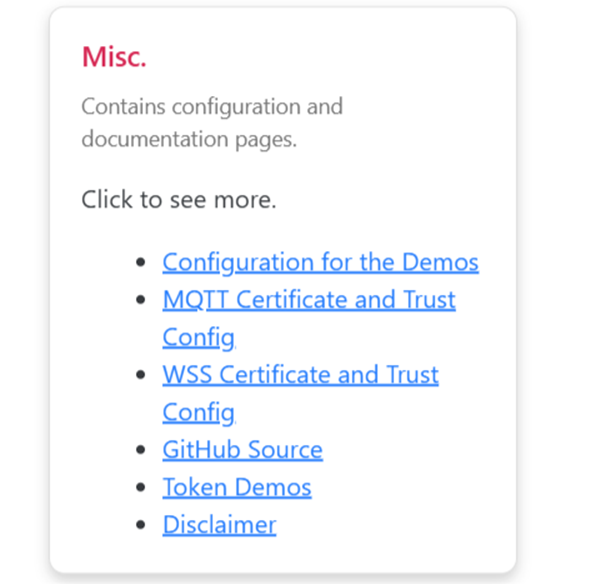
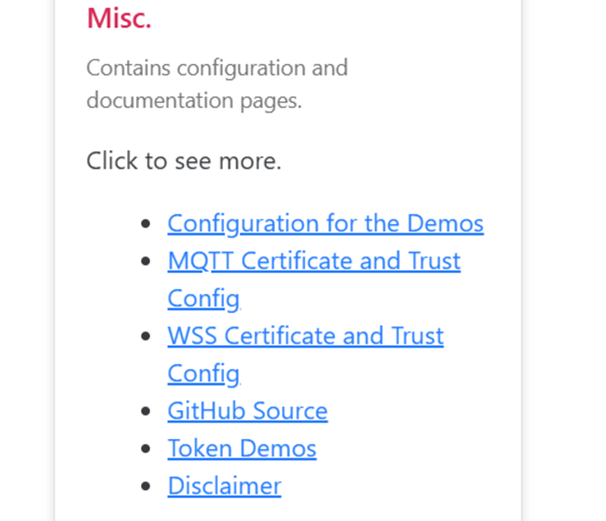
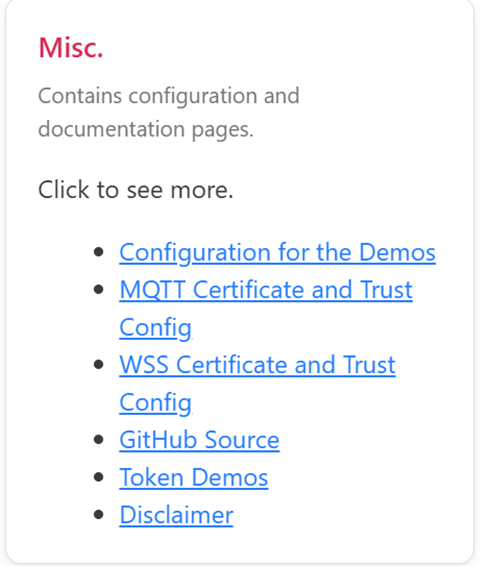
Before using MQTT or WebSocket (WSS), configuration is required. From the Demo Application Home Page, select Misc. → Configuration for the Demos.
Figure 2 - Miscellaneous Configuration and Documentation Pages
Configure the Demo Application by supplying the necessary API keys and server addresses.
From the Home Page, select Misc. → Configuration for the Demos.
Enter and save the required settings.
RMS Options: Enter the Magensa API key and service URL
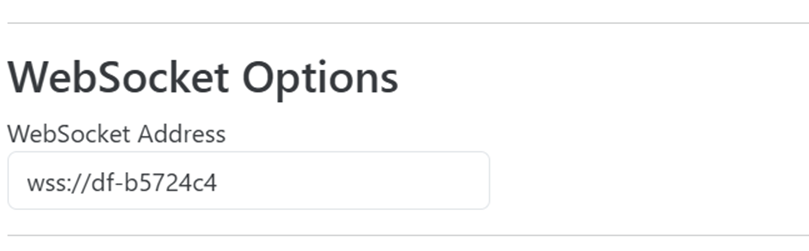
WebSocket Options: Provide the WebSocket server address.
The separate MQTT Configuration page is used to provision your physical device with its Wi-Fi credentials and MQTT broker details.
Connect your device via USB HID.
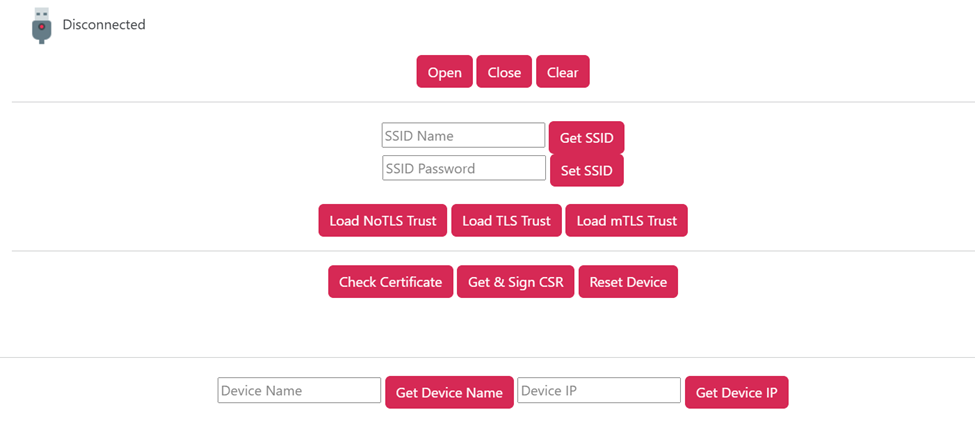
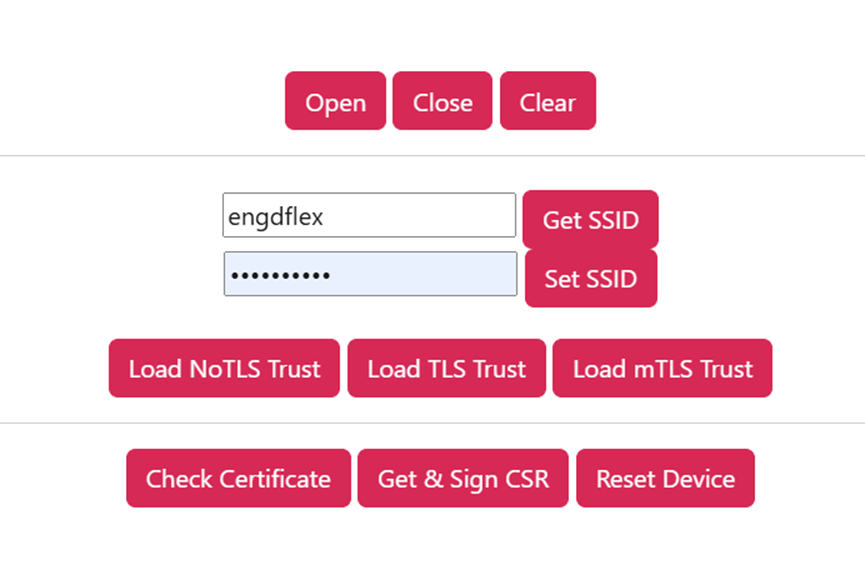
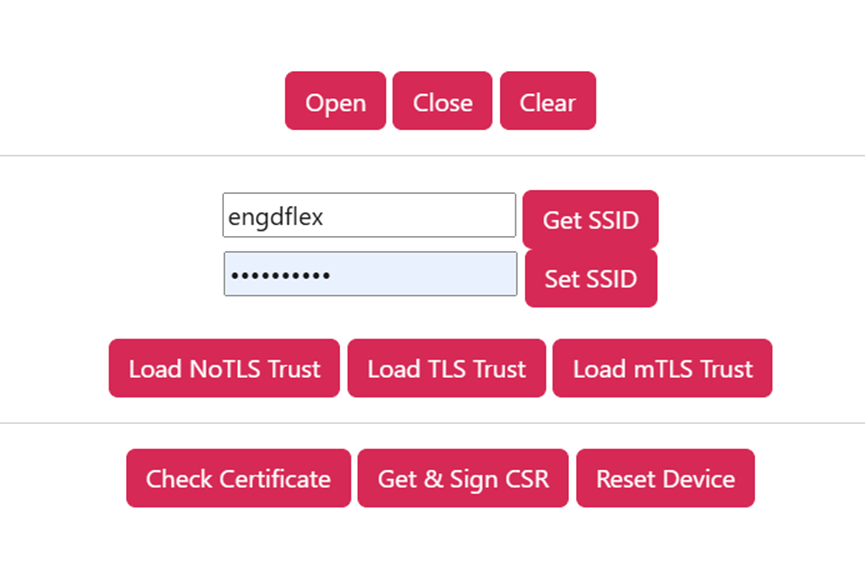
Open the MQTT Configuration demo page.
Select Open to connect to your device.
Use the Wi-Fi Settings section to enter the device's SSID Name and SSID Password.
Connect the host PC to the same wireless network that your DynaFlex II PED device will be connected to.
Open this page using a Chromium Browser
Plug in the device via USB cable
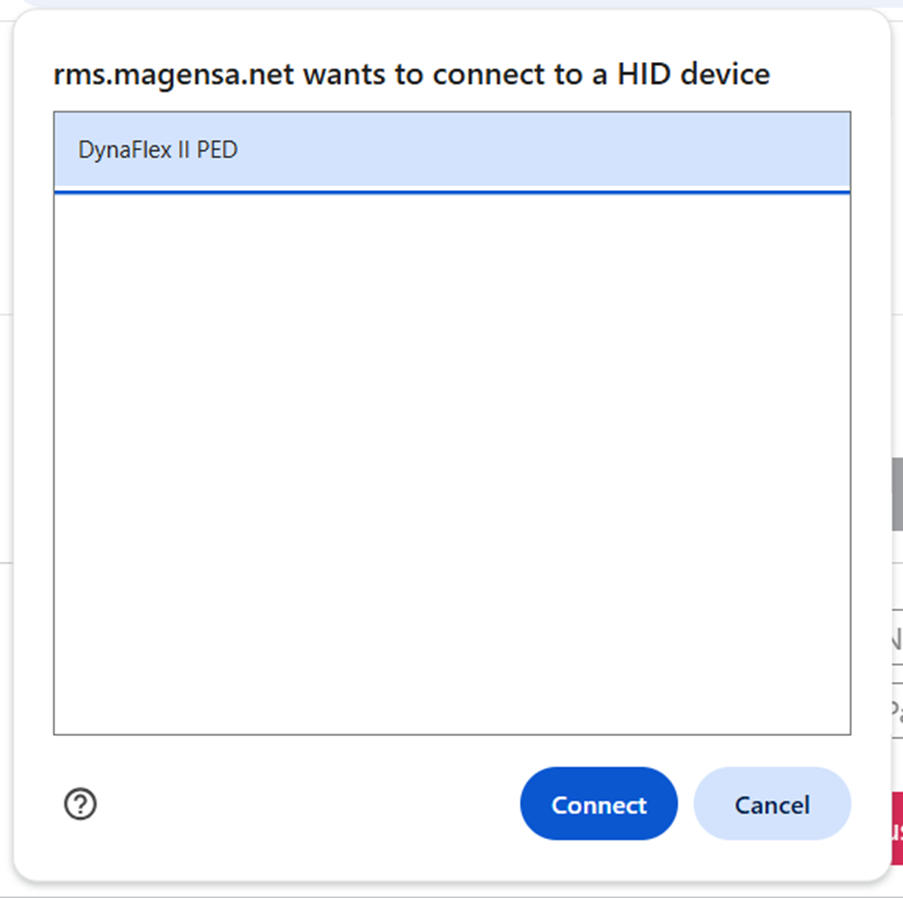
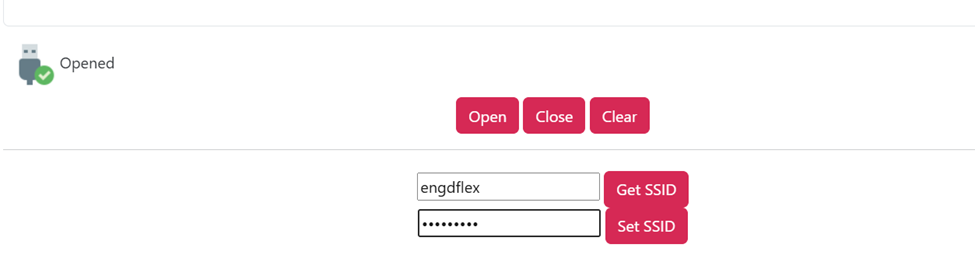
Click Open button
Select DynaFlex II PED and Click Connect.
Enter Wireless Network SSID and password, then click Set SSID
If you want to connect via non-secure TLS connection, press Load NoTLS Trust, and press Reset Device
If you want to configure via secure TLS, press Load TLS Trust, then press Get & Sign CSR, then Press Reset Device
By clicking on the MAGTEK Logo on the top of the page, go back to the Miscm Menu and press Configuration for the Demos option
Enter device host name under WebSocket Options, for Non-secure TLS, just put ws://device-hostname, for TLS secure connections, enter wss://device-hostname (example wss://df-1234567)
Click Save
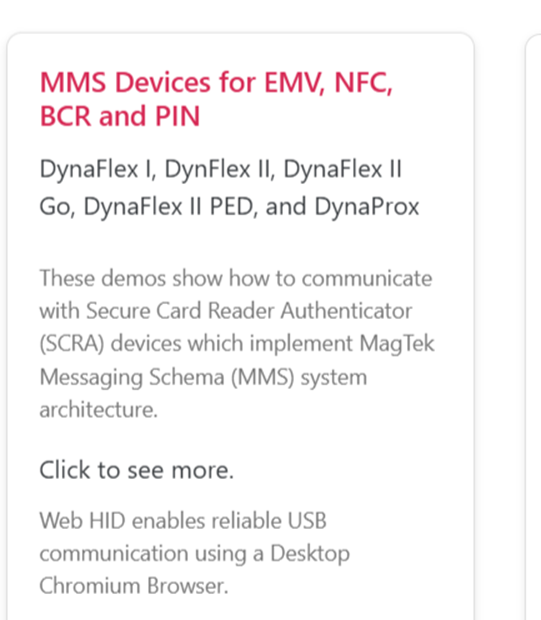
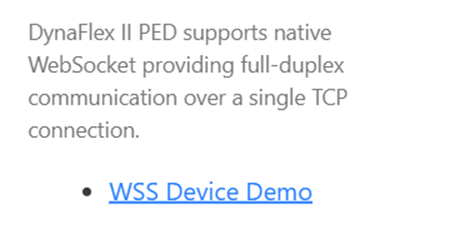
Go back to home page and press MMS Devices for EMV, NFC, BCR and PIN, then press WSS Device Demo
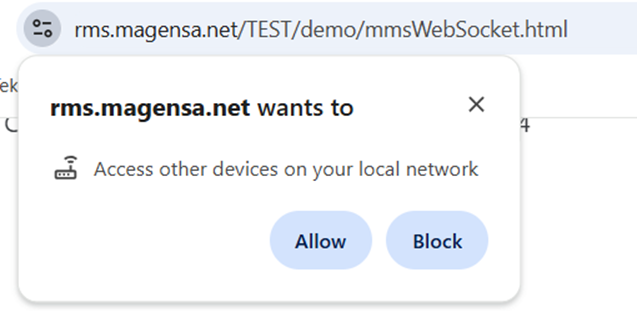
Allow other devices on your local network
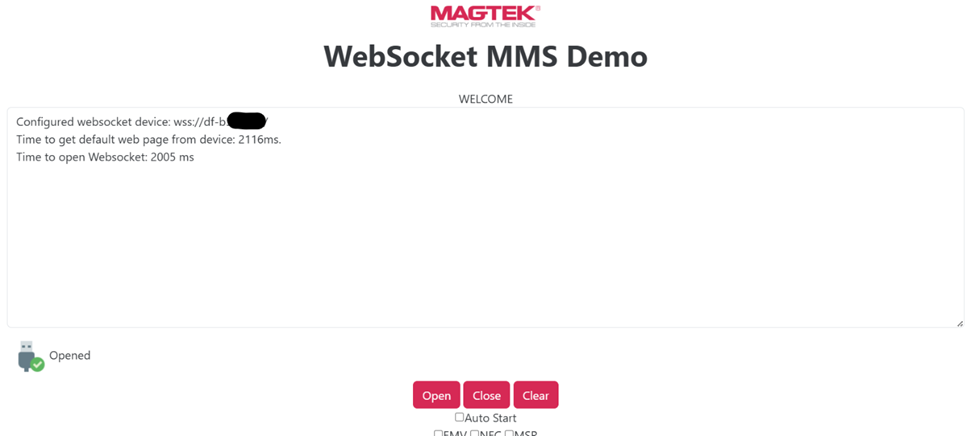
Click on Open which will all open the connection to the device:
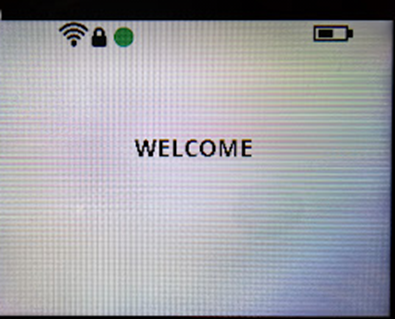
The terminal should display a green dot indicating successful connection:
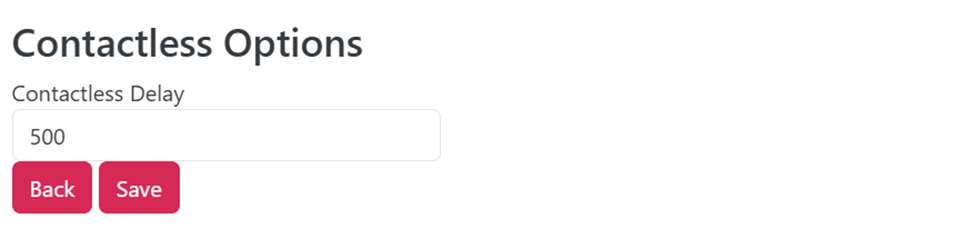
Contactless Options: Adjust timing parameters for NFC operations.
Use the MQTT Credentials section to enter the MQTT User, Password, and Org Node.
Select Save Config.
The device will record these settings, allowing it to connect to your broker over the network.
Note: Configuration values must be entered and saved prior to establishing a secure session. Connection attempts without proper configuration will fail.
Note: Configuration values must be entered and saved prior to establishing a secure session. Connection attempts without proper configuration will fail.
NOTE: The device hostname must be resolvable to an address using either DNS name resolution or creating a host file entry. See section below providing some options on resolvable DNS name.