MagTek I 1710 Apollo Court I Seal Beach, CA 90740 I Phone: (562) 546-6400 I Technical Support: (888) 624-8350 www.magtek.com
Copyright © 2006 - 2024 MagTek, Inc. Printed in the United States of America
Information in this publication is subject to change without notice and may contain technical inaccuracies or graphical discrepancies. Changes or improvements made to this product will be updated in the next publication release. No part of this document may be reproduced or transmitted in any form or by any means, electronic or mechanical, for any purpose, without the express written permission of MagTek, Inc.
MagTek® is a registered trademark of MagTek, Inc. MagnePrint® is a registered trademark of MagTek, Inc. MagneSafe® is a registered trademark of MagTek, Inc. Magensa™ is a trademark of MagTek, Inc.
aDynamo™, and uDynamo are trademarks of MagTek, Inc. eDynamo™, Dynamag, and DynaMAX are trademarks of MagTek, Inc.
mDynamo™, DynaWave™, and tDynamo™ are trademarks of MagTek, Inc.
The Bluetooth® word mark and logos are registered trademarks owned by Bluetooth SIG, Inc. and any use of such marks by MagTek is under license.
Google Play™ store and Android™ platform are trademarks of Google Inc.
USB (Universal Serial Bus) Specification is Copyright © 1998 Compaq Computer Corporation, Intel Corporation, Microsoft Corporation, NEC Corporation.
EMV® is a registered trademark in the U.S. and other countries and an unregistered trademark elsewhere. The EMV trademark is owned by EMVCo, LLC. The Contactless Indicator mark, consisting of four graduating arcs, is a trademark owned by and used with permission of EMVCo, LLC.
All other system names and product names are the property of their respective owners.
Revisions
SOFTWARE LICENSE AGREEMENT
IMPORTANT: YOU SHOULD CAREFULLY READ ALL THE TERMS, CONDITIONS AND RESTRICTIONS OF THIS LICENSE AGREEMENT BEFORE INSTALLING THE SOFTWARE PACKAGE. YOUR INSTALLATION OF THE SOFTWARE PACKAGE PRESUMES YOUR ACCEPTANCE OF THE TERMS, CONDITIONS, AND RESTRICTIONS CONTAINED IN THIS AGREEMENT. IF YOU DO NOT AGREE WITH THESE TERMS, CONDITIONS, AND RESTRICTIONS, PROMPTLY RETURN THE SOFTWARE PACKAGE AND ASSOCIATED DOCUMENTATION TO THE ADDRESS ON THE FRONT PAGE OF THIS DOCUMENT, ATTENTION: CUSTOMER SUPPORT.
MagTek, Incorporated (the "Licensor") owns and has the right to distribute the described software and documentation, collectively referred to as the "Software."
LICENSE: Licensor grants you (the "Licensee") the right to use the Software in conjunction with MagTek products. LICENSEE MAY NOT COPY, MODIFY, OR TRANSFER THE SOFTWARE IN WHOLE OR IN PART EXCEPT AS EXPRESSLY PROVIDED IN THIS AGREEMENT. Licensee may not decompile, disassemble, or in any other manner attempt to reverse engineer the Software. Licensee shall not tamper with, bypass, or alter any security features of the software or attempt to do so.
TRANSFER: Licensee may not transfer the Software or license to the Software to another party without the prior written authorization of the Licensor. If Licensee transfers the Software without authorization, all rights granted under this Agreement are automatically terminated.
COPYRIGHT: The Software is copyrighted. Licensee may not copy the Software except for archival purposes or to load for execution purposes. All other copies of the Software are in violation of this Agreement.
TERM: This Agreement is in effect as long as Licensee continues the use of the Software. The Licensor also reserves the right to terminate this Agreement if Licensee fails to comply with any of the terms, conditions, or restrictions contained herein. Should Licensor terminate this Agreement due to Licensee's failure to comply, Licensee agrees to return the Software to Licensor. Receipt of returned Software by the Licensor shall mark the termination.
LIMITED WARRANTY: Licensor warrants to the Licensee that the disk(s) or other media on which the Software is recorded are free from defects in material or workmanship under normal use.
THE SOFTWARE IS PROVIDED AS IS. LICENSOR MAKES NO OTHER WARRANTY OF ANY KIND, EITHER EXPRESS OR IMPLIED, INCLUDING, BUT NOT LIMITED TO, THE IMPLIED WARRANTIES OF MERCHANTABILITY AND FITNESS FOR A PARTICULAR PURPOSE.
Because of the diversity of conditions and PC hardware under which the Software may be used, Licensor does not warrant that the Software will meet Licensee specifications or that the operation of the Software will be uninterrupted or free of errors.
IN NO EVENT WILL LICENSOR BE LIABLE FOR ANY DAMAGES, INCLUDING ANY LOST PROFITS, LOST SAVINGS, OR OTHER INCIDENTAL OR CONSEQUENTIAL DAMAGES ARISING OUT OF THE USE, OR INABILITY TO USE, THE SOFTWARE. Licensee's sole remedy in the event of a defect in material or workmanship is expressly limited to replacement of the Software disk(s) if applicable.
GOVERNING LAW: If any provision of this Agreement is found to be unlawful, void, or unenforceable, that provision shall be removed from consideration under this Agreement and will not affect the enforceability of any of the remaining provisions. This Agreement shall be governed by the laws of the State of California and shall inure to the benefit of MagTek, Incorporated, its successors or assigns.
ACKNOWLEDGMENT: LICENSEE ACKNOWLEDGES THAT HE HAS READ THIS AGREEMENT, UNDERSTANDS ALL OF ITS TERMS, CONDITIONS, AND RESTRICTIONS, AND AGREES TO BE BOUND BY THEM. LICENSEE ALSO AGREES THAT THIS AGREEMENT SUPERSEDES ANY AND ALL VERBAL AND WRITTEN COMMUNICATIONS BETWEEN LICENSOR AND LICENSEE OR THEIR ASSIGNS RELATING TO THE SUBJECT MATTER OF THIS AGREEMENT.
QUESTIONS REGARDING THIS AGREEMENT SHOULD BE ADDRESSED IN WRITING TO MAGTEK, INCORPORATED, ATTENTION: CUSTOMER SUPPORT, AT THE ADDRESS LISTED IN THIS DOCUMENT, OR E-MAILED TO
Rev Number
Date
Notes
10
February 5, 2020
Initial release
100
June 4, 2024
Added support for iDynamo 5 (Gen III) at sections 1, and 2.1.
This section describes how to use the MagTek SCRA OEM Demo on an Android host. Some peripherals are not included in every MagTek OEM device. Use each feature of the Demo accordingly.
Connect the MagTek SCRA OEM device to the Android host USB port using an OTG cable.
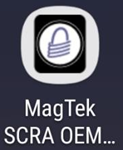
Press on MagTek SCRA OEM Demo to launch the app.
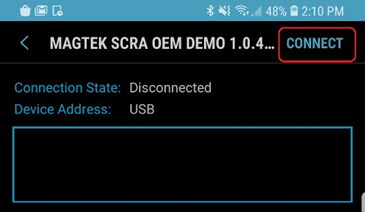
To start the process of connecting, press on Connect .
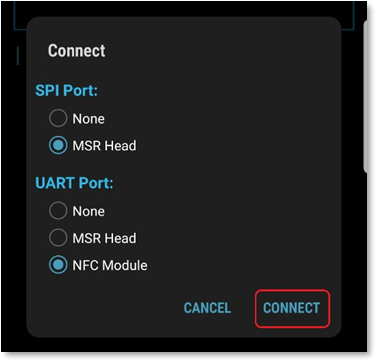
Select the appropriate peripheral connected to the MagTek SCRA OEM device’s SPI Port and UART Port, and then press on Connect .
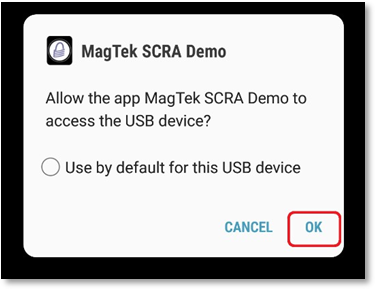
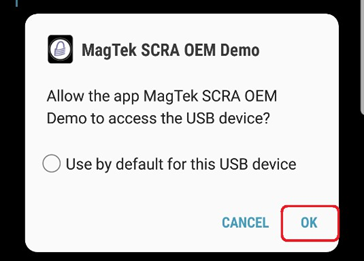
Approve any prompts for allowing the app to access the USB device by pressing on OK .
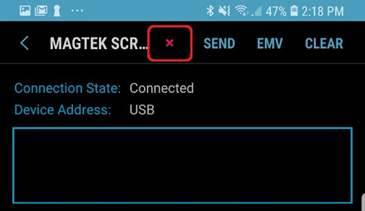
To disconnect the MagTek SCRA OEM device, press the red X at the top of the app.
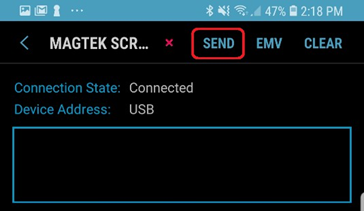
To begin the process of sending a command to the device, press on Send at the top of the app.
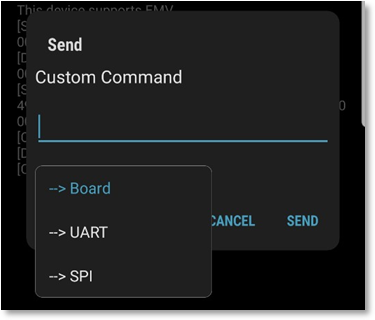
Select which interface the command is to be sent to:
Board: Commands to the main board chip peripheral.
UAER: Commands to NFC contactless peripheral.
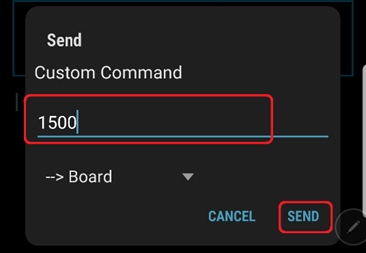
Enter the command under Custom Command , then press on Send.
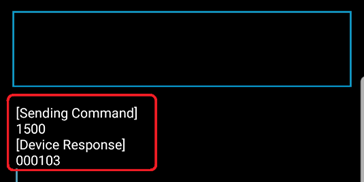
Sent commands and device responses are displayed similarly as below.
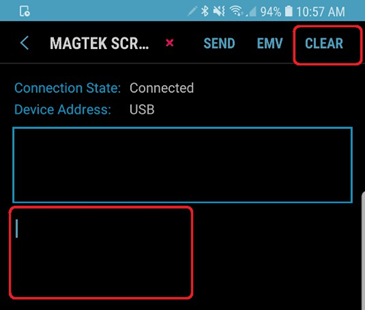
To clear the display, press on Clear at the top of the app.
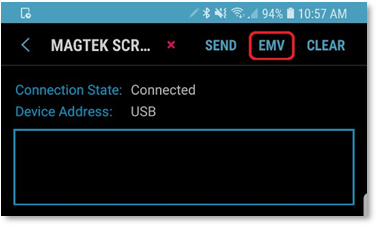
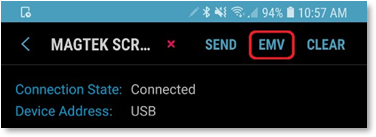
To begin the process of starting an EMV transaction, press on EMV at the top of the app.
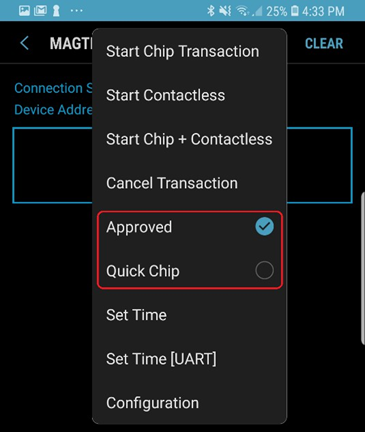
Select the transaction approval type:
Approved: On for approval response code. Off for decline response code.
Quick Chip: On to transact only an Acquirer Request Cryptogram (ARQC). Off to transact both ARQC and Acquirer Response Code (ARPC.
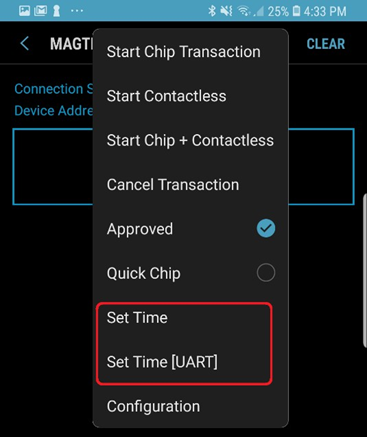
MagTek SCRA OEM devices and peripherals not equipped with batteries will need to have their time set on each USB connection to the Android host device. This step is needed only once until there is a power cycle or reset of the MagTek SCRA OEM device. Set the time according to which peripheral is to be used for the transaction:
Set Time: For the main board chip transaction.
Set Time [UART]: For NFC contactless transaction.
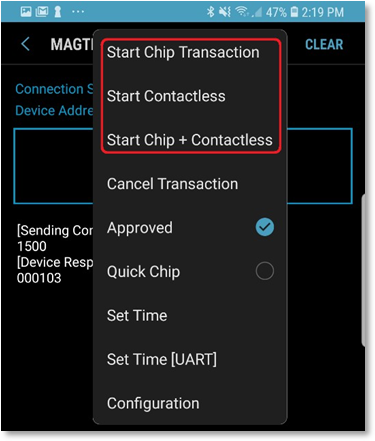
Select one of the card types for the transaction:
Start Chip Transaction: for chip cards only.
Start Contactless: for contactless only.
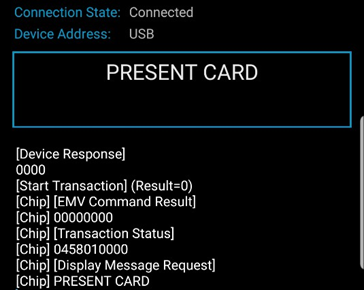
Present the card to the device.
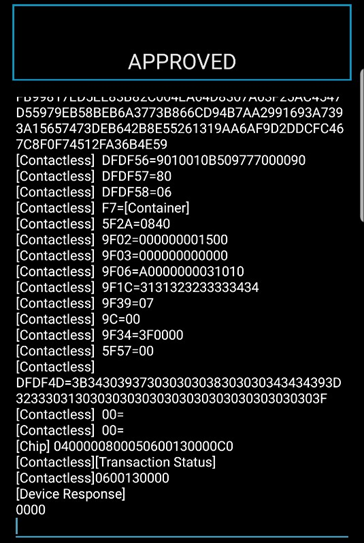
Follow the prompts for selecting any languages and applications to complete the transaction. The result will be displayed similar as below.
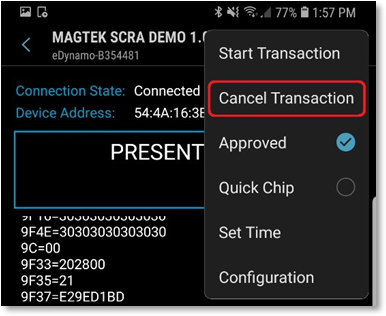
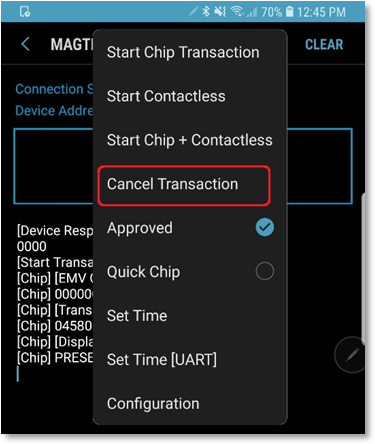
To cancel a transacion, press EMV at the top of the app and press Cancel Transaction. A transaction may only be canceled before a card is presented.
This section describes the get, set, and commit commands for terminal configuration on the device.
Get – retrieves the terminal configuration.
Set – sets the terminal configuration. Changes do not remain after device power cycle or reset.
Commit – is used to store configuration changes to non-volatile memory to remain in place after a power cycle or reset.
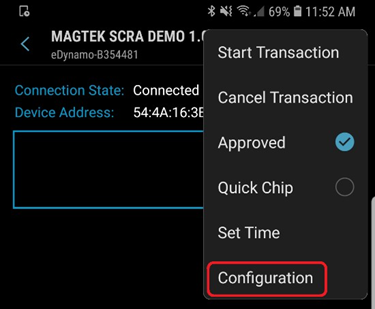
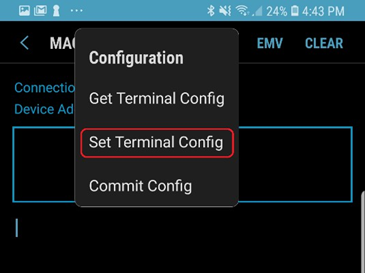
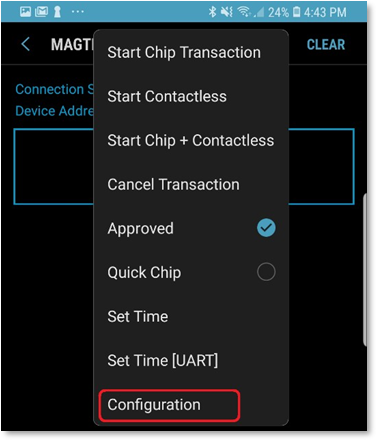
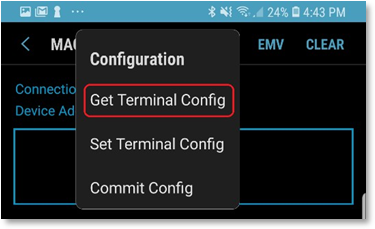
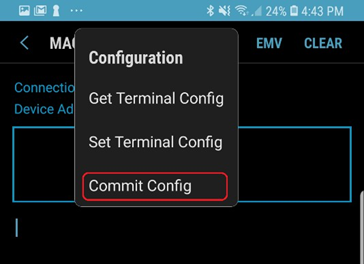
To access the device’s terminal configuration, press at the top of the app and select Configuration.
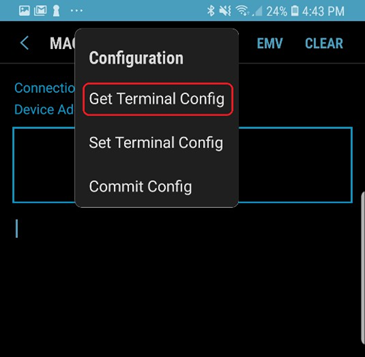
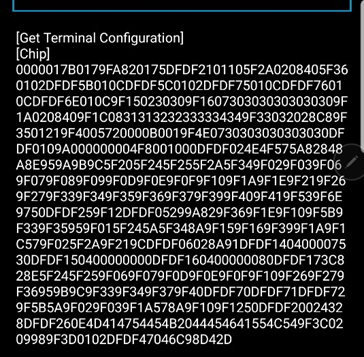
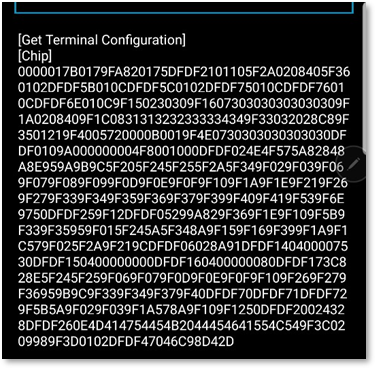
To get the devices terminal configuration, select Get Terminal Config . The value will be displayed similar as below.
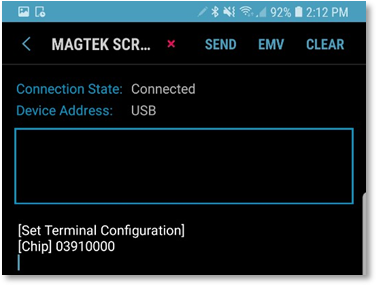
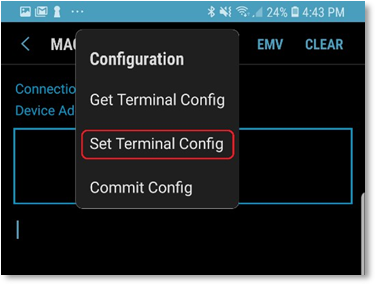
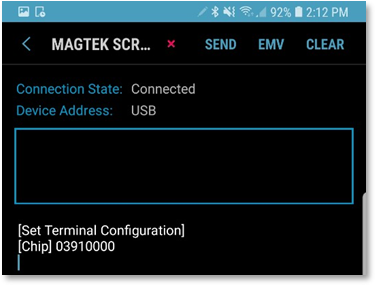
To set the devices terminal configuration, select Set Terminal Config . The value will be displayed similar as below. Setting the Terminal Configuration requires an authenticated message unique to each device, so in the MagTek SCRA OEM Demo the response will indicate an invalid serial number or invalid MAC.
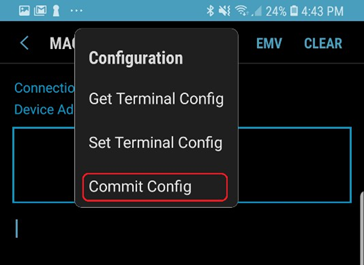
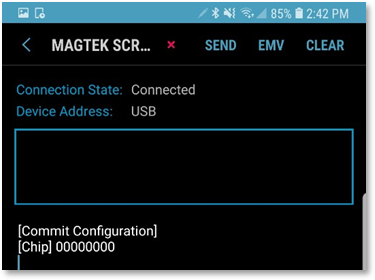
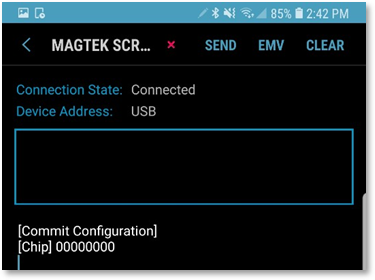
To commit the devices terminal configuration, select Commit Config . The value will be displayed similar as below.
This section describes how to use the MagTek SCRA Demo on an Android host. Some peripherals are not included in every MagTek SCRA device, so use each feature of the Demo accordingly.
This section describes how to use the MagTek SCRA Demo with a SCRA Device such as Dynamag, DynaMAX, eDynamo, mDynamo, BulleT, uDynamo, tDynamo, and DynaWave, iDynamo 5 (Gen III) connected to an Android host via USB OTG cable. Please note that the Android host must have USB OTG support to use this connection type.
Connect the MagTek SCRA device to the Android host USB port using an OTG cable.
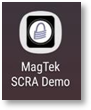
Press on MagTek SCRA Demo to launch the app.
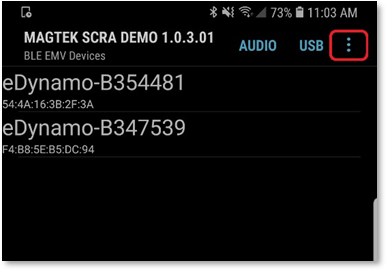
Connect a SCRA Device via USB OTG cable, then select USB in the menu.
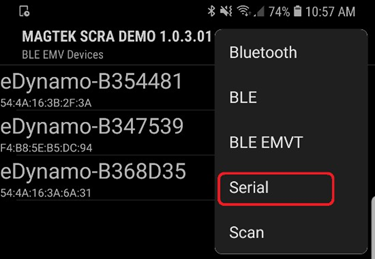
If the device is Serial with a USB OTG cable, press on the device selector to the right of USB, then select Serial .
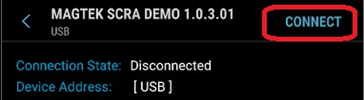
Press on Connect .
Approve any prompts for allowing the app to access the USB device by pressing on OK .
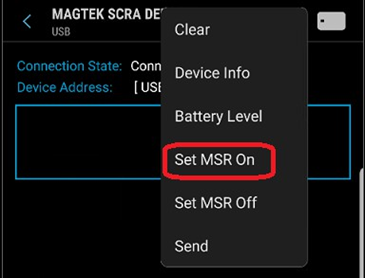
If you have a tDynamo device, press the icon and select Set MSR On to turn on the head.
Swipe a card to see the card data displays on the screen.
To disconnect the MagTek SCRA device, press the red X.
This section describes how to use the MagTek SCRA Demo with a SCRA Device such as Dynamag, DynaMAX, eDynamo, BulleT, and tDynamo connected to an Android host via USB OTG cable. Please note that the Android host must support Bluetooth and Bluetooth LE to use this connection type.
Connect the MagTek SCRA device to the Android host USB port using an OTG cable.
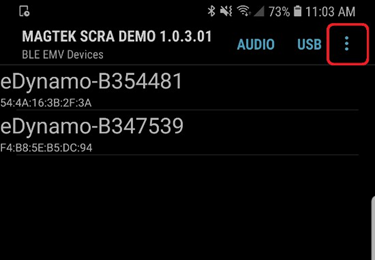
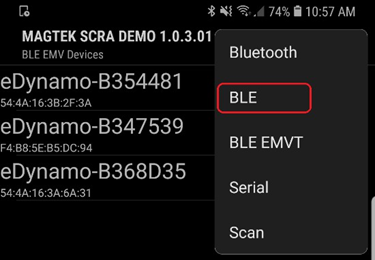
Press on the device selector and select either Bluetooth, BLE, BLE EMVT from the list.
Bluetooth: for BulleT
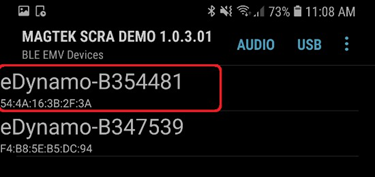
Select the intended device from the list. Example shown below.
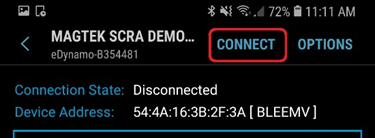
Press Connect to connect to the device.
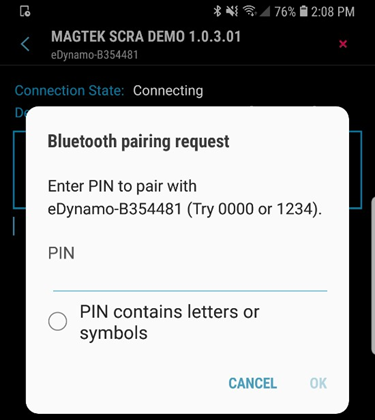
The host will prompt to pair the device the first time the connection is established. Enter the pairing PIN and press OK .
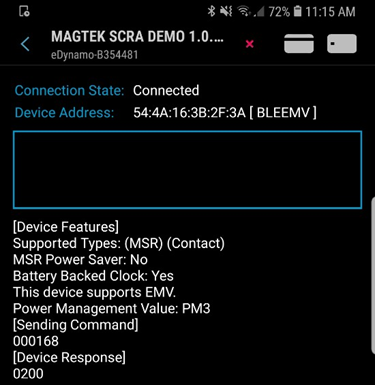
After the Connection State changes to Connected , the device is ready.
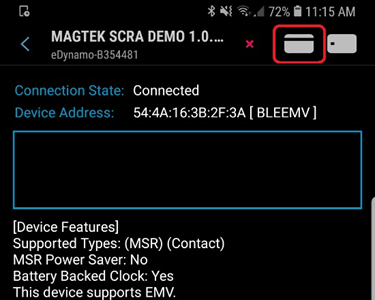
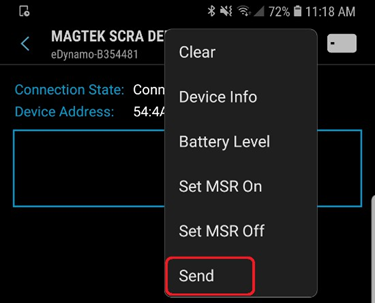
To begin the process of sending a command to the device, press on the magnetic stripe card icon at the top of the app, then select SEND .
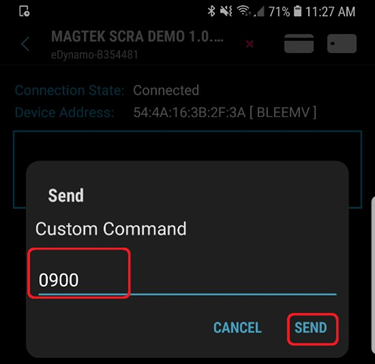
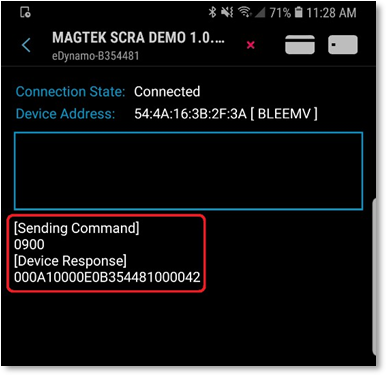
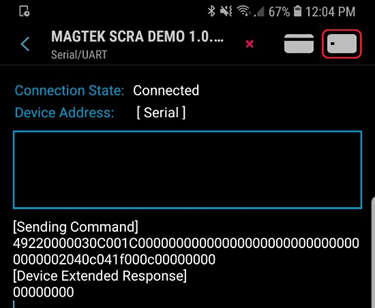
Enter a command, then press on SEND . An example is shown below with the response.
The selections other than SEND command are as follows.
Clear: Clears the screen.
Device Info: Returns information about the device.
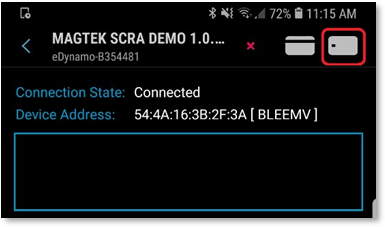
To begin the process of starting an EMV transaction, press the chip card icon at the top of the app.
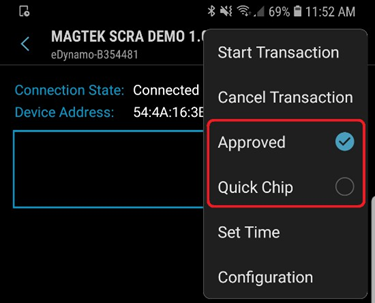
Select the transaction approval type:
Approved: On for approval response code. Off for decline response code.
Quick Chip: On to transact only an Acquirer Request Cryptogram (ARQC). Off to transact both ARQC and Acquirer Response Code (ARPC).
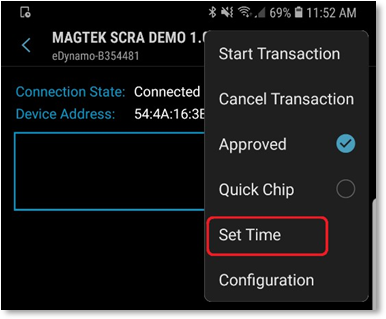
For MagTek SCRA devices not equipped with batteries, the devices must have their time set after a power up from the host. This is needed only once until the next power cycle or reset.
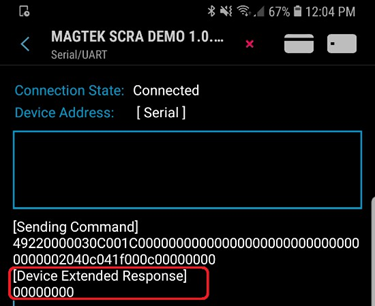
Select Set Time. A response of all 0’s means the time was set.
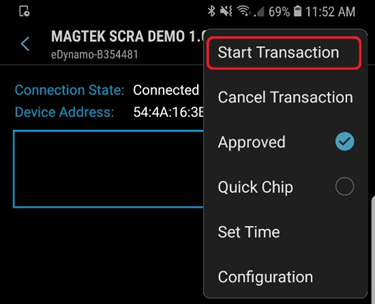
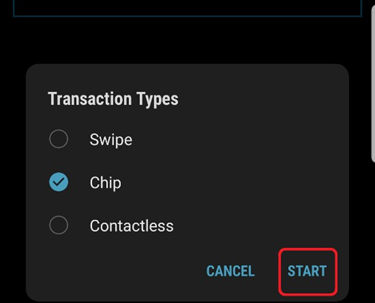
Select Start Transaction and select each Transaction Types. Transaction types may be combined.
Swipe: For magnetic stripe
Chip: for chip.
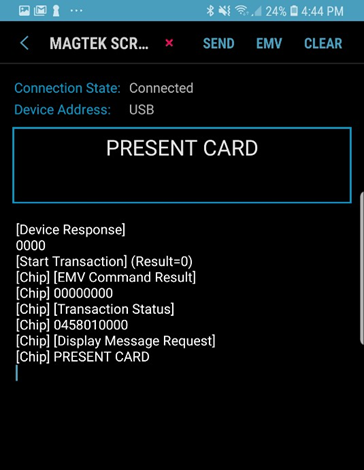
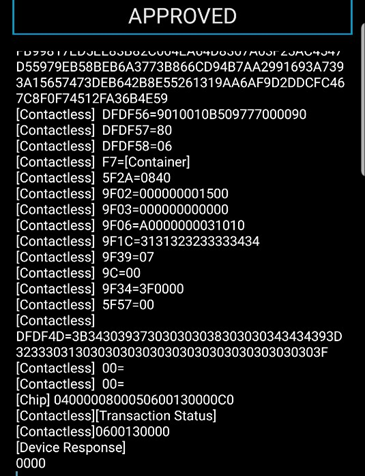
Present the card to the device and follow the prompts for selecting any languages and applications to complete the transaction. The result will be displayed similar as below.
To cancel a transaction, press EMV at the top of the app and press Cancel Transaction . A transaction may only be canceled before a card is presented.
This section describes the get, set, and commit commands for terminal configuration on the device.
Get – retrieves the terminal configuration.
Set – sets the terminal configuration. Changes do not remain after device power cycle or reset.
Commit – is used to store configuration changes to non-volatile memory to remain in place after a power cycle or reset.
To access the device’s terminal configuration, press on the chip card icon at the top of the app and select Configuration.
To get the devices terminal configuration, select Get Terminal Config . The value will be displayed similar as below.
To set the devices terminal configuration, select Set Terminal Config . The value will be displayed similar as below. Setting the Terminal Configuration requires an authenticated message unique to each device, so in the MagTek SCRA OEM Demo the response will indicate an invalid serial number or invalid MAC.
To commit the devices terminal configuration, select Commit Config . The value will be displayed similar as below.
BLE EMVT: for iDynamo
Set MSR On: Powers on the MSR head while idle for devices that support this feature.
Set MSR Off: Powers off the MSR head while idle for devices that support this feature
Press Start to start the transaction