INFORMATION IN THIS PUBLICATION IS SUBJECT TO CHANGE WITHOUT NOTICE AND MAY CONTAIN TECHNICAL INACCURACIES OR GRAPHICAL DISCREPANCIES. CHANGES OR IMPROVEMENTS MADE TO THIS PRODUCT WILL BE UPDATED IN THE NEXT PUBLICATION RELEASE. NO PART OF THIS DOCUMENT MAY BE REPRODUCED OR TRANSMITTED IN ANY FORM OR BY ANY MEANS, ELECTRONIC OR MECHANICAL, FOR ANY PURPOSE, WITHOUT THE EXPRESS WRITTEN PERMISSION OF MAGTEK, INC.
MagTek®, MagnePrint®, and MagneSafe® are registered trademarks of MagTek, Inc. Magensa™ is a trademark of MagTek, Inc.
DynaFlex™, DynaFlex Pro™, DynaProx™, DynaFlex II SCRA™, DynaFlex II PED™, and DynaFlex II GO™ are trademarks of MagTek, Inc.
AAMVA™ is a trademark of AAMVA.
American Express® and EXPRESSPAY FROM AMERICAN EXPRESS® are registered trademarks of American Express Marketing & Development Corp.
D-PAYMENT APPLICATION SPECIFICATION® is a registered trademark to Discover Financial Services CORPORATION
MasterCard® is a registered trademark and PayPass™ and Tap & Go™ are trademarks of MasterCard International Incorporated.
Visa® and Visa payWave® are registered trademarks of Visa International Service Association.
ANSI®, the ANSI logo, and numerous other identifiers containing "ANSI" are registered trademarks, service marks, and accreditation marks of the American National Standards Institute (ANSI).
ISO® is a registered trademark of the International Organization for Standardization. UL™ and the UL logo are trademarks of UL LLC.
PCI Security Standards Council® is a registered trademark of the PCI Security Standards Council, LLC. EMV® is a registered trademark in the U.S. and other countries and an unregistered trademark elsewhere. The EMV trademark is owned by EMVCo, LLC. The Contactless Indicator mark, consisting of four graduating arcs, is a trademark owned by and used with permission of EMVCo, LLC.
The Bluetooth® word mark and logos are registered trademarks owned by Bluetooth SIG, Inc. and any use of such marks by MagTek is under license.
Google Play™ store, Google Wallet™ payment service, and Android™ platform are trademarks of Google Inc.
Apple Pay®, iPhone®, iPod®, Mac®, and OS X® are registered trademarks of Apple Inc., registered in the U.S. and other countries. iPad™ is a trademark of Apple. Inc. App StoreSM is a service mark of Apple Inc., registered in the U.S. and other countries. IOS is a trademark or registered trademark of Cisco in the U.S. and other countries and is used by Apple Inc. under license.
Microsoft®, Windows®, and .NET® are registered trademarks of Microsoft Corporation. NFC is governed by The NFC Forum.
All other system names and product names are the property of their respective owners.
Rev Number
Date
Notes
100
September 24, 2024
Initial Release
MagTek warrants that the products sold pursuant to this Agreement will perform in accordance with
MagTek’s published specifications. This warranty shall be provided only for a period of one year from the date of the shipment of the product from MagTek (the “Warranty Period”). This warranty shall apply only to the “Buyer” (the original purchaser, unless that entity resells the product as authorized by MagTek, in which event this warranty shall apply only to the first repurchaser).
During the Warranty Period, should this product fail to conform to MagTek’s specifications, MagTek will, at its option, repair or replace this product at no additional charge except as set forth below. Repair parts and replacement products will be furnished on an exchange basis and will be either reconditioned or new. All replaced parts and products become the property of MagTek. This limited warranty does not include service to repair damage to the product resulting from accident, disaster, unreasonable use, misuse, abuse, negligence, or modification of the product not authorized by MagTek. MagTek reserves the right to examine the alleged defective goods to determine whether the warranty is applicable.
Without limiting the generality of the foregoing, MagTek specifically disclaims any liability or warranty for goods resold in other than MagTek’s original packages, and for goods modified, altered, or treated without authorization by MagTek.
Service may be obtained by delivering the product during the warranty period to MagTek (1710 Apollo Court, Seal Beach, CA 90740). If this product is delivered by mail or by an equivalent shipping carrier, the customer agrees to insure the product or assume the risk of loss or damage in transit, to prepay shipping charges to the warranty service location, and to use the original shipping container or equivalent. MagTek will return the product, prepaid, via a three (3) day shipping service. A Return Material
Authorization (“RMA”) number must accompany all returns. Buyers may obtain an RMA number by contacting MagTek Support Services at (888) 624-8350.
EACH BUYER UNDERSTANDS THAT THIS MAGTEK PRODUCT IS OFFERED AS-IS. MAGTEK MAKES NO OTHER WARRANTY, EXPRESS OR IMPLIED, AND MAGTEK DISCLAIMS ANY WARRANTY OF ANY OTHER KIND, INCLUDING ANY WARRANTY OF MERCHANTABILITY OR FITNESS FOR A PARTICULAR PURPOSE.
IF THIS PRODUCT DOES NOT CONFORM TO MAGTEK’S SPECIFICATIONS, THE SOLE REMEDY SHALL BE REPAIR OR REPLACEMENT AS PROVIDED ABOVE. MAGTEK’S LIABILITY, IF ANY, SHALL IN NO EVENT EXCEED THE TOTAL AMOUNT PAID TO MAGTEK UNDER THIS AGREEMENT. IN NO EVENT WILL MAGTEK BE LIABLE TO THE BUYER FOR ANY DAMAGES, INCLUDING ANY LOST PROFITS, LOST SAVINGS, OR OTHER INCIDENTAL OR CONSEQUENTIAL DAMAGES ARISING OUT OF THE USE OF, OR INABILITY TO USE, SUCH PRODUCT, EVEN IF MAGTEK HAS BEEN ADVISED OF THE POSSIBILITY OF SUCH DAMAGES, OR FOR ANY CLAIM BY ANY OTHER PARTY.
LIMITATION ON LIABILITY
EXCEPT AS PROVIDED IN THE SECTIONS RELATING TO MAGTEK’S LIMITED WARRANTY, MAGTEK’S LIABILITY UNDER THIS AGREEMENT IS LIMITED TO THE CONTRACT PRICE OF THIS PRODUCT.
MAGTEK MAKES NO OTHER WARRANTIES WITH RESPECT TO THE PRODUCT, EXPRESSED OR IMPLIED, EXCEPT AS MAY BE STATED IN THIS AGREEMENT, AND MAGTEK DISCLAIMS ANY IMPLIED WARRANTY, INCLUDING WITHOUT LIMITATION ANY IMPLIED WARRANTY OF MERCHANTABILITY OR FITNESS FOR A PARTICULAR PURPOSE.
MAGTEK SHALL NOT BE LIABLE FOR CONTINGENT, INCIDENTAL, OR CONSEQUENTIAL DAMAGES TO PERSONS OR PROPERTY. MAGTEK FURTHER LIMITS ITS LIABILITY OF ANY KIND WITH RESPECT TO THE PRODUCT, INCLUDING NEGLIGENCE ON ITS PART, TO THE CONTRACT PRICE FOR THE GOODS.
MAGTEK’S SOLE LIABILITY AND BUYER’S EXCLUSIVE REMEDIES ARE STATED IN THIS SECTION AND IN THE SECTION RELATING TO MAGTEK’S LIMITED WARRANTY.
IMPORTANT: YOU SHOULD CAREFULLY READ ALL THE TERMS, CONDITIONS AND RESTRICTIONS OF THIS LICENSE AGREEMENT BEFORE INSTALLING THE SOFTWARE PACKAGE. YOUR INSTALLATION OF THE SOFTWARE PACKAGE PRESUMES YOUR ACCEPTANCE OF THE TERMS, CONDITIONS, AND RESTRICTIONS CONTAINED IN THIS AGREEMENT. IF YOU DO NOT AGREE WITH THESE TERMS, CONDITIONS, AND RESTRICTIONS, PROMPTLY RETURN THE SOFTWARE PACKAGE AND ASSOCIATED DOCUMENTATION TO THE ADDRESS ON THE FRONT PAGE OF THIS DOCUMENT, ATTENTION: CUSTOMER SUPPORT.
TERMS, CONDITIONS, AND RESTRICTIONS
MagTek, Incorporated (the "Licensor") owns and has the right to distribute the described software and documentation, collectively referred to as the "Software."
LICENSE: Licensor grants you (the "Licensee") the right to use the Software in conjunction with MagTek products. LICENSEE MAY NOT COPY, MODIFY, OR TRANSFER THE SOFTWARE IN WHOLE OR IN PART EXCEPT AS EXPRESSLY PROVIDED IN THIS AGREEMENT. Licensee
may not decompile, disassemble, or in any other manner attempt to reverse engineer the Software. Licensee shall not tamper with, bypass, or alter any security features of the software or attempt to do so.
TRANSFER: Licensee may not transfer the Software or license to the Software to another party without the prior written authorization of the Licensor. If Licensee transfers the Software without authorization, all rights granted under this Agreement are automatically terminated.
COPYRIGHT: The Software is copyrighted. Licensee may not copy the Software except for archival purposes or to load for execution purposes. All other copies of the Software are in violation of this Agreement.
TERM: This Agreement is in effect as long as Licensee continues the use of the Software. The Licensor also reserves the right to terminate this Agreement if Licensee fails to comply with any of the terms, conditions, or restrictions contained herein. Should Licensor terminate this Agreement due to Licensee's failure to comply, Licensee agrees to return the Software to Licensor. Receipt of returned Software by the Licensor shall mark the termination.
LIMITED WARRANTY: Licensor warrants to the Licensee that the disk(s) or other media on which the Software is recorded are free from defects in material or workmanship under normal use.
THE SOFTWARE IS PROVIDED AS IS. LICENSOR MAKES NO OTHER WARRANTY OF ANY KIND, EITHER EXPRESS OR IMPLIED, INCLUDING, BUT NOT LIMITED TO, THE IMPLIED WARRANTIES OF MERCHANTABILITY AND FITNESS FOR A PARTICULAR PURPOSE.
Because of the diversity of conditions and PC hardware under which the Software may be used, Licensor does not warrant that the Software will meet Licensee specifications or that the operation of the Software will be uninterrupted or free of errors.
IN NO EVENT WILL LICENSOR BE LIABLE FOR ANY DAMAGES, INCLUDING ANY LOST PROFITS, LOST SAVINGS, OR OTHER INCIDENTAL OR CONSEQUENTIAL DAMAGES ARISING OUT OF THE USE, OR INABILITY TO USE, THE SOFTWARE. Licensee's sole remedy in
the event of a defect in material or workmanship is expressly limited to replacement of the Software disk(s) if applicable.
GOVERNING LAW: If any provision of this Agreement is found to be unlawful, void, or unenforceable, that provision shall be removed from consideration under this Agreement and will not affect the enforceability of any of the remaining provisions. This Agreement shall be governed by the laws of the State of California and shall inure to the benefit of MagTek, Incorporated, its successors or assigns.
ACKNOWLEDGMENT: LICENSEE ACKNOWLEDGES THAT HE HAS READ THIS AGREEMENT, UNDERSTANDS ALL OF ITS TERMS, CONDITIONS, AND RESTRICTIONS, AND AGREES TO BE BOUND BY THEM. LICENSEE ALSO AGREES THAT THIS AGREEMENT SUPERSEDES ANY AND ALL VERBAL AND WRITTEN COMMUNICATIONS BETWEEN LICENSOR AND LICENSEE OR THEIR ASSIGNS RELATING TO THE SUBJECT MATTER OF THIS AGREEMENT.
QUESTIONS REGARDING THIS AGREEMENT SHOULD BE ADDRESSED IN WRITING TO MAGTEK, INCORPORATED, ATTENTION: CUSTOMER SUPPORT, AT THE ADDRESS LISTED IN THIS DOCUMENT, OR E-MAILED TO SUPPORT@MAGTEK.COM.
DEMO SOFTWARE / SAMPLE CODE: Unless otherwise stated, all demo software and sample code are to be used by Licensee for demonstration purposes only and MAY NOT BE incorporated into any production or live environment. The PIN Pad sample implementation is for software PIN Pad test purposes only and is not PCI compliant. To meet PCI compliance in production or live environments, a third-party PCI compliant component (hardware or software-based) must be used.
To connect via an interface listed in the Connection Type box, follow these steps.
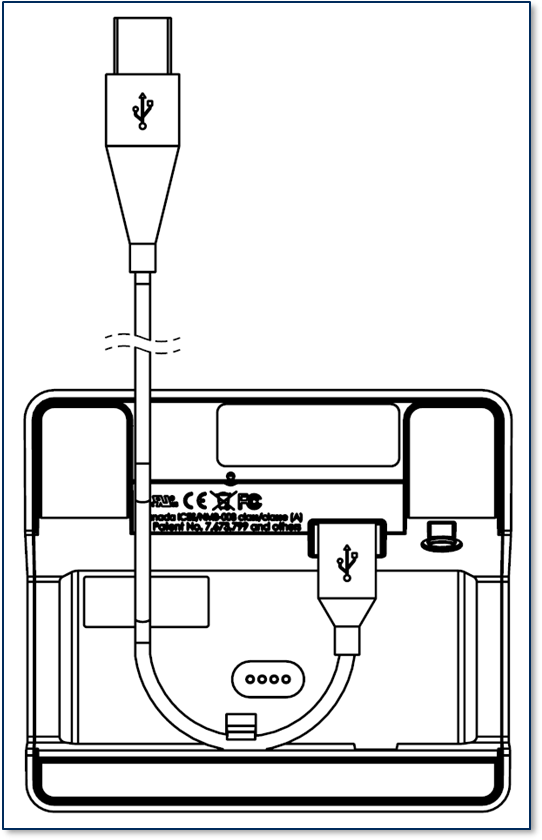
For best results, use the cable that is included with the device.
Connect the USB-C end of the cable to DynaFlex device.
Figure - Connecting DynaFlex to a USB Host
Introduction
This document provides instructions to use the DynaFlex, DynaProx Utility software for configuring a device to accept Google Wallet Smart Tap Passes. It is part of a larger library of documents designed to assist implementers. For details, see the product Support pages on
The following documents are essential:
D998200383 DynaFlex Family Programmer’s Manual ( COMMANDS )
A Windows 10 host with available USB port
If you plan to route the cable out the back of the device, route the cable through the cable management clip to change its direction. Even if you are not routing out the back, you may use the cable clip for strain relief, to help stabilize the mechanical connection when cardholders or operators move the device or the cable.
Route the cable in the desired direction (e.g., out the back, left, right, or down into the countertop).
Connect the other end of the USB cable to the host’s USB port.
As soon as the device starts receiving power through USB, it automatically powers on.
Launch the DynaFlex Utility and select DynaFlex device in the Device Type list, then press the connect button.
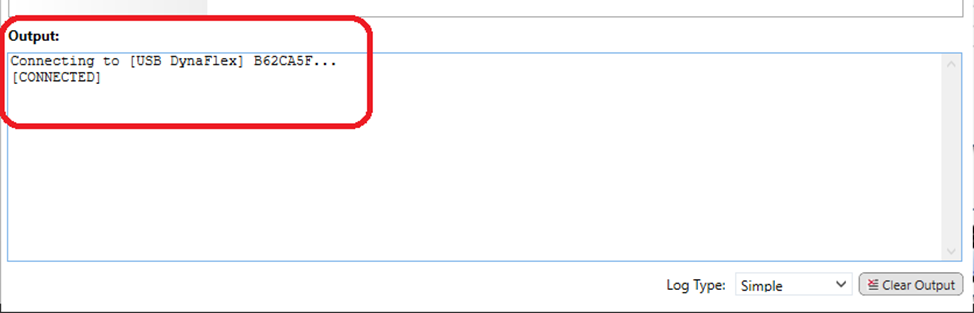
The Output log shows the status of the connection.
To disconnect the device, press Disconnect button.
The following instructions are for pairing the DynaFlex II GO to a PC.
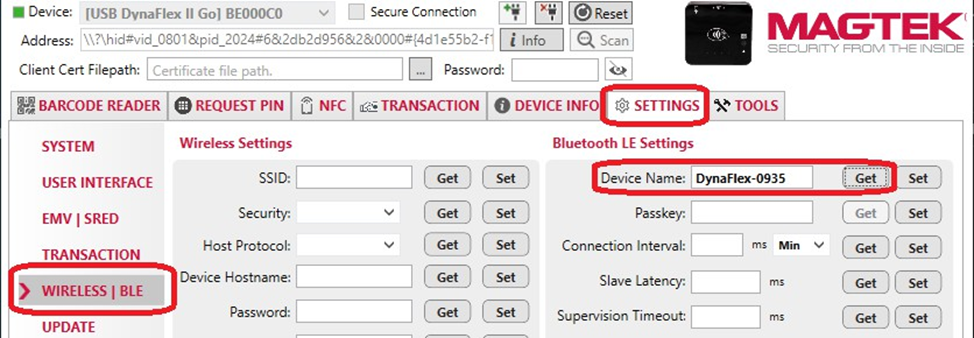
Launch the DynaFlex Utility to connect to the device by USB connection. Obtain Bluetooth LE Device name from selecting the Settings tab, Wireless/BLE menu, and at Bluetooth LE Settings press the Get button for Device Name
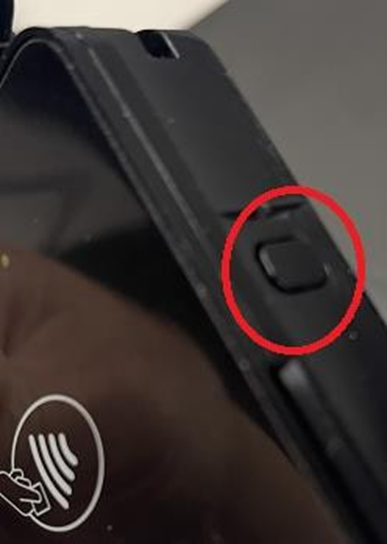
Place the device into Pairing Mode by pressing and holding the power button on device until 4 beeps and release the button. The 4th LED will blink green.
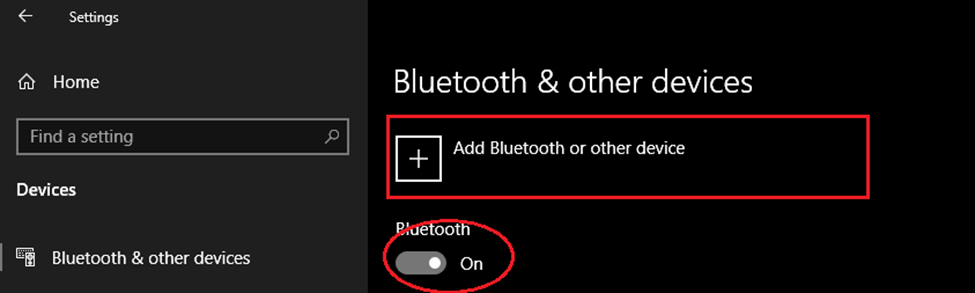
On the PC, open Settings and choose Bluetooth & other devices. Make sure the “Bluetooth” is turned ON . On the right panel, choose Add Bluetooth or other device.
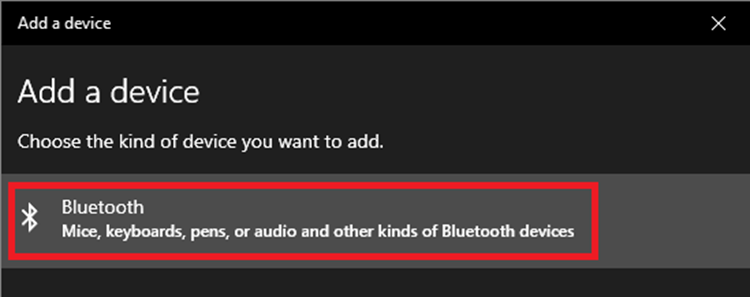
At the Add a device window, select Bluetooth.
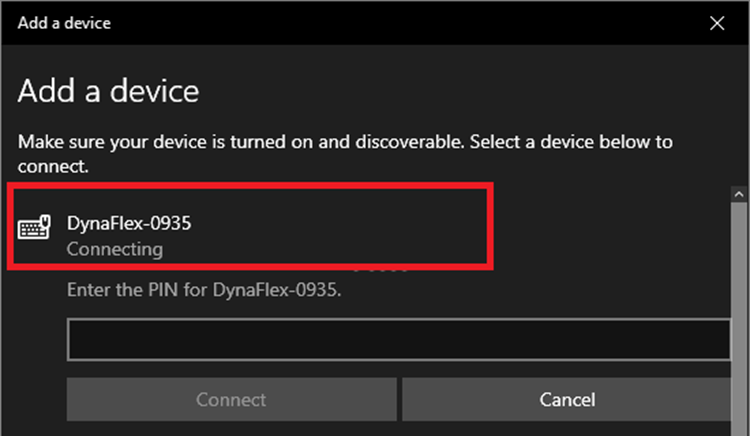
To pair, click on the device name that was been retrieved from DynaFlex Utility.
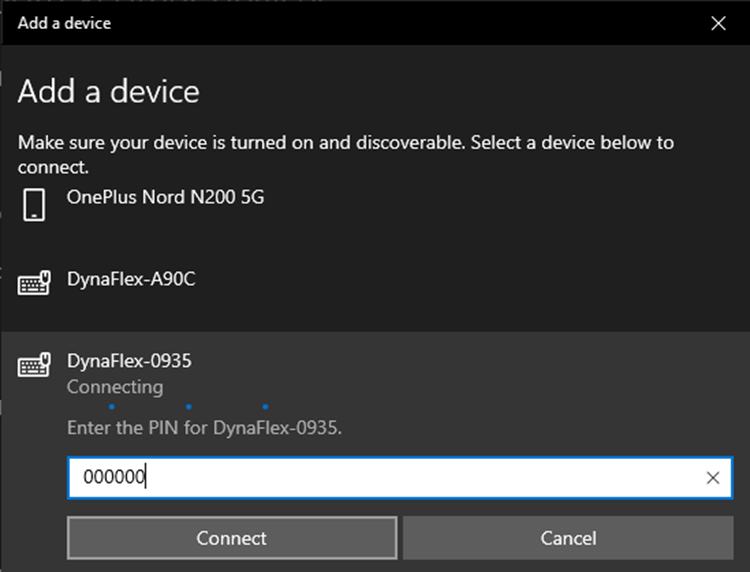
Enter the PIN, (“000000” by default), and press Connect .
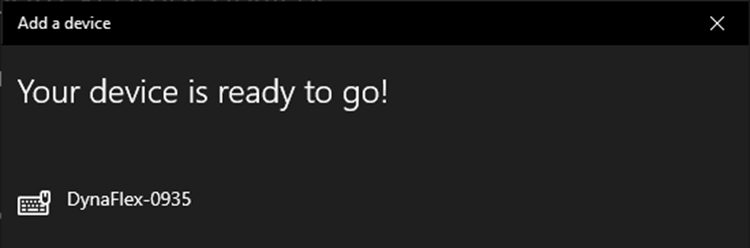
Go back to DynaFlex Utility, disconnect the current USB connection.
Click on Device list to find the added BLE device similar as below.
How to Connect Using the USB Connection
How to Connect Using the Bluetooth LE Connection
Microsoft .NET 4.6.1 and above installed on the host
Microsoft Access Database Engine 2016 Redistributable installed on the host
USB-C cable with USB Type-A or USB-C for host connection
Software 1000007406 DynaFlex, DynaProx Utility, provided by MagTek
To download DynaFlex, DynaProx Utility software, follow these steps.
Download the software with the name 1000007406.zip (DynaFlex, DynaProx Utility) from MagTek.
Extract the .zip file on the host’s hard drive.
Install the AccessDatabaseEngine.exe from the folder Access Database Engine in the extracted folder.
Download and install Microsoft .NET 4.6.1 or above from
Launch DynaFlexUtility.exe.
See the steps in the sections below to connect to a device.
For Apple VAS and Google Wallet VAS transactions, see instructions for configuration in the SDK document appendix:
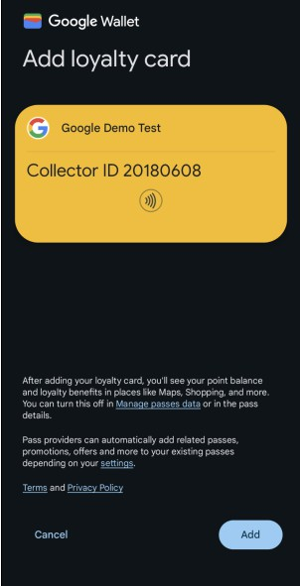
If not already signed in, sign in with a Google account from the Android device.
After accessing the Google Smart Tap Pass, press on Add.
Send The Command Set
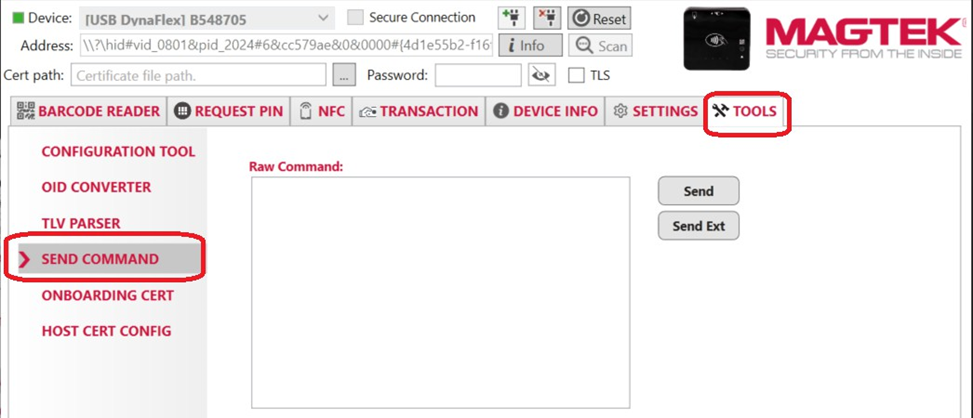
Select the Tools tab , and select the Send Command menu.
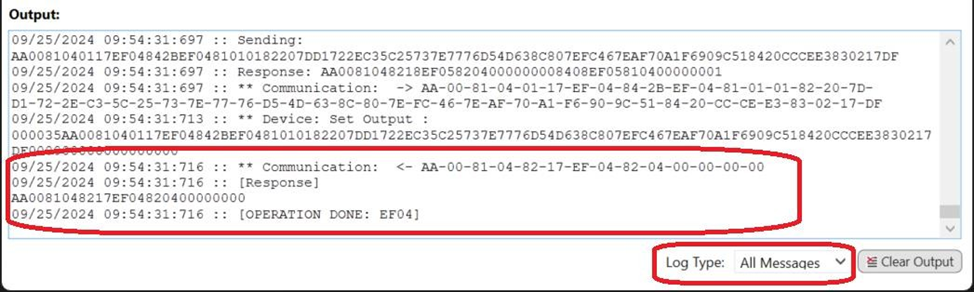
Below the Output box, change the Log Type to All Messages . Because the Output box auto scrolls after each command sent, the bottom displays the response referenced in these instructions.
Google Wallet VAS Transaction
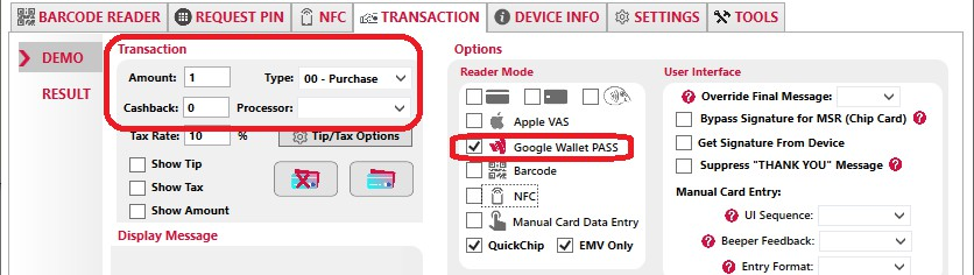
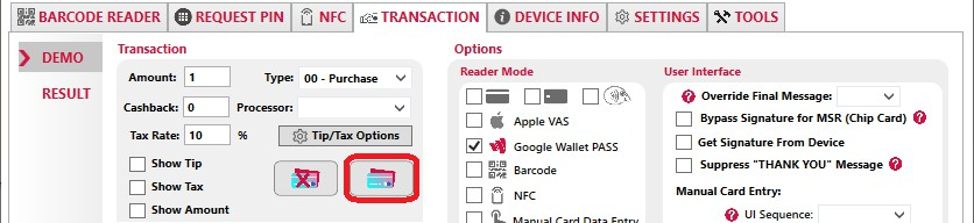
Select the Transaction tab, select the DEMO menu, seect the desired Transaction Type, and then select the Google Wallet PASS option.
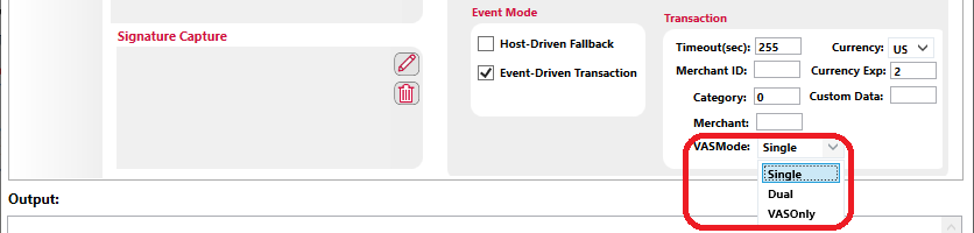
Single Mode: The device reads only VAS data from a tapped smartphone or reads EMV payment data from a tapped card. When the device sends ARQC to conclude the transaction, it only includes either EMV payment data in container FC for cards, or includes VAS data in FE container for smartphones.
Dual Mode: The device reads both VAS data and EMV payment data from a tapped smartphone or reads EMV payment data from a tapped card. When device sends ARQC to the host to conclude the transaction, it includes EMV payment data in container FC and includes VAS data, if available, in container FE.
VASOnly Mode: The device reads only VAS data from a tapped smartphone and does not read data from a tapped card. If the tapped smartphone does not support VAS, the device does not detect or read from the smartphone. When the device send ARQC to conclude the transaction, it includes VAS data in container FE and does not include EMV payment data in container FC.
Press the Start EMV Transaction button to start the transaction.
Present the payment device with Google Wallet near the reader to continue the contactless transaction.
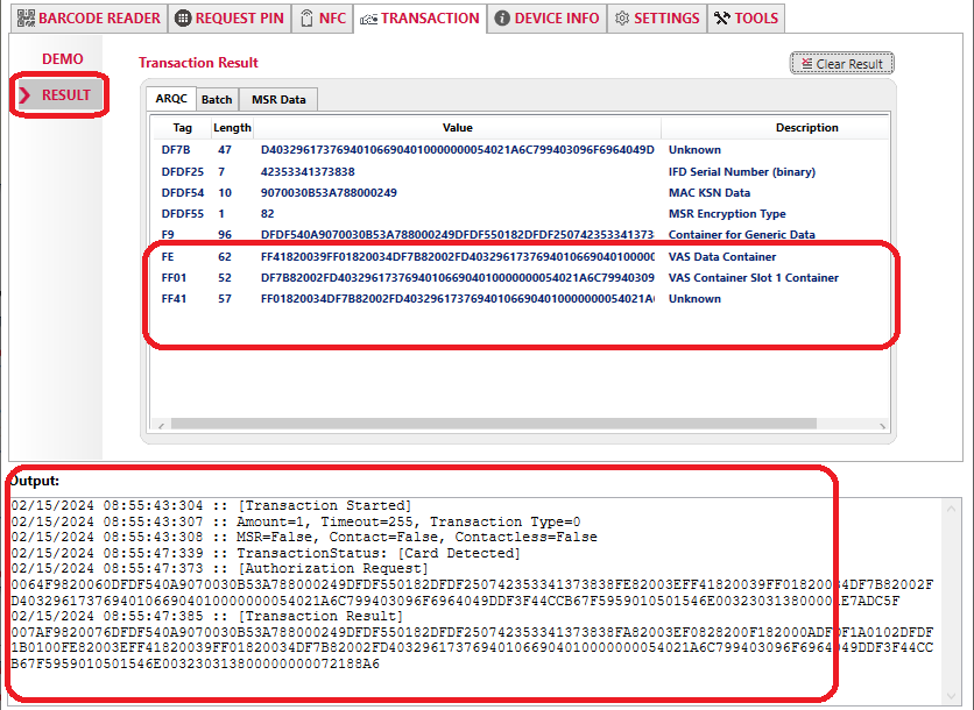
To view the transaction result after the transaction is completed, press RESULT menu. Parsed details can be seen in the ARQC tab, which shows details of the FE TLV object containing the Google Wallet VAS data. The status is displayed in the Outpit log
TLV Parsing/Forming of the Command Set
For more information on Google Wallet Smart Tap see document D998200597 DynaFlex II Go Programmer’s Manual (COMMANDS).
Property 1.1.1.1.1.10 Google Smart Tap Collector ID Slot 1
Property 1.1.1.1.1.11 Google Smart Tap Collector ID Slot 2
Property 1.1.1.1.1.12 Google Smart Tap Collector ID Slot 3
Property 1.1.1.1.1.13 Google Smart Tap Collector ID Slot 4
Property 1.1.1.1.1.14 Google Smart Tap Collector ID Slot 5
Property 1.1.1.1.1.15 Google Smart Tap Collector ID Slot 6
Property 1.1.1.1.1.1A Google Smart Tap POS Capability
The section uses the following sample values for demonstration purposes. Keys, Collector ID, and Capability will need to be replaced with actual values during integration.