All pages
Powered by GitBook
1 of 16

Loading...

Loading...

Loading...

Loading...

Loading...

Loading...

Loading...

Loading...

Loading...

Loading...

Loading...

Loading...

Loading...

Loading...

Loading...

Loading...

0x1803 - Display Message (Display Only)

The host uses this command to request that the device display a message for the cardholder.

The sequence of events is as follows:

1

The host ensures the device is not currently running another command, for example, that it is not running a transaction using Start Transaction - Command 0x1001.

2

The host selects the message it wants to display from the list of available pre-determined strings.

3

The host composes a command request in the format below, and sends it to the device.

4

The device displays the requested message.

  • If the Timeout parameter is set to Infinite, the device returns a command response message with Response Status, Operation Status Summary byte set to 0x00 (OK, Done) after which the host is free to send further commands.

  • If the Timeout parameter is not set to Infinite:

Tag
Len
Value / Description
Typ
Req
Default
Tag
Len
Value / Description
Typ
Req
Default

Example (Hex):

The device returns a command response message with its Response Status, Operation Status Summary byte set to 0x01 (OK, Started / Running).

  • While the host is waiting for the timeout to expire, it should not send any commands to the device, because the device is busy processing the current command.

  • After the timeout period expires, the device blanks the display and sends User Interface Operation Complete - Notification 0x1805 to inform the host.

  • 1803 = Display Message (Display Only) - Command 0x1803

    81

    01

    Timeout - 0x00 = Infinite. Device leaves the requested message on the display until the host initiates a change.

    B

    O

    0x00

    - All other values = Timeout in seconds for the device to display the message.

    82

    01

    Message ID. Specify a Display String ID from Display Strings.

    B

    O

    0x14

    End of any wrappers, at minimum including Request Message

    1803 = Display Message (Display Only) - Command 0x1803

    No parameters.

    End of any wrappers, at minimum including Response Message

    Beginning of any wrappers, at minimum including Request Message

    Beginning of any wrappers, at minimum including Response Message

    Request Data for Command 0x1803 - Display Message (Display Only)

    Response Data for Display Message (Display Only) - Command 0x1803

    Request Example

    Response Example

    AA00 810401551803 8408 1803 810102 820116
    Example (Hex)
    AA00 810482551803 820401000000 84021803

    0x1804 - Read Barcode (BCR Only)

    The host uses this command to direct the device to arm or disarm the barcode reader for reading a barcode outside the scope of a transaction. This is an immediate directive. To read barcodes within the scope of a transaction, use Start Transaction - Command 0x1001 and its barcode reader parameters instead.

    The sequence of events is as follows:

    1

    The host ensures the device is not currently running another command, for example, that it is not running a transaction using Start Transaction - Command 0x1001.

    2

    The host composes a command request in the format below and sends it to the device.

    3

    If the device has a display, it shows a prompt SCAN BARCODE.

    4

    The device enables the barcode reader.

    • The device returns a command response message with Response Status, Operation Status Summary byte set to 0x00 (OK, Done) after which the host is free to send further commands.

    • The host may end the barcode reading session by calling this command again with the Enable parameter set to Disable.

    Tag
    Len
    Value / Description
    Typ
    Req
    Default
    Tag
    Len
    Value / Description
    Typ
    Req
    Default

    The device returns a command response message with its Response Status, Operation Status Summary byte set to 0x01 (OK, Started / Running).

  • While the host is waiting for the timeout to expire, it should not send any commands to the device, because the device is busy processing the current command.

  • After the device reads a barcode or the timeout period expires, the device sends User Interface Operation Complete - Notification 0x1805 to report Barcode Reader / Read Barcode Result and additional supporting information.

  • 1804 = Command 0x1804 -

    81

    01

    Enable - 0x00 = Disable. The device disables the barcode reader. In this case, the device ignores all other parameters. - 0x01 = Enable. The device enables the barcode reader.

    B

    R

    0x00

    82

    01

    Timeout - 0x00 = Infinite. The device leaves the barcode reader enabled until it reads a barcode, or until the host sends this command again to disable the barcode reader. - All other values = Timeout in seconds for the device to leave the barcode reader enabled without reading a barcode.

    B

    O

    0x00

    83

    01

    Encrypt Barcode Data - 0x00 = Do Not Encrypt. The device does not encrypt the barcode data when it sends User Interface Operation Complete. - Notification 0x1805 - 0x01 = Encrypt. The device encrypts the barcode data when it sends User Interface Operation Complete. - Notification 0x1805

    B

    O

    0x00

    End of any wrappers, at minimum including Request Message

    1804 = Read Barcode (BCR Only) - Command 0x1804

    No parameters.

    End of any wrappers, at minimum including Response Message

    Beginning of any wrappers, at minimum including Request Message

    Beginning of any wrappers, at minimum including Response Message

    If the Timeout parameter is set to Infinite:

    If the Timeout parameter is set to a value other than Infinite:

    Request Data for Command 0x1804 - Read Barcode (BCR Only)

    Response Data for Command 0x1804 - Read Barcode (BCR Only)

    Request Example

    Response Example

    Example (Hex)
    AA00 810401031804 840B 1804 810101 82010F 830101
    Example (Hex)
    AA00 810482031804 820401000000

    0x1805 - Buzzer

    The host uses this command to start a buzzer for playing a sequence of tones. Each sequence can have a minimum of 1 to maximum of 10 tones.

    1

    The sequence of events is as follows:

    • The host ensures the device is not currently running another command, for example, that it is not running a transaction using Start Transaction - Command 0x1001.

    2
    • The host composes a command request in the format below and sends it to the device.

    3
    • The device plays a specific tone sequence as the command specified. After finish, the device sends User Interface Operation Complete - Notification 0x1805 to report Buzzer/Buzzer Result.

    The host should wait for User Interface Operation Complete - Notification 0x1805 - before sending another command.

    Tag
    Len
    Value / Description
    Typ
    Req
    Default

    Beginning of any wrappers, at minimum including Request Message

    Tag
    Len
    Value / Description
    Typ
    Req
    Default

    Beginning of any wrappers, at minimum including Response Message

    Example (Hex)
    AA00 810401031805 8418 1805 8114 00C8 01F4 0190 01F4 0258 01F4 0190 01F4 00C8 01F4
    Example (Hex)
    AA00 810482031805 820401000000

    If the buzzer is currently playing a sequence of tones and any transaction that uses the buzzer to make a sound is started, the device will stop the buzzer for that transaction to take over.

    Request Data for Buzzer - Command 0x1805

    Response Data for Command 0x1805 - Buzzer

    Request Example for a sequence of 5 tones

    Response Example

    1805 = Command 0x1805

    81

    N*4

    N = Number of tones

    • 0x01 – Min (1 tone)

    • 0x0A – Max (10 tones)

    4 = 4 bytes data parameter for each tone in the sequence Byte0-Byte1 – Frequency in units of 1 Hz

    • 0x0000..0x0031 (< 50 Hz, Silent)

    • 0x0032 - Min (50 Hz)

    • 0x0FA0 - Max (4000 Hz)

    • 0x0FA1..0xFFFF (> 4000 Hz, Error)

    Byte 2-Byte3 – Duration of tone in units of 1 millisecond

    B

    R

    • 0x0001 – Min (1 ms)

    • 0xFFFF – Max (65535 ms)

    End of any wrappers, at minimum including Request Message

    1805 = Buzzer - Command 0x1805

    No parameters.

    End of any wrappers, at minimum including Response Message

    0x1801 - Request Cardholder Signature (Touch Only)

    The host uses this command to prompt a cardholder for a signature.

    The sequence of events is as follows:

    1

    Transaction completed / Host may request signature

    The device completes a transaction after the host invokes Start Transaction - Command 0x1001. At the end of the transaction, the device has provided data to the host in Transaction Operation Complete - Notification 0x0105. The host may send Command 0x1801 to the device to get a signature file without doing a transaction. The signature file can be encrypted if enabled.

    2

    The host decides whether to request a signature from the cardholder. For example:

    • If the Notification Detail in Transaction Operation Complete - Notification 0x0105 indicates Signature Capture Requested.

    • If an application-specific rule requires requesting a signature.

    3

    If the host determines it should request a signature, it composes a command request in the format shown below.

    4

    The device presents a signature capture interface to the cardholder on the display.

    5

    The device sends User Interface Operation Complete - Notification 0x1805 to the host to report data available, timeout, or hardware failure.

    6

    If the device reported data available, the host uses Start Get File from Device - Command 0xD821 to request file type Signature Capture File to retrieve the data as a Signature Capture File Type.

    Tag
    Len
    Value / Description
    Typ
    Req
    Default
    Tag
    Len
    Value / Description
    Typ
    Req
    Default

    If the request started successfully, the Request Status in the message wrapper is OK, Started / Running, All good / requested operation was successful.

    1801 = Request Cardholder Signature (Touch Only) - Command 0x1801

    81

    01

    Timeout — Timeout in seconds that the device should wait for the cardholder to sign and confirm completion.

    B

    R

    82

    01

    Encryption on signature and user data. 0=disabled, 1=enabled.

    B

    O

    0

    A3

    var

    User data parameters for item #0 to item #3. The maximum total size of 0xA3 TLV is 4,000 bytes. This TLV may be present only if encryption is enabled.

    T

    O

    /81

    var

    User data item #0, optional

    B

    O

    /82

    var

    User data item #1, optional

    B

    O

    /83

    var

    User data item #2, optional

    B

    O

    /84

    var

    User data item #3, optional

    B

    O

    End of any wrappers, at minimum including Request Message

    1801 = Request Cardholder Signature (Touch Only) - Command 0x1801

    No parameters.

    End of any wrappers, at minimum including Response Message

    Beginning of any wrappers, at minimum including Request Message

    Beginning of any wrappers, at minimum including Response Message

    Host decides whether to request a signature

    Host composes command

    Device presents signature UI

    Device notifies host of completion or issues

    Host retrieves signature file (if data available)

    Request Data for Request Cardholder Signature (Touch Only) - Command 0x1801

    Response Data for Command 0x1801 - Request Cardholder Signature (Touch Only)

    Request Example

    Response Example

    Example (Hex)
    AA 00 81 04 01 00 18 01 84 05 18 01 81 01 1E
    Example (Hex)
    AA 00 81 04 82 00 18 01 82 04 01 00 00 00

    0x1821 - Show Image (Display Only)

    The host uses this command to trigger the device to immediately show a pre-loaded image on the display, provided the device is not in a mode that has exclusive use of the display (such as during a transaction). This is an immediate and temporary directive. For a solution that affects the device’s idle page behavior on a more permanent basis, see Property 1.2.3.1.1.1 Custom Idle Page Image. This command is different from Show Bitmap Image - Command 0x1823 in that the bitmaps are pre-loaded and persistently stored in the device and can not be composited with each other.

    The sequence of events is as follows:

    1

    Prepare the image slot

    The host makes sure it has loaded the image into at least one of the device’s Custom Idle Page Image slots using Start Send File to Device (Unsecured) - Command 0xD812.

    2

    The host makes sure the device is in Active/Idle state (meaning the display is fully powered on and is not in a mode that has exclusive use of the display, such as processing a transaction).

    3

    The host calls this command to show the image loaded into the desired slot number.

    4

    The device shows the specified image on the display until the device is no longer in Active/Idle.

    Tag
    Len
    Value / Description
    Typ
    Req
    Default
    Tag
    Len
    Value / Description
    Typ
    Req
    Default

    If the request started successfully, the Request Status in the message wrapper is All Good, Requested Operation Was Successful.

    1821 = Show Image (Display Only) - Command 0x1821

    81

    01

    Custom Idle Page Image Number

    • 0x01 = Show custom image 1

    • 0x02 = Show custom image 2

    • 0x03 = Show custom image 3

    B

    R

    82

    01

    Display Option

    • 0x00 = Default to cover/uncover the top status bar depends on the current status of the display. If the current display shows the top status bar, the Show Image command won’t cover the top status bar. If the current display doesn’t show the top status bar, the Show Image command will cover the top status bar.

    • 0x01 = Cover the top status bar regardless of the current status of the display.

    • 0x02 = Not cover the top status bar regardless of the current status of the display.

    B

    O

    0

    83

    01

    Display Time

    • 0x00 = Show image until device changes state

    B

    O

    0

    End of any wrappers, at minimum including Request Message

    1821 = Show Image (Display Only) - Command 0x1821

    No parameters.

    End of any wrappers, at minimum including Response Message

    Beginning of any wrappers, at minimum including Request Message

    Beginning of any wrappers, at minimum including Response Message

    Example (Hex)
    AA 00 81 04 01 2C 18 21 84 08 18 21 81 01 03 83 01 00
    Example (Hex)
    AA 00 81 04 82 2C 18 21 82 04 00 00 00 00

    Ensure device is in Active/Idle

    Call the Show Image command

    Display behavior

    Show Image (Display Only) - Request Data for Command 0x1821

    Show Image (Display Only) - Response Data for Command 0x1821

    Request Example

    Response Example

    0x04 = Show custom image 4

    0x1806 - Personal Info Entry

    The host uses this command to prompt a cardholder for customer information.

    1

    Ensure device is idle

    The host ensures the device is not currently running another command (for example, it is not running a transaction using Command 0x1001 - Start Transaction.

    2

    Compose command

    If the host determines it should request customer information, it composes a command request in the format described below.

    3

    The device presents a keypad interface to the cardholder on the display.

    4

    The device sends 7.5.3 Notification 0x1805 - User Interface Operation Complete to the host to report data available, or hardware failure.

    5

    If the device reported data available, the host can retrieve the data as defined in Table 350 – Notification Detail Codes and Table 352 – Notification Payload for Personal Info Entry.

    Tag
    Len
    Value / Description
    Typ
    Req
    Default
    Tag
    Len
    Value / Description
    Typ
    Req
    Default

    If the request started successfully, the Request Status in the message wrapper is: OK, Started / Running, All good / requested operation was successful.

    1806 = Command 0x1806 – Personal Info Entry

    81

    01

    Capture Type

    0x01 = Phone Number: Capture the phone number 0x02 = Social: Capture the social security number

    0x03 = Zip code: Capture the zip code 0x04 = Employee ID: Capture Employee ID number 0x05 = Birth Date: Capture birth date in USA format 0xFF = Cancel Capture: Cancel any of the capture commands

    B

    R

    82

    01

    Encryption for user data (Optional) 00 – No Encrypt

    01 - Encrypt

    B

    R

    Beginning of any wrappers, at minimum including Request Message

    1806 = Command 0x1806 – Personal Info Entry

    No parameters.

    Beginning of any wrappers, at minimum including Response Message

    Beginning of any wrappers, at minimum including Request Message

    Beginning of any wrappers, at minimum including Response Message

    Present keypad

    Device notifies host

    Host retrieves data

    Request Data for Command 0x1806 – Personal Info Entry

    Response Data for Personal Info Entry

    Request Example

    Response Example

    Example (Hex)
    AA00 810401031806 8405 1806 8101 01
    Example (Hex)
    AA00 810482031806 8204 01000000

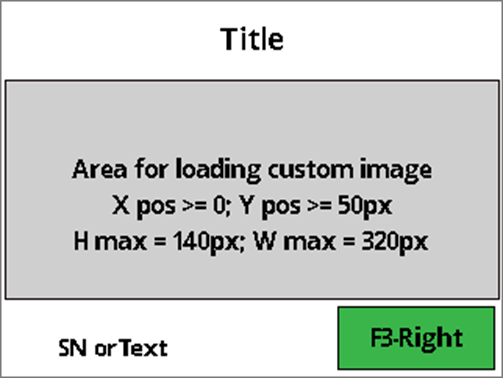
    UI Page Option 0x03 Layout

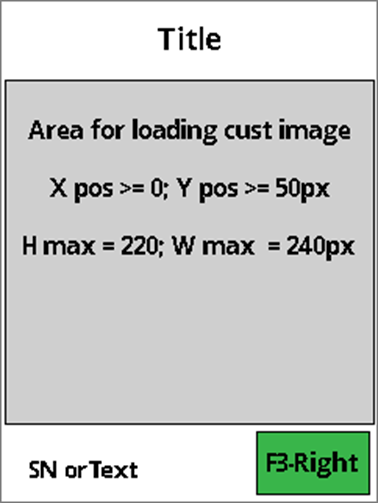
    The host uses this option to display a page with the following elements: a title, a section for uploading a custom image, an option at the bottom-left corner to display either the Device Serial Number or host-provided text, and a maximum of one functional green button positioned on the right.

    The title and functional button are labeled with String IDs associated with configured String messages. See Table – Default User Interface String IDs and Strings.

    When the user presses this button, the device sends a notification to the host to indicate the corresponding button is pressed. See User Interface Host Action Request - Notification 0x1803. After that, the host will decide what to do next.

    Recommend maximum number of characters and bitmap image setting for this page:

    1

    Landscape Screen Orientation

    • Title text can fit about:

      • 18 Upper case wide size characters like “WM”

      • 23 Upper case regular size characters like “ABC”

      • 21 lower case wide size characters like “wm”

    • Bottom left corner text can fit about:

      • 8 Upper case wide size characters like “WM”

      • 12 Upper case regular size characters like “ABC”

    • Functional button text can fit about:

      • 5 Upper case wide size characters like “WM”

      • 8 Upper case regular size characters like “ABC”

    • Bitmap image

      • Maximum width: 320px

      • Maximum height: 140px

      • Color depth: 24-bit (True Color, RGB), 16-bit (5:5:5:1, RGB Hi Color), 8-bit (256 Color), 4-bit (16 Color), or 1-bit (monochrome)

    2
    • Title text can fit about:

      • 13 Upper case wide size characters like “WM”

    Tag
    Len
    Value / Description
    Typ
    Req
    Default
    Tag
    Len
    Value / Description
    Typ
    Req
    Default
    Tag
    Len
    Value / Description
    Typ
    Req
    Default

    If the request started successfully, the Request Status in the message wrapper is All good / requested operation was successful.

    30 lower case regular size characters like “abc”

    9 lower case wide size characters like “wm”
  • 15 lower case regular size characters like “abc”

  • 6 lower case wide size characters like “wm”
  • 9 lower case regular size characters like “abc”

  • 17 Upper case regular size characters like “ABC”
  • 14 lower case wide size characters like “wm”

  • 20 lower case regular size characters like “abc”

  • Bottom left corner text can fit about:

    • 8 Upper case wide size characters like “WM”

    • 12 Upper case regular size characters like “ABC”

    • 9 lower case wide size characters like “wm”

    • 15 lower case regular size characters like “abc”

  • Functional button text can fit about:

    • 4 Upper case wide size characters like “WM”

    • 6 Upper case regular size characters like “ABC”

    • 5 lower case wide size characters like “wm”

    • 7 lower case regular size characters like “abc”

  • Bitmap image

    • Maximum width: 240px

    • Maximum height: 220px

    • Color depth: 24-bit (True Color, RGB), 16-bit (5:5:5:1, RGB Hi Color), 8-bit (256 Color), 4-bit (16 Color), or 1-bit (monochrome)

  • 1830 = Display Flexible UI Pages (Display Only) - Command 0x1830

    81

    01

    Display Time

    • 0x00 – Infinitive. Device leaves the requested page on the display until the host initiates a change.

    • 0x01 to 0xFF = RFU

    B

    R

    82

    01

    UI page option

    • 0x00 – Page with up to 5 lines of text and up to 1 functional button Middle. See Tag A1.

    • 0x01 – Page with a title, up to 6 buttons with text, and up to 3 functional buttons. See Tag 83, A2 and A4.

    • 0x02 – Page with a title, up to 6 buttons with $Amount, and up to 3 functional buttons. See Tag 83, A3 and A4.

    B

    R

    83

    02

    Text String ID for a tile of UI page option: 0x01, 0x02, 0x03 See Table 361 – Default User Interface String IDs and Strings If host wants to disable this title, do not include this tag.

    B

    O

    /81

    var

    Text string (<= 30 characters) for line 1, end with NULL char. If host wants to disable this line, do not include this tag.

    B

    O

    /82

    var

    Text string (<= 30 characters) for line 2, end with NULL char. If host wants to disable this line, do not include this tag.

    B

    O

    /83

    var

    Text string (<= 30 characters) for line 3, end with NULL char. If host wants to disable this line, do not include this tag.

    B

    O

    /84

    var

    Text string (<= 30 characters) for line 4, end with NULL char. If host wants to disable this line, do not include this tag.

    B

    O

    /85

    var

    Text string (<= 30 characters) for line 5, end with NULL char. If host wants to disable this line, do not include this tag.

    B

    O

    /86

    02

    Function button Middle option. String ID = Enable functional button Middle with a String ID associated with a configured String message. See Table XXX – Default User Interface String IDs and Strings When user presses this button, device sends notification to the host to indicate the functional button Middle is pressed. See User Interface Host Action Request - Notification 0x1803 If host wants to disable this button, do not include this tag

    B

    O

    A2

    var

    Button text String ID parameters for UI page option: 0x01 and 0x02. The parameter in this TLV data object allows the host to enable and disable the data base. When user presses any button, device sends notification to the host to indicate which button is pressed. See User Interface Host Action Request - Notification 0x1803

    B

    O

    /81

    02

    Text String ID for button 1. See Table XXX – Default User Interface String IDs and Strings. If host wants to disable this button, don’t include this tag.

    B

    O

    /82

    02

    Text String ID for button 2. See Table XXX – Default User Interface String IDs and Strings. If host wants to disable this button, don’t include this tag.

    B

    O

    /83

    02

    Text String ID for button 3. See Table XXX – Default User Interface String IDs and Strings. If host wants to disable this button, don’t include this tag.

    B

    O

    /84

    02

    Text String ID for button 4. See Table XXX – Default User Interface String IDs and Strings. If host wants to disable this button, don’t include this tag.

    B

    O

    /85

    02

    Text String ID for button 5. See Table XXX – Default User Interface String IDs and Strings. If host wants to disable this button, don’t include this tag.

    B

    O

    /86

    02

    Text String ID for button 6. See Table XXX – Default User Interface String IDs and Strings. If host wants to disable this button, don’t include this tag.

    B

    O

    A3

    var

    Button $Amount parameters for UI page option: 0x01, 0x02 The parameter in this TLV data object allows the host to enable and disable the data base for UI page option 0x01 and 0x02 When user presses any button, device sends notification to the host to indicate which amount button is pressed. See User Interface Host Action Request - Notification 0x1803

    B

    O

    /81

    04

    Value $Amount for button 1. If host wants to disable this button, don’t include this tag.

    B

    O

    /82

    04

    Value $Amount for button 2. If host wants to disable this button, don’t include this tag.

    B

    O

    /83

    04

    Value $Amount for button 3. If host wants to disable this button, don’t include this tag.

    B

    O

    /84

    04

    Value $Amount for button 4. If host wants to disable this button, don’t include this tag.

    B

    O

    /85

    04

    Value $Amount for button 5. If host wants to disable this button, don’t include this tag.

    B

    O

    /86

    04

    Value $Amount for button 6. If host wants to disable this button, don’t include this tag.

    B

    O

    A4

    var

    Functional buttons parameters for UI page option: 0x01 and 0x02. The parameter in this TLV data object allows the host to enable and disable the data base. When user presses any button, the device sends notification to the host to indicate which functional button is pressed. See User Interface Host Action Request - Notification 0x1803

    B

    O

    /81

    03

    Text String ID and color option for functional button Left. See Table XXX – Default User Interface String IDs and Strings. Byte 0-1: String ID Byte 2: color option 0x00 = red 0x01 = green 0x02 = yellow If host wants to disable this button, don’t include this tag.

    B

    O

    /82

    03

    Text String ID and color option for functional button Middle. See Table XXX – Default User Interface String IDs and Strings. Byte 0-1: String ID Byte 2: color option 0x00 = red 0x01 = green 0x02 = yellow If host wants to disable this button, don’t include this tag.

    B

    O

    /83

    03

    Text String ID and color option for functional button Right. See Table XXX – Default User Interface String IDs and Strings. Byte 0-1: String ID Byte 2: color option 0x00 = red 0x01 = green 0x02 = yellow If host wants to disable this button, don’t include this tag.

    B

    O

    A5

    var

    Parameters for UI page option 0x03 The parameter in this TLV data object allow the host to enable and disable the data base

    B

    O

    /81

    02

    Text String ID for green functional button Right. See Table XXX – Default User Interface String IDs and Strings. When user presses this button, device sends notification to the host to indicate the functional button Right is pressed. See User Interface Host Action Request - Notification 0x1803 If host wants to disable this button, don’t include this tag.

    B

    O

    /82

    02

    X Position. If host wants device to display the image in the center of the loading image area, don’t include this tag.

    B

    O

    /83

    02

    Y Position. If host want device to display the image in the center of the loading image area, don’t include this tag Note: Y pos >= 50px Y pos + Image Height <= 190px Landscape Screen Orientation Y pos + Image Height <= 270px Portrait Screen Orientation

    B

    O

    /84

    var

    Bitmap Image encoded in full BMP file format as defined by Microsoft (e.g, starting with “BM”) Image Width Max = 320px Landscape Screen Orientation Image Height Max = 140px Landscape Screen Orientation Image Width Max = 240px Portrait Screen Orientation Image Height Max = 220px Portrait Screen Orientation

    B

    O

    /85

    var

    Bottom left corner option Byte 0 = option

    • 0x00 = Disable

    • 0x01 = show Device Serial Number

    • 0x02 = show text

    B

    0

    A8

    Var

    Parameters for UI page option 0x06

    B

    O

    /81

    2

    Image X position (omit for default centered position)

    B

    O

    /82

    2

    Image Y position (omit for default centered position)

    B

    O

    /83

    1

    Image ID (for image stored on device). Value is 0-3 for the 4 available image ‘slots’. Must be signed image for touch notifications to be sent. Cannot be used in the same command as /84.

    B

    O

    /84

    var

    Image data. Image encoded in full BMP file format as defined by Microsoft (e.g, starting with “BM”) OR contents of .bin file for Magtek signed image file. Must be signed .bin data for touch notifications to be sent. Cannot be used in the same command as /83.

    B

    O

    End of any wrappers, at minimum Response Message

    1830 = Display Flexible UI Pages (Display Only) - Command 0x1830

    No parameters

    End of any wrappers, at minimum including Response Message

    Beginning of any wrappers, at minimum including Response Message

    A1

    var

    Text string parameters for UI page option: 0x00 The parameter in this TLV data object allow the host to enable and disable the data base for UI page option 0x00

    B

    Beginning of any wrappers, at minimum including Response Message

    Example (Hex)
    AA 00 81 04 01 2C 18 30 84 1A 18 30 81 01 00 82 01 00 83 02 00 05 A1 0C 83 0A 54 48 41 
    4E 4B 20 59 4F 55 00
    Example (Hex)
    AA008104822C1830820400000000

    Portrait Screen Orientation

    Request Data for Command 0x1830

    Request Data for Command 0x1830 - A1–A8 and sub-tags:

    Display Flexible UI Pages (Display Only) - Response Data for Command 0x1830

    Request Example

    Response Example

    O

    0x03 – Page with a title, a custom image, an optional bottom left corner with SN or Text, and up to 1 functional button Right. See Tag 83 and A5.

  • 0x06 – Flexible UI Gen. 2 page. Displays an image and sends touch notifications. See tag 83, A8.

  • 0x03..0x0F = invalid

    Byte 1 = length of the text, should be less than 16 characters. Byte 2..N = text string value.

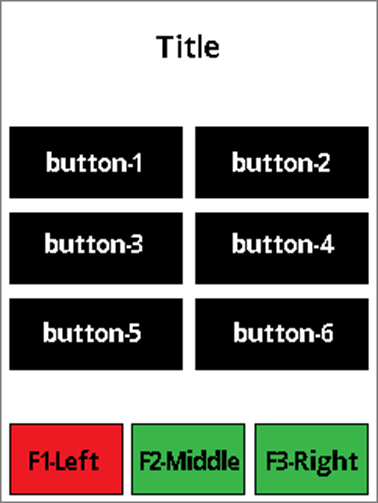
    UI Page Option 0x01 and 0x02 Layout

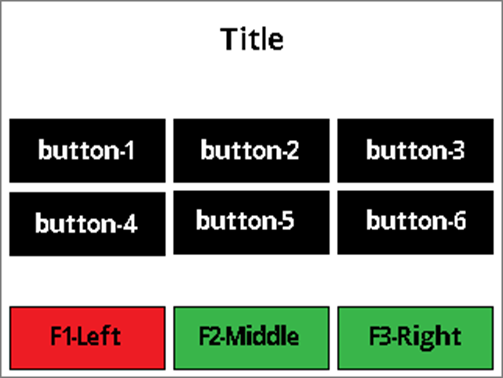
    The host uses UI Page Option 0x01 to display a page with a title, a maximum of 6 data buttons (2 rows and 3 columns in Landscape Screen Orientation, 3 rows and 2 columns in Portrait Screen Orientation) with text, and maximum 3 functional buttons with a color option of red, green, or yellow.

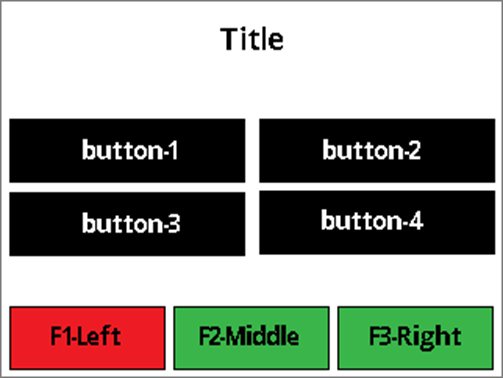
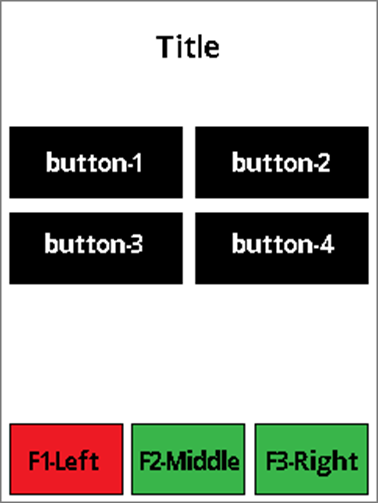
    The host uses UI Page Option 0x01 to display a page with a title, maximum of 4 data buttons (2 rows and 2 columns in Landscape Screen Orientation, 2 rows and 2 columns in Portrait Screen Orientation) with text, and maximum 3 functional buttons with a color option of red, green, or yellow.

    The host uses UI Page Option 0x02 to display a page with a title, maximum of 6 data buttons (2 rows and 3 columns in Landscape Screen Orientation, 3 rows and 2 columns in Portrait Screen Orientation) with $Amount, and maximum 3 functional buttons with a color option of red, green, or yellow.

    The host uses UI Page Option 0x02 to display a page with a title, maximum of 4 data buttons (2 rows and 2 columns in Landscape Screen Orientation, 2 rows and 2 columns in Portrait Screen Orientation) with $Amount, and maximum 3 functional buttons with a color option of red, green, or yellow.

    The button with **$**Amount value is host provided. The title, data buttons text, and functional buttons are labeled with String IDs associated with configured String messages. See Table – Default User Interface String IDs and Strings. When the user presses any button, the device sends a notification to the host to indicate the corresponding button is pressed. See User Interface Host Action Request - Notification 0x1803. After that, the host will decide what to do next.

    • Landscape Screen Orientation:

      • Title text:

        • ~18 Upper case wide size characters (example: “WM”)

    ~23 Upper case regular size characters (example: “ABC”)
  • ~21 lower case wide size characters (example: “wm”)

  • ~30 lower case regular size characters (example: “abc”)

  • 3-columns data button text:

    • ~5 Upper case wide size characters (example: “WM”)

    • ~8 Upper case regular size characters (example: “ABC”)

    • ~6 lower case wide size characters (example: “wm”)

    • ~9 lower case regular size characters (example: “abc”)

  • 2-columns data button text:

    • ~9 Upper case wide size characters (example: “WM”)

    • ~13 Upper case regular size characters (example: “ABC”)

    • ~9 lower case wide size characters (example: “wm”)

    • ~15 lower case regular size characters (example: “abc”)

  • Functional button text:

    • ~5 Upper case wide size characters (example: “WM”)

    • ~8 Upper case regular size characters (example: “ABC”)

    • ~6 lower case wide size characters (example: “wm”)

    • ~9 lower case regular size characters (example: “abc”)

  • Portrait Screen Orientation:

    • Title text:

      • ~13 Upper case wide size characters (example: “WM”)

      • ~17 Upper case regular size characters (example: “ABC”)

      • ~14 lower case wide size characters (example: “wm”)

      • ~20 lower case regular size characters (example: “abc”)

    • 2-columns data button text:

      • ~6 Upper case wide size characters (example: “WM”)

      • ~10 Upper case regular size characters (example: “ABC”)

    • Functional button text:

      • ~4 Upper case wide size characters (example: “WM”)

      • ~6 Upper case regular size characters (example: “ABC”)

  • Recommended maximum number of characters for this page

    The Layout for a page with a title, a maximum of 4 data buttons with text/$Amount, and a maximum of 3 functional buttons:

    ~7 lower case wide size characters (example: “wm”)
  • ~11 lower case regular size characters (example: “abc”)

  • ~5 lower case wide size characters (example: “wm”)
  • ~7 lower case regular size characters (example: “abc”)

  • 0x1830 - Display Flexible UI Pages (Display Only)

    This command allows the host to bring up standalone pages. A page is considered standalone if it’s stateless, meaning it will be:

    • Shown on the display.

    • Can allow user input.

    • Returns user input result to the host.

    • Operation ends.

    Tag
    Len
    Value / Description
    Typ
    Req
    Default
    Example (Hex)
    Example (Hex)

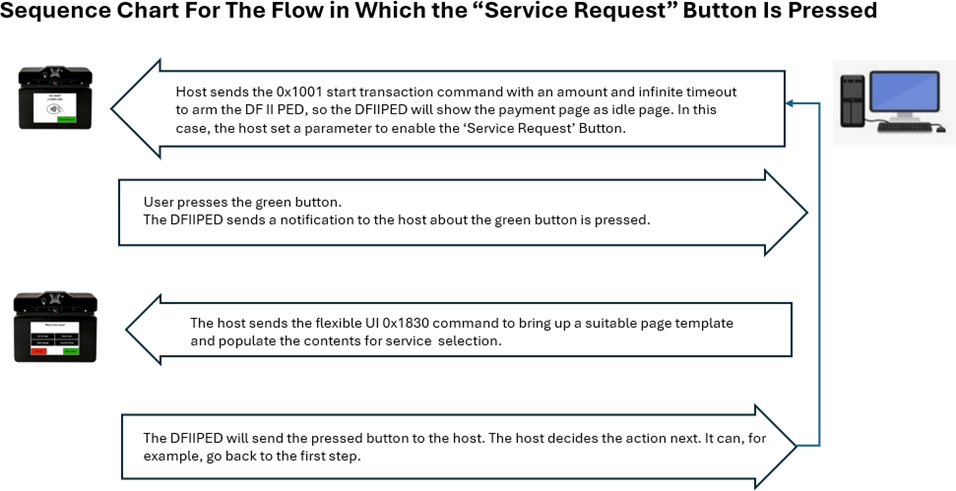
    The host sends the 0x1830 command with UI Page Option set to 0x06 (Flexible UI Gen. 2 page), which displays a bitmap. The device sends User Event Notifications for each tap on the touchscreen (requires signed image).

    The host uses this command to display Flexible UI pages in the following layout:

    0x1802 - Report Cardholder Selection

    The host uses this command to provide a cardholder selection to the device when the device itself does not have a display or inputs to prompt the cardholder for a selection.

    Sequence of events:

    1

    The host has already invoked Start Transaction - Command 0x1001 and the transaction is still in process.

    2

    81

    01

    Display Time

    • 0x00 – Infinite. Device leaves the requested page on the display until the host initiates a change.

    B

    R

    82

    01

    UI page option

    • 0x00 – Enter Sale Amount page. Device responds with User Interface Host Action Request with ‘Touchscreen, $Amount button selected’ content - Notification 0x1803.

    B

    R

    1830 = Display Flexible UI Pages (Display Only) - Command 0x1830

    AA 00 81 04 01 2C 18 31 84 08 18 31 81 01 00 82 01 00

    AA 00 81 04 82 2C 18 31 82 04 00 00 00 00

    Request Data for Command 0x1831

    Request Example – (Display Enter Sale Amount Page)

    Response Example

    Sequence for Flexible UI Gen. 2 mode

    A diagram of a device Description automatically generated
    A screenshot of a diagram Description automatically generated

    During the transaction, if the device does not have a display or touchscreen but needs to show information to the cardholder or needs the cardholder to make a selection, it sends the host User Interface Host Action Request - Notification 0x1803 to report Display / Cardholder Selection and supporting information.
    3

    Host prompts cardholder

    The host uses its user interface to request a selection from the cardholder based on the information and selectable items provided by the notification message.

    4

    Host reports the selection to the device

    The host sends the user selection to the device by sending Command 0x1802 in the format described below.

    Beginning of any wrappers, at minimum including Request Message.

    Tag
    Len
    Value / Description
    Typ
    Req
    Default

    1802

    Report Cardholder Selection = Command 0x1802

    If the request started successfully, the Request Status in the message wrapper is OK, Started / Running, All good / requested operation was successful.

    Response Data for Report Cardholder Selection - Command 0x1802

    Beginning of any wrappers, at minimum including Response Message.

    Tag
    Len
    Value / Description
    Typ
    Req
    Default

    1802

    Report Cardholder Selection - Command 0x1802

    Transaction already started

    Device requests host UI action

    Request (hex)
    AA 00 81 04 01 00 18 02 84 08 18 02 81 01 00 82 01 00
    Response (hex)
    AA 00 81 04 82 00 18 02 82 04 01 00 00 00

    Request Data for Report Cardholder Selection - Command 0x1802

    Request Example (Hex)

    Response Example (Hex)

    81

    01

    Cardholder Selection Request Status - 0x00 = Cardholder Selection Request completed, see Selection Result parameter. - 0x01 = Cardholder Selection Request canceled by cardholder, Transaction Aborted. - 0x02 = Cardholder Selection Request timed out, Transaction Aborted.

    B

    R

    82

    01

    Selection Result — Menu item index the cardholder selected. If the cardholder made no selection or the operation terminated abnormally, the device does not include this parameter.

    B

    O

    End of any wrappers, at minimum including Request Message.

    No parameters.

    End of any wrappers, at minimum including Response Message.

    0x1840 - Card Emulation

    Card emulation is initiated by receiving a 0x1840 command from the host. The device will prepare card emulation with the parameters provided in the command and start card emulation.

    The sequence of events is as follows:

    1

    Host ensures device is idle

    The host ensures the device is not currently running another command, for example, that it is not running a transaction or PIN entry.

    2

    Host composes and sends command

    The host composes a command request in the format described below and sends it to the device.

    3

    The device receives the command and verifies that the parameters are valid and the device is in a state that allows the execution of card emulation.

    4

    If the device has a display, a prompt will be displayed asking the customer to tap their phone to the device.

    5
    • If the timeout parameter is not included or set to 0x00, then there is no timeout.

    • If the timeout parameter is set to a specific number of seconds, the device returns a command response message with its Operation Status Summary byte set to 0x01 (OK, Started / Running).

    6

    The host may issue a 0x1840 command with Tag 0x81 set to 0x00 to cancel the execution of card emulation.

    7

    After the timeout expires, host cancel or the card is read, the device sends a 0x1805 notification to inform the host.

    Tag
    Len
    Value / Description
    Req
    Default

    /82

    01

    Timeout in seconds

    • 0x00 = No timeout

    • 0x01 to 0xFF = 1 to 255 seconds

    O

    0x00

    /83

    <= 254

    URL

    URL to use as card data. Required when starting card emulation. Optional and ignored if canceling emulation. Example: https://www.magtek.com/

    O/R

    /81

    01

    Start/Cancel

    • 0x00 = Cancel (See the example of 0x1840 cancel command below)

    • 0x01 = Start

    R

    Device validates and prepares

    Device prompts customer (if display available)

    Timeout behavior and response

    Host can cancel emulation

    Completion notification

    Card Emulation - Request Data for Command 0x1840

    Request Example

    Response Example

    Example of 0x1840 Card Emulation Command

    Example (Hex)
    AA 00 81 04 01 01 18 40 84 21 18 40 81 01 01 82 01 00 83 17 68 74 74 70 73 3A 2F 2F 77 77 77
    2E 6D 61 67 74 65 6B 2E 63 6F 6D 2F
    
    Example (Hex)
    AA 00 81 04 82 01 18 40 82 04 01 00 00 00
    Example (Hex)
    AA 00 81 04 01 01 18 40 84 05 18 40 81 01 00
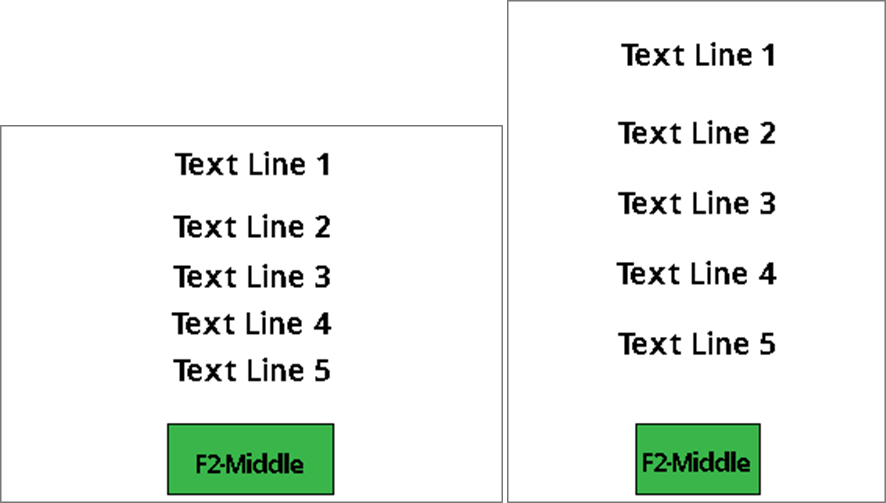
    UI Page Option 0x00 Layout

    The host uses this option to display a maximum of 5 lines of host-provided text, and 1 optional green functional button, Middle – label with a String ID that associates it with a configured String message. See Table – Default User Interface String IDs and Strings.

    When the user presses this button, the device sends a notification to the host to indicate this button is pressed. See User Interface Host Action Request - Notification 0x1803. After that, the host will decide what to do next.

    Recommend maximum number of characters setting for this page:

    Landscape Screen Orientation

    • Each text line can fit about:

      • 18 Upper case wide size characters (example: “WM”)

      • 23 Upper case regular size characters (example: “ABC”)

      • 21 lower case wide size characters (example: “wm”)

      • 30 lower case regular size characters (example: “abc”)

    • Button text can fit about:

      • 5 Upper case wide size characters (example: “WM”)

      • 8 Upper case regular size characters (example: “ABC”)

    • Each text line can fit about:

      • 13 Upper case wide size characters (example: “WM”)

      • 17 Upper case regular size characters (example: “ABC”)

    6 lower case wide size characters (example: “wm”)
  • 9 lower case regular size characters (example: “abc”)

  • 14 lower case wide size characters (example: “wm”)
  • 20 lower case regular size characters (example: abc)

  • Button text can fit about:

    • 4 Upper case wide size characters (example: “WM”)

    • 6 Upper case regular size characters (example: “ABC”)

    • 5 lower case wide size characters (example: “wm”)

    • 7 lower case regular size characters (example: “abc”)

  • Portrait Screen Orientation

    0x1823 - Show Bitmap Image (Display Only)

    The host uses this command to trigger the device to immediately show a bitmap file the host includes as a parameter, provided the device is not in a mode that has exclusive use of the display (such as during a transaction).

    This is an immediate and temporary directive. For a solution that affects the device’s idle page behavior on a more permanent basis, see Custom Idle Page Image - Property 1.2.3.1.1.1.

    This command is different from Personal Info Entry - Command 0x1806.

    The host uses Command 0x1806 to prompt a cardholder for customer information.

    The sequence of events for Command 0x1806 is:

    1

    The host ensures the device is not currently running another command, for example, that it is not running a transaction using Start Transaction - Command 0x1001.

    2

    If the host determines it should request customer information, it composes a command request in the format below.

    3

    The device presents a keypad interface to the cardholder on the display.

    4

    The device sends User Interface Operation Complete - Notification 0x1805 to the host to report data available, or hardware failure.

    5

    If the device reported data available, the host can retrieve the data as defined in the Notification Detail Codes and Notification Payload for Personal Info Entry.

    Tag
    Len
    Value / Description
    Typ
    Req
    Default

    Response Data for Personal Info Entry

    Tag
    Len
    Value / Description
    Typ
    Req
    Default

    If the request started successfully, the Request Status in the message wrapper is OK, Started / Running (All good / requested operation was successful).

    Show Bitmap Image (Display Only) - Command 0x1823 differs from Show Image (Display Only) - Command 0x1821 in that the host sends bitmaps as parameters instead of pre-loading them, and the host can call this command multiple times without clearing the display to show multiple bitmaps on the display at the same time.

    The sequence of events for Command 0x1823 is:

    1

    The host ensures the device is not currently running another command, for example, that it is not running a transaction using Start Transaction - Command 0x1001.

    2

    The host selects a bitmap file it wants to display.

    3

    The host composes a command request in the format below and sends it to the device.

    Tag
    Len
    Value / Description
    Typ
    Req
    Default
    Tag
    Len
    Value / Description
    Typ
    Req
    Default

    If the request started successfully, the Request Status in the message wrapper is All Good, Requested Operation Was Successful.

    1806 = Personal Info Entry - Command 0x1806

    81

    01

    Capture Type: 0x01 = Phone Number; 0x02 = Social; 0x03 = Zip code; 0x04 = Employee ID; 0x05 = Birth Date (USA format); 0xFF = Cancel Capture

    B

    R

    Beginning of any wrappers, at minimum including Request Message

    1806 = Personal Info Entry - Command 0x1806

    No parameters.

    Beginning of any wrappers, at minimum including Response Message

    4

    Step: Optional background clear

    If the host includes the Background Color parameter, the device clears the display using the specified color. If the host does not include that parameter, the device does not clear the display.

    5

    Step: Display placement and timing

    • The device shows the bitmap with the upper left corner at the specified X Position and Y Position. If the host omits either parameter, the device centers the bitmap along the unspecified axis.

    • If the Display Time parameter is Indefinite or is not included, the device returns a command response message with Response Status, Operation Status Summary byte set to 0x00 (OK, Done) after which the host is free to send further commands.

    • If the timeout parameter is set to a specific number of seconds:

      • The device returns a command response message with its Response Status, Operation Status Summary byte set to 0x01 (OK, Started / Running).

      • While the host is waiting for the timeout to expire, it should not send any commands to the device, because the device is busy processing the current command.

      • After the timeout period expires, the device unlocks to allow other commands and sends Notification 0x1805 - User Interface Operation Complete to inform the host.

    1823 = Show Bitmap Image (Display Only) - Command 0x1823

    81

    01

    Display Time: 0x00 = Indefinite; 0x01 to 0xFF = 1 to 255 seconds

    B

    O

    0x00

    82

    03

    Background Color. Use RRGGBB format.

    B

    O

    N/A

    83

    02

    X Position.

    The device places the left edge of the image at this pixel position relative to the left edge of the display, which is position 0x0000. This parameter plus the pixel width of the image must be less than the pixel width of the display. The display’s pixel width depends on the device’s orientation set by Custom Idle Page Image Device Locked (Display Only) - Property 1.2.3.1.1.2. For information about the resolution of the display, see the specifications in the device’s Installation and Operation Manual.

    B

    O

    Centered

    84

    02

    Y Position.

    The device places the top edge of the image at this pixel position relative to the top edge of the display, which is position 0x0000. This parameter plus the pixel height of the image must be less than the pixel height of the display. The display’s pixel height depends on the device’s orientation set by Custom Idle Page Image Device Locked (Display Only) - Property 1.2.3.1.1.2. For information about the resolution of the display, see the specifications in the device’s Installation and Operation Manual.

    B

    O

    Centered

    85

    var

    Bitmap

    Image encoded in full BMP file format as defined by Microsoft (e.g., starting with “BM”) or Magtek signed image file format

    B

    R

    86

    01

    Display Option:

    • 0x00 = Default (cover/uncover the top status bar depends on the current status of the display). If the current display shows the top status bar, the Show Bitmap Image command won’t cover the top status bar. If the current display doesn’t show the top status bar, the Show Bitmap Image command will cover the top status bar.

    • 0x01 = Cover the top status bar regardless of the current status of the display.

    • 0x02 = Not cover the top status bar regardless of the current status of the display.

    B

    O

    0

    End of any wrappers, at minimum including Request Message

    1823 = Show Bitmap Image (Display Only) - Command 0x1823

    No parameters.

    End of any wrappers, at minimum including Response Message

    Beginning of any wrappers, at minimum including Request Message (see message wrapper definition)

    Beginning of any wrappers, at minimum including Response Message (see message wrapper definition)

    Beginning of any wrappers, at minimum including Request Message

    Beginning of any wrappers, at minimum including Response Message

    Request Data for Command 0x1806 – Personal Info Entry

    Request Example

    Response Example

    Step: Ensure device availability

    Step: Select bitmap

    Step: Compose and send command

    Show Bitmap Image (Display Only) - Request Data for Command 0x1823 -

    Show Bitmap Image (Display Only) - Response Data for Command 0x1823

    Request Example (Hex)

    Response Example

    Notification Example (Hex)

    Example (Hex)
    AA00 810401031806 8405 1806 8101 01
    Example (Hex)
    AA00 810482031806 8204 01000000
    Example (Hex)
    AA 00 81 04 01 05 18 22 84 41 18 22 81 01 3C 82 0F 54 68 69 73 20 69 73 20 61 20 74 
    65 73 74 21 83 01 00 84 01 FF 85 01 01 86 01 28 87 03 00 00 00 88 03 FF FF FF 89 13 
    50 6c 65 61 73 65 20 73 63 61 6e 20 51 52 20 63 6f 64 65
    Example (Hex)
    AA 00 81 04 82 2C 18 22 82 04 00 00 00 00
    Example (Hex)
    AA 00 81 04 83 00 18 05 82 04 02 01 00 00

    0x18nn - User Interface

    User Interface

    The host uses these commands to interact with various areas of the device's user interface.

    Applies to: All Dyna Family products

    Information in this group

    Section

    Information

    The host uses this command to prompt a cardholder for a signature.

    The host uses this command to provide a cardholder selection to the device when the device itself does not have a display or inputs to prompt the cardholder for a selection.

    0x1803 - Display Message (Display Only)

    The host uses this command to request that the device display a message for the cardholder.

    0x1804 - Read Barcode (BCR Only)

    The host uses this command to direct the device to arm or disarm the barcode reader for reading a barcode outside the scope of a transaction.

    0x1805 - uzzer

    The host uses this command to start a buzzer for playing a sequence of tones.

    0x1806 - Personal Info Entry

    The host uses this command to prompt a cardholder for customer information.

    0x1807 - LED Control

    The host uses this command to control the 4 LEDs of the device when the device is not in non-User Control LED states.

    0x1821 - Show Image (Display Only)

    The host uses this command to trigger the device to immediately show a pre-loaded image on the display, provided the device is not in a mode that has exclusive use of the display (such as during a transaction).

    0x1822 - Show QR Code (Display Only)

    The host uses this command to direct the device to immediately show a QR code on the display, provided the device is not in a mode that has exclusive use of the display (such as during a transaction).

    0x1823 - how Bitmap Image (Display Only)

    The host uses this command to trigger the device to immediately show a bitmap file the host includes as a parameter, provided the device is not in a mode that has exclusive use of the display (such as during a transaction).

    0x1830 - Display Flexible UI Pages (Display Only)

    This command allows the host to bring up standalone pages.

    0x1840 - Card Emulation

    Card emulation is initiated by receiving a 0x1840 command from the host.

    Need More Help

    Need Help?

    For additional support, please contact MagTek Support:

    Technical Support:

    • 📧 Email: support@magtek.com

    • 📞 Phone: 1-562-546-6800 (US)

    • 🕐 Hours: Monday-Friday, 5:30 AM - 5:00 PM PST

    Online Resources:

    • 🌐 Support Portal: developer.magtek.com

    Documentation Feedback:

    Help us improve this documentation!

    0x1801 - Request Cardholder Signature (Touch Only)
    0x1802 - Report Cardholder Selection
    feedback@magtek.com

    0x1822 - Show QR Code (Display Only)

    The host uses this command to direct the device to immediately show a QR code on the display, provided the device is not in a mode that has exclusive use of the display (such as during a transaction).

    1

    Prepare and send the request

    • Ensure the device is not currently running another command (for example, not running a transaction such as Start Transaction - Command 0x1001.

    • Select the data for the QR code to display.

    • Compose a command request in the format described below and send it to the device.

    2
    • The device generates and displays the QR code.

    • If the Display Time parameter is set to Indefinite:

    Tag
    Len
    Value / Description
    Typ
    Req
    Default
    Tag
    Len
    Value / Description
    Typ
    Req
    Default

    If the request started successfully, the Request Status in the message wrapper is All Good, Requested Operation Was Successful.

    The device returns a command response message with Response Status, Operation Status Summary byte set to 0x00 (OK, Done). After this response the host is free to send further commands.
  • If the Display Time parameter is set to a number of seconds:

    • The device returns a command response message with its Response Status, Operation Status Summary byte set to 0x01 (OK, Started / Running).

    • While the host is waiting for the timeout to expire, it should not send any commands to the device because the device is busy processing the current command.

    • After the timeout period expires, the device unlocks to allow other commands and sends User Interface Operation Complete - Notification 0x1805 to report Display / Display Message / Timed Out / Reserved.

  • 1822 = Show QR Code (Display Only) - Command 0x1822

    81

    01

    Display Time - 0x00 = Indefinite - 0x01 to 0xFF = 1 to 255 seconds

    B

    O

    0x00

    82

    var

    Data to Encode — See ISO/IEC 18004:2015

    B

    R

    83

    01

    Error Correction - 0x00 = Low - 0x01 = Medium - 0x02 = Quartile - 0x03 = High See ISO/IEC 18004:2015

    B

    O

    0x00

    84

    01

    Mask Pattern - 0x00 to 0x07 = Mask Pattern - 0xFF = Device Select Optimal Mask Pattern — See ISO/IEC 18004:2015

    B

    O

    0xFF

    85

    01

    Minimum Version — Must be less than or equal to Maximum Version - 0x01 to 0x28 = Version 1 to Version 40 — See ISO/IEC 18004:2015

    B

    O

    0x01

    86

    01

    Maximum Version — Must be greater than or equal to Minimum Version - 0x01 to 0x28 = Version 1 to Version 40

    See ISO/IEC 18004:2015

    B

    O

    0x28

    87

    03

    Block Color — Use RRGGBB format.

    B

    O

    0x000000 (Black)

    88

    03

    Background Color — Use RRGGBB format.

    B

    O

    0xFFFFFF (White)

    89

    var

    Prompt

    Text for the device to display below the QR code. Because the device shows the Prompt using a proportional font, the maximum length that fits the display depends on the text and the device’s orientation set by Property 1.2.3.1.1.2 Custom Idle Page Image Device Locked (Display Only). In Landscape orientation, the upper limit is approximately 30 characters. In Portrait orientation, the limit is approximately 22 characters.

    B

    )

    No prompt

    End of any wrappers, at minimum including Request Message

    1822 = Show QR Code (Display Only) - Command 0x1822

    No parameters

    End of any wrappers, at minimum including Request Message

    Beginning of any wrappers, at minimum including Request Message.

    Beginning of any wrappers, at minimum including Request Message.

    Device generates and displays the QR code

    Show QR Code (Display Only) - Request Data for Command 0x1822

    Show QR Code (Display Only) - Response Data for Command 0x1822

    Response Example

    Notification Example

    Example (Hex)
    AA 00 81 04 01 05 18 22 84 41 18 22 81 01 3C 82 0F 54 68 69 73 20 69 73 20 61 20 74 65
    73 74 21 83 01 00 84 01 FF 85 01 01 86 01 28 87 03 00 00 00 88 03 FF FF FF 89 13 50 6c 
    65 61 73 65 20 73 63 61 6e 20 51 52 20 63 6f 64 65
    Example (Hex)
    AA 00 81 04 82 2C 18 22 82 04 00 00 00 00
    Example (Hex)
    AA 00 81 04 83 00 18 05 82 04 02 01 00 00

    0x1807 - LED Control

    The host uses this command to control the 4 LEDs of the device when the device is not in non-User Control LED states. If the host sets an LED timer, the device reports completion via Notification User Interface Operation Complete - 0x1805 after the LED operation finishes.

    Non-User Control LED state is when the device is in tamper, or currently running transaction with these commands:

    • Start Transaction - Command 0x1001

    • Card Emulation - Command 0x1840

    • Request PIN with Host Supplied Account Data - Command 0x2001

    • Request PIN with Card Supplied Account Data - Command 0x2002

    When the device is in non-User Control LED states, it will return error if the host sends this command.

    When the device is in the User Control LED state, and if there is any transaction that uses LEDs for the transaction status, the device will stop the User Control LEDs for that transaction to take over, and resume to the current system’s LED status after finishing that transaction.

    The host is responsible for stopping the User Control LEDs so the device can get back to the system’s LEDs status if the device is in the User Control LEDs.

    1807 = LED Control - ‎Command 0x1807 –

    81 bbbbbbbbbbbbbbbbbbbbbbbbbbbbbbbbbbbbbbbbbbbbbbbbbbbbbbbbbbbbbbbbbbbbbbbbbbbbbbbbbbbbbbbbbbbbbbbbbbbbbbbbbbbbbbbbbbbbbbbbbbbbbbbbbbbbbbbb

    02

    Byte 1 - User Control LED

    • 0x00 – Stop User Control LED. This will stop User control LED and resume the current system’s LED status.

    • 0x01 – Start User Control LED.

    Byte 2 – Duration in unit of second

    B

    R

    82

    02

    Byte 1 - LED number

    • Bit 1 = LED 1

    • Bit 2 = LED 2

    • Bit 3 = LED 3

    B

    R

    End of any wrappers, at minimum including Request Message

    No parameters.

    End of any wrappers, at minimum including Response Message

    Tag

    Len

    Value / Description

    Typ

    Req

    Default

    Beginning of any wrappers, at minimum including Request Message

    Tag

    Len

    Value / Description

    Typ

    Req

    Default

    Beginning of any wrappers, at minimum including Response Message

    AA 00 81 04 82 8D 18 07 82 04 01 00 00 00
    AA 00 81 04 82 8D 18 07 82 04 01 00 00 00

    Note:

    • DynaFlex II PED and DynaFlexII LEDs color can be GREEN, RED, AMBER, or BLUE.

    • DynaProx, DynaFlex II GO LEDs color is GREEN only. Setting other colors is the same as GREEN.

    LED Control - Request Data for Command 0x1807 –

    LED Control - Response Data for Command 0x1807

    Request Example

    Response Example

    0x00 – Continuous
  • 0x01 to 0xFF = 1 to 255 seconds

  • Bit 4 = LED 4

    Where the LEDs are numbered 1, 2, 3, 4 counting from the left.

    Example: 0x01 = LED 1, 0x03 = LED 1 and LED 2.

    Byte 2 - LED Status

    • 0x00 = OFF

    • 0x01 = GREEN ON

    • 0x02 = GREEN BLINK FAST (1/4 second on, 1/4 second off)

    • 0x03 = GREEN BLINK SLOW (1/2 second on, 1/2 second off)

    • 0x04 = GREEN FLASH (1/4 second on, 3/4 second off)

    • 0x05 = GREEN FLASH QUICK (1/8 second on, 7/8 second off)

    • 0x11 = RED ON

    • 0x12 = RED BLINK FAST (1/4 second on, 1/4 second off)

    • 0x13 = RED BLINK SLOW (1/2 second on, 1/2 second off)

    • 0x14 = RED FLASH (1/4 second on, 3/4 second off)

    • 0x15 = RED FLASH QUICK (1/8 second on, 7/8 second off)

    • 0x21 = AMBER ON

    • 0x22 = AMBER BLINK FAST (1/4 second on, 1/4 second off)

    • 0x23 = AMBER BLINK SLOW (1/2 second on, 1/4 second off)

    • 0x24 = AMBER FLASH (1/4 second on, 3/4 second off)

    • 0x25 = AMBER FLASH QUICK (1/8 second on, 7/8 second off)

    • 0x31 = BLUE ON

    • 0x32 = BLUE BLINK FAST (1/4 second on, 1/4 second off)

    • 0x33 = BLUE BLINK SLOW (1/2 second on, 1/4 second off)

    • 0x34 = BLUE FLASH (1/4 second on, 3/4 second off)

    • 0x35 = BLUE FLASH QUICK (1/8 second on, 7/8 second off)